On Creating Flight Plans in Flight Simulation
Reader Sam Sun asked a question about flight planning in the guestbook, so I will provide a brief summary below.
First, I must declare that I fly under VFR 99% of the time in X-Plane and never make a plan. Since I am not flying IFR, I do not file a plan with the system; I just go wherever I please.
Sometimes, to test a new version or to practice ATC for a bit of realism, I will occasionally file a plan, but I generally find it troublesome and lacking in fun.
Let’s get down to business.
Regarding flight plan formats, they can be said to be quite diverse.
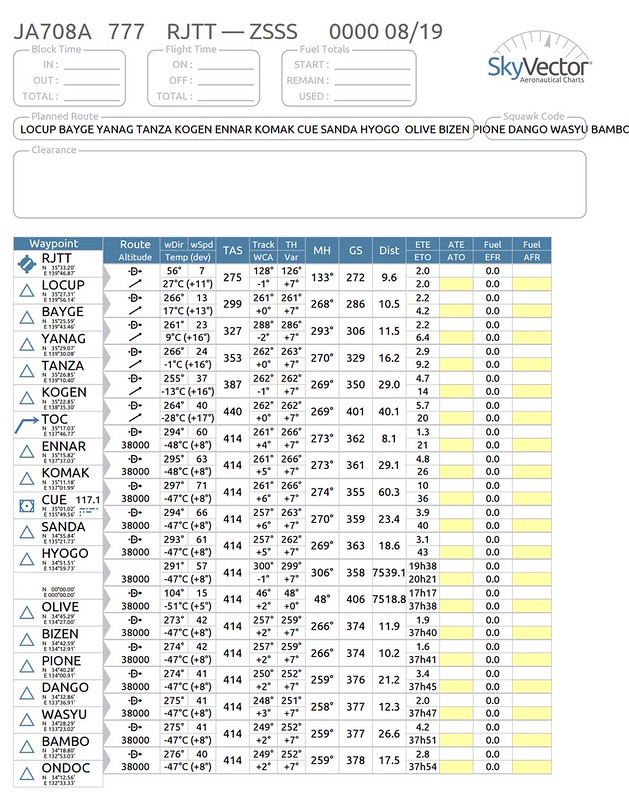
For example, the items in SkyVector’s flight planning feature look like this:
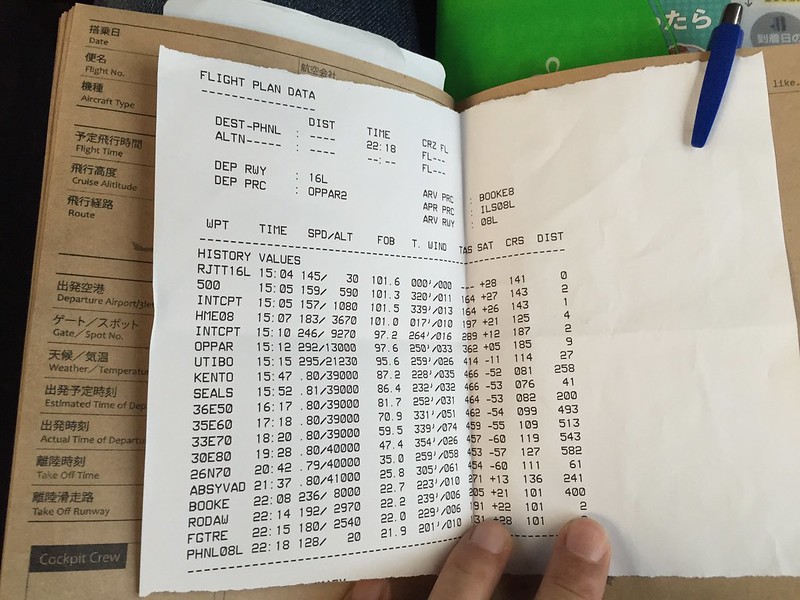
 What the pilot of Hawaiian Airlines Flight HA458 gave me looks like this:
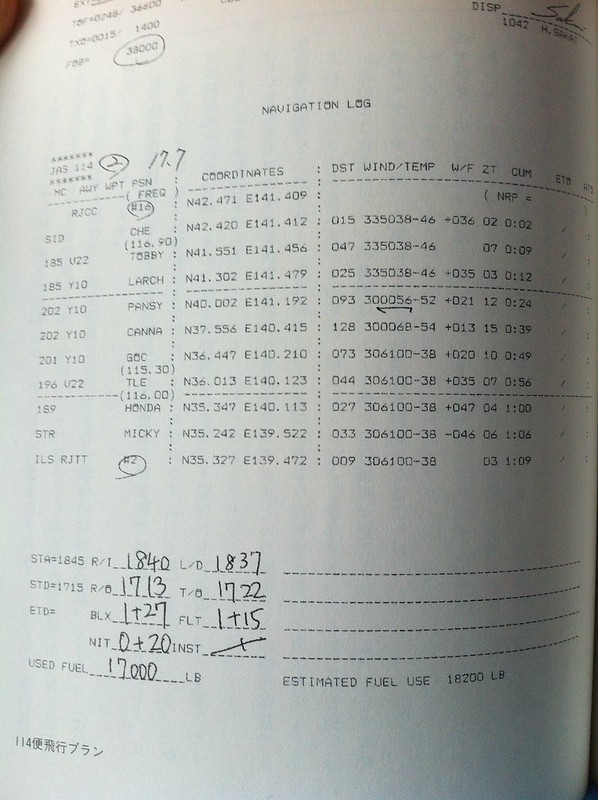
The format introduced in this site’s Airline Pilot 1.3 Flight Prep Briefing is as follows:
 The VFR flight plan I made myself looks different again:
 But if you look closely, you can see that this data is largely the same;
it’s nothing more than Waypoints or latitude/longitude, Alt (Altitude), Wind dir (Wind Direction)/Wind spd (Wind Speed),
True Heading, WCA (Wind Correction Angle), MH (Magnetic Heading),
TAS (True Airspeed), GS (Ground Speed), Dist (Distance), Temperature, ETE (Estimated Time Enroute), CRS (Course), etc.
But if you look closely, you can see that this data is largely the same;
it’s nothing more than Waypoints or latitude/longitude, Alt (Altitude), Wind dir (Wind Direction)/Wind spd (Wind Speed),
True Heading, WCA (Wind Correction Angle), MH (Magnetic Heading),
TAS (True Airspeed), GS (Ground Speed), Dist (Distance), Temperature, ETE (Estimated Time Enroute), CRS (Course), etc.
Explanations for most terms were introduced in Airline Pilot 1.3 Flight Prep Briefing; regarding the Wind Correction Angle, there was an explanation in How to create a VFR flight plan; for explanations on speeds like TAS, CAS, IAS, etc., you can refer to this site’s Airline Pilot 4.2 Airspeed Indicators and What is the Aircraft’s Max Speed?; regarding various temperatures, TAT, SAT, OAT Explained also has an explanation; and regarding flight altitude, Airline Pilot 4.3 Altitude, Pressure, and Max Altitude is also available.
What do you do after you have a flight plan? It’s simple; I just use a Cessna 172 to fly VFR, so I just print it out on paper and look at it while I fly.
Of course, many flight simulation enthusiasts prefer flying large jet airliners, so they need to input the plan into the Flight Management Computer (FMC). In this case, you can refer to the Airline Pilot 1.7 FMS CDU Setup Guide introduced on this site a long time ago. That article covers the usage of the Boeing 737-500, so for other aircraft models, you will need to study that model’s operation manual, which is usually included with paid plugins/addons.
But it is very troublesome to input everything manually every time you fly the same route,
so the fms files provided by X-Plane come in handy.
This site previously introduced the most powerful route query tool: simbrief.com;
this free tool can create perfect fms files.
Copy the fms file to the X-Plane 10/Output/FMS plans directory.
For aircraft with an FMC, such as the default Boeing 747-400,
press the “-” key at the bottom left of the two rows of command keys on the CDU screen (i.e., the L6 key) to load the fms file.
For small aircraft like the Cessna 172, many lack advanced equipment like an FMC,
or for free addons like the x737 which don’t have a proper FMC,
you need to set up a dedicated hotkey to open fms files.
This key is defined in the Buttons:Adv settings screen; find FMS/key_load and assign a custom key, such as “/”.
Then, when needed, press the “/” key to bring up the fms file loading screen.
Regarding the format of fms files, there is a relatively detailed explanation in this website.