X-Plane 11 Tutorials
-
Introduction to Some Free Asian Airports in X-Plane 11
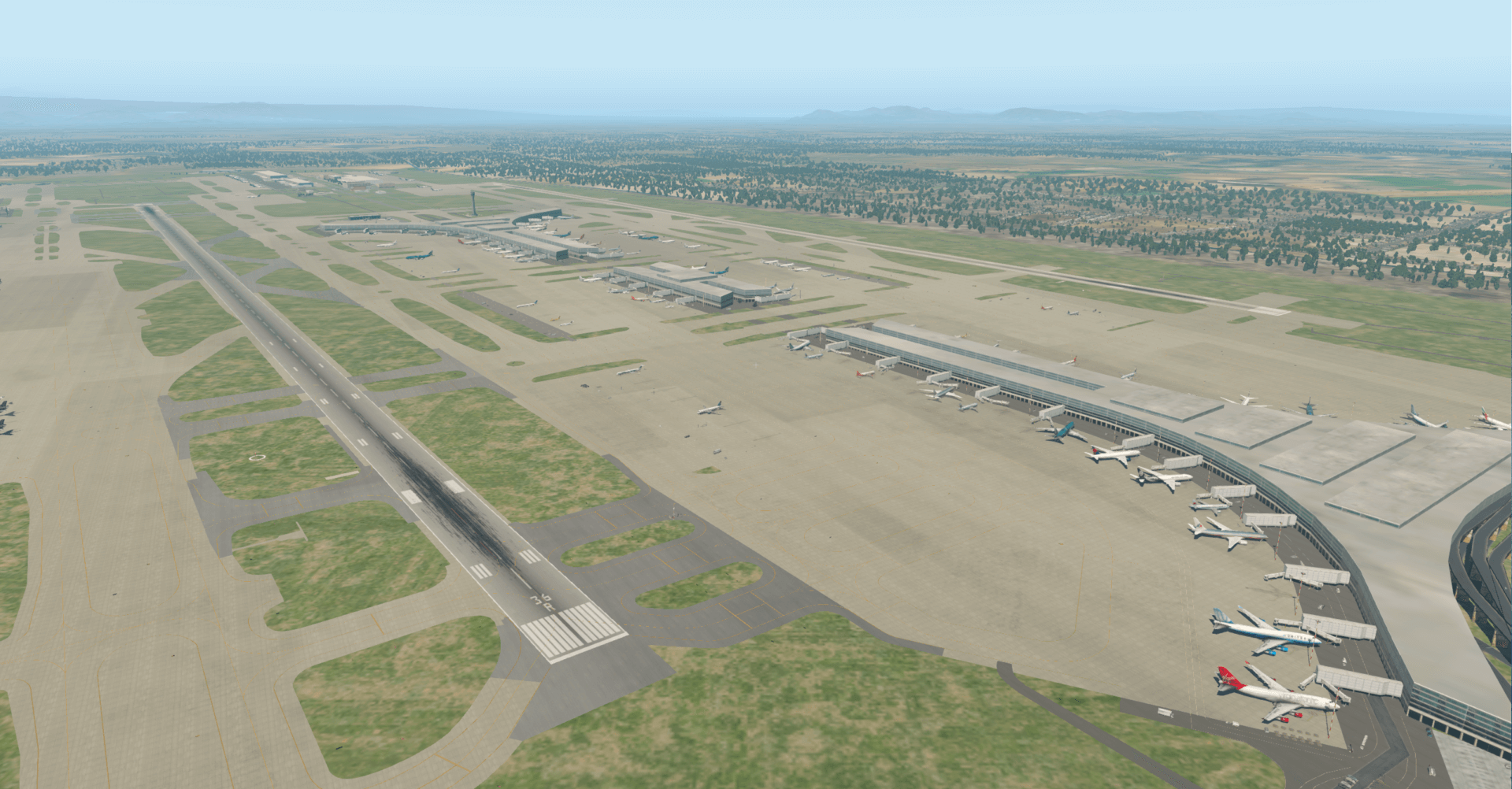
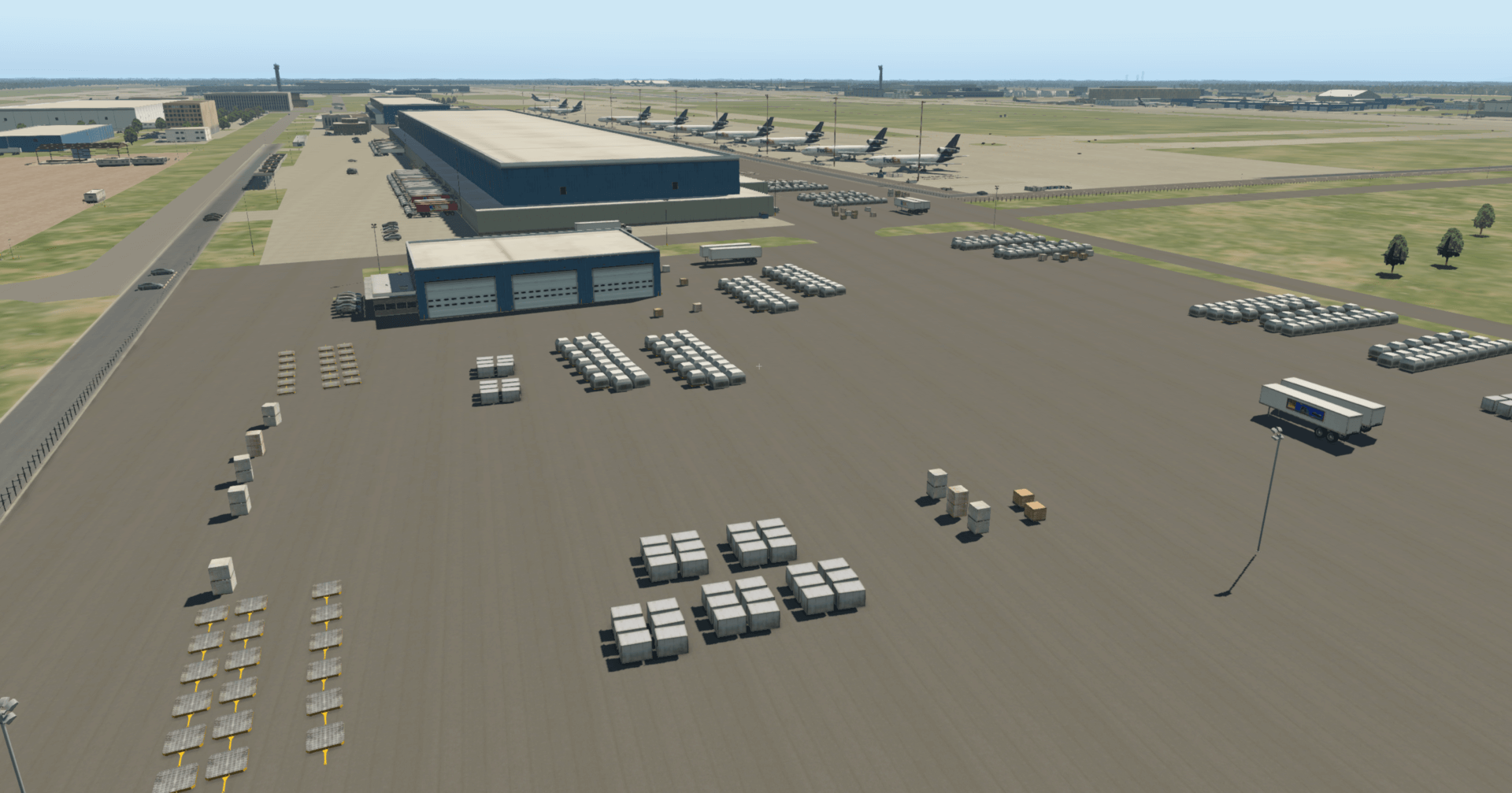
The X-Plane.org community has recommended some exquisite free airports. Below are a few from Asia, including Beijing Capital International Airport, Guangzhou Baiyun Airport, Hangzhou Xiaoshan Airport, and Tokyo Haneda International Airport, among others. There is no need to download these airports separately, as they are all included in the base X-Plane game.
First, let’s look at Beijing Capital International Airport Beijing Capital Intl (ZBAA)
Overview
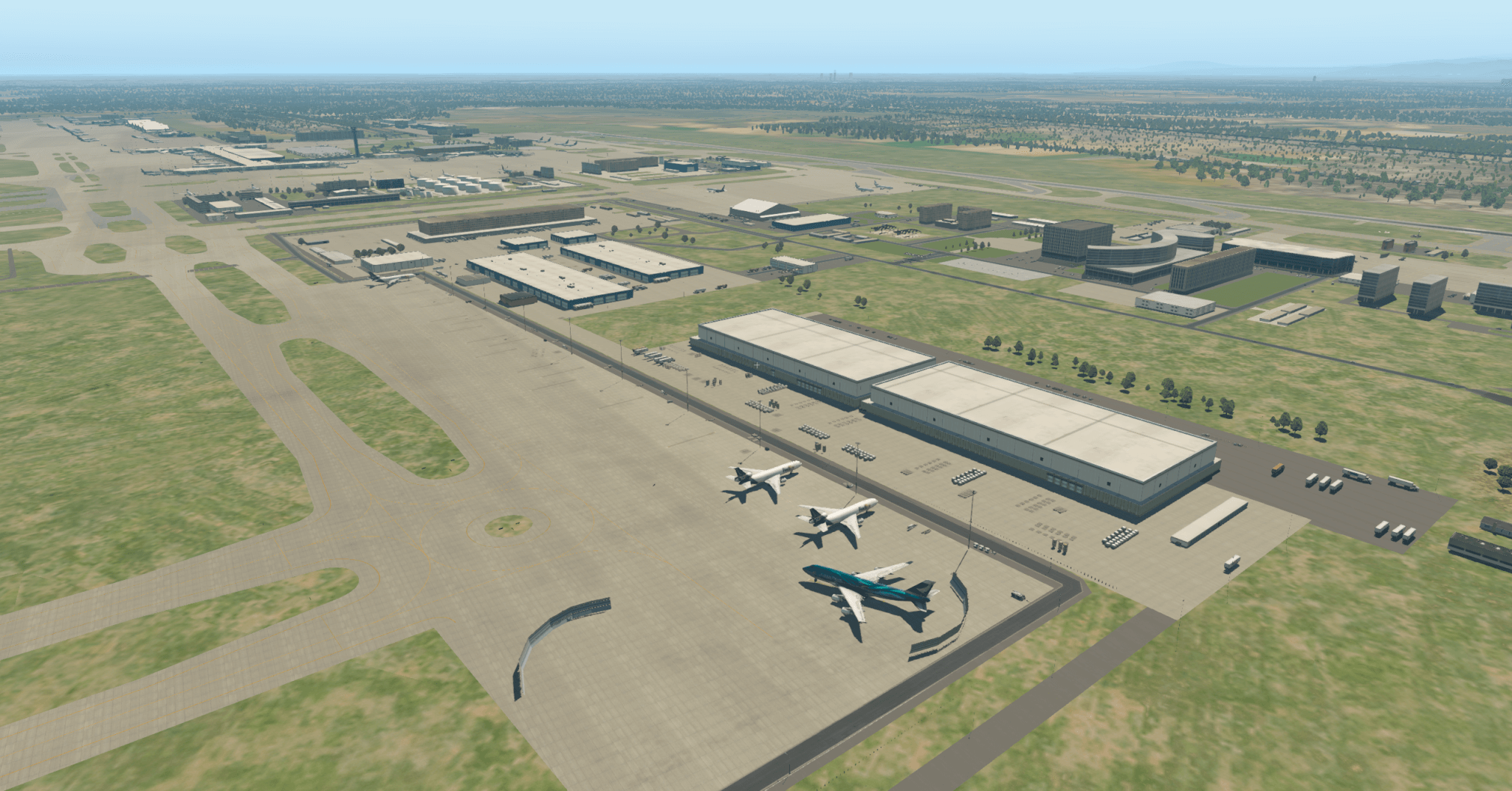 Tower View
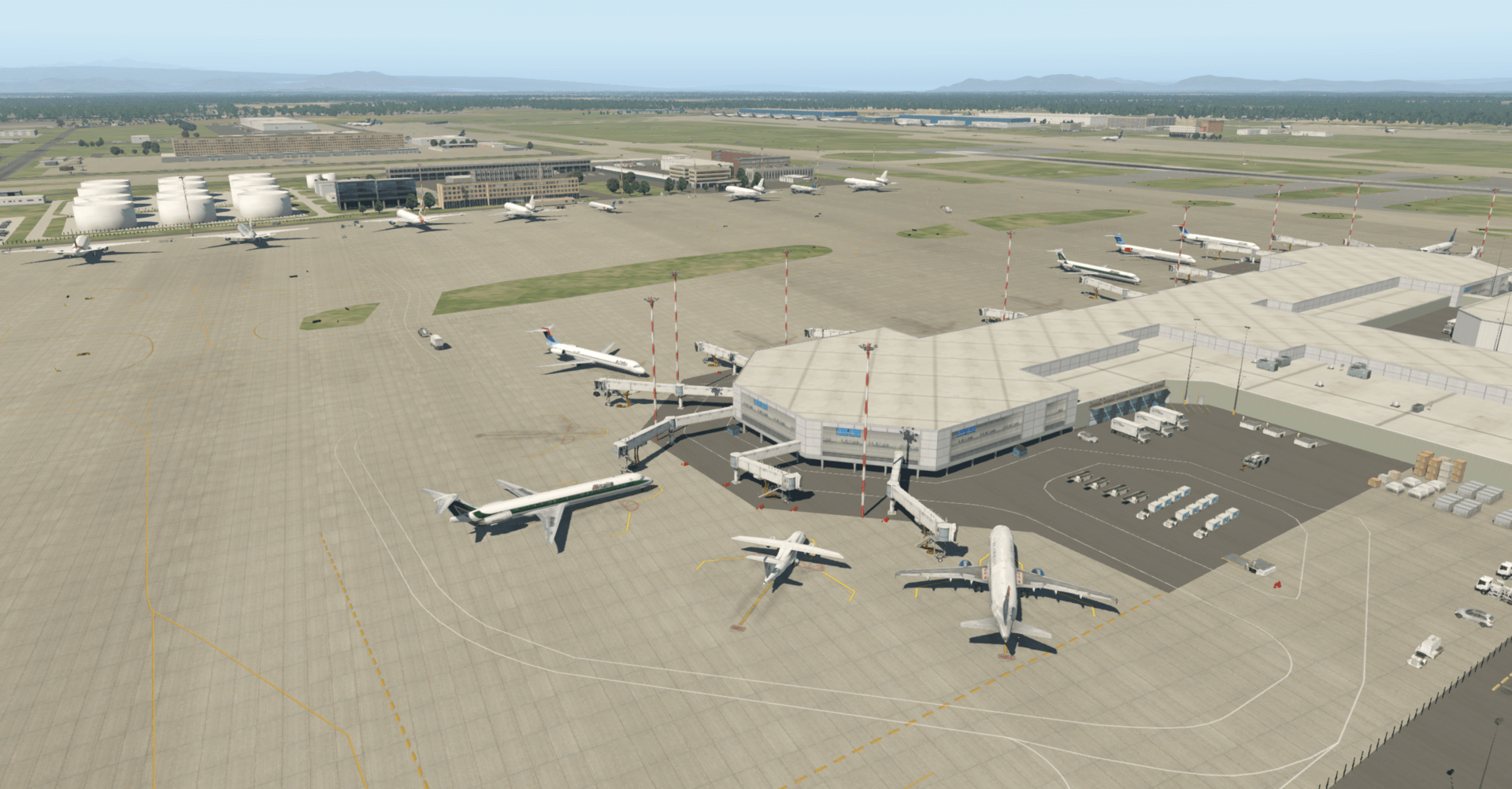 Overview from South Side
 Cargo Area
-
X-Plane 11.11 ATC Air Traffic Control Function Review
Flew a short loop using the ATC function in X-Plane 11.11r2. I feel that the Air Traffic Control section in XP11, except for the lack of navigation during the cruise phase, has a much higher degree of automation than before, highly recommended. Below, I will briefly paste some screenshots to introduce it.
Click the ATC icon in the upper right corner to launch the Air Traffic Control window.
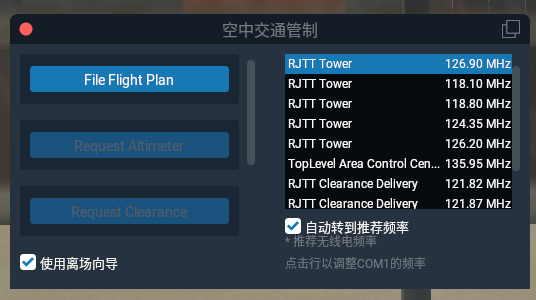 Since no flight plan has been entered yet, you can see the File Flight Plan button.
 -
A First Look at the G1000 Navigator in X-Plane 11
After writing Upgrading to X-Plane 11.10b8 to Try Out the G1000, I became interested in how to use the G1000. I went to the official Garmin website and downloaded the Garmin G1000 Pilot’s Guide for Cessna Nav III manual. I’ve only looked at the beginning of this 600+ page document, but I found that its operation is still very similar to the G530. The usage methods introduced in the X-Plane 11 G530 Navigation Tutorial are all applicable. It seems that when designing the UI, the product had mature considerations regarding operational compatibility.
-
X-Plane 11 Quick Start Guide and Garmin G1000 Navigation Equipment
I found some great manuals on the official website, such as the X-Plane 11 Quick Start Guide (Chinese), C172_Pilot_Operating_Manual, C90B_Pilot_Operating_Manual, and Baron_Pilot_Operating_Manual.
However, the Garmin G1000 navigation manual I was expecting is not yet available; it looks like we’ll have to wait a while longer.
Additionally, the official website introduced X-Plane 11.10 Includes G1000 GPS. The visuals are incredibly well-crafted, so I’ve posted them here for appreciation.
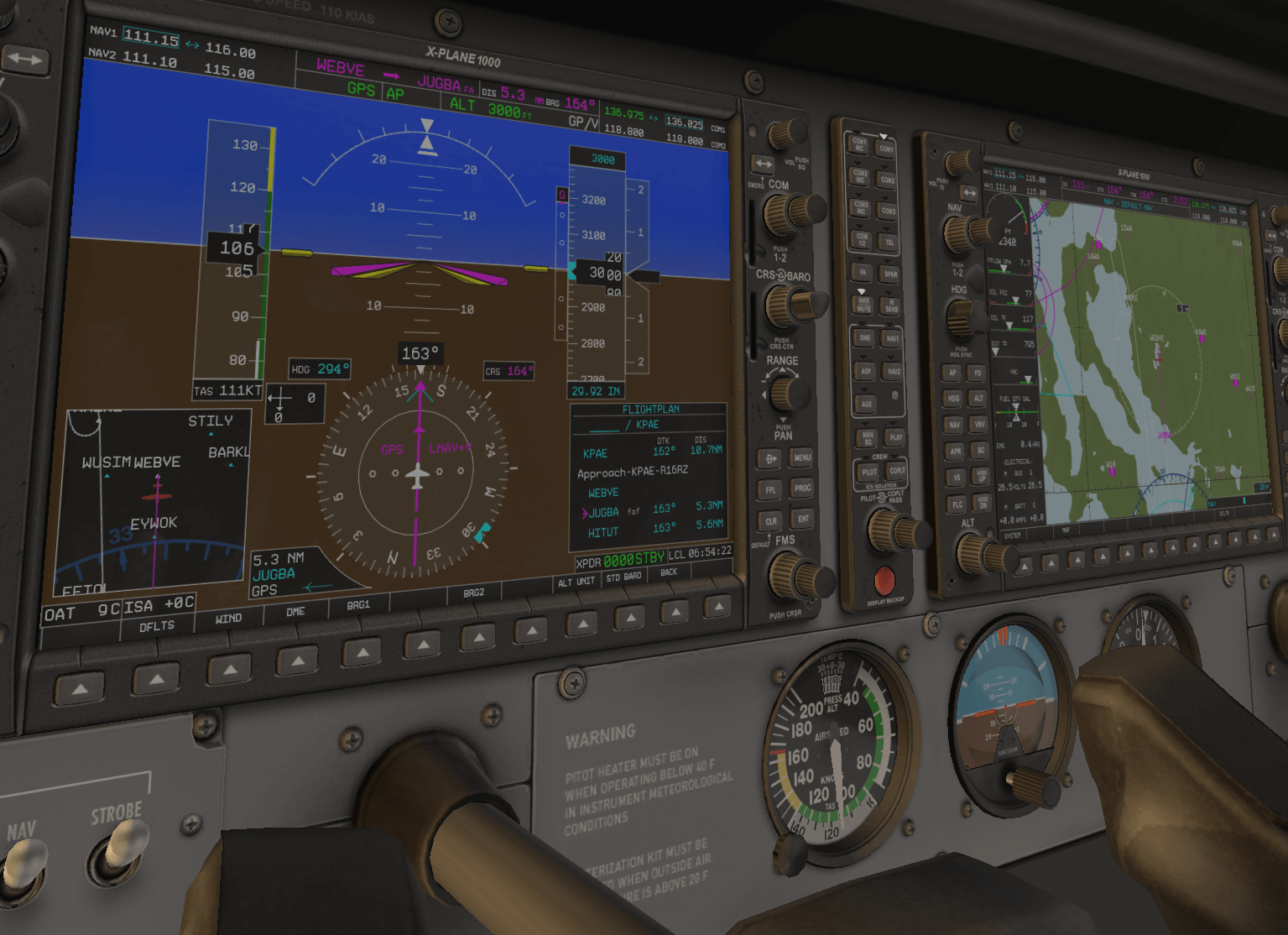
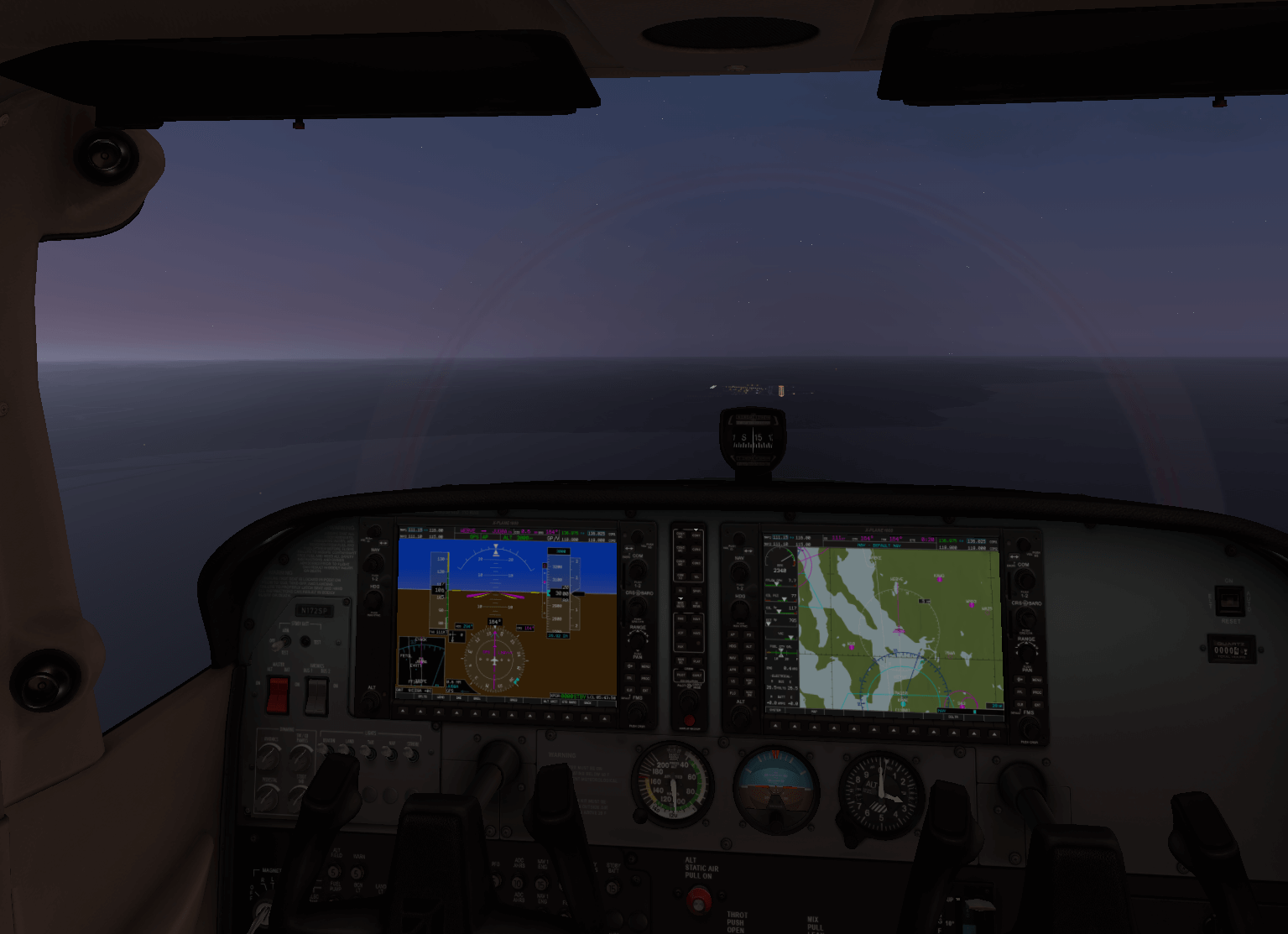
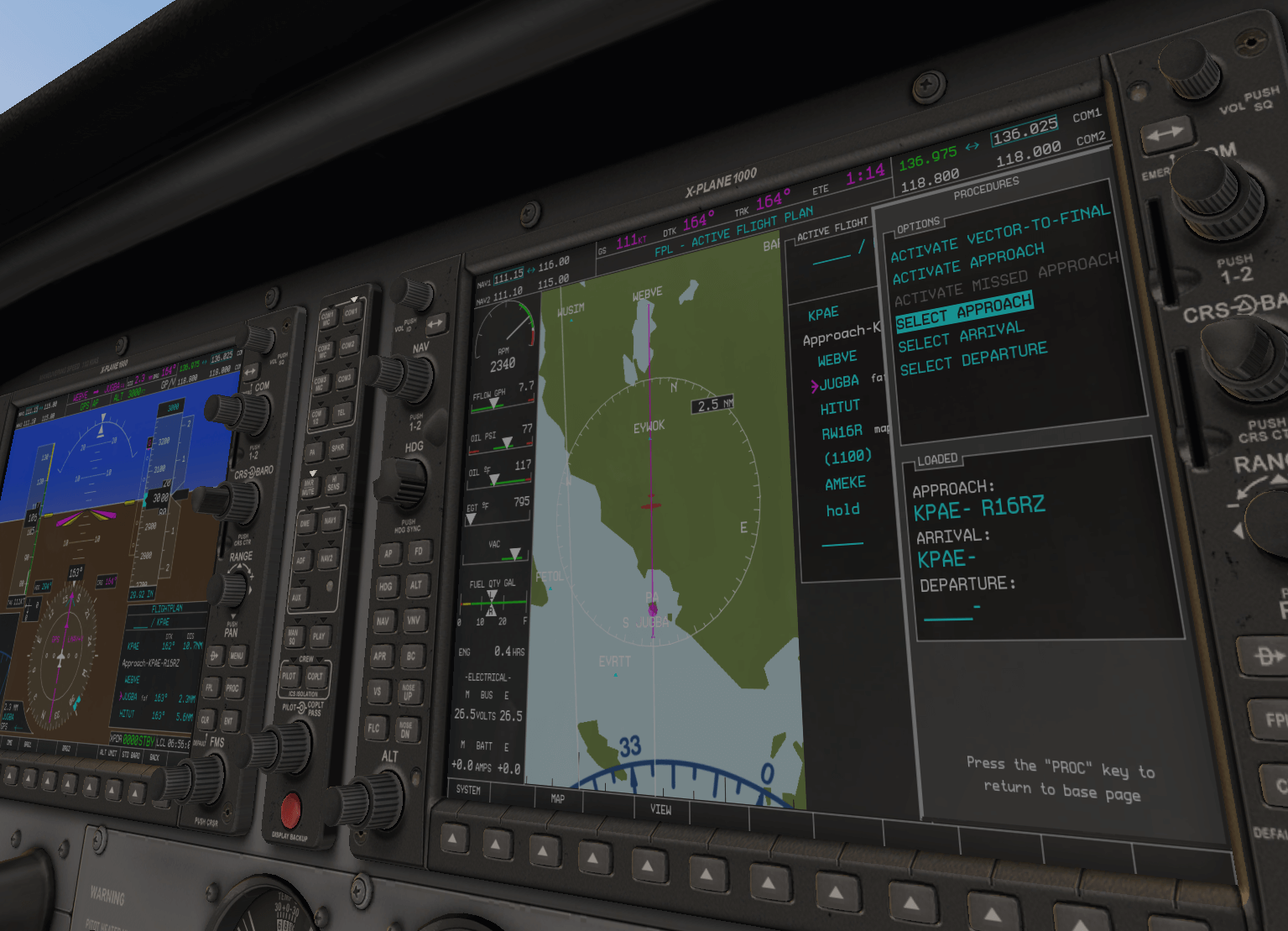


Previous Comments
chimp - 11/02/2019 06:40:16 PM
-
X-Plane 11 G530 Navigator Usage Tutorial
The G530 navigation equipment built into X-Plane 11 is very convenient. Here is a brief introduction to how to use it. Using the default C172, you can see the striking 3D G530 in the 3D cockpit.
 0 Display and Button Explanation
1 Frequency Tuning
2 Navigation NAV Mode
3 Waypoint Mode
4 Nearest Mode
5 Flight Plan Mode
6 Creating a Flight Plan
7 Direct To Waypoint
8 Activate Jump / Activate Waypoint
9 Activate Approach
10 Loading Flight Plan Files
11 OBS Function
12 Suspend Mode
13 System Messages
14 Autopilot
0 Display and Button Explanation
1 Frequency Tuning
2 Navigation NAV Mode
3 Waypoint Mode
4 Nearest Mode
5 Flight Plan Mode
6 Creating a Flight Plan
7 Direct To Waypoint
8 Activate Jump / Activate Waypoint
9 Activate Approach
10 Loading Flight Plan Files
11 OBS Function
12 Suspend Mode
13 System Messages
14 Autopilot -
Changes in the X-Plane 11 Map Window
The map window functionality in X-Plane 11 has changed quite a bit compared to XP10, even though the shortcut key to toggle the map window is still “m”.
Today I played for about half an hour, trying out the frequency function in the map while approaching Runway 25R at Hong Kong’s new airport (VHHH).
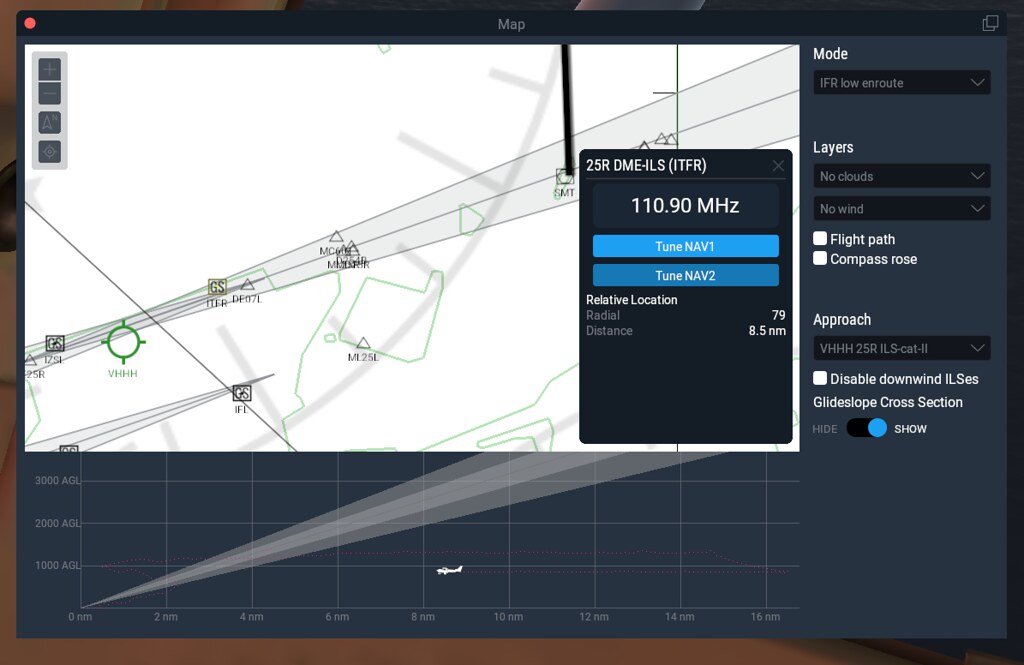 In this screenshot, you can see the Approach column,
which automatically displays a list of VHHH ILS frequencies.
So, I selected VHHH 25R ILS-cat-II,
and the navigation radio’s frequency pop-up window appeared,
showing the display of 110.90MHz, along with the TuneNAV1 and TuneNAV2 buttons.
In this screenshot, you can see the Approach column,
which automatically displays a list of VHHH ILS frequencies.
So, I selected VHHH 25R ILS-cat-II,
and the navigation radio’s frequency pop-up window appeared,
showing the display of 110.90MHz, along with the TuneNAV1 and TuneNAV2 buttons. -
How to Automatically Download X-Plane 11 Scenery
In previous versions of X-Plane, when entering an area without scenery files, the surroundings would be a vast ocean except for airports. This was quite disappointing for new users. Since X-Plane 11, there has been a slight improvement.
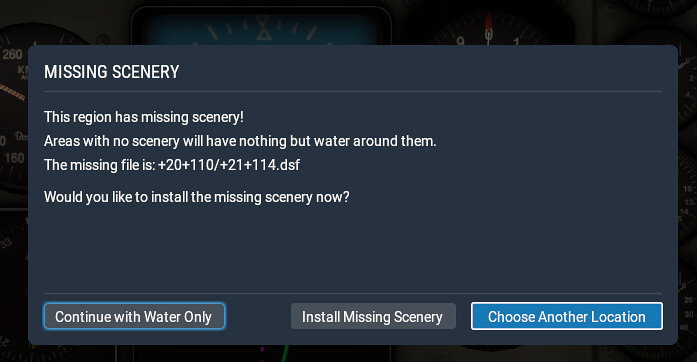 This prompt screen appears, informing the player that scenery data for this region was not found.
After pressing the Install Missing Scenery button, a download window appears.
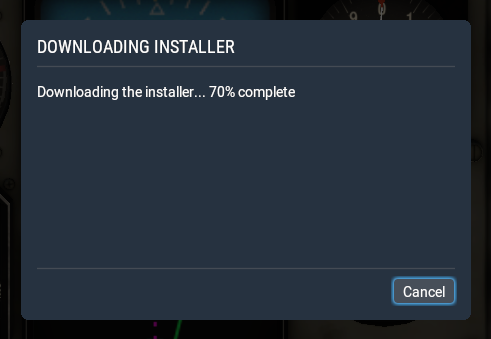 However, it is quite confusing that the title bar says “Download Installer,” rather than directly downloading the scenery data.
 -
X-Plane 11 Includes a Convenient Pushback Function
Since version X-Plane 11.01, the pushback function is built-in, so no pushback plugin is required. This is very convenient.
The usage is also very simple. Select “Show Ground Handling Window” from the top-left menu. A small Ground Handling pushback window will pop up:
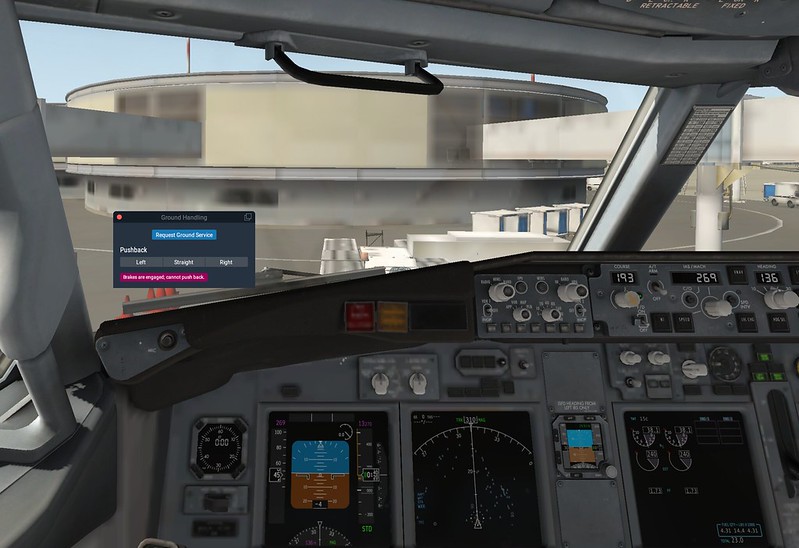 The screenshot above uses the Boeing 737 aircraft included in XP11,
located at parking stand 103 of Beijing Capital International Airport (ZBAA).
The airport scenery is also the default in XP11; the effect is quite good.
The screenshot above uses the Boeing 737 aircraft included in XP11,
located at parking stand 103 of Beijing Capital International Airport (ZBAA).
The airport scenery is also the default in XP11; the effect is quite good. -
How to Turn Off the Green Box in the X-Plane 11 Cockpit
If you accidentally changed the settings and a bunch of green squares appeared in the X-Plane 11 cockpit.
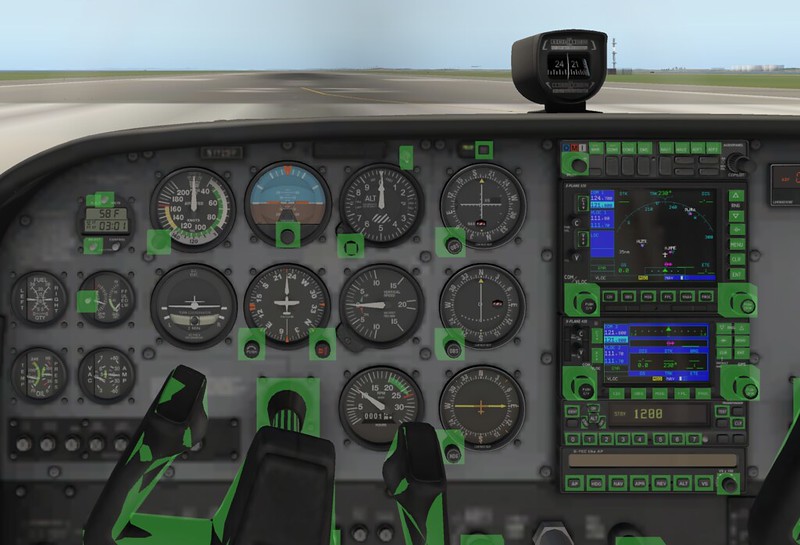 These squares are there to help you find the instrument control buttons in the dark,
They are useless during the day, so turn off this setting in the top-left menu.
View -> Show Instrument Click Regions
These squares are there to help you find the instrument control buttons in the dark,
They are useless during the day, so turn off this setting in the top-left menu.
View -> Show Instrument Click Regions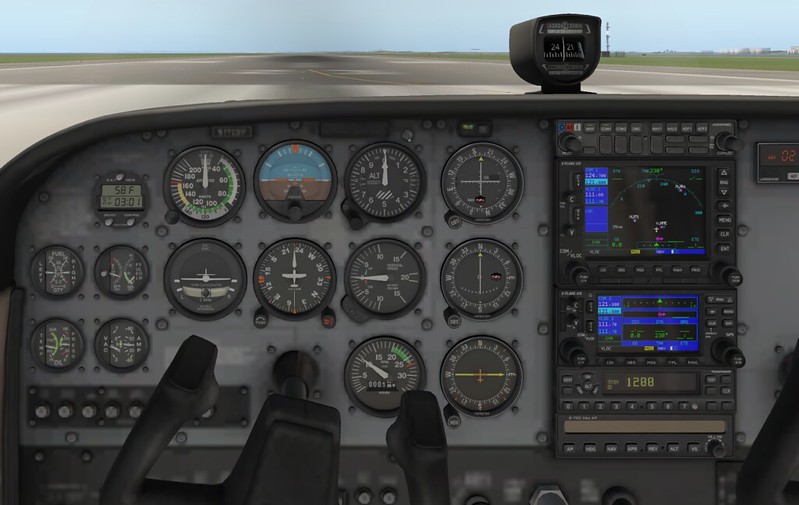 This looks much more comfortable.
In XP10, this settings menu is located at About > Instructions > Flight Controls. After switching to XP11, I couldn’t find this setting for a while, so I wrote a simple memo.
-
X-Plane 11 Keyboard Controls Summary
Let’s reorganize the shortcut keys for X-Plane 11. After all, the default settings have changed quite a bit compared to the initial version of X-Plane 10.
Aircraft Flight Control Key Instructions
] Pitch Trim Up [ Pitch Trim Down 1 Flaps Up 2 Flaps Down 3 Increase Speedbrakes (one step) 4 Decrease Speedbrakes (one step) 5 Rudder Trim Left 6 Rudder Trim Center 7 Rudder Trim Right 8 Aileron Trim Left 9 Aileron Trim Center 0 Aileron Trim Right
-
X-Plane 11 DVD Set
I just noticed that the official DVD version of X-Plane 11 has also been released. It includes 8 DVDs covering global scenery, plus 11 aircraft with high-resolution 3D cockpits, priced at $59.99 excluding shipping.
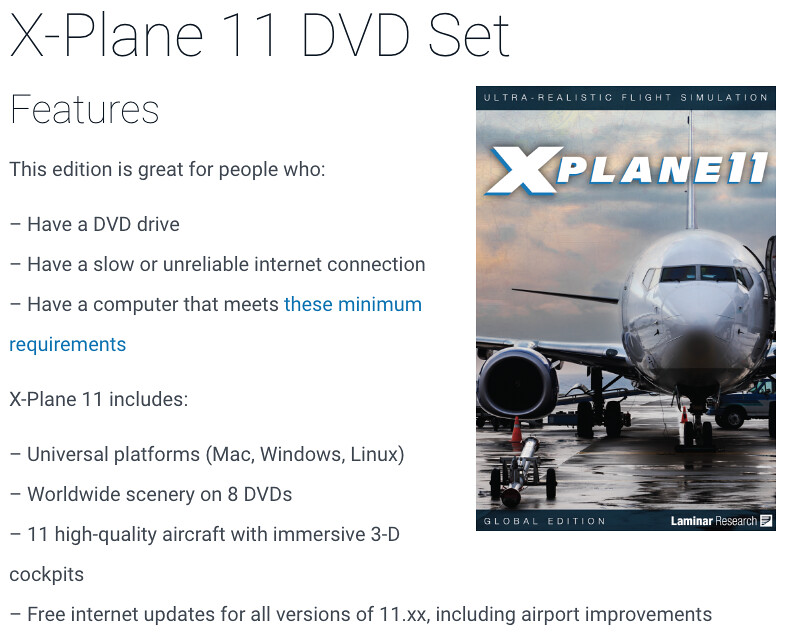
I went straight to the official website to purchase and paid via PayPal.
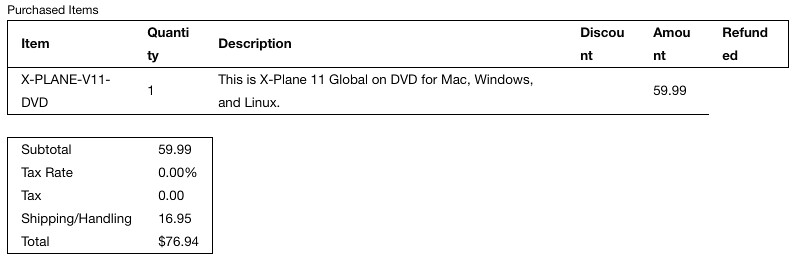 The shipping fee is shown as $16.95, bringing the total cost to $76.94.
Really looking forward to the DVDs arriving soon, even though my old iMac is already struggling to keep up…
-
Introducing Some Cool New Airports for X-Plane 11
Laminar Research has released quite a few videos introducing new airports for X-Plane 11 on YouTube. I’ve posted them here for everyone to enjoy. Keep in mind that these airport sceneries are all free!
New York KJFK John F. Kennedy Airport for X-plane 11
Charlotte KCLT Charlotte Douglas Intl Airport for X-plane 11
Melbourne YMML Melbourne Airport for X-plane 11
Shenzhen ZGSZ Shenzhen Baoan International for X-plane 11
-
How to Set Up Multi-Monitor Displays in X-Plane 11
I have previously written about the multi-monitor display settings for X-Plane 10 and affordable external monitors for X-Plane. Below is a brief overview of the multi-monitor settings in X-Plane 11. Here, “multi-monitor” refers to settings when two or more monitors are connected to a single computer.
Once two monitors are connected to the OS, open the Graphics settings screen in X-Plane 11. You will see that there are setting options for both the MAIN MONITOR and MONITOR1.
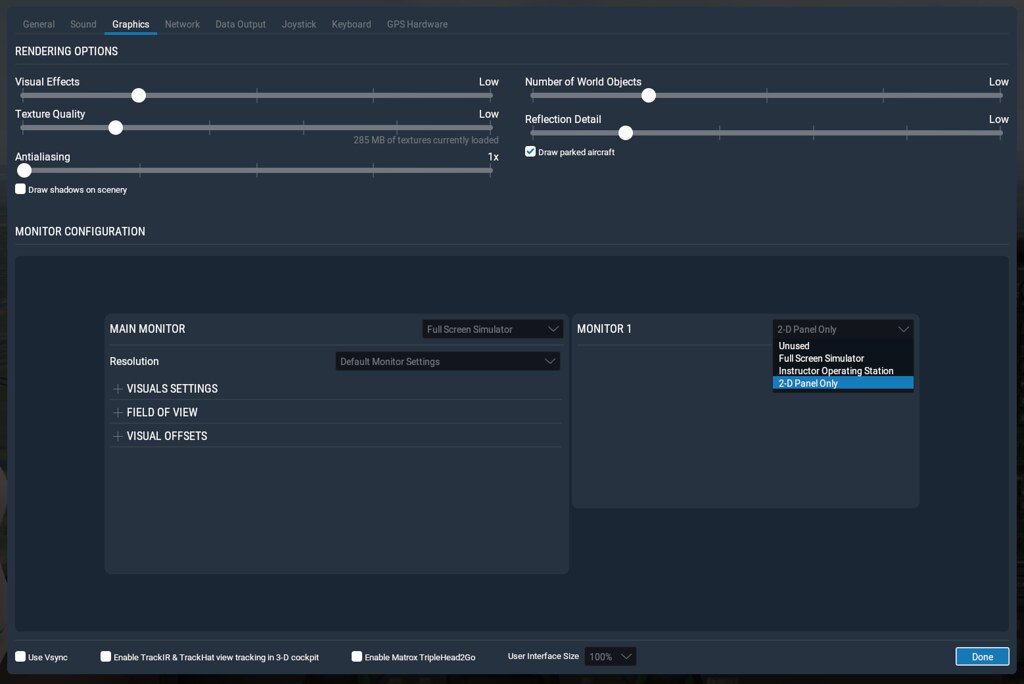 First, let’s try setting the second monitor, MONITOR1, as a “2-D Panel Only” instrument panel.
 -
X-Plane 11 FMS Usage Tutorial
An X-Plane 11 FMS Manual has been released on x-plane.org. It states: “This document may be copied and distributed by Laminar Research customers for entertainment only.” So, let’s introduce it here.
Regarding the simulation fidelity of this Flight Management System, the manual states: “Due to the immense complexity of a real-life Flight Management System, the version modelled in X-Plane 11 is simplified, and does not support every capability. However, the functions necessary to program and execute a flight plan are present, including the use of published arrival and departure procedures (SIDs and STARs) and instrument approaches.”
-
The Flight School Feature in X-Plane 11
X-Plane 11 includes a Flight School feature, which is perfect for beginners to learn the basics of flight. For General Aviation, there are courses for Takeoff/Landing/Traffic Pattern using the Cessna 172. They are very easy to understand and beginner-friendly, highly recommended. Additionally, the system scores your performance (out of 100) based on your flight path after each practice. Evaluation items include maintaining a climb speed of 75 knots, the degree of deviation from the Runway centerline during landing, landing roll distance, and so on.
-
X-Plane 11 Free Demo Installation and Trial
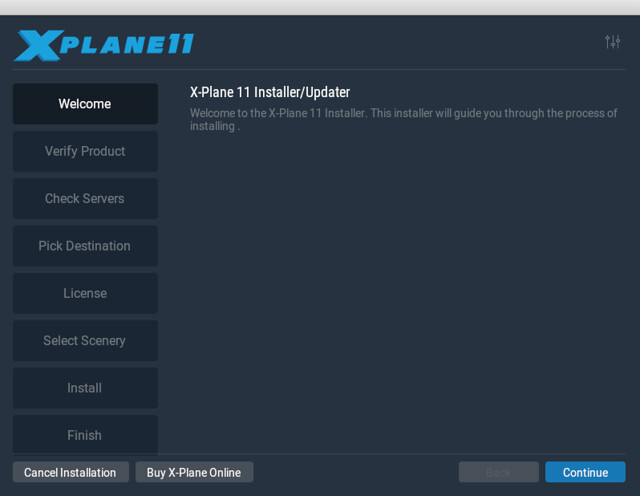
X-Plane 11 public beta version is finally out. The demo can be downloaded from Download the free X-Plane 11 demo, which gives you the X-Plane 11 Installer.app to proceed with installation.
It seems the installer for the demo and the full version is the same, so be careful to remove the X-Plane 10 disc (including virtual discs) before installation, otherwise it will go directly into the full version installation state.
-
X-Plane 11 Hardware Requirements
X-Plane 11 has been released. Please check out the latest report: Installing and Trying the X-Plane 11 Free Demo!
The official website has released two consecutive posts discussing the hardware requirements for X-Plane 11. X-Plane 11 System Requirements introduces the Minimum Hardware Requirements as
CPU: Intel Core i3, i5, or i7 CPU with 2 or more cores, or AMD equivalent. (Dual-core CPUs slower than 3 GHz should try the demo before purchasing.) Memory: 8 GB RAM Video Card: a DirectX 11-capable video card from NVIDIA, AMD or Intel with at least 512 MB VRAM
My own machine isiMac 27-inch, Mid 2011, CPU is 2.7GHz Quad-Core Intel Core i5, Memory is 12G, Graphics driver is AMD Radeon HD 6770M Graphics Processor (512MB GDDR5 Memory)
which basically just meets the minimum requirements, so I estimate it will barely run.Additionally, the Recommended Hardware Requirements are:
-
Introduction to New Features in X-Plane 11
X-Plane 11 is now released. Please check out the latest report: Installing and Trying the X-Plane 11 Free Demo!
The official website has released some new information. For example, X-Plane 11 Focuses on Usability introduces that XP11’s user interface will be significantly improved, becoming more modern and user-friendly. It will not look as high-end and professional as in the past, which was very unfavorable for beginners to get started.
X-Plane 11’s New Aircraft introduces several new free aircraft models: Boeing 737-800 McDonnell Douglas MD-80 Sikorsky S-76 Look at the following screenshots; they are quite stunning: