Title: X-Plane 10 Flight Simulation Software Introduction, Acquisition, Installation, and Flight Control Beginner's Guide Tutorial
X-Plane 11 has been released. Please check out the latest articles: Installing and Trying the X-Plane 11 Free Demo and X-Plane Chinese Tutorial!
What is X-Plane 10?
According to the official description, X-Plane is the world’s most comprehensive and powerful flight simulation software for personal computers, offering the most realistic flight model experience. X-Plane is not a game; it has no levels or puzzles for you to conquer. With this software, you only do one thing: experience flight piloting. This is because X-Plane is a software tool capable of simulating and predicting aircraft handling characteristics with incredible precision.
 X-Plane 10 is the latest version of this flight simulation software. It includes 8 DVDs and provides global terrain maps.
X-Plane 10 FAQ
Flight Simulation Software X-Plane FAQ Collection
Flight Simulation Software X-Plane FAQ 1: Installation
Flight Simulation Software X-Plane FAQ 2: Settings
Flight Simulation Software X-Plane FAQ 3: Basic Operations
Flight Simulation Software X-Plane FAQ 4: Basic Flight
Flight Simulation Software X-Plane FAQ 5: Plugins
Flight Simulation Software X-Plane FAQ 6: Autopilot
Flight Simulation Software X-Plane FAQ 7: Flight Planning
How to install X-Plane 10? What to do if the installer won’t run?
You can buy the X-Plane 10 DVDs from the official X-Plane website or Amazon online, or find a download via VeryCD (pirated version). Regardless, note that the installer included in the initially released DVDs had issues. Do not install directly from the DVD. Instead, download the installer from the official website. X-Plane 10 supports Mac OS, Windows, and Linux; the DVDs are the same for all OS versions. Once downloaded, insert the first DVD into the drive and run the installer you just downloaded (X-Plane 10 Installer.app on Mac, X-Plane 10 Installer.exe on Windows).
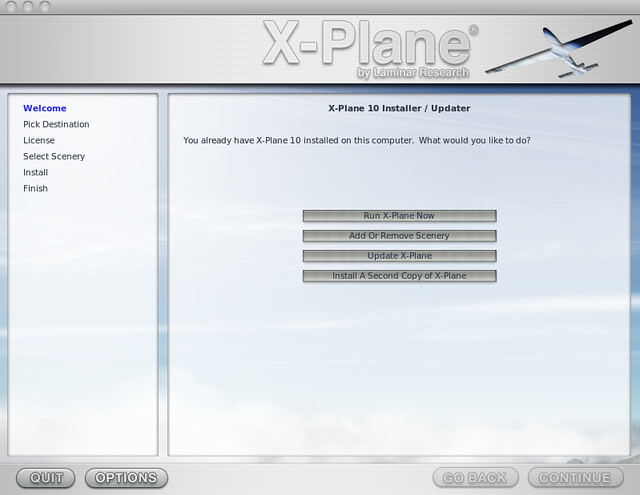 The image above is a screenshot from my installation, so the “New Install” button is gone, but the process should be largely the same.
Afterward, just select the installation path and scenery.
The image above is a screenshot from my installation, so the “New Install” button is gone, but the process should be largely the same.
Afterward, just select the installation path and scenery.
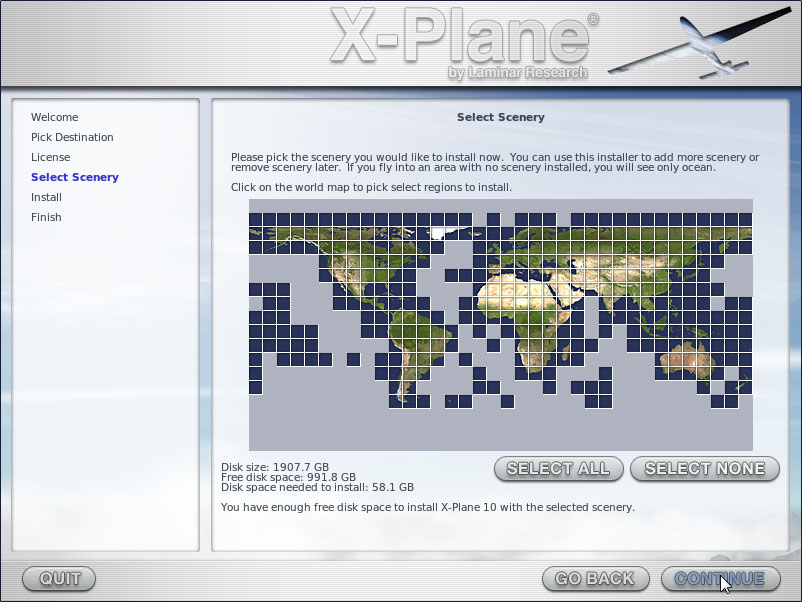
Keep in mind that installing all 8 global scenery DVDs takes a very long time; I remember it taking me about 3-4 hours.
How to upgrade X-Plane 10?
When you want to update or upgrade the software, you can select the “Update X-Plane” button on the installer’s main screen.
After that, the installation path selection screen will appear.
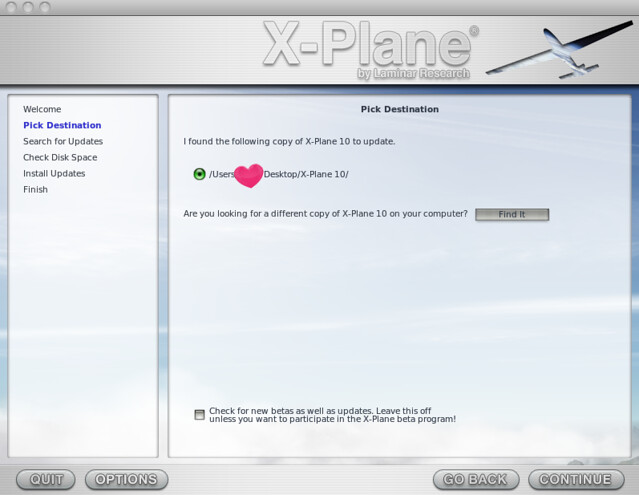 Note that there is a checkbox at the very bottom of this screen. If you check it, the auto-update process will install beta test versions. Since beta versions generally have quite a few bugs, if you only want to use stable versions, make sure to leave this checkbox unchecked.
Can I remove restrictions from the X-Plane 10 trial? What is the difference between the trial and the full version?
You might want to know the difference between the full version and the trial version. There are mainly two points: First, the trial version allows you to fly for only 10 minutes; after 10 minutes, all controls become ineffective. Additionally, when using the full version, you must have the first DVD in the drive to use it; otherwise, it will have the same 10-minute restriction as the trial version. Second, and of course, the scenery. If you don’t install it, most of the Earth will appear as ocean. Given the situation here, it won’t be long before pirated versions appear. If you find it too expensive, patience might reward you with a free copy.
Many people online ask how to remove restrictions from the trial version. Here, I must emphasize that there is no such thing as a “cracked version” for the X-Plane series. Nor does it use the registration codes or serial numbers common in paid software. So, if you want to use the trial version and remove the 10-minute limit, there are only two ways:
- Buy the genuine version.
- Insert the first DVD (or virtual DVD) into the drive and start X-Plane.
Why does X-Plane take so long to start?
Because X-Plane needs to load massive amounts of terrain, scenery, and airport data into memory, the startup time generally takes tens of seconds or more. This is unavoidable; you’ll get used to it.
How to play X-Plane? How to fly an aircraft in X-Plane 10? What are the differences between X-Plane 10 and X-Plane 9?
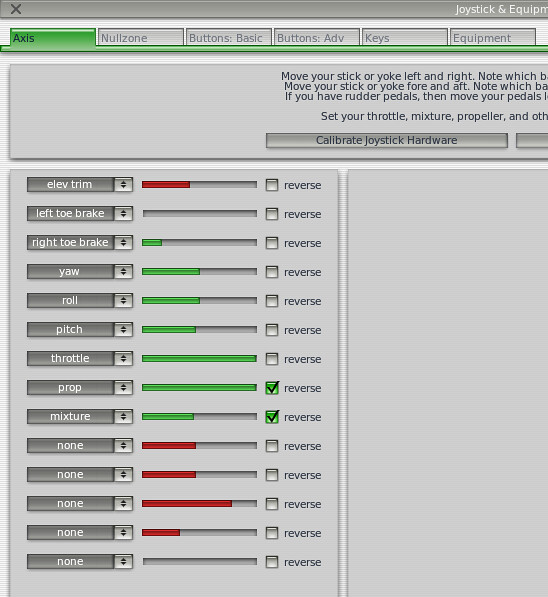
If you have used X-Plane 9, you will find that the interface of version 10 basically maintains the style of 9, and if you don’t look carefully, you really won’t notice the differences. So for veterans, you don’t need to worry about upgrading at all; you can fly completely using your past control habits. Some default keyboard settings have changed in 10, but for users like me who basically use external hardware, this is negligible. So, just reconfigure your peripheral equipment once in the settings menu.
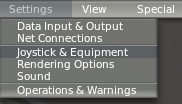
This is the joystick/peripheral settings menu:
 (To configure joysticks, yokes, etc., look in Settings / Joystick & Equipment / Axis)
This is the custom key assignment screen:

Shortcut Keys / Keyboard Operation Overview
If you are a beginner and do not have a joystick or other peripherals, you need to study the manual below carefully. However, it is in English, so it can be quite difficult to read. http://www.x-plane.com/files/manuals/X-Plane_10_Desktop_manual.pdf
There is also a simplified English instruction file here; you can try reading this first, or just read my simple explanation below.
http://danieldickison.com/x-plane/X-Plane Main Keys.pdf
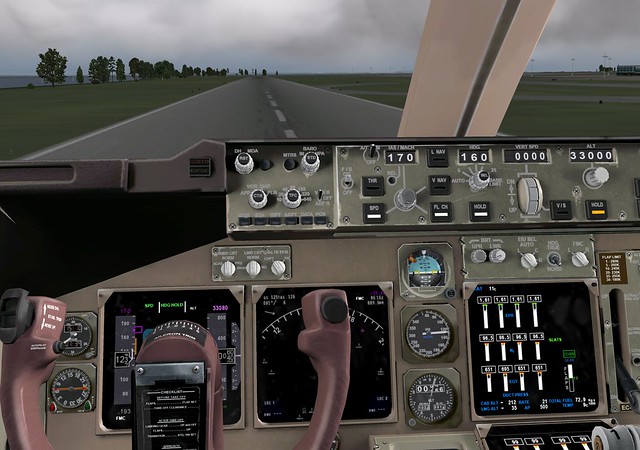
Actually, X-Plane’s operation method is not difficult. Simply put, after starting, the default Boeing 747-400 is displayed, and the aircraft is parked at the end of the Runway. You just release the brakes (B key), push the Throttle (F2 key, Fn+F2 on Mac), lower the Flaps (2 key), adjust the taxi path left and right (9 and 0 keys), and pull up the nose after reaching a certain speed ([ key), and you will find yourself soaring in the air. Additionally, use 7 and 8 keys to control the Ailerons for turning, 9 and 0 keys for rudder left/right roll, [ and ] keys to control the horizontal stabilizer (elevator) for Climb and Descent, F1 and F2 keys for Throttle increase/decrease, 5 and 6 keys for Speed Brakes, and . to toggle Reverse Thrust. Q E R F < > keys are used to move the viewing angle in the cockpit. I think basically mastering these operation keys is enough.
Engine Control Key Instructions
F1 Decrease Throttle
F2 Increase Throttle
F3 Coarse Propeller Pitch (High Speed)
F4 Fine Propeller Pitch (Low Speed)
F5 Enrich Mixture
F6 Lean Mixture
F7 Mixture Cutoff
F8 Full Rich Mixture
F9 Carburetor Heat Off
F10 Carburetor Heat On
F11 Toggle Carburetor Heat
F12 Toggle Idle
F13 Full Power
. Toggle Reverse Thrust
Engine Start Key Instructions
CTRL 1 Start Engine 1
CTRL 2 Start Engine 2
CTRL 3 Start Engine 3
CTRL 4 Start Engine 4
CTRL 5 Start Engine 5
CTRL 6 Start Engine 6
CTRL 7 Start Engine 7
CTRL 8 Start Engine 8
Aircraft Flight Attitude Control Key Instructions
] Pitch Trim Up
[ Pitch Trim Down
5 Rudder Trim Left
6 Rudder Trim Center
7 Rudder Trim Right
8 Aileron Trim Left
9 Aileron Trim Center
0 Aileron Trim Right
1 Flaps Up
2 Flaps Down
CTRL D Lower Landing Gear
CTRL U Raise Landing Gear
G Toggle Brakes On/Off
4 Reduce Decelerator Setting
3 Increase Decelerator Setting
B Toggle Brakes
V Maximum Brakes
ALT Q Lower Tail Hook
ALT W Raise Tail Hook
ALT R Open Canopy/Door
ALT E Close Canopy/Door
X Toggle Smoke
SHIFT Space Eject / Jump
Aircraft View Operation Key Instructions
— Cockpit View Operations —
W View Forward
S Move View Down
Q Move View Left
E Move View Right
R Move View Up
F Move View Down (Strictly Down)
Z Move View Back
CTRL Q Move View Up-Left
CTRL E Move View Up-Right
SHIFT W Forward View, No HUD
SHIFT S Forward View, With HUD
CTRL Toggle Sunglasses l Toggle Night Vision Goggles ; Toggle Instrument Lighting CTRL O Toggle 3D Cockpit CTRL ; Toggle Free Camera Toggle Instrument Panel Brightness
SHIFT CTRL , Increase Instrument Brightness
SHIFT CTRL . Decrease Instrument Brightness
— External View Operations — T View Aircraft from Tower SHIFT 3 View Aircraft from Runway A View Aircraft from Rear SHIFT 2 View Aircraft from Fixed Point in Air C View Aircraft from Chase Plane / Toggle Physics Visuals
— Common View Operations — Arrow Keys Move View Up/Down/Left/Right SHIFT Arrow Keys Move View Fast Up/Down/Left/Right Page Up Move View Forward Page Down Move View Backward Numpad + Zoom In Numpad - Zoom Out SHIFT Page Up Move View Fast Forward SHIFT Page Down Move View Fast Backward SHIFT = Zoom In Fast SHIFT - Zoom Out Fast
Flight Equipment Operation Key Instructions
— Radio Communication Equipment Operations — CTRL 9 NAV1 Standby Frequency Swap CTRL 0 NAV2 Standby Frequency Swap CTRL - COM1 Standby Frequency Swap CTRL = COM2 Standby Frequency Swap
— GPS / ND Communication Equipment Operations — CTRL P Airport Mode CTRL A VOR Mode CTRL S NDB Mode CTRL G Waypoint Mode CTRL H Tune Down CTRL J Tune Up CTRL K Select Next Waypoint CTRL L Select Previous Waypoint
System Function Key Instructions
CTRL . Screenshot
CTRL Space Toggle Video Recording
P Pause
CTRL T Change Ground Speed
ALT T Change Flight Speed
K/L Adjust Time
Enter Start ATC Communication (contacts Tower, Center, etc., based on pre-set COM1 frequency)
, Toggle Replay Mode
Where are the display rendering settings in X-Plane 10? Why does the small aircraft always drift to the left? How to use the Autopilot? How to set a route? Have I reached the destination airport? How to fly an ILS approach?
Regarding display rendering settings like resolution in X-Plane, you can refer to this article on our site. If you like flying small propeller planes and notice the aircraft can’t fly straight and drifts left, you can look here. Modern aircraft, even small ones like the Cessna, have Autopilot systems. It is very simple; if you are interested, you can check out how to use the Autopilot. You can also specify your own Flight Plan; a summary of route setting methods should be helpful.
How to change aircraft in X-Plane 10? How to change liveries? How to select a different airport?
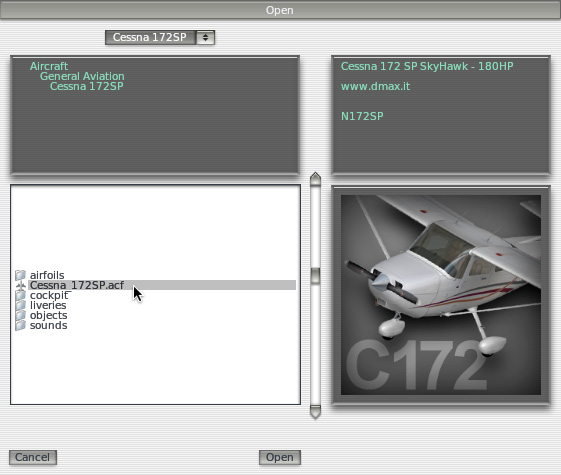
If you want to open a different aircraft, you can open the following menu:

 Then select the aircraft file (extension is .acf). Below is an example of selecting the Cessna 172.
If you want to change to a different airport, you can open the following menu:
 Then enter the airport code, such as KLAX for Los Angeles International Airport.

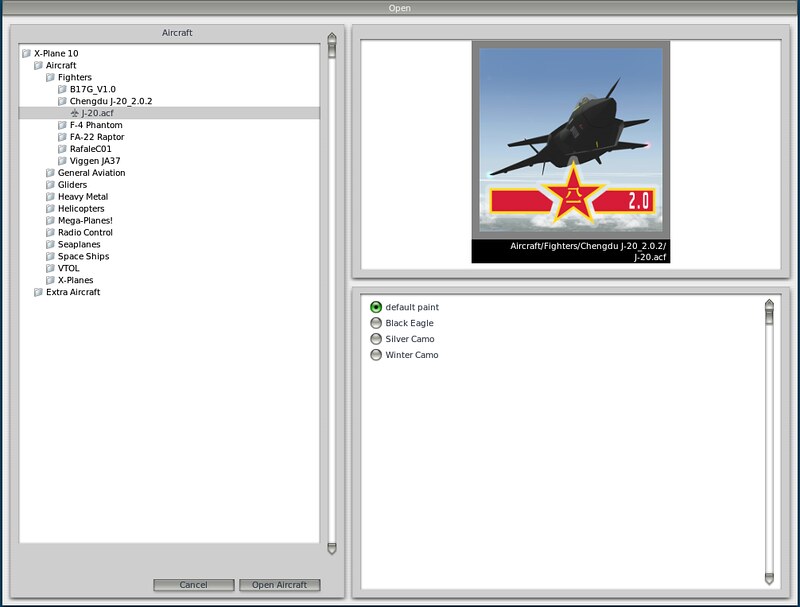
Many aircraft in X-Plane have more than one livery. If you want to change the livery, select the “Aircraft” menu, select the airframe you want to use, and you will see a list of all liveries in the bottom right of the screen.
Can I play the full version of X-Plane 10 without the DVD?
A concern for many is that using the DVD every time is very inconvenient. Here is a little trick: you actually don’t need the DVD.
The method is to create a virtual disk of the DVD. For example, on a Mac, you can make each disk into an .iso or .dmg file, then use the system’s built-in mount program to mount the virtual disk. On Windows, you can use software like Daemon Tools or Alcohol 120%. I won’t go into specific usage details here.
On Mac, you can choose to mount the virtual disk automatically at login: Click the Apple logo in the top left corner of the screen, select “System Preferences,” click “Users & Groups” (Accounts), and select the “Login Items” tab. OK, all software that loads automatically at startup is listed here. You can use the “+” button to add your .dmg or .iso files here.
For a deeper understanding of X-Plane and aviation knowledge, you can continue reading:
Site Full Index Flight Simulation Software X-Plane FAQ Collection
Well, please go and enjoy the beautiful flight of X-Plane.
Appendix
My X-Plane 10 Experience
Starting from middle school, influenced by a good friend, I began reading aviation knowledge magazines. At that time, I was mainly obsessed with various fighter jets. It was the Cold War era, and pictures of front-line US and Soviet fighters were rare domestically; sometimes I could study a single exquisite photo for a long time. Later in college, I once had an opportunity to become a civil aviation pilot, but I missed it due to personal reasons. However, my interest in aircraft and flight never diminished.
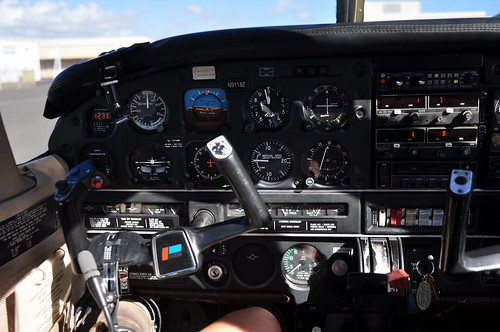
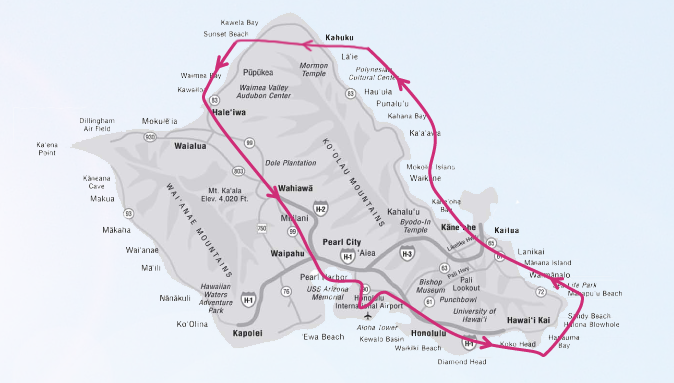
The recent reignition of my interest in flight was due to a trip to Hawaii one year, where I participated in a flight experience program. I sat in the captain’s seat of a PA-28 (Piper’s single-engine piston general aviation aircraft), held the yoke, and flew most of the way around Oahu, finally fulfilling my long-held wish of flying a plane myself.

 Since then, in my spare time, I started reading some books on flying and playing flight simulation software. At the time, I mainly played X-Plane 9 because I primarily use Mac, so much of the software on Windows was out of reach for me.
Getting X-Plane 10
I knew version 10 was in development early on, but the release schedule was repeatedly delayed. I only got bits of information through the official email list. On November 26, 2011, I suddenly received an email saying the beta of version 10 was available for download, and the full version would be officially released in early December. Overjoyed, I immediately went online to place an order. I also spent nearly half a day downloading the beta to try it out immediately, and the results were satisfactory. After getting the full version, I grew to love this software even more, so I decided to write this blog to share my experience with everyone.
The End