# How to Use ATC Air Traffic Control
X-Plane 11 is out now! Check out the latest coverage for the X-Plane 11 Free Demo Installation and First Look!
Overview
X-Plane 10’s Air Traffic Control (ATC) system can powerfully simulate the busy communications of real-world aviation, or it can quietly accompany you on a solo flight. AI aircraft absolutely obey ATC commands, so if you don’t want to contact ATC, these aircraft will simply ignore your existence and move freely. ATC sound settings are configured in the Sound section of the Settings menu.
All ATC communication is conducted via the on-screen ATC menu, which you can bring up by pressing the Enter key. For convenience, it is generally recommended to bind this to a dedicated button on your gamepad or joystick. Also, please note that to successfully send and receive messages, you must tune your COM1 radio frequency to the appropriate band.
All ATC interactions begin by filing a flight plan, and this flight plan can be modified at any time after it is filed. Once the flight plan is submitted, to obtain ATC clearance, you will need to tune to Clearance Delivery, Ground, and Tower frequencies in sequence. Of course, smaller airports may only have a Tower frequency. After obtaining departure clearance, to taxi to the Runway, you need to tune to Ground or Tower frequency to request taxi clearance. When you reach the hold short line, Ground Control will hand you off to Tower; at this point, you need to adjust your frequency to the one instructed by ATC. Additionally, using the Local Map in the Location menu, you can view frequency information for various airports.
Flight Plan
Just like in the real world, all ATC starts with filing a flight plan. Therefore, when you press the Enter key while in the air or on the ground, the only available menu is File Flight Plan.
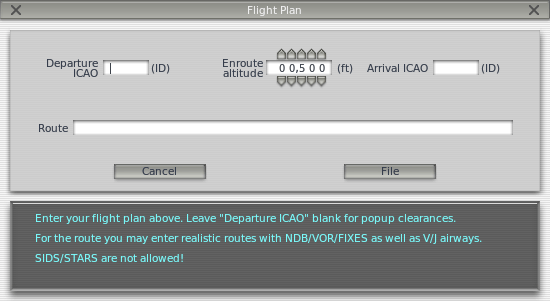 Both Departure and Destination must use ICAO airport codes, such as ZBAA for Beijing Capital International Airport and ZSPD for Shanghai Pudong, etc. After entering the route and altitude, press the File button, and your flight plan will be registered in the system.
For example, for a flight from Hong Kong to Guangzhou, you can enter “VHHH”, 25000, “ZGGG”, and “VHHH SID BEKOL A461 IDUMA W22 SHL STAR ZGGG”.
You can follow the methods here to find existing flight plan resources to create your own flight plan or refer to real-world route info used by airlines.
After successfully logging the flight plan, press the Enter key again to open the ATC menu, then select Request Clearance, and your ATC experience begins. All ATC information is broadcast via voice, and it is also displayed on the ATC menu, making it suitable for beginners to learn and adapt. Below, we will use a departure from KSEA as a specific example.
KSEA Departure Tutorial
- Since this is a short-distance exercise, select a small aircraft like the Cessna 172 from the Open Aircraft menu. Select KSEA in the Select Global Airport menu and choose a ramp start.
- Press the Enter key to open the ATC menu and select File Flight Plan.
- Enter KSEA in the Departure ICAO field, set the altitude to 3000 feet, and set the Destination to KBFI. Since this is a straight-line flight exercise, we won’t enter a route. Generally, you need to input NDB/VOR/FIX information. Press the File button after completing the input.
- The flight plan is now logged.
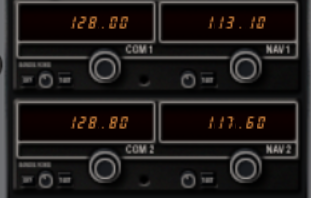
- Tune the COM1 radio frequency to 128.00 (KSEA’s Clearance Delivery frequency), press the Enter key to open the ATC menu, and select the Request Clearance command.
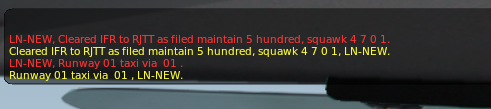
- The ATC menu will display your request and broadcast the corresponding voice instruction. Normally, all ATC instructions require a readback. To read back, press the Enter key again to launch the ATC menu; the readback content will be displayed in the selectable options. You need to select that readback item and press Enter again to reply. If you hear a “beep” when you try to read back, it means another aircraft is communicating with ATC; you need to wait for their conversation to end before attempting your readback again.
- After obtaining clearance, tune the frequency to 121.70, which is KSEA’s Ground Control frequency. You need to request taxi clearance. Use the same method as above to open the ATC menu and request taxi clearance. After receiving clearance, don’t forget to read back. At this point, watch ahead; X-Plane 10 will display yellow arrows on the ground to show your taxi route. Of course, you need to stop where the arrows stop.
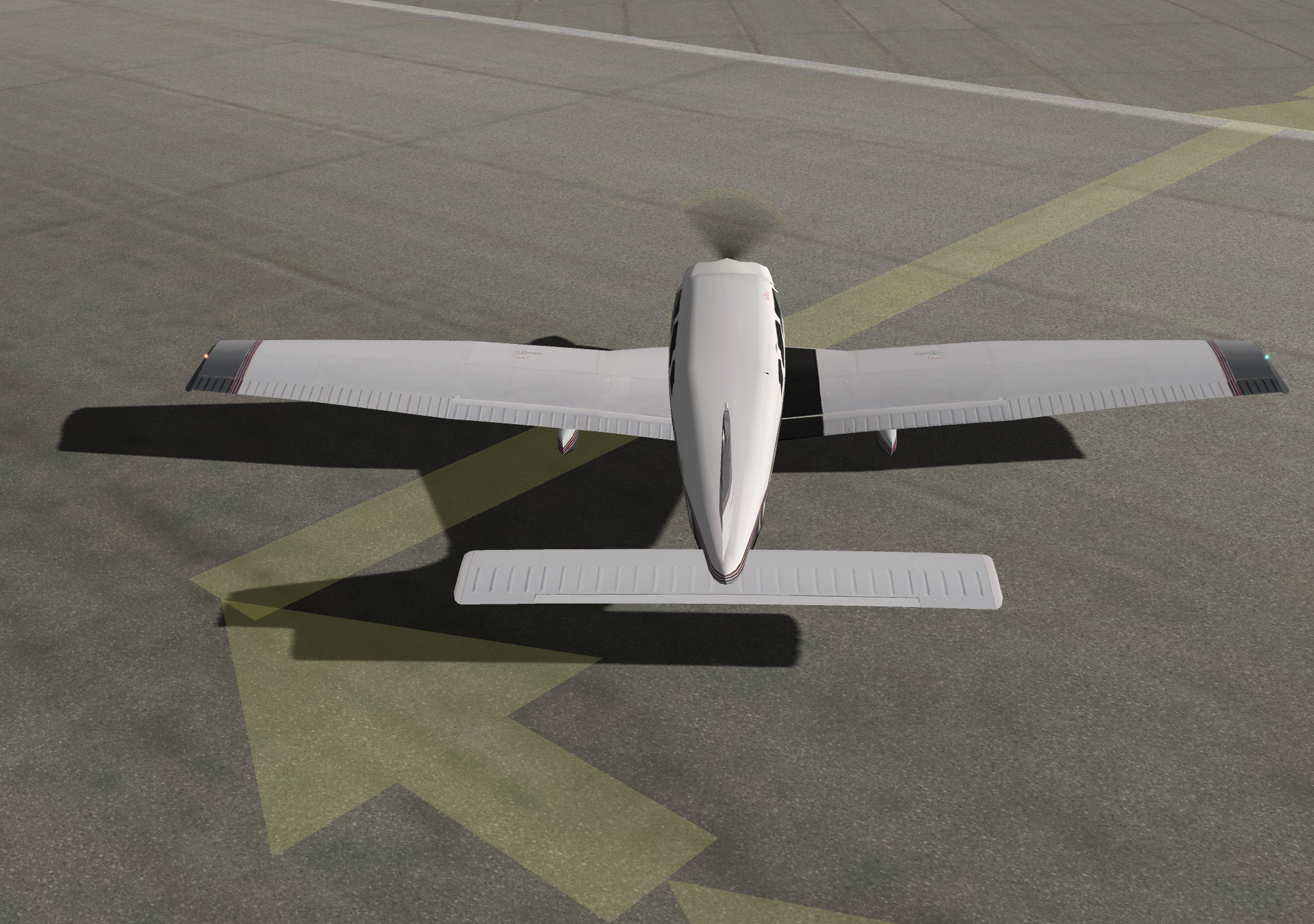
- Release the brakes and taxi your aircraft following the ground arrows. When you reach the end of the Runway, Ground will hand you off to Tower; be sure to remember this frequency. After you read back, tune your radio to 119.90, the Tower frequency.
- Open the ATC menu again and check in with Tower. The Tower’s response time might be a bit long here, so please be patient. After a while, Tower will contact you, instructing you to cross Runway 16L/34R and proceed to 16C/34C. Read back and continue taxiing following the ground arrows.
- Upon reaching the departure point, stop again and wait for Tower instructions. Tower will then notify you that you are “clear to take off.” Read back and then take off. Unless you receive new instructions, Climb straight ahead along the Runway Heading to 3000 feet.
- After a while, Tower will notify you to contact Center (Control) on frequency 124.20. Follow the steps above: read back, tune the frequency, and check in with Center. Then maintain your Heading and altitude and fly toward KBFI. Later, you will be instructed to contact Approach, etc. Just follow the instructions.
- Once you have set up for Approach and prepared for landing, Control will hand you off to KBFI Tower. Tower will look after you until you have come to a stop at your gate.
Further Reading:
Small Aircraft Autopilot Basics Summary of X-Plane Flight Plan Route Settings
End