New ATC Features in X-Plane 12
The official website summary of the new ATC features in XP12 is quite good, so here is a brief translation. New ATC Features in X-Plane 12
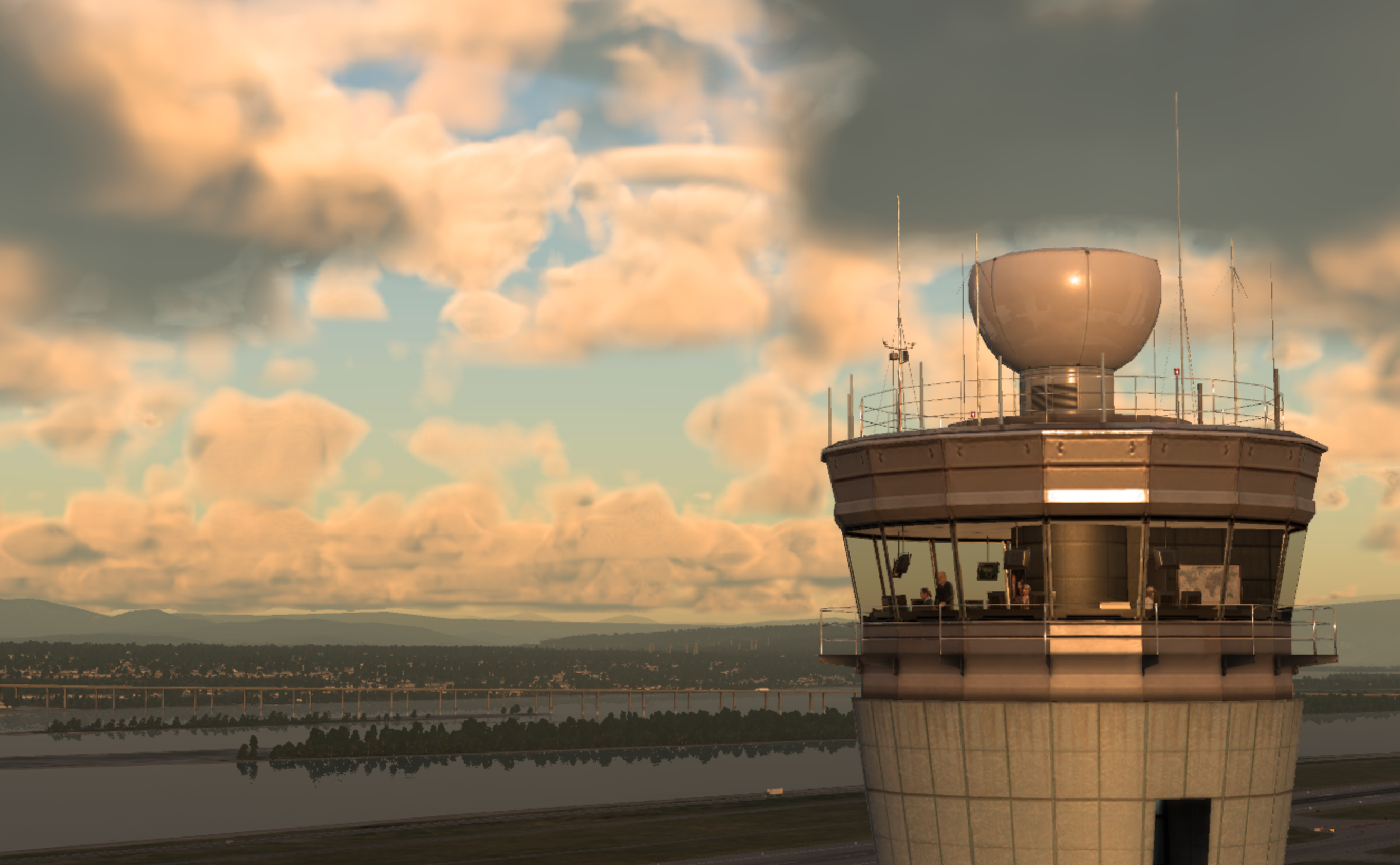
New Features in XP
- 6 different regions (Asia, Australia, Europe, India, United States, and Global)
- Choice of male and female pilot voices
- Voice changes based on signal reception strength, distance from transmitter, and intervening terrain
- Artificial intelligence will now wait for the controller’s instructions before executing them
One of the major changes, and perhaps one of the least noticeable, is that a global region system has now replaced the previous single global control area (the old system only simulated US-specific rules and information). Having independent geographic regions means different parts of the world can use voices appropriate to the location, but more importantly, regions can have different procedures and standards. To accommodate regional accent differences, the system now supports more than one voice per region, providing more variety, as well as male and female voices. In the voice settings page, pilots can also choose between male and female voices.
Now, signal reception quality considers distance to the controller, relative altitude, the type of controller, and any blocking terrain. In other words, if you are close to the airport with a clear line of sight, you will get very good, strong, and clear reception. If you are a few miles away, flying low behind a ridge, you will have difficulty hearing what the controller is saying. When AI receives instructions from the controller, they will now wait until the transmission is finished before executing those instructions, rather than executing them the instant the transmission begins. This is one of many small changes that has no functional impact but is hoped to increase realism and immersion.
Interaction Features
- Menu-based branching commands for more complex calls
- Menu order prioritizes the most important or likely calls
- Dynamic calls tailored to the current situation
- Push-to-talk radio handling
- View the name of the currently tuned station
- Can use VORs or Airways to plan routes
- Click to adjust ATIS frequency
- Dialog box can be moved, resized, and popped out
- Message history can be scrolled
- Available in VR
- Option to view only your own messages or those of other aircraft
Compared to X-Plane 11, the ATC dialog box and the way you interact with the controller have completely changed. The new dialog box contains both controls for making radio calls and a scrollable message log. Like all other windows, it can be resized, dragged, and “popped out” to become a standard operating system window; for example, you can place it on a second monitor. You can adjust the size of the message log and command area within the window using a horizontal divider to suit your preferences, and the dialog box is also fully usable in VR using controllers.
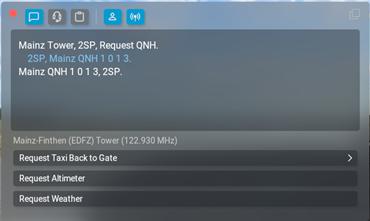
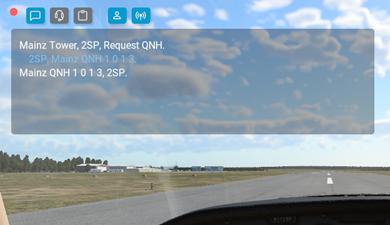
You can choose to have this dialog box open automatically when you receive a message, and automatically hide itself again after a while if you don’t interact with it. If you open it manually, it will also partially hide itself, leaving only a translucent message log. This allows you to keep it on the screen to view the message log without obstructing your view. You can also choose to filter out communications with other aircraft, though you will still hear them on the radio.
The available commands have changed from a fixed sequence of specific task options to a dynamic, prioritized, context-sensitive menu system. Only calls that you can make at any given moment are displayed, with the most relevant or likely calls generally at the top of the list. It is hoped that this will make it easier for those unfamiliar with ATC to get in and try things out.
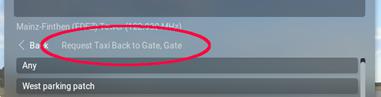
Some commands have multiple options, such as requesting a VFR departure type or requesting an altitude change. When you select one, a new set of options will be displayed, presenting the next stage of the command. Commands may have several stages. When you have provided all the necessary options, the complete radio message is transmitted. Sometimes options change, for example, when requesting to land at a nearby airport while talking to Center. Again, only relevant and valid options are displayed. If you need to build a command over multiple stages, the resulting command will be fully displayed above the option buttons in the dialog box.
The new Push-to-Talk (PTT) mode allows you to use ATC interactions without taking your hands off the controls. If you assign a controller button to PTT in the “Joystick” settings page—usually the trigger or a dedicated “transmit” button—this changes how the radio message menu system works.
When you hold down the transmit button, the ATC dialog box will appear by itself if needed, and you will be able to use the controller’s hat switch to navigate the radio options, which would normally control your view direction. When you release the PTT button, the message is transmitted. Unlike in a real aircraft, you can hold down the transmit button while another station is transmitting without any issue, so you can start building a command even if the frequency is busy.
On the second tab of the ATC dialog box, you can see a list of nearby controllers and ATIS transmissions. You can tune your radio directly by clicking on one of these entries; if a controller is available, it will be set on COM1, otherwise COM2, and the ATIS transmitter will be tuned to the standby frequency of COM2. For ATIS, NAV1 will be set to the NAV frequency. This tab also has controls to enable Auto-Tune and Auto-Readback. Auto-Readback is a simple shortcut that automatically handles every ATC message that requires you to read back confirmation. Normally, you would need to explicitly use a “Readback” command.
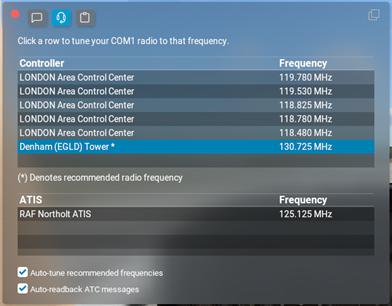
Auto-Tuning is another convenient feature that will set the correct radio frequency for you as you are handed off between controllers, or the most likely frequency if you aren’t currently talking to any specific controller. The most appropriate frequency is marked with an asterisk in the controller list.
Finally, on the flight plan tab, you can change the basic details of your flight, setting the destination airport and requested cruising altitude. As with X-Plane 11, you can specify a specific Airway, but now you can also have the dialog generate a route for you, going from VOR to VOR or using Airways. Whether low or high-altitude airways are used depends on the requested cruising altitude, if there is a choice.
Regional Characteristics
- Different accents for each region
- Multiple voices for controllers, including male and female
- Phrases can change, such as “Point” vs “Decimal”
- Default transition altitude per region
- Units per region (currently only pressure)
- Untracked VFR squawk codes per region
- More region-specific changes may come in the future
As mentioned, each region has a number of different voices in an attempt to add depth and variety. More importantly, values and procedures can vary by region. For example, in the United States, the word “point” is used, whereas in the rest of the world, “decimal” may be used instead. Currently, these different words and phrases are few, but it is hoped to expand them in the future based on feedback.
Other constant values can also be defined by region. The default transition altitude used when an airport has not specified one is defined by region, as are the “untracked” or “VFR” squawk codes. The system can now easily manage regional variations, and more content can be added very easily.
New VFR Features
- Flight following
- Proximity traffic warnings
- Circuit operations at airports that support it
- Low approach requests
- Touch and go requests
- Zone transit requests
- Controllers occasionally check position
- VFR flights at FISO airports have different message flows
- Center controllers requesting landing at controlled airports
- Downwind / Late downwind and Final calls
- Changing approach type between Full Stop, Low Approach, and Touch and Go
- “Change Frequency” and “Request Frequency Change” calls
- “Request Destination to Nearby Airport” calls
One of the major development areas for ATC in X-Plane 12 is the greatly expanded support for VFR flight, both airborne and airport-based GA operations.
Flight following for unplanned VFR flights is now supported. This is handled as a “Traffic Service” level—traffic advisories will be provided if the controller isn’t busy handling other calls. When accepting flight following, you will be assigned a squawk code and can make requests of the controller. You will also be handed off to controllers in other regions when you enter their airspace, and controllers may ask for position checks from time to time to ensure you are still awake.
An airport can be defined as supporting flight operations using new data values in WED, but even if not, X-Plane 12 will extrapolate based on airport and regional characteristics.
Another major change in how airport towers work is that there are now two types—the existing “fully controlled ATC,” which will correspond to major airports, and “FISO/Information” types, which will be more familiar to GA pilots at smaller fields outside the US.
These two types have different messages, different capabilities, and different phrasing. As with “circuit operations” status, whether a specific airport’s tower is full ATC or FISO can be set in WED, but if not, the simulator will calculate an estimate.
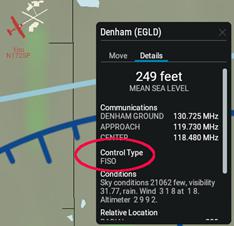
If you find yourself receiving unexpected messages, or not receiving expected ones, when talking directly to an airport, it is worth remembering that the airport’s control type may have been guessed, or even explicitly set incorrectly. You can check an airport’s control type in the map window; if you click on the airport to bring up details, there is an item called “Control Type” on the second tab, which will display “Controlled” or “FISO”.
New IFR Features
- Request altitude change
- Request routing change
- Request direct to destination
- Forward clearance when filing flight plan via FISO airport
- Improved vector creation to prevent 360-degree turns
- Can request cancellation of landing clearance
- Request landing change between ILS and VFR
- Issue VFR or ILS landing clearance based on current airport weather
- Can select a specific gate for arrival
Building on the IFR functionality existing in X-Plane 11, several new calls have been added to support common occurrences such as en route changes and diversions. With the addition of FISO-type airports, you can still file an IFR flight plan on the ground, but it will be forwarded from the nearest controlled airport.
Quality of Life Features
- All interactions can now be spoken
- Radio check
- Repeat last request
- Request altimeter setting
- Request area weather
- Query weather for waypoints on planned route
- Call “Position Uncertain”
- Interact with ground operations (push back, etc.) via radio rather than dialog
- Better prioritization of messages
- Push-to-talk, especially for VR/HOTAS users
- Auto-readback
- Dedicated readback command
- Consistently assign distinct squawk codes
- Ability to change tail number without filing a flight plan
- AI can take over at more points during flight
- Display ATC controller boundaries on map
- Improved taxi route generation
- Improved handling of taxi instructions
- More airport name