Garmin D2 Delta PX Titanium Aviation Watch Setup: Getting Started
Following up on the previous post Unboxing the Garmin D2 Delta PX Titanium Aviation Watch
The setup method for the Garmin D2 Delta PX Titanium Aviation Watch is basically the same as the D2 Charlie. Here is a brief overview of the usage of each button: Top Left “LIGHT”: Press to turn on the backlight; Long press to display the shortcut menu. Middle Left “UP-MENU”: Press to display the Widget app directory or move up; Long press to display the settings screen. Bottom Left “DOWN”: Press to display the Widget app directory or move down; Long press to return to the watch face. Top Right “Direct-to”: Press to display the APP activity application directory or confirm; Long press for Direct-to destination. Bottom Right “Nearest/Back-LAP”: Press to return to the previous screen, record a lap during an activity; Long press to display nearby locations.
After the factory first startup, the watch will enter the setup screen.
Use “UP” or “DOWN” to select your desired language,
and press the top right “Direct-to” to confirm this option.
It is set to Traditional Chinese here.
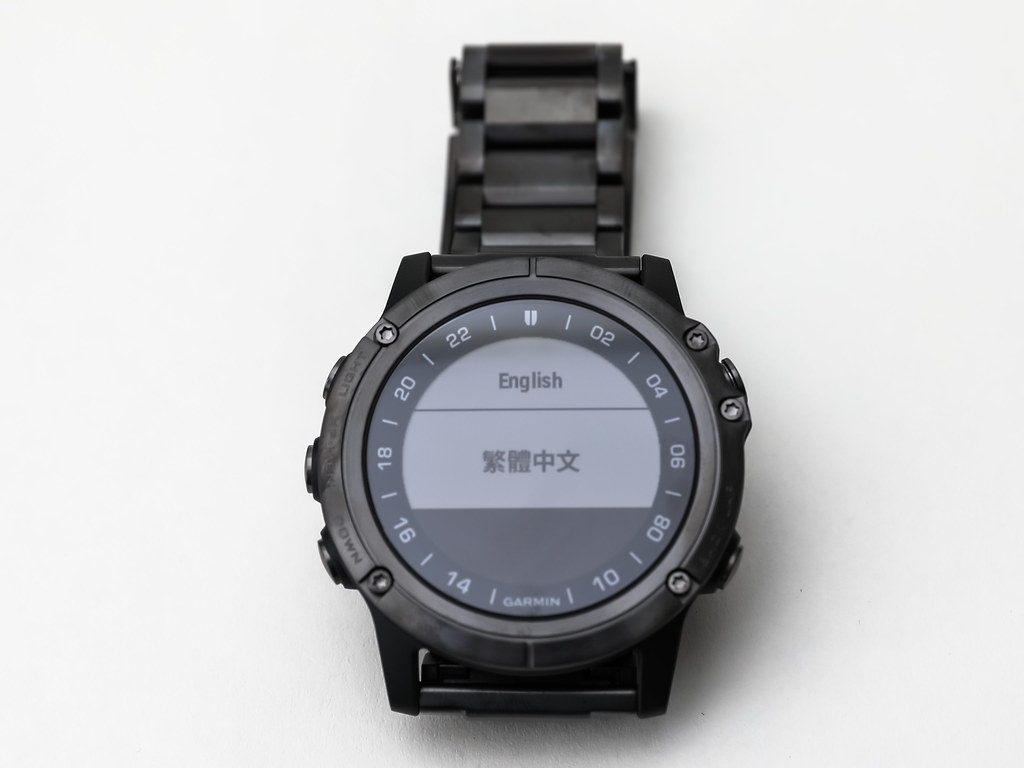
Next is the choice of whether to connect with a phone.
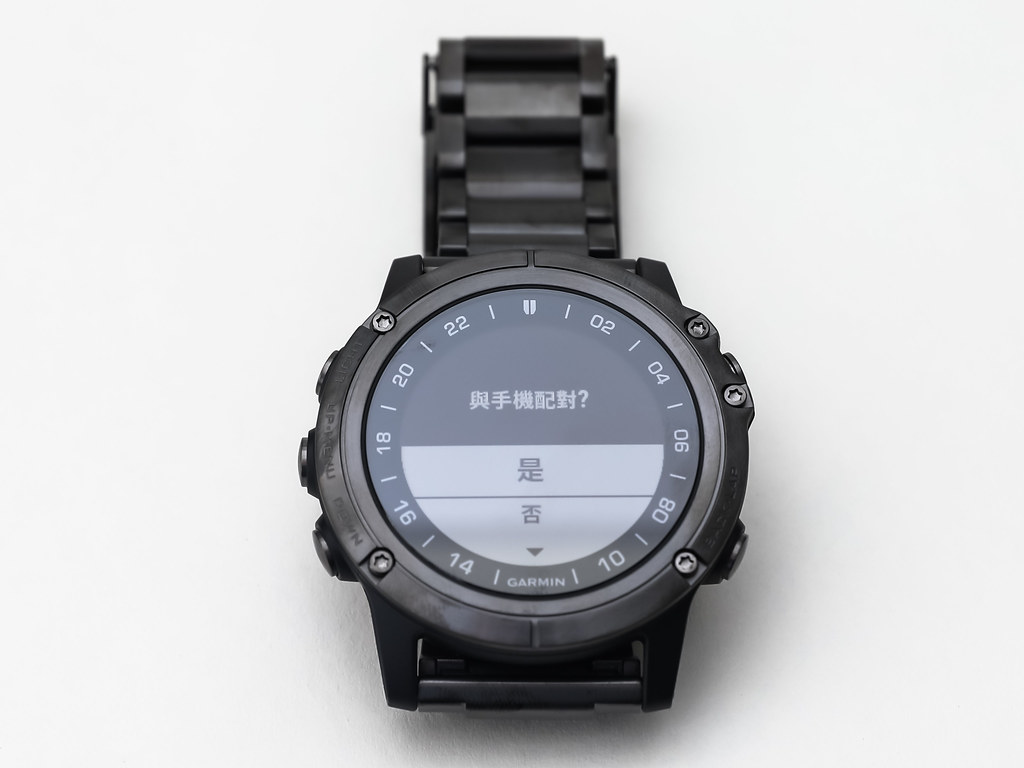 If you select “No”, it should be ready to use directly,
but here “Yes” is selected to continue completing various settings.
If you select “No”, it should be ready to use directly,
but here “Yes” is selected to continue completing various settings.
Take out your phone and install the Garmin Connect app from the App Store. Note that if you are using Garmin Connect for the first time, you will need to register for a free account. I will not introduce the registration method in detail here.
Turn on Bluetooth, start Garmin Connect,
and the watch will display a one-time connection verification code.
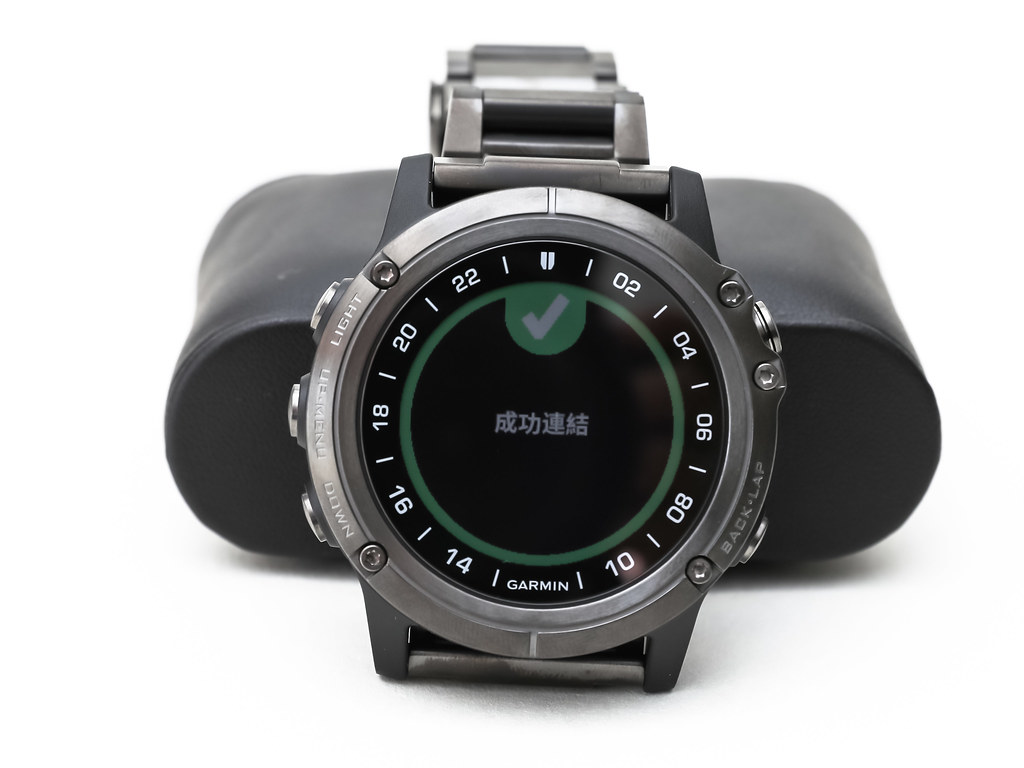
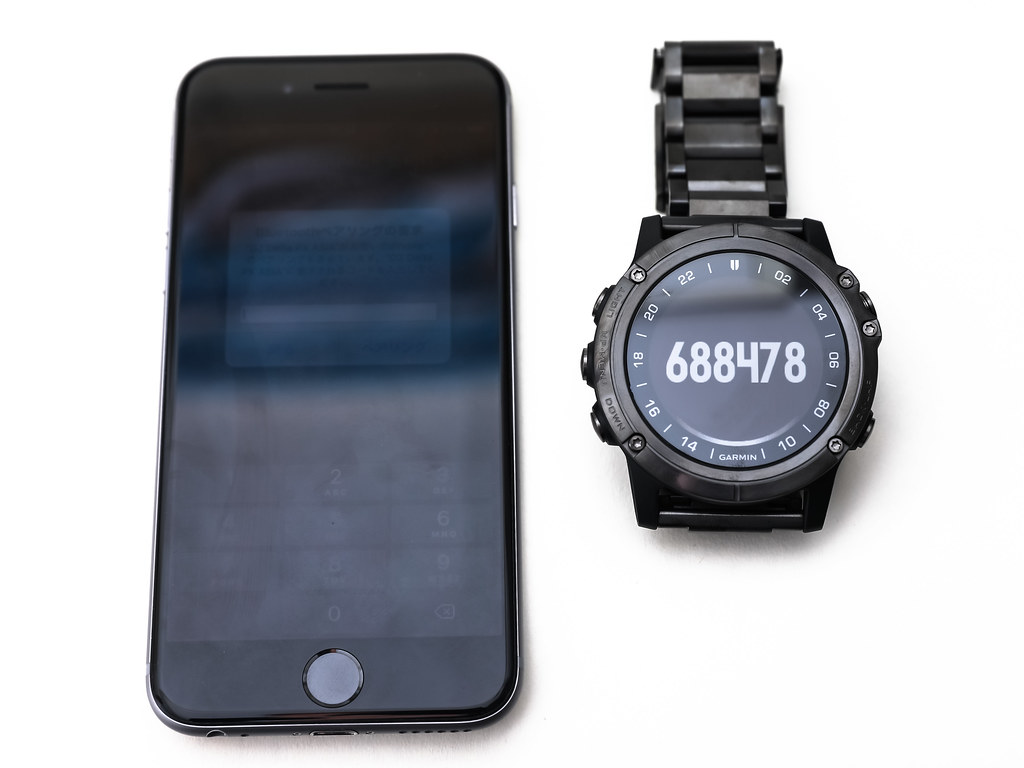 After correctly entering the verification code into the mobile app, the watch and phone will enter connection mode.
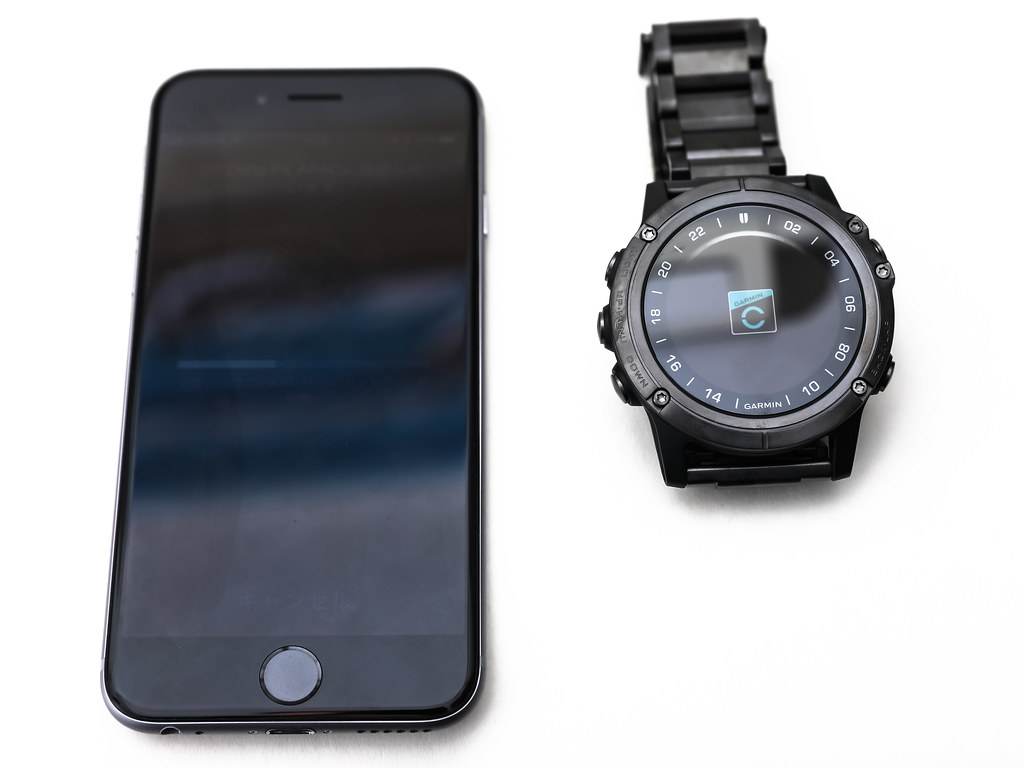
The connection process takes about tens of seconds. Finally, there will be a prompt asking whether to enter the tail number.
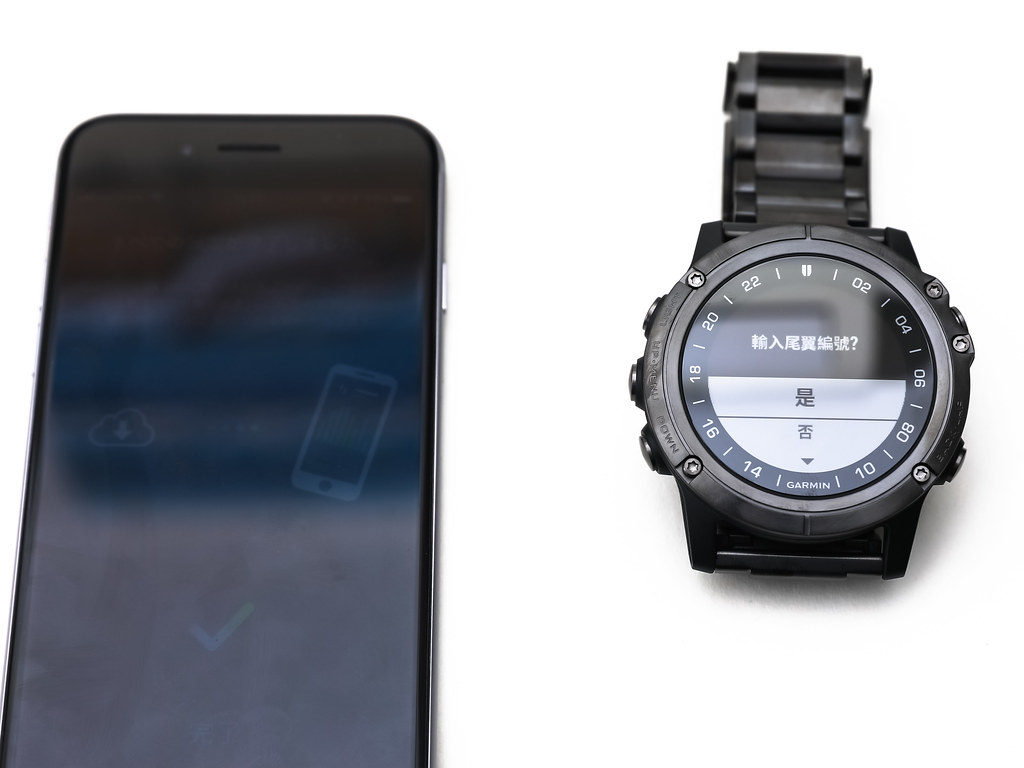 Here, just enter “88888”.
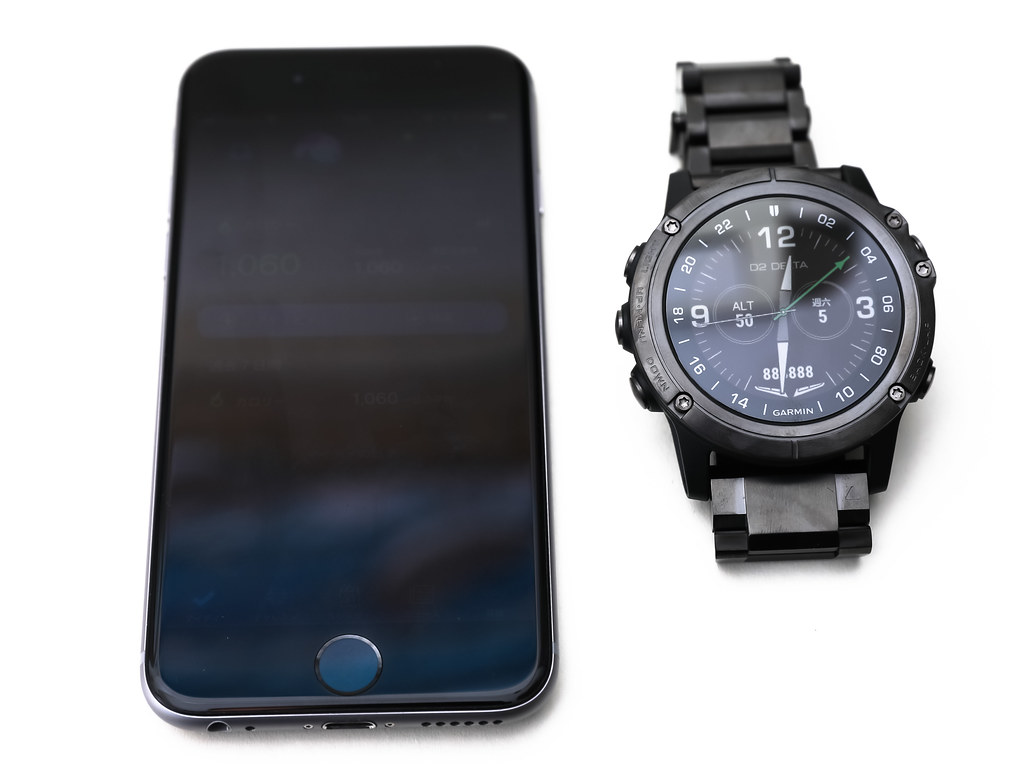
After this process is complete,
the watch will enter normal usage mode.
Here, just enter “88888”.
After this process is complete,
the watch will enter normal usage mode.
Shortly after starting, you will see some automatically popped-up help tips. For example, the message in the image below pointing to the top left button:
“Tip
Long press to access music, saved locations, and other settings.”
This feature was not present in the previous generation D2 Charlie.
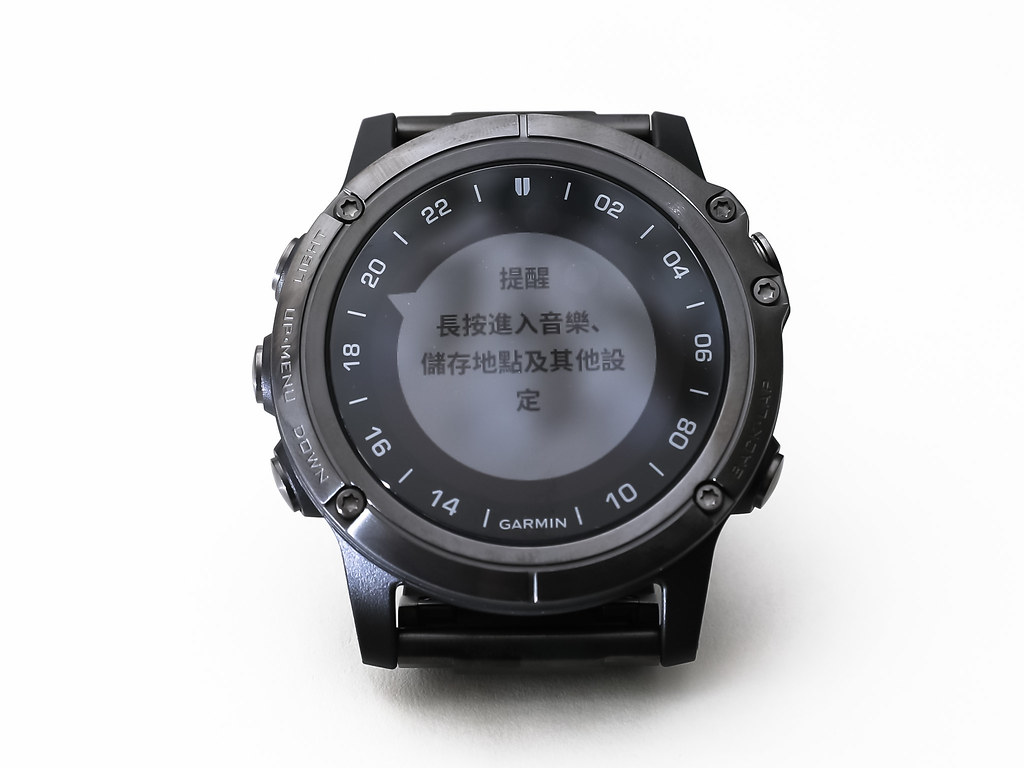 With this feature, first-time users of the D2 Delta product can easily get started without looking at the manual, which is indeed very good.
So, let’s try long-pressing that button to enter the screen.
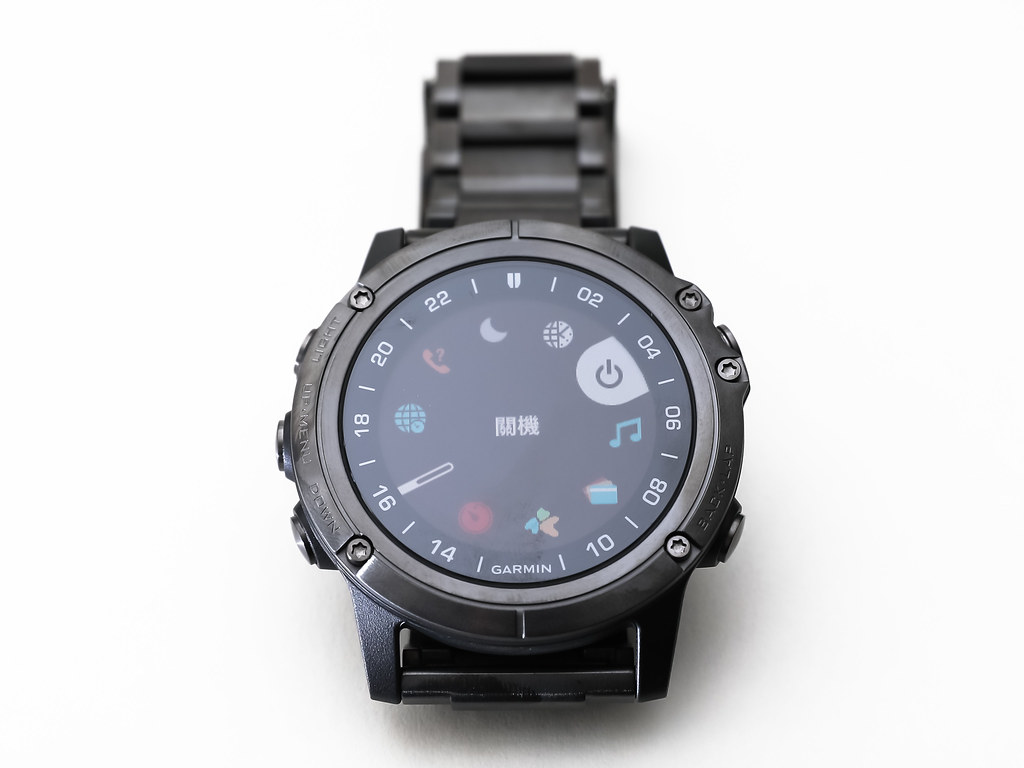 You can see shortcut menus for music, e-wallet, all-in-one card, timer, alarm, store location, alternate time zone, find phone, do not disturb mode, GPS time setting, power off, etc.
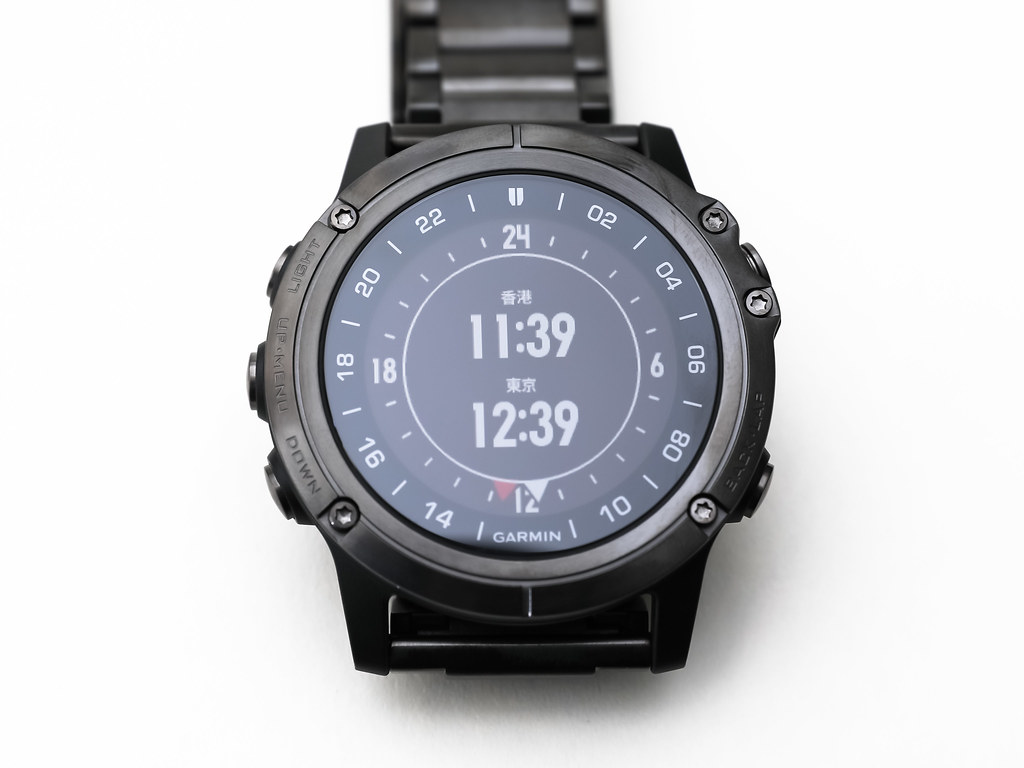
For example, the alternate time zone is a very convenient feature.
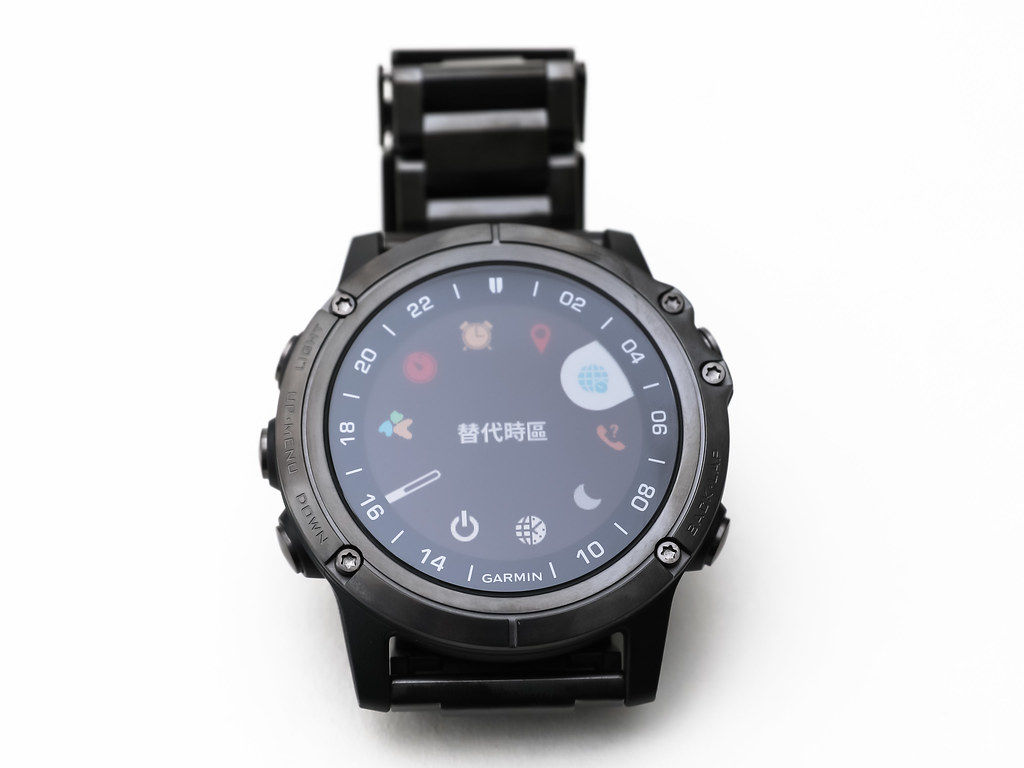 Set the desired time zone in the settings page.
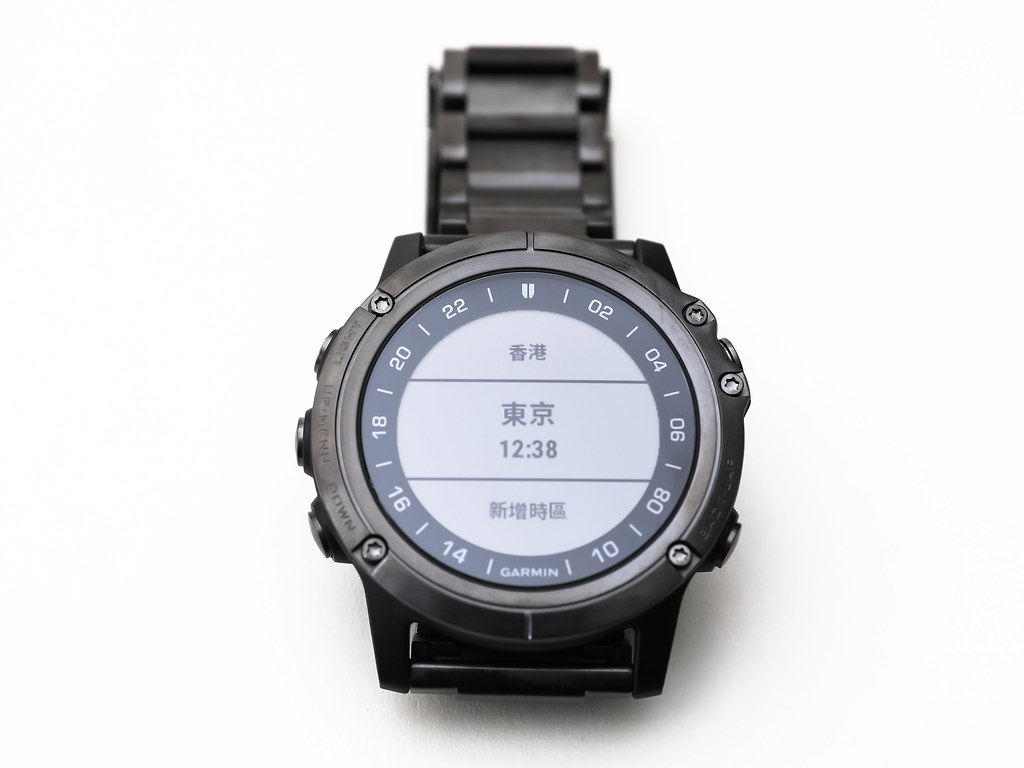 Thus, you can display the time for several time zones on one screen simultaneously.
Next, let’s try the e-wallet.
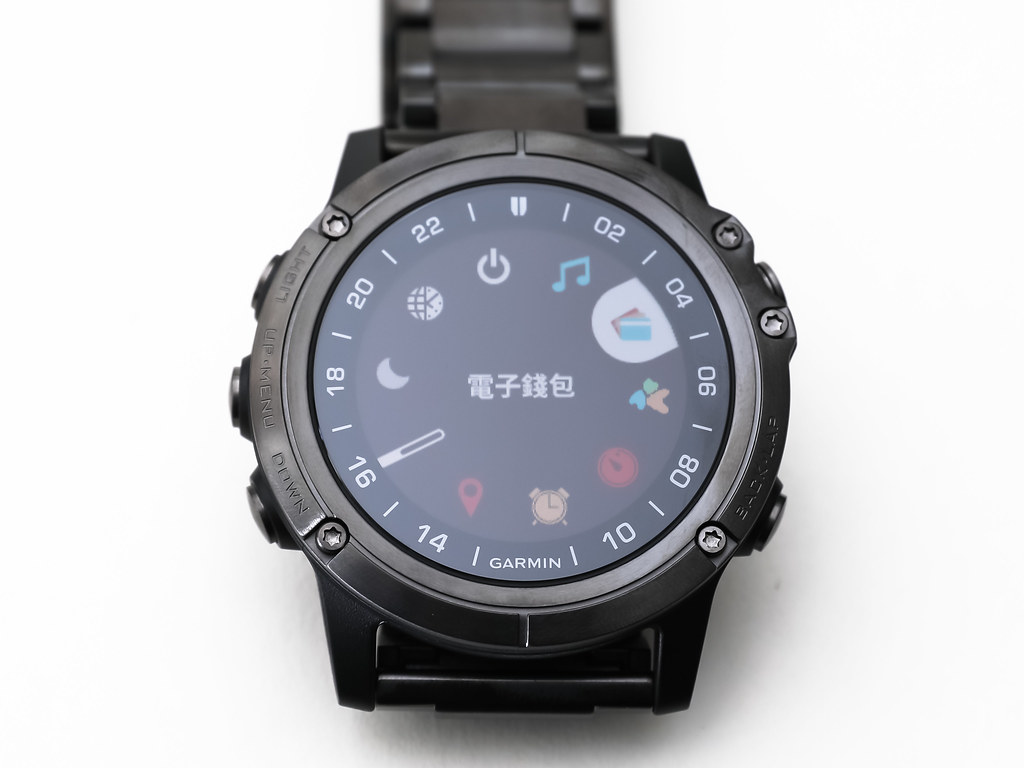
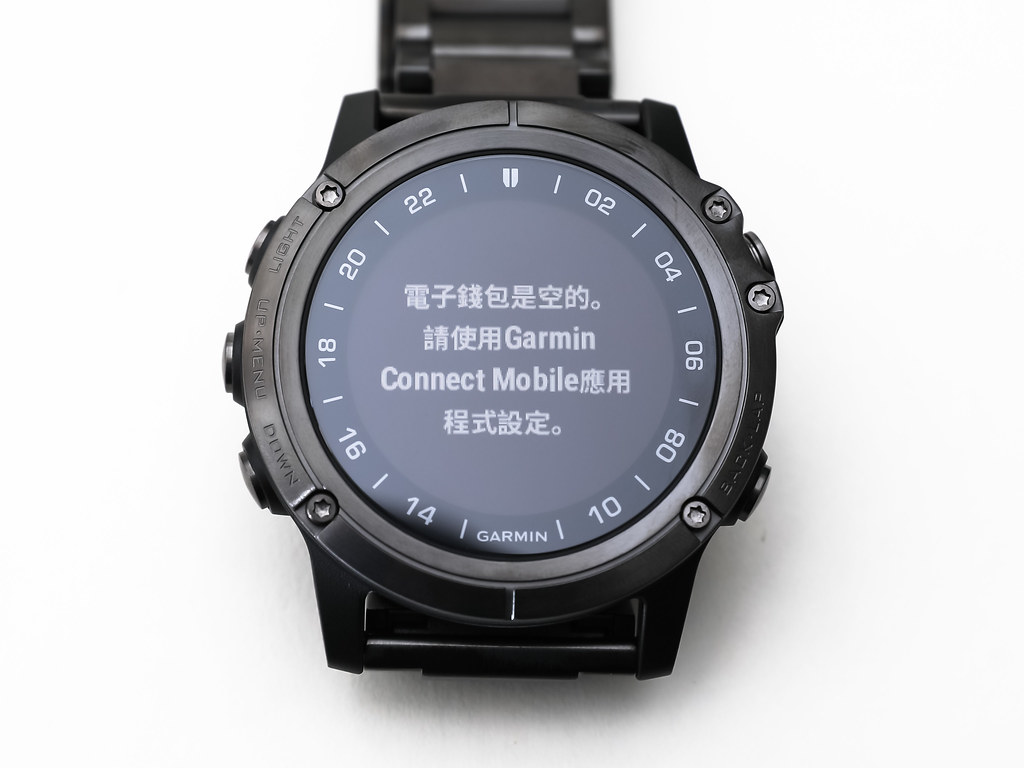 It seems you need to use the Garmin Connect mobile app to set it up.
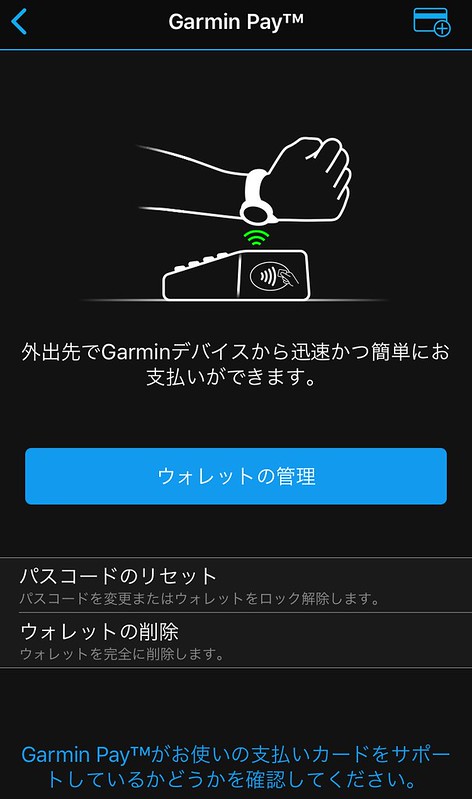
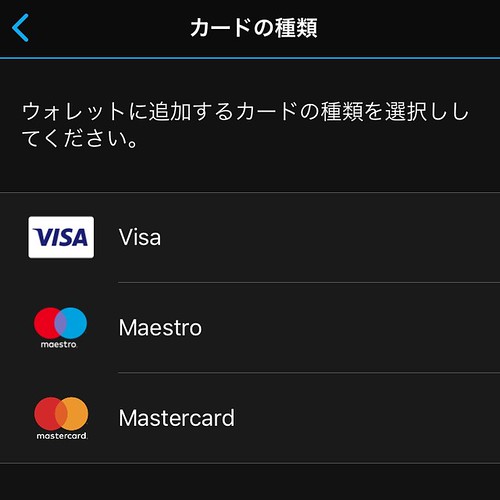 However, I tried logging in with my credit card several times without success.
It seems that credit card company has not yet started a partnership with Garmin Pay.
Checking the official website for Garmin Pay™ Participating Banks,
I found that in Japan, only Mitsubishi UFJ Bank VISA cards can be used.
I will just have to wait patiently for Garmin Pay’s expansion efforts.
Also, partner financial institutions in Taiwan can be found here.
However, I tried logging in with my credit card several times without success.
It seems that credit card company has not yet started a partnership with Garmin Pay.
Checking the official website for Garmin Pay™ Participating Banks,
I found that in Japan, only Mitsubishi UFJ Bank VISA cards can be used.
I will just have to wait patiently for Garmin Pay’s expansion efforts.
Also, partner financial institutions in Taiwan can be found here.
Next, let’s look at the music playback function.
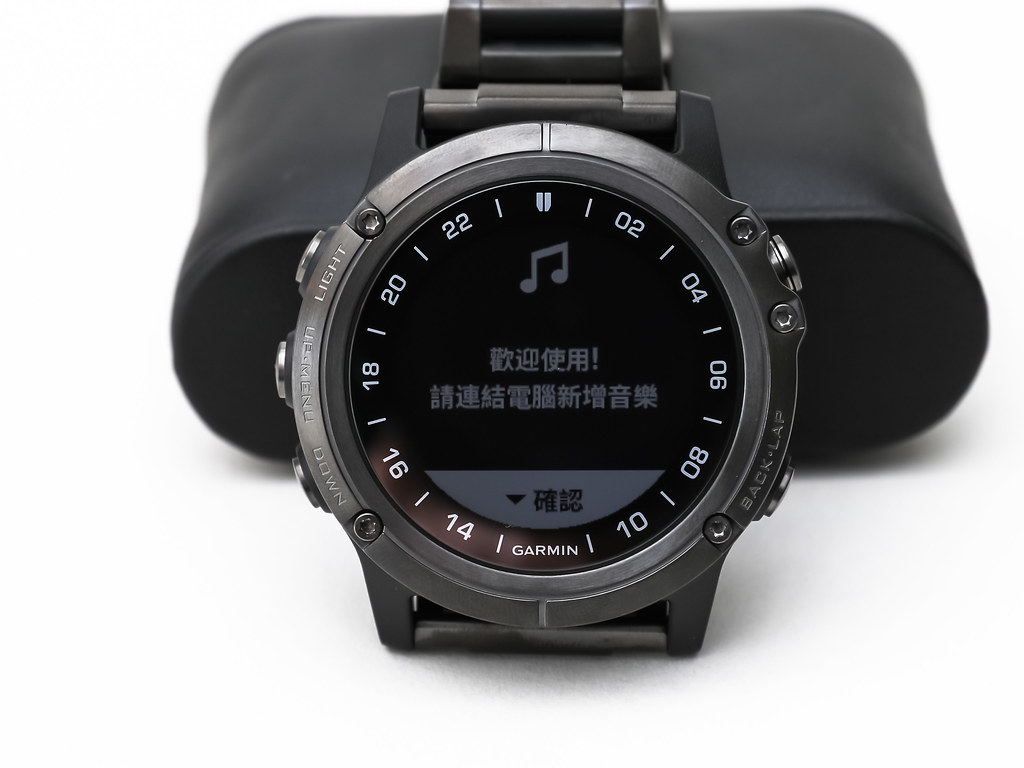 According to the prompt, to use this function, you need to use a USB cable to connect the D2 Delta to a computer,
and then install the application Garmin Express.
After installation, start Garmin Express,
and you can see the connection preparation screen.
According to the prompt, to use this function, you need to use a USB cable to connect the D2 Delta to a computer,
and then install the application Garmin Express.
After installation, start Garmin Express,
and you can see the connection preparation screen.
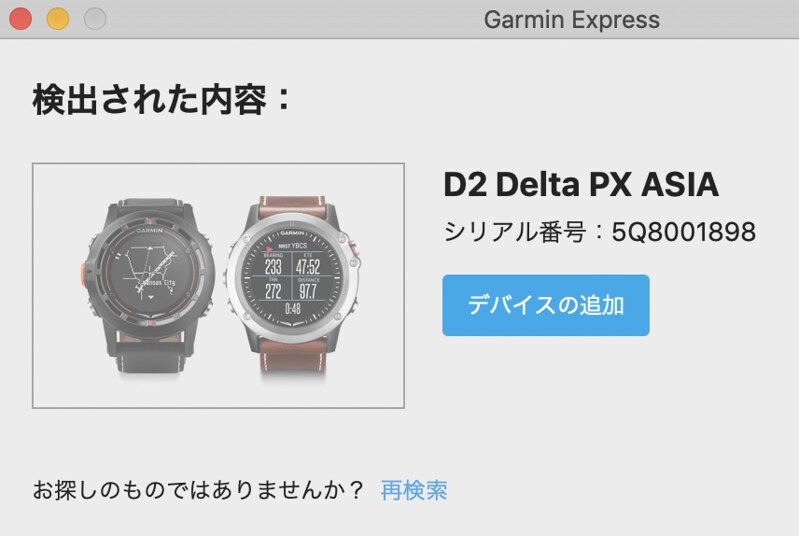 Select to add D2 Delta to Garmin Connect.
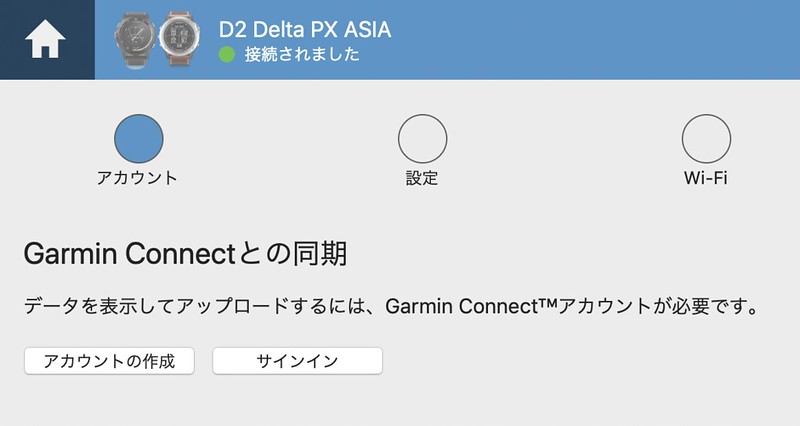
Log in with your Garmin Connect account.
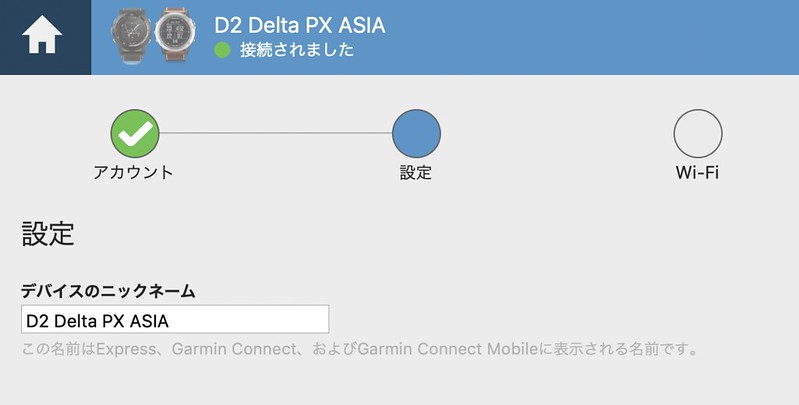
 Name your watch device.
 Then proceed to Wi-Fi settings.
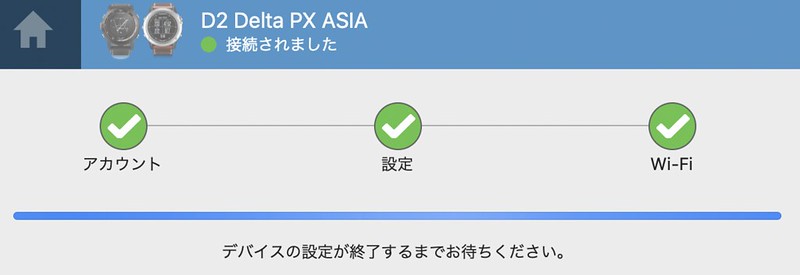 After about 1-2 minutes, the connection setup is successful.
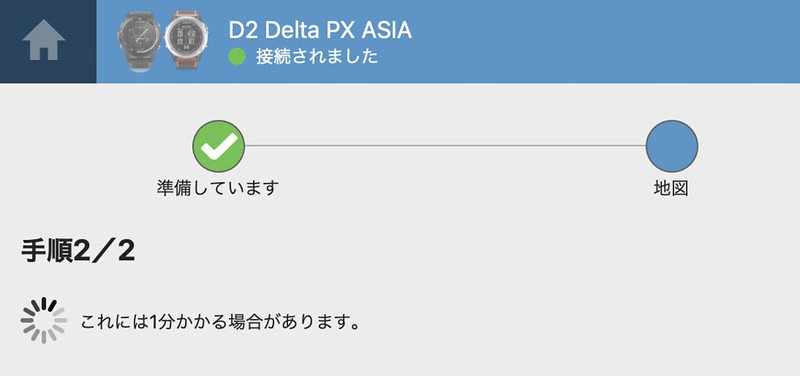
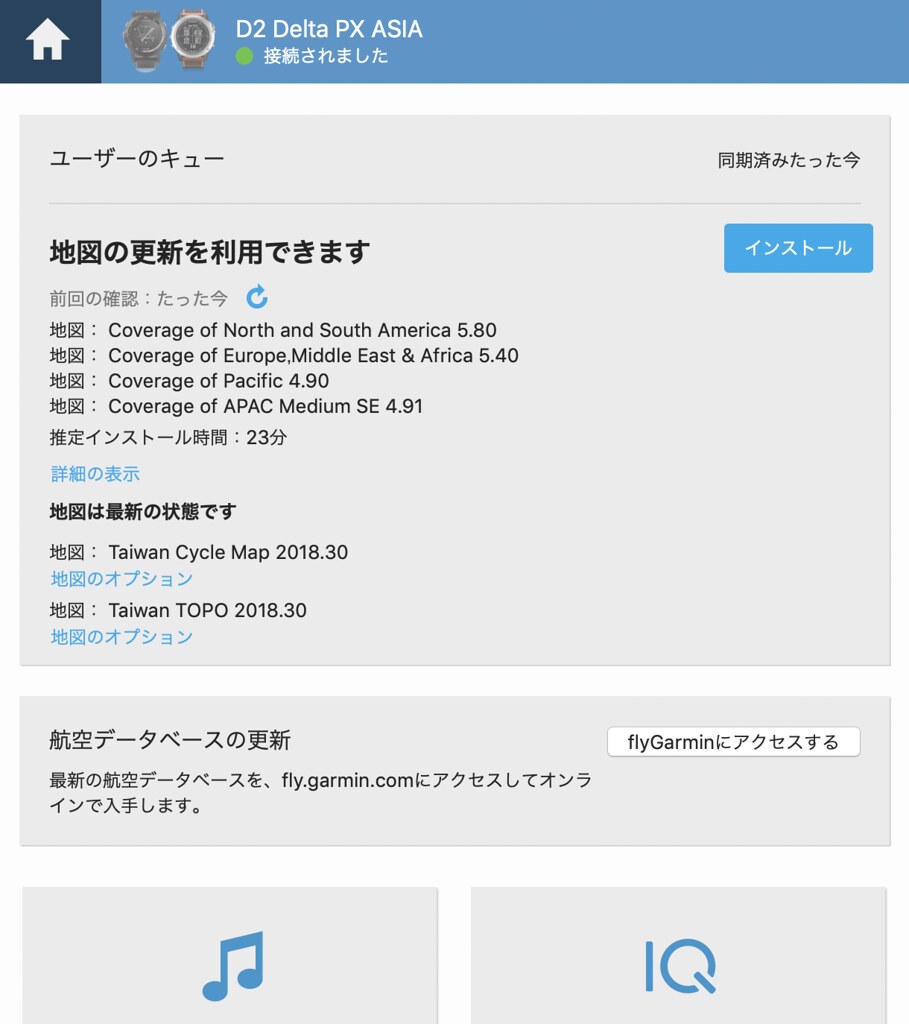
Next, transfer the latest data to the watch.
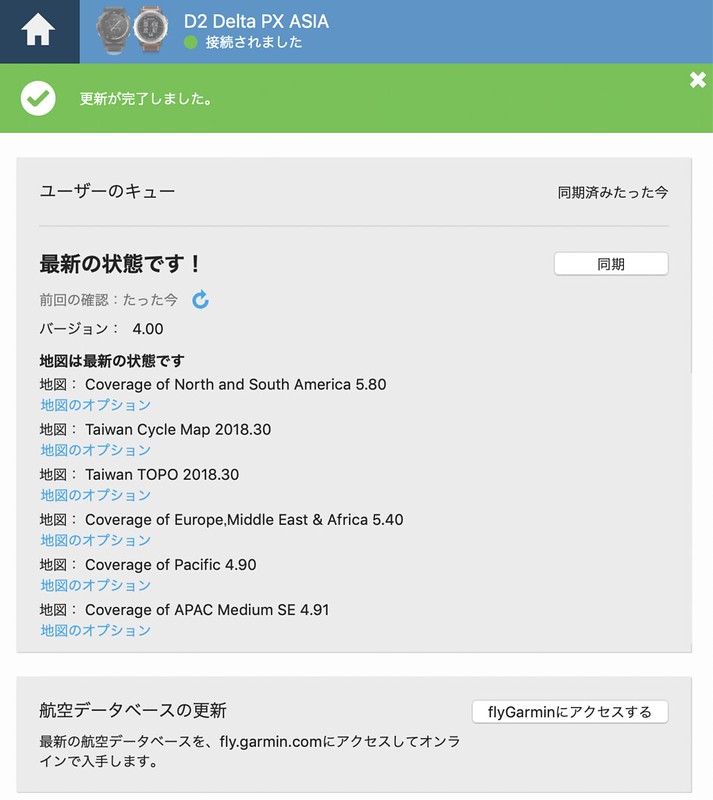 As shown above, all the latest maps are installed.
After preparing for a while, we can finally put music files into the watch.
Enter the music screen in Garmin Express. You can see the iTunes music library displayed in the top left,
and the D2 Delta’s internal storage space displayed in the bottom left.
The method to install music tracks is very simple; just select the tracks you want to install from iTunes,
and drag them to the D2 Delta below.
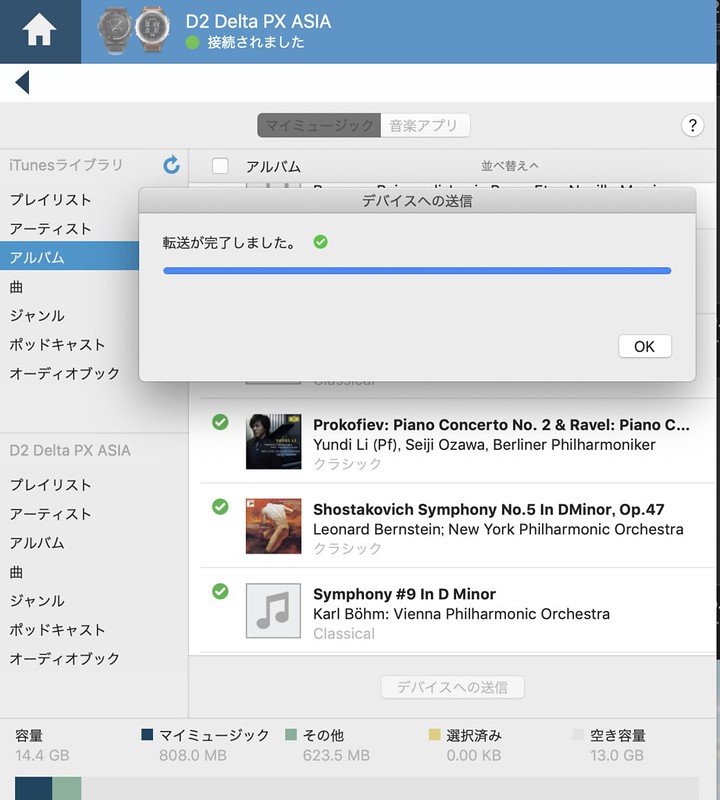 After installation, it looks like this.
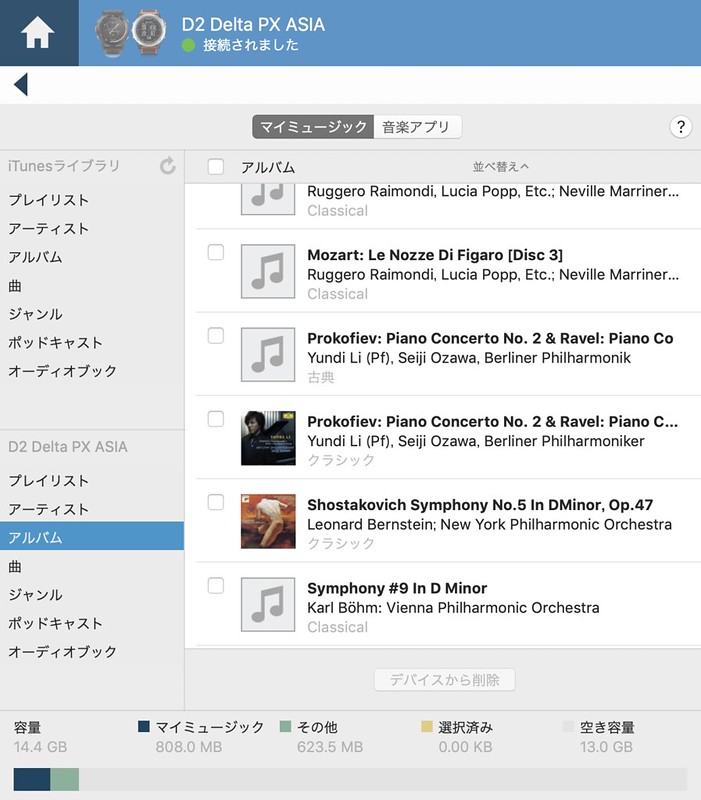
Next, try playing music. Get your wireless Bluetooth headphones,
and set the headphones to Bluetooth connection mode.
Enter the music playback widget on the D2 Delta,
where you can already see the tracks just installed.
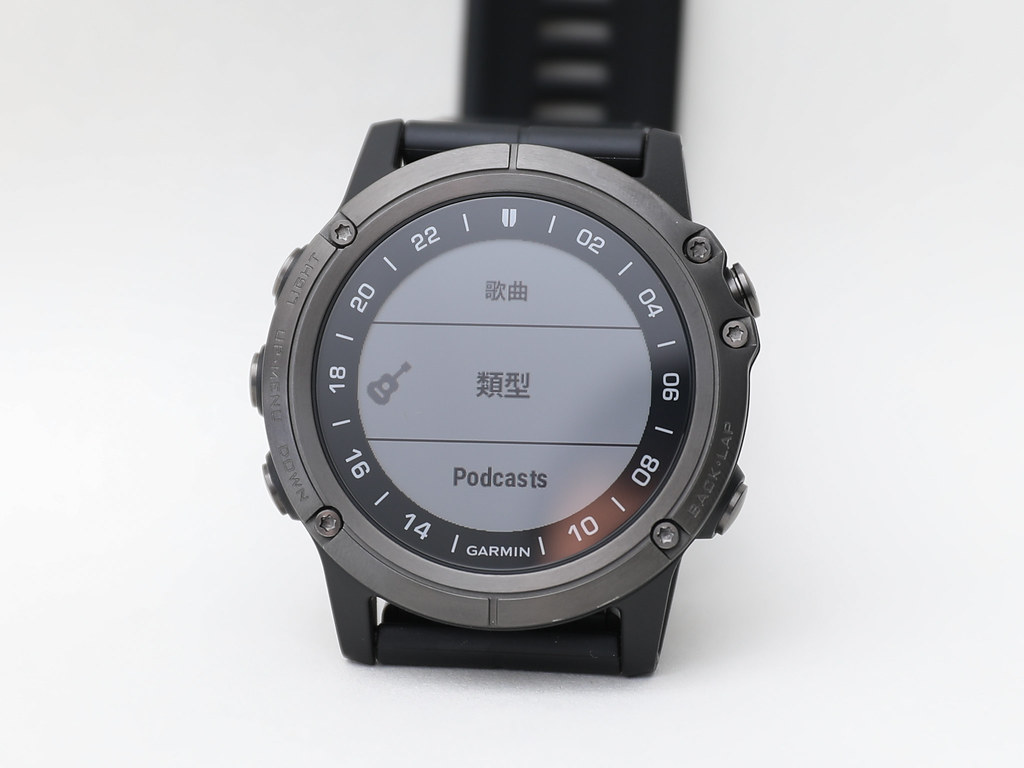
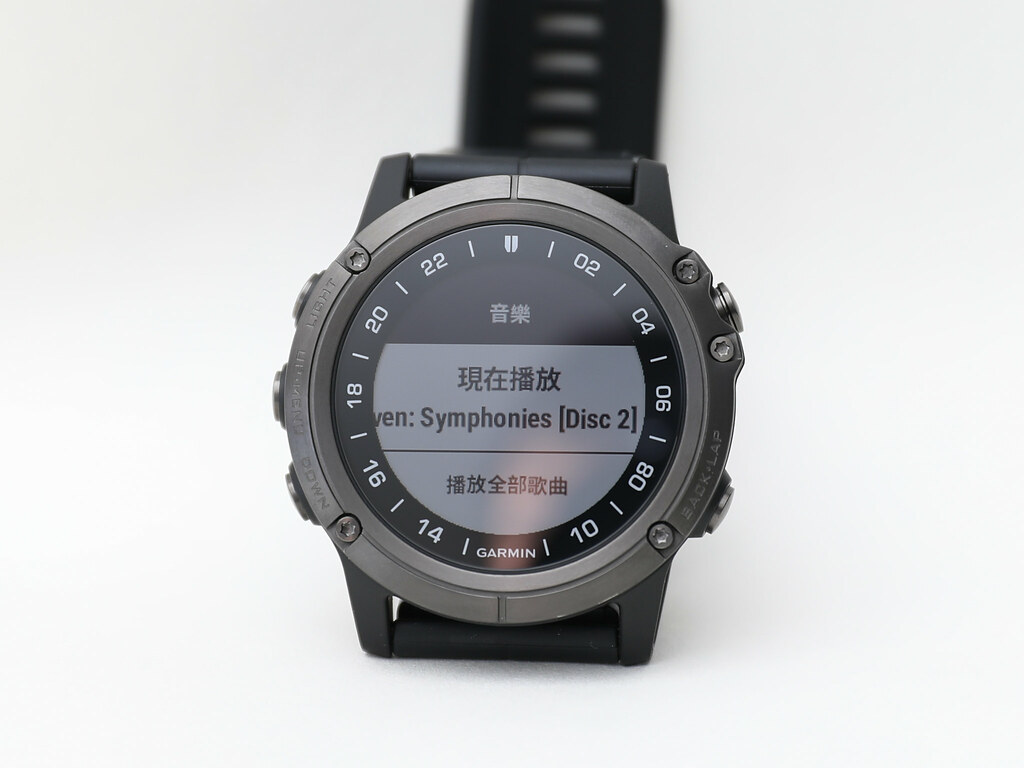 Check the menu with UP and DOWN, and find that the structure is very close to iTunes,
with categories like Play All, Playlists, Artist, Album, Songs, Genre, Podcasts, etc.
Check the menu with UP and DOWN, and find that the structure is very close to iTunes,
with categories like Play All, Playlists, Artist, Album, Songs, Genre, Podcasts, etc.
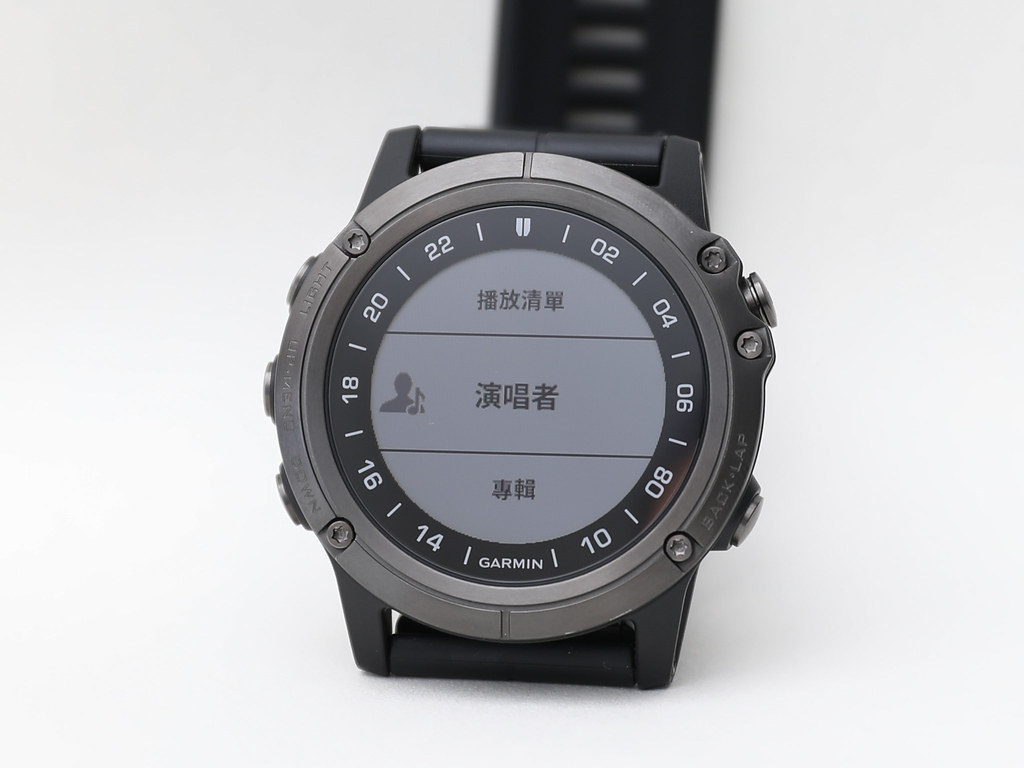
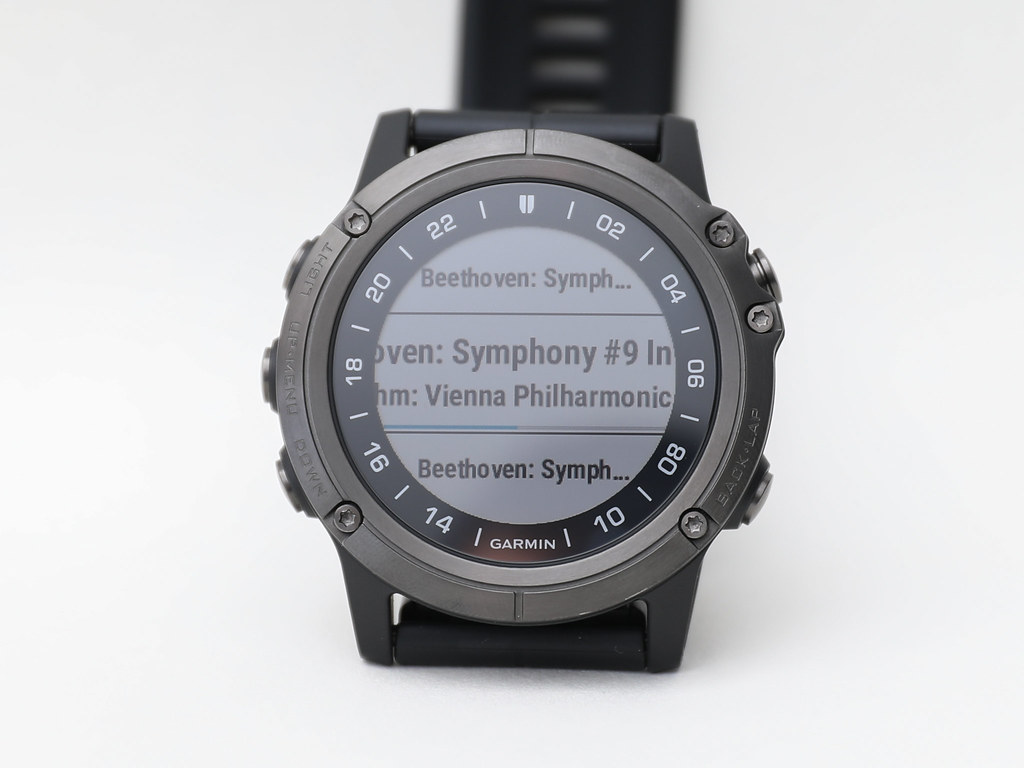
Select an album, press the confirm button on the top right to enter.
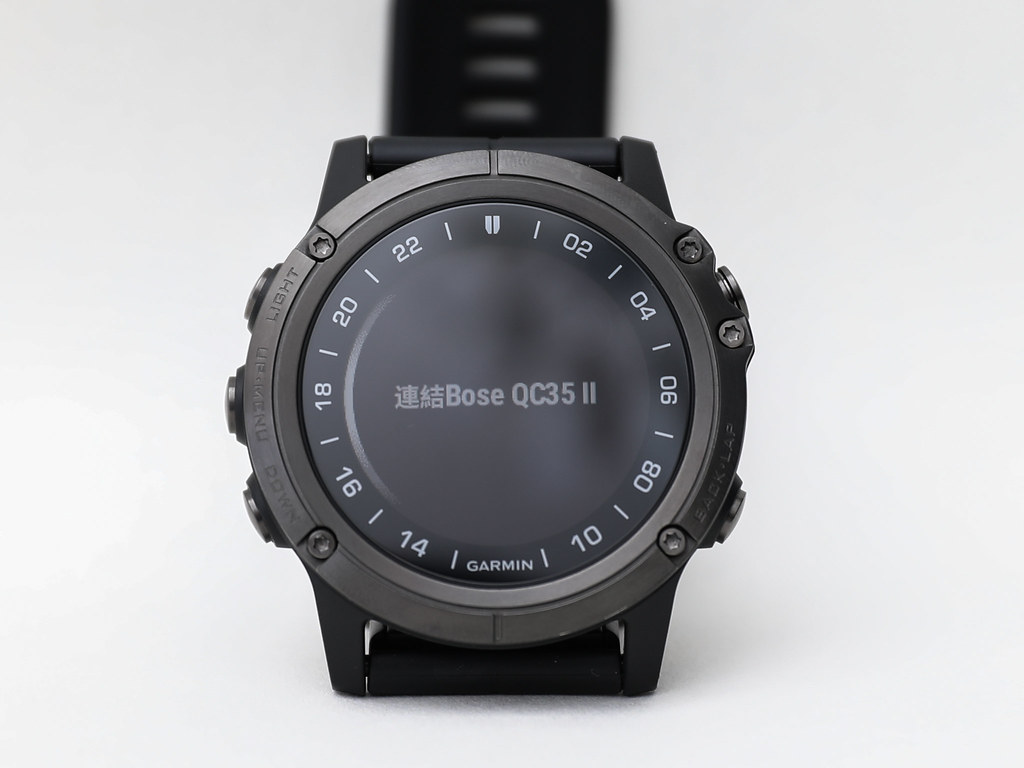
 The watch will enter Bluetooth headphone search mode.
Here it quickly found the BOSE QC35II.
The watch will enter Bluetooth headphone search mode.
Here it quickly found the BOSE QC35II.
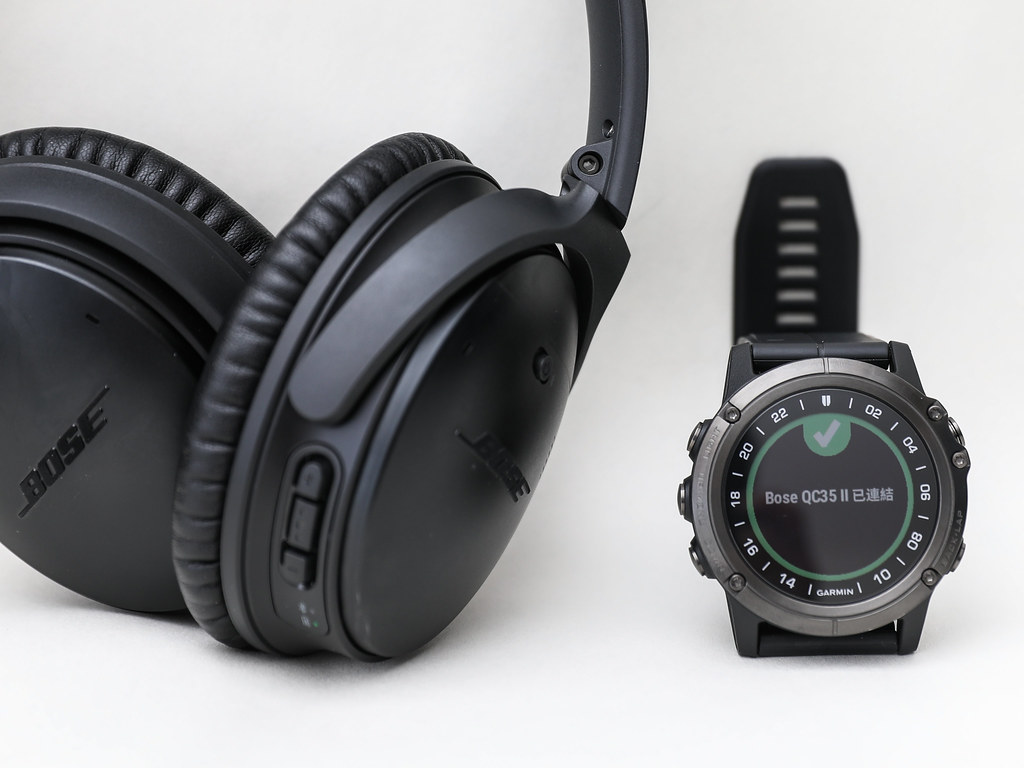
 A few seconds later, the connection success message is displayed on the watch face.
 And it immediately enters playback mode:
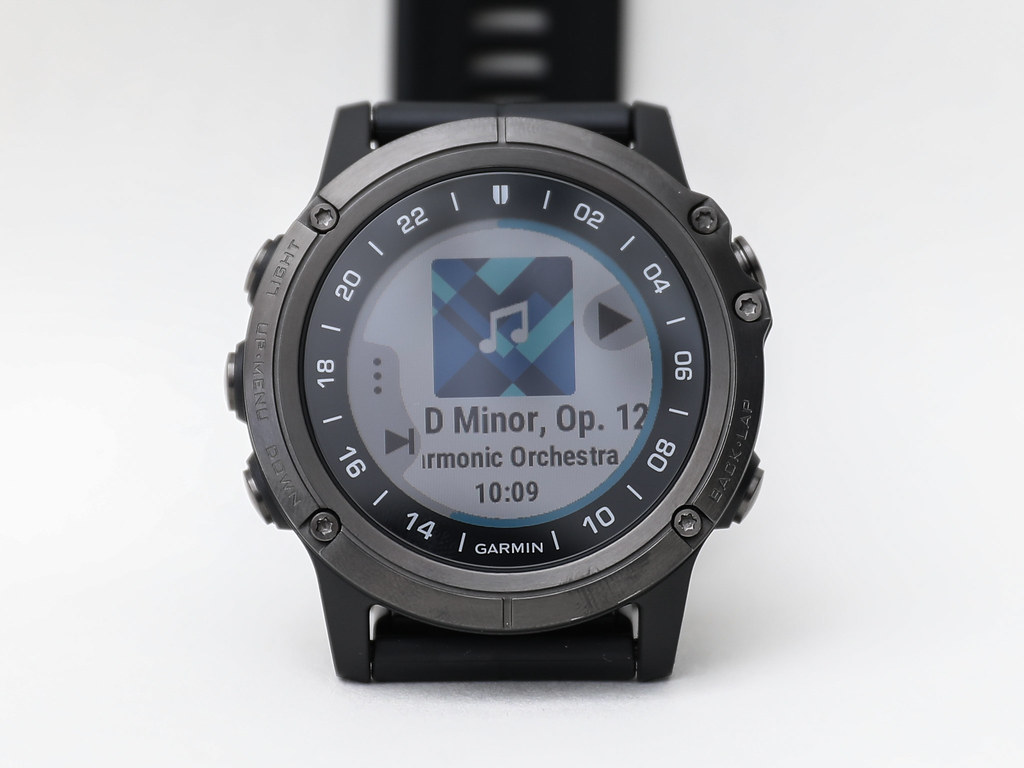
The operations in playback mode are easy to understand based on the display.
The top right button is for Play/Pause.
The bottom left button is for selecting the next song.
The middle left button is for menu selection.
Press it once to display volume control, loop play, shuffle play, and other functions.
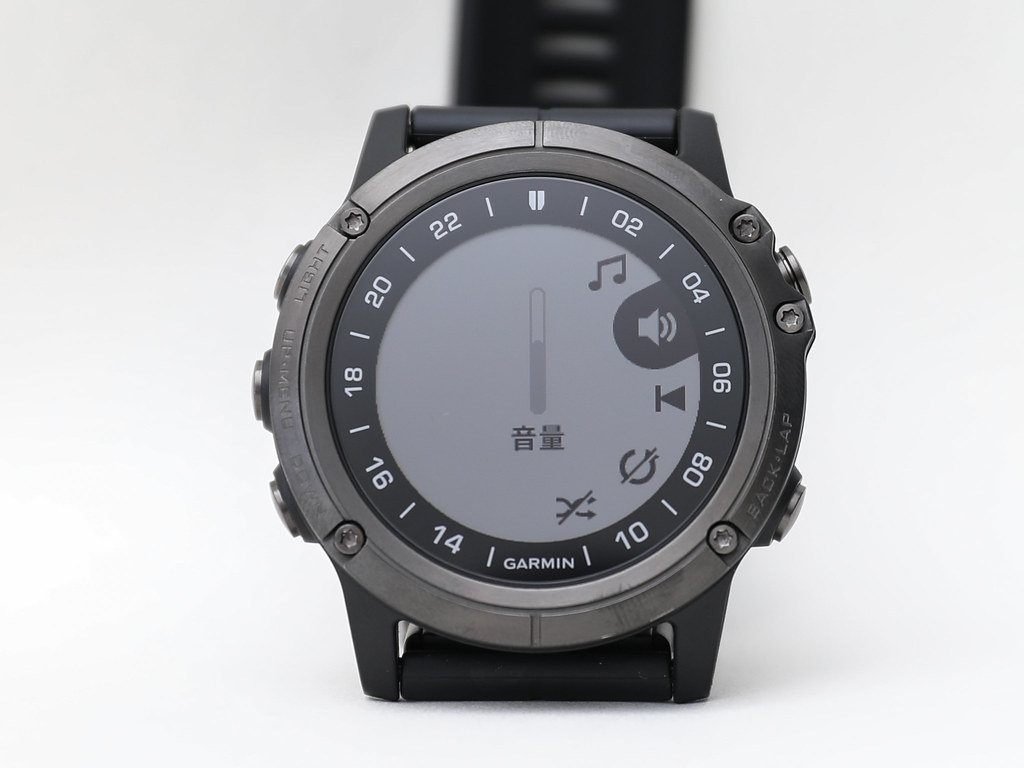 These function operations are relatively easy to understand.
Blood oxygen saturation (SpO2) is a new feature of the D2 Delta. Here is a simple test.
Blood oxygen level or blood oxygen saturation (SpO2) is the percentage of the capacity of oxygenated hemoglobin (HbO2) bound to oxygen in arterial blood to the total capacity of bindable hemoglobin (Hb, hemoglobin), that is, the concentration of blood oxygen in the blood. Higher blood oxygen saturation indicates more oxygen in the arterial blood. Blood oxygen saturation is an important physiological parameter for the respiratory cycle. The body's metabolic process is a biological oxidation process, and the oxygen required in the metabolic process enters the human blood through the respiratory system and is then transported to various parts of the body's tissue cells. The ability of blood to carry and transport oxygen is measured by blood oxygen saturation.
Press the UP or DOWN button, find the blood oxygen saturation widget,
and it immediately enters automatic measurement mode.
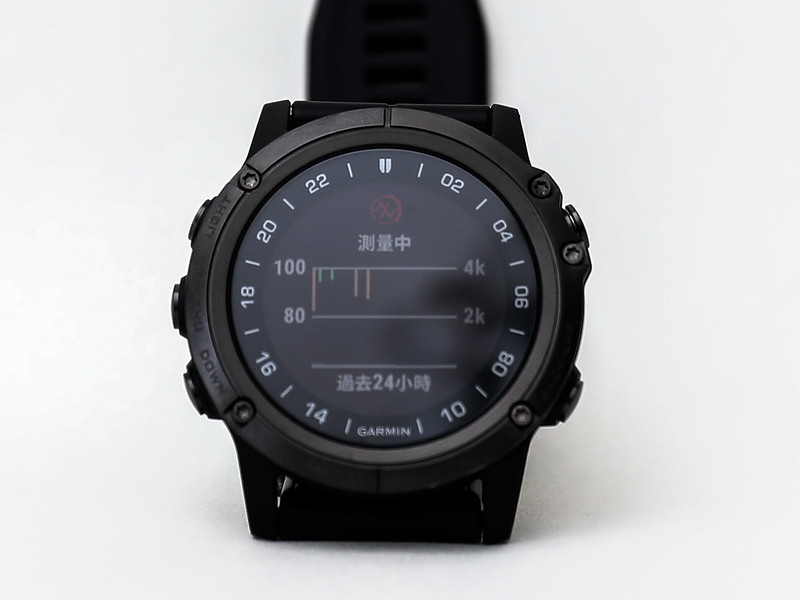 The measurement result will be displayed after about 10-20 seconds.
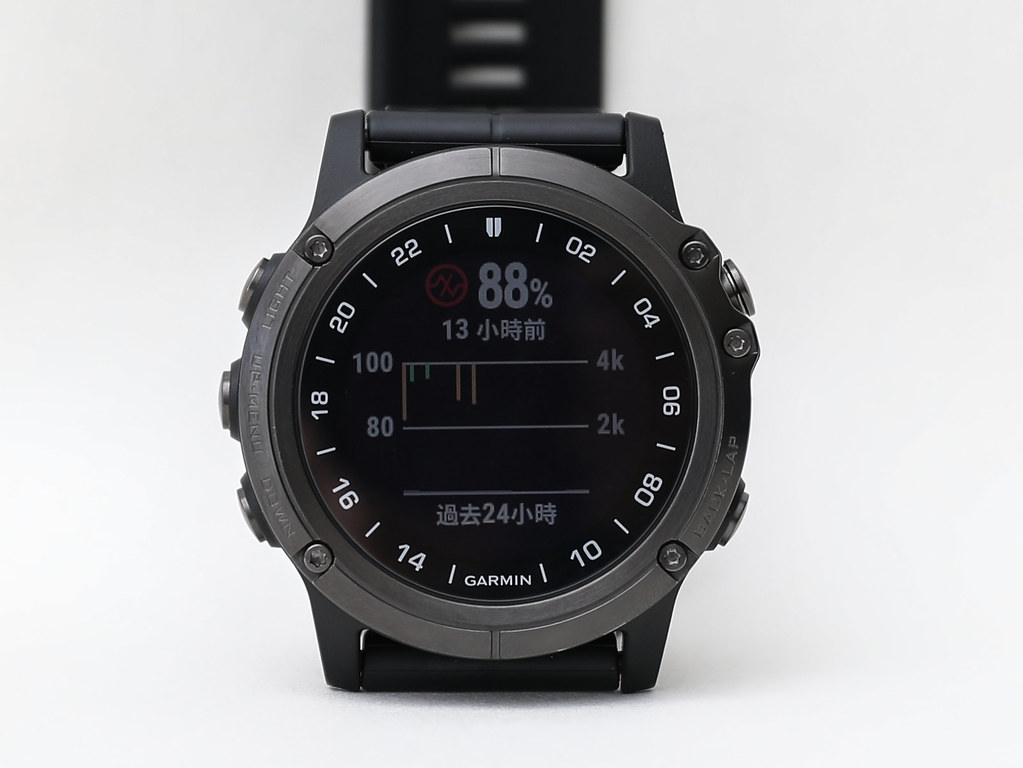 Generally speaking, 90% or above should be a normal value. Here I was measuring while taking photos, so the data is slightly lower.
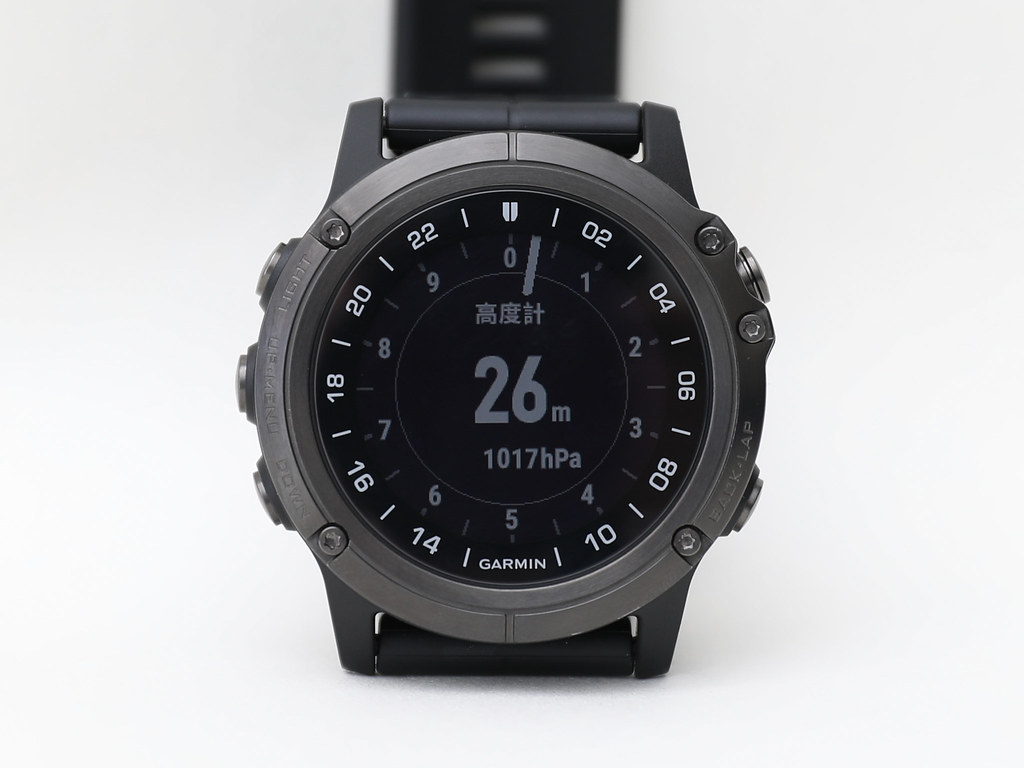
Another widget that I use every day is the Altimeter.
On the D2 Charlie, the altitude unit only had feet,
but on the Delta, it can display meters. Although it is a small improvement, it is still very welcome.
Since this post is already quite long, the introduction to settings and basic usage will stop here. Regarding aviation functions, I plan to write another dedicated article.
Before finishing, I recommend a custom watch face called “SR1”.
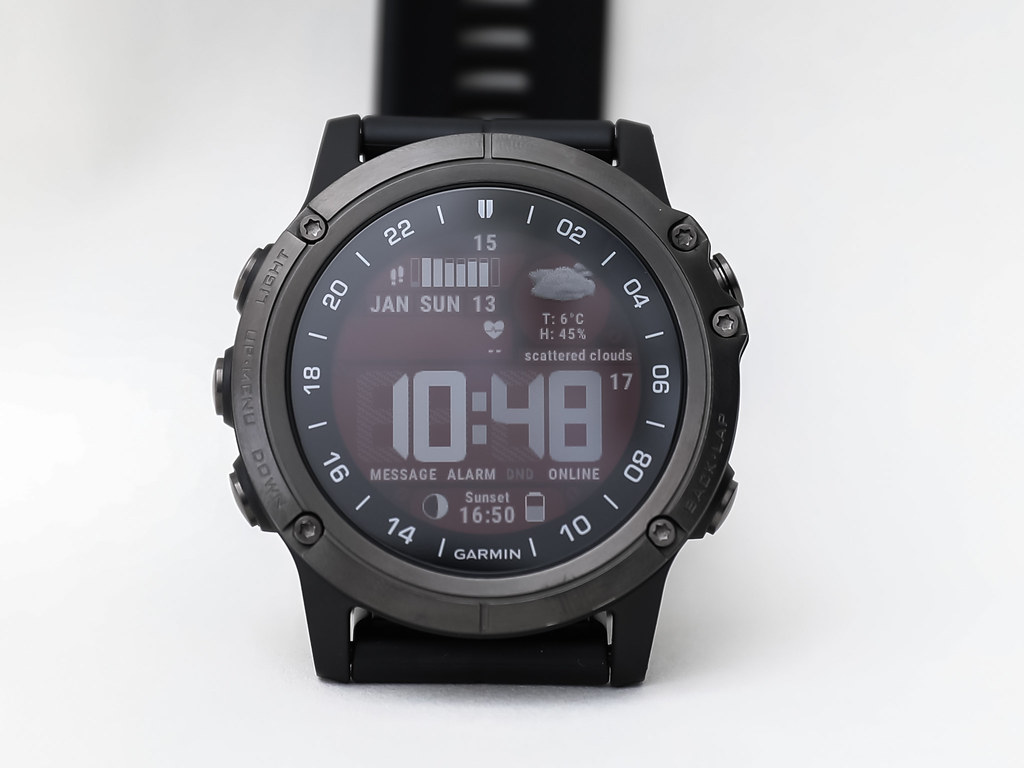 Its download link is here.
You can see that on one screen, from top to bottom,
it provides a lot of information such as daily pedometer steps, weekly steps, daily weather, date,
heart rate, time, watch status, sunrise/sunset time, and battery capacity.
Moreover, the appearance is beautiful and elegant, and I like it very much.
Its download link is here.
You can see that on one screen, from top to bottom,
it provides a lot of information such as daily pedometer steps, weekly steps, daily weather, date,
heart rate, time, watch status, sunrise/sunset time, and battery capacity.
Moreover, the appearance is beautiful and elegant, and I like it very much.
#WhichFeatureDoYouLikeMost Comment Contest
#CommentContest #WhichFeatureDoYouLikeMostAboutTheD2DeltaTitaniumAviationWatch Choose your favorite D2 Delta PX feature from the video below, upload a screenshot of the video to the comments to tell the editor, and you have a chance to win <>. ﹍﹍﹍﹍﹍﹍﹍﹍﹍﹍﹍﹍﹍﹍﹍﹍﹍﹍﹍ *Activity Method 📣Before 2019/2/15, in the #WhichFeatureDoYouLikeMostAboutTheD2DeltaTitaniumAviationWatch Comment Contest post, leave a comment and upload a screenshot of your favorite feature from the video to have a chance to win < > **If you purchase a D2 Delta PX during the event period and upload a photo of your D2 Delta PX to the comments, you can significantly increase your chances of winning (Triple your chances Rrr). *Activity Precautions | Contest Period | 2019/1/15 - 2019/2/15 | Winner Announcement | Announced uniformly on 2019/2/20 at 11:00 AM, and sent to lucky fans before 2019/2/22. Participants please remember to check FB Facebook messages. If we cannot contact you, the opportunity will be passed to the next person. | Contest Prize | Angel Dual Flight Experience for 5 people (Value 19,800 each), Angel Flight Evaluation for 1 person (Value $104,600) **Garmin (TW) Fan Group reserves the right to adjust the event
#WhichFeatureDoYouLikeMost Learn more👉https://lihi.biz/TmJr5