Garmin D2 Delta PX Titanium Aviation Watch Navigation Functions
Garmin D2 Delta PX Titanium Aviator Watch Unboxing Garmin D2 Delta PX Titanium Aviator Watch Setup Guide
After completing the basic settings, let’s test the aviation features of the D2 Delta PX. To update to the latest navigation data, you need to register the watch on the flyGarmin website first.
So, use a browser to visit the Add Device URL,
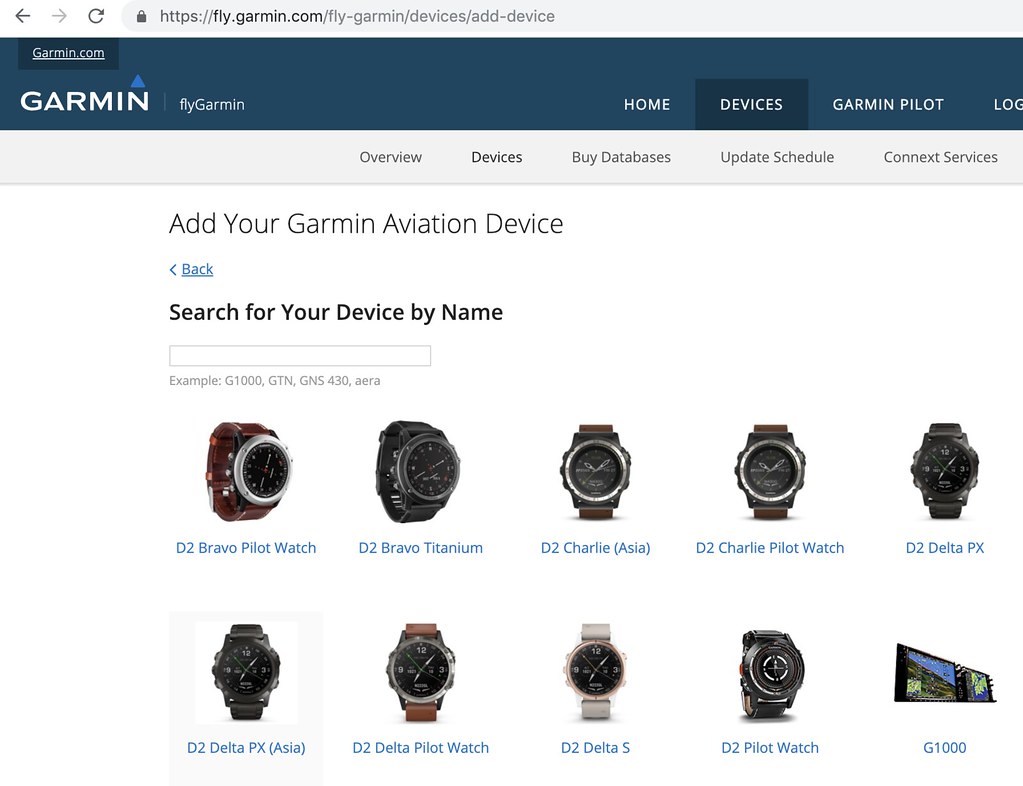 Find the D2 Delta PX,
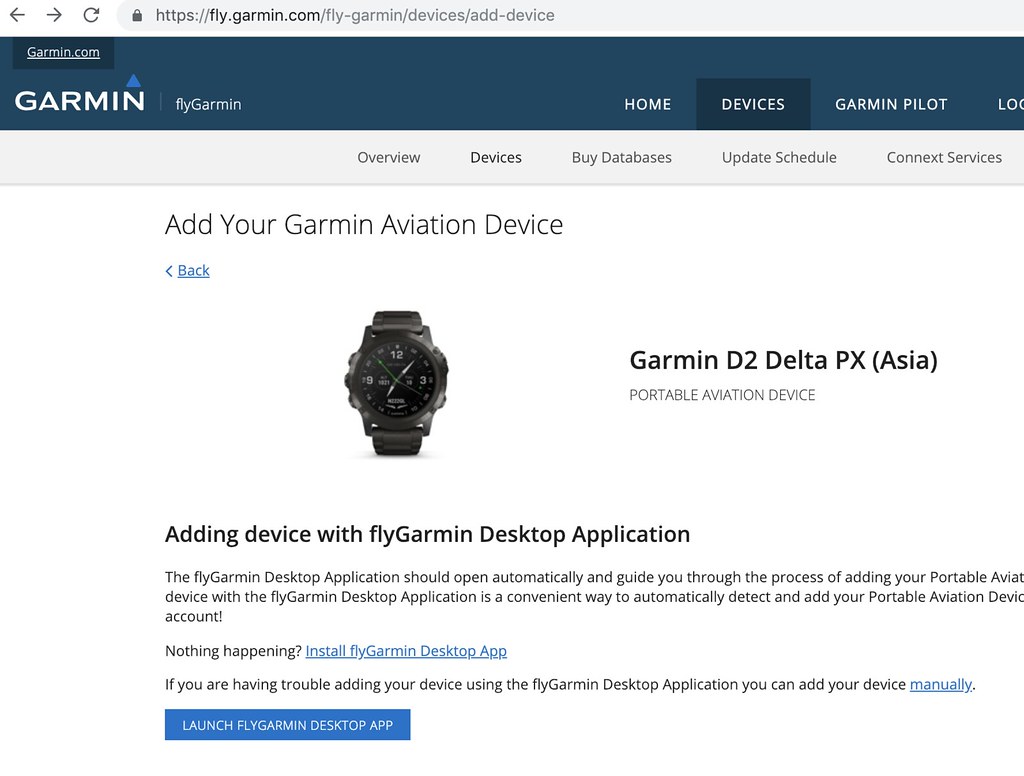
Click the blue button “LAUNCH FLYGARMIN” at the bottom of the screen,
To launch the FlyGarmin software on your computer.
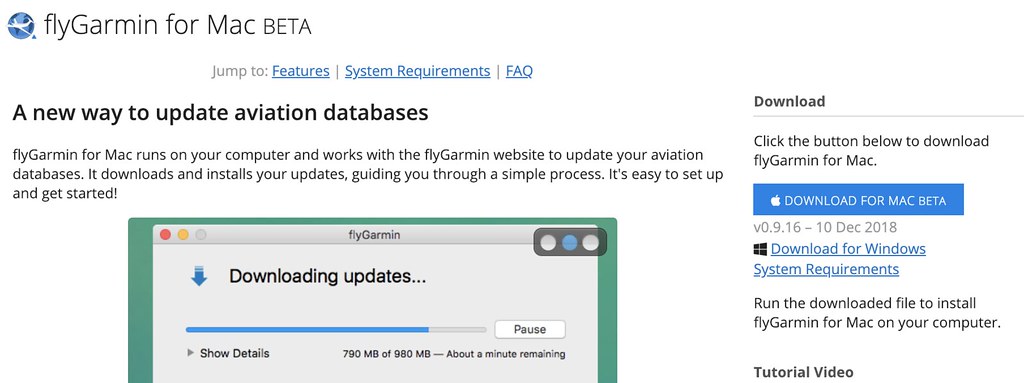
If FlyGarmin is not installed on your computer,
You can download and install it from the same website.
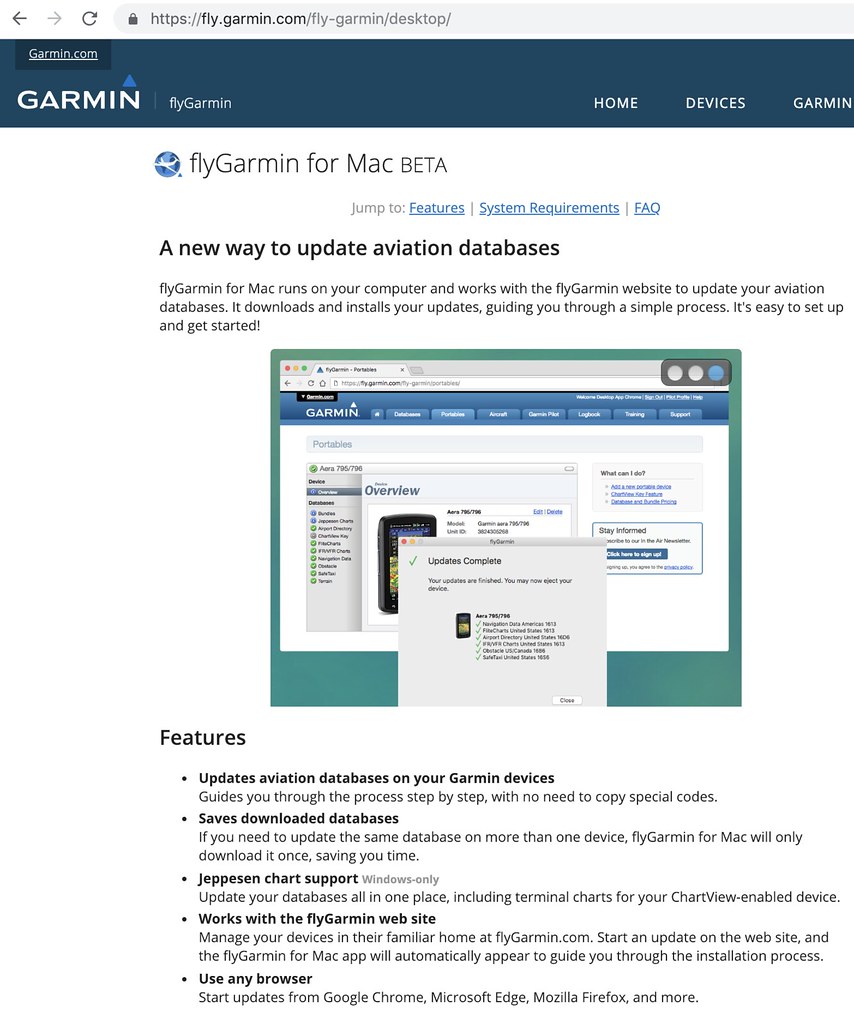
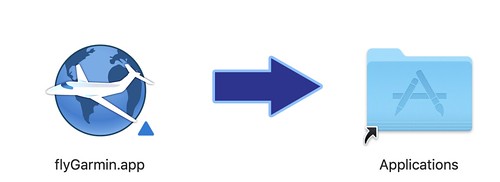
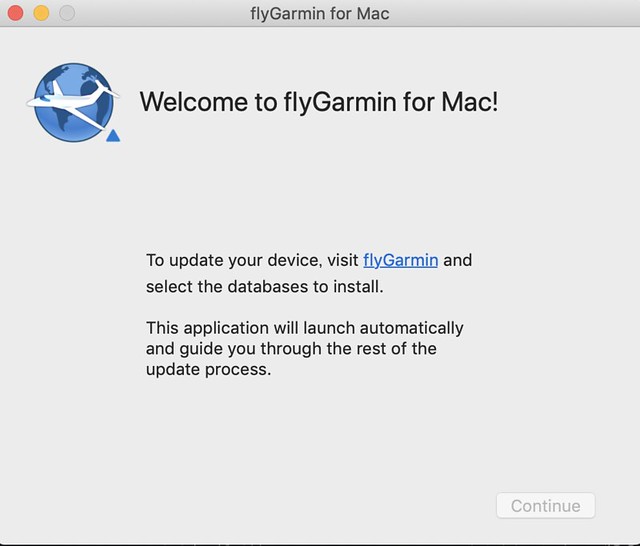
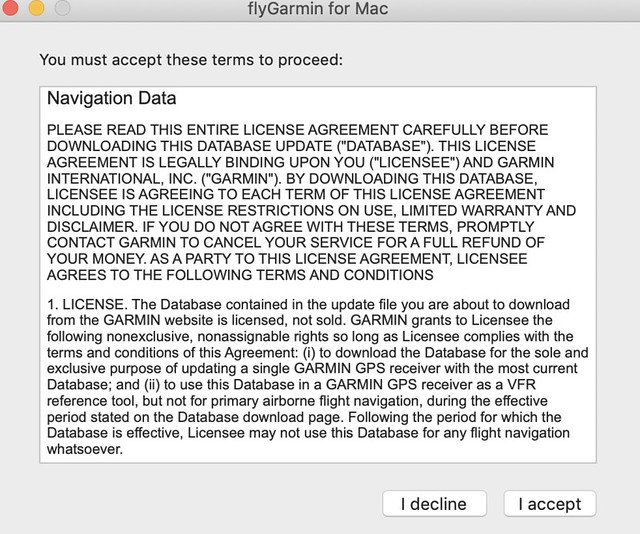
Once FlyGarmin is installed, click the blue button in the screen above again to launch the software, Connect the watch with a USB cable, and you will see the software detect the watch,
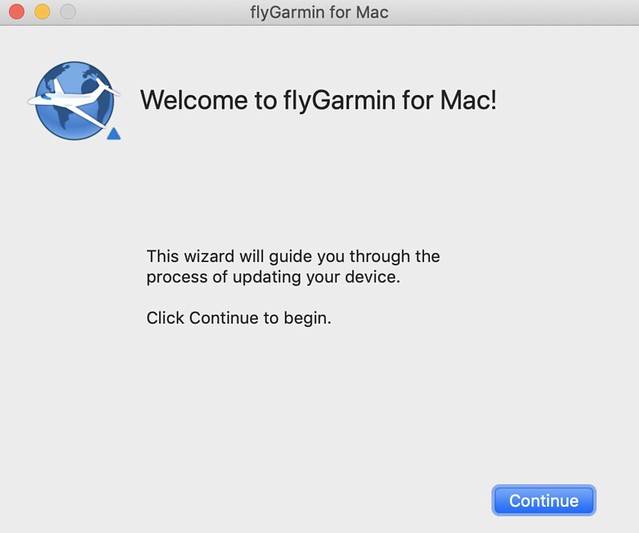

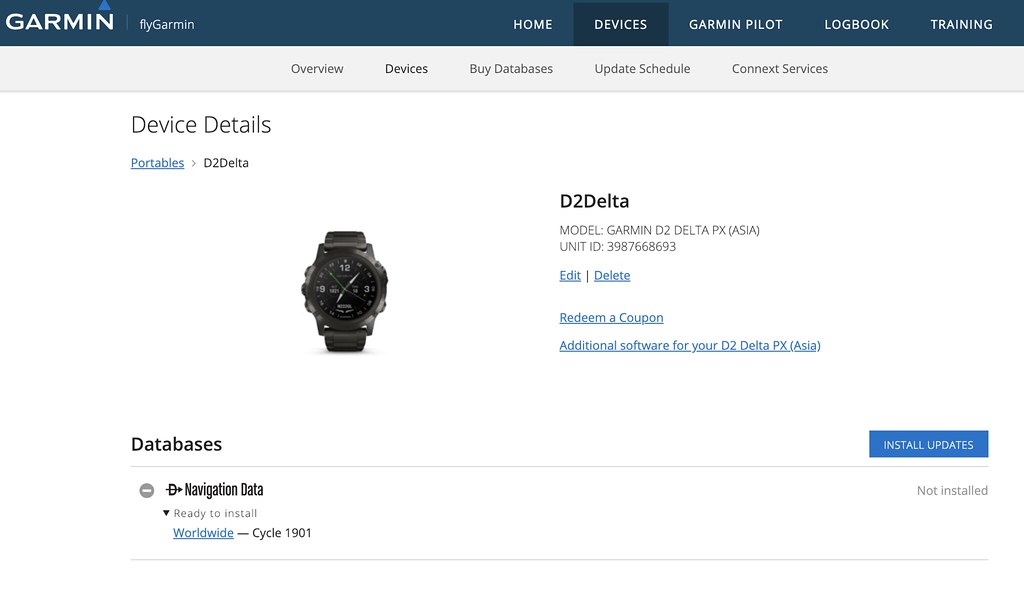
Next, you can update the database.
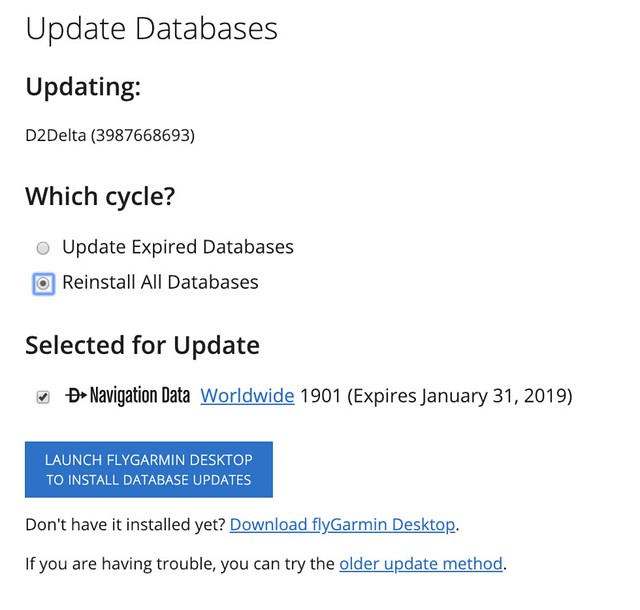
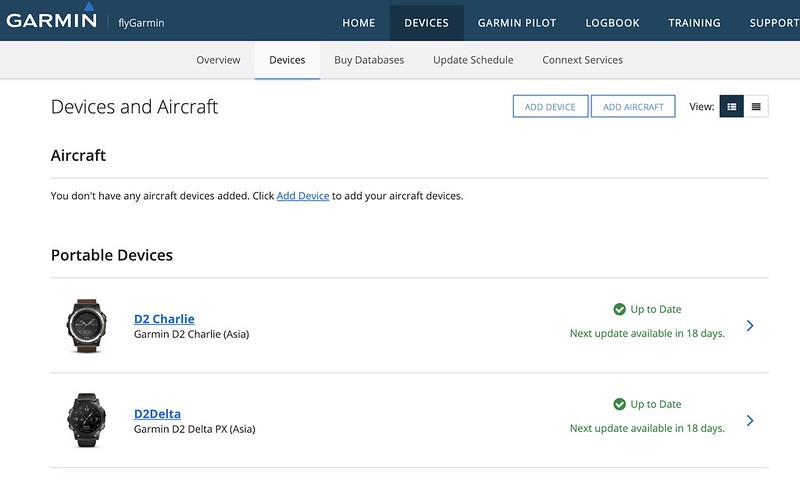
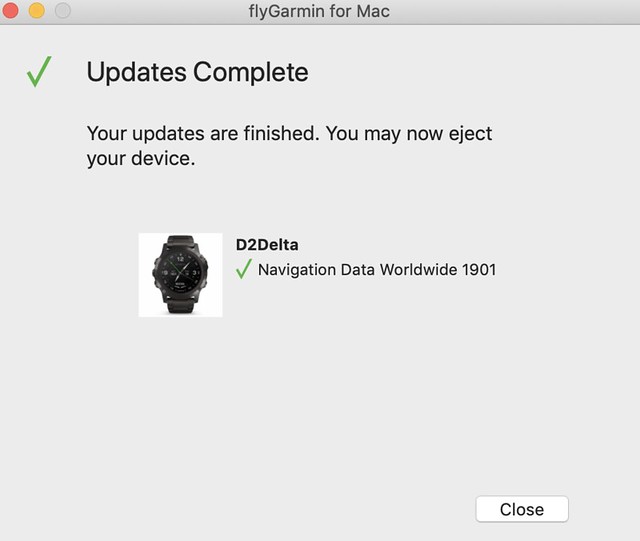 From the website, you can see both D2 units have been updated to the latest version.
First, let’s look at the changes to the METAR airport weather widget.
As long as the watch and phone are connected normally via Bluetooth,
The D2 Delta can find the nearest Haneda Airport (RJTT),
And display the latest airport weather report.
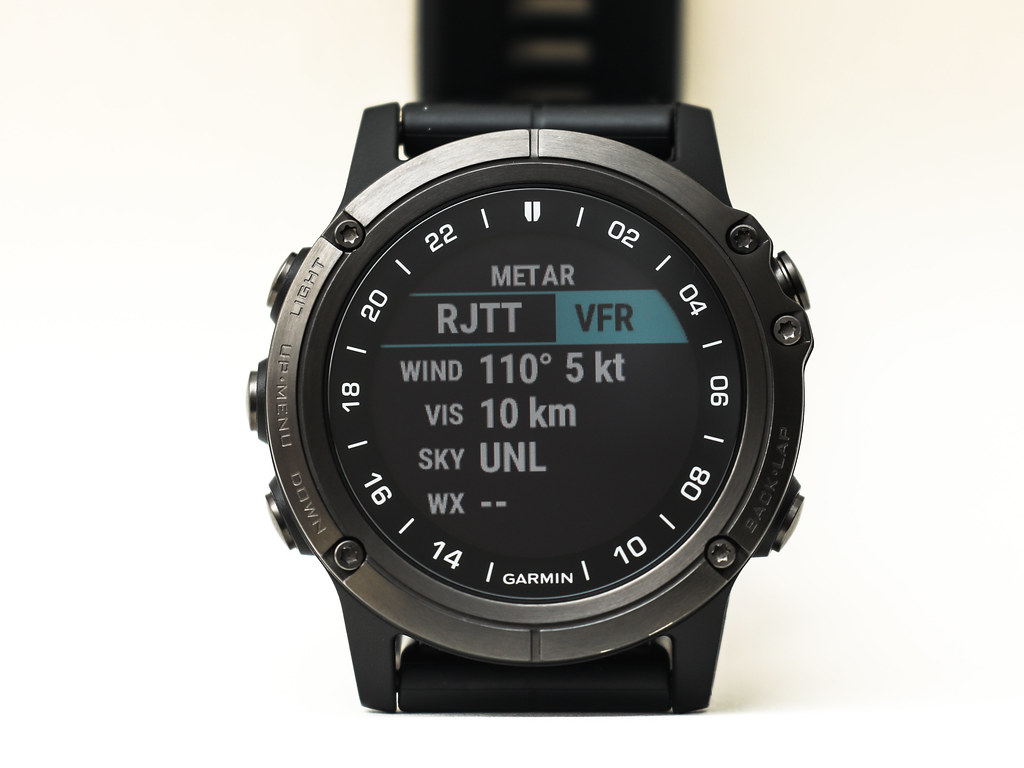
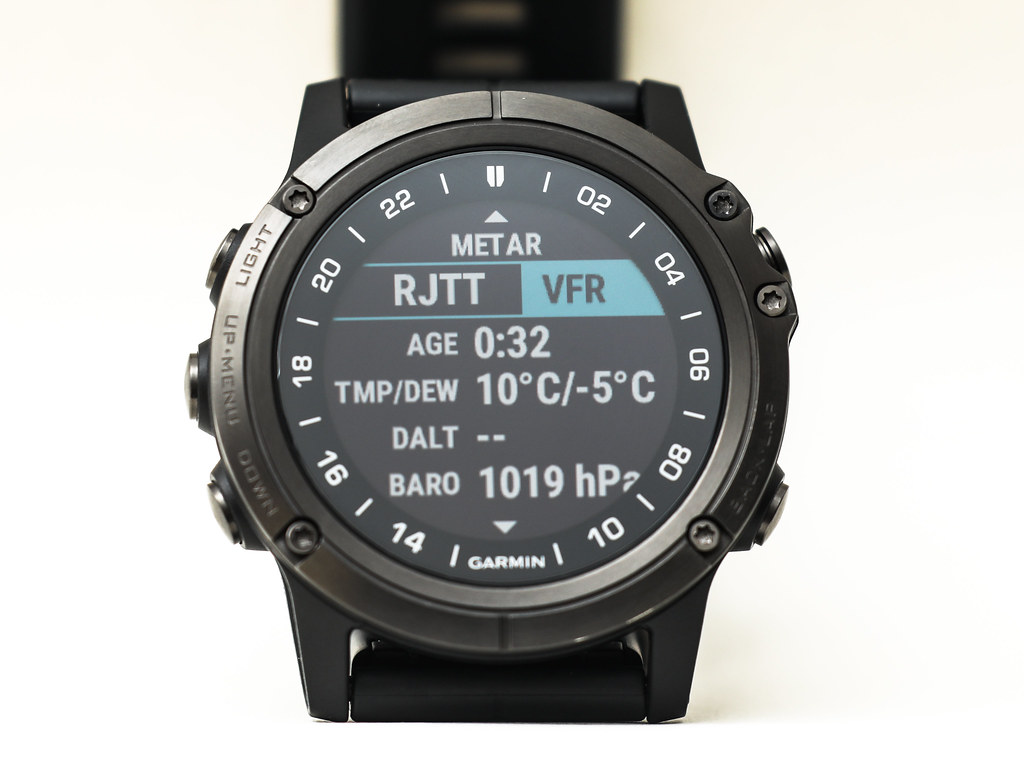
Continue pressing the START button on the top right to see a new feature,
Which displays wind direction and speed indicators on the watch face.
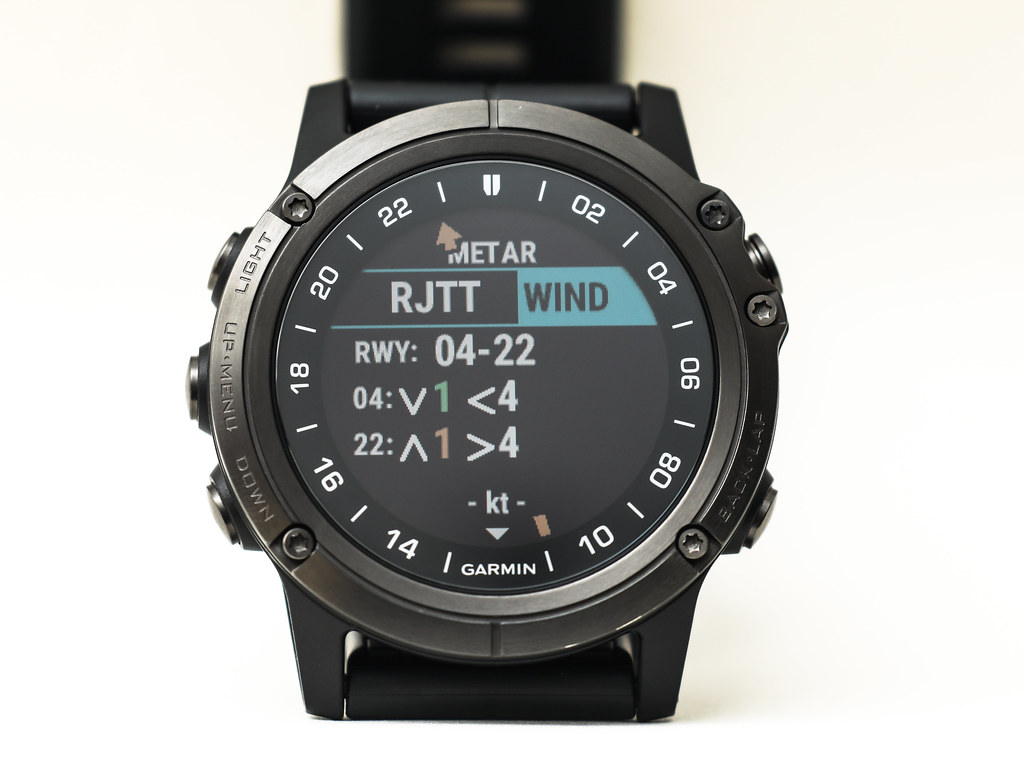
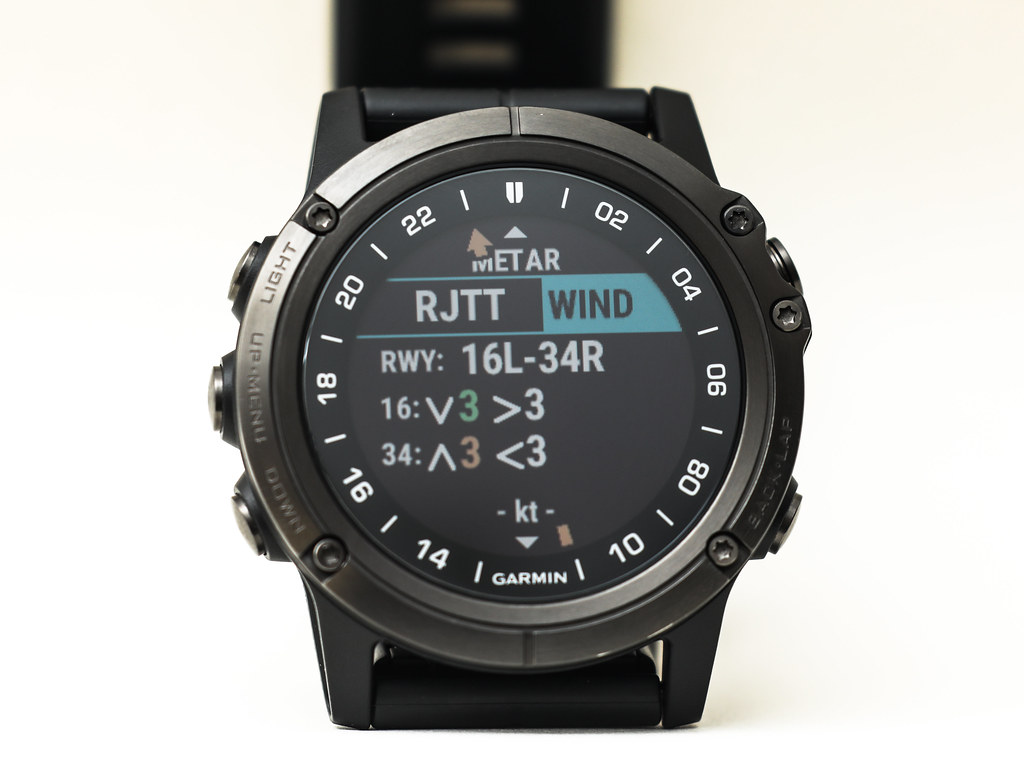 This feature is quite thoughtful.
Press START again to view the raw METAR text,
This feature is quite thoughtful.
Press START again to view the raw METAR text,
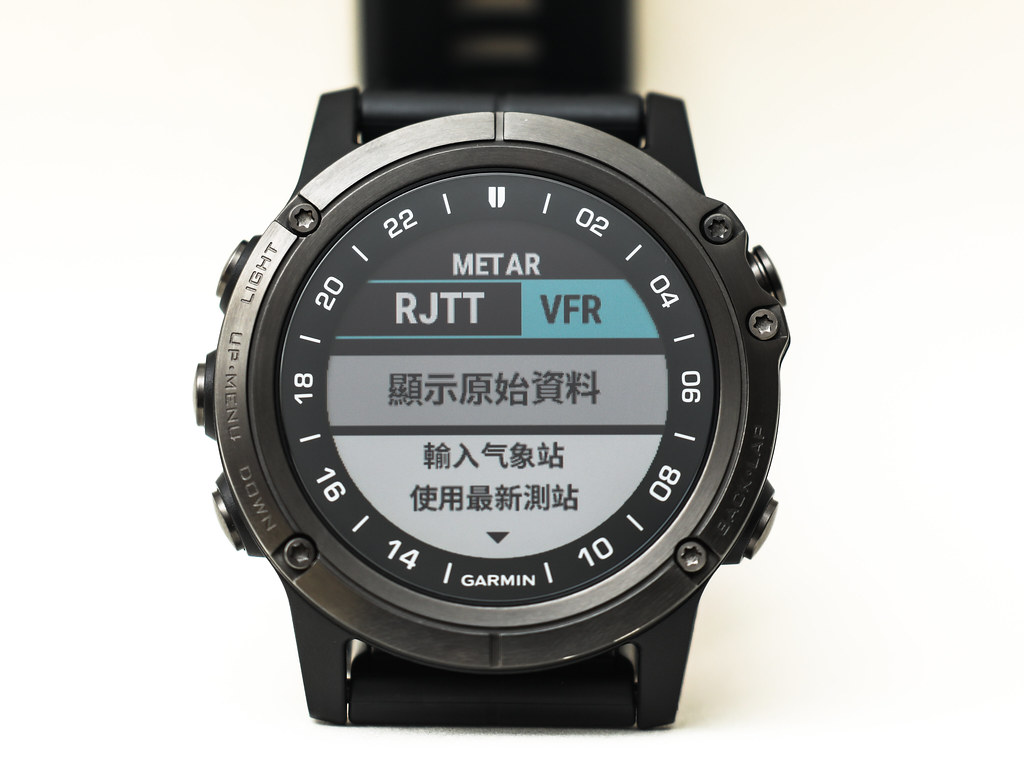 Friends who prefer reading raw code might like this screen better.
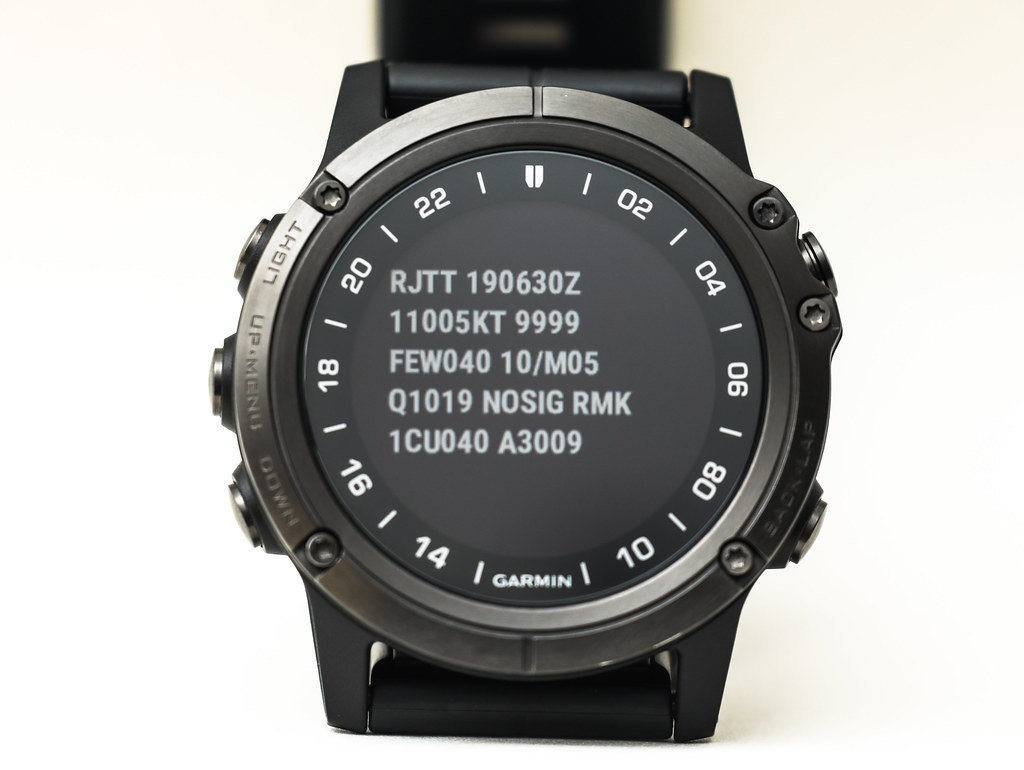
Next, let’s look at the navigation features. Long press the START button on the top right,
To enter the input Waypoint screen,
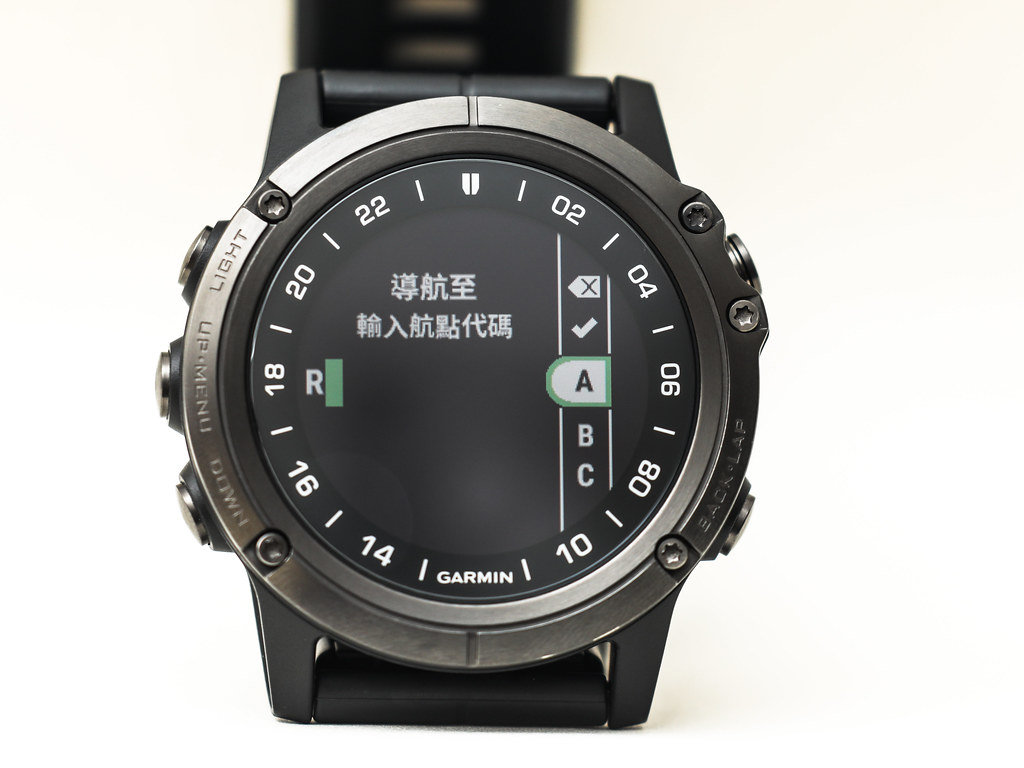 Here you can use the D2 Delta buttons to input letter by letter, but it is slightly troublesome.
Actually, the D2 Delta provides a more convenient input method.
As long as the phone and watch are connected normally via Bluetooth,
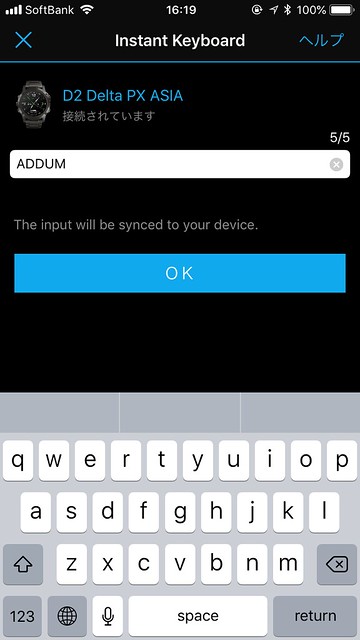
The Garmin Express App on the phone will immediately enter input mode,
As shown below.
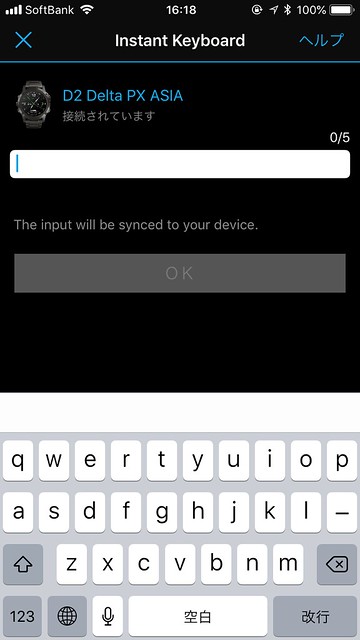
Enter the Waypoint “ADDUM” on the phone, then press OK,
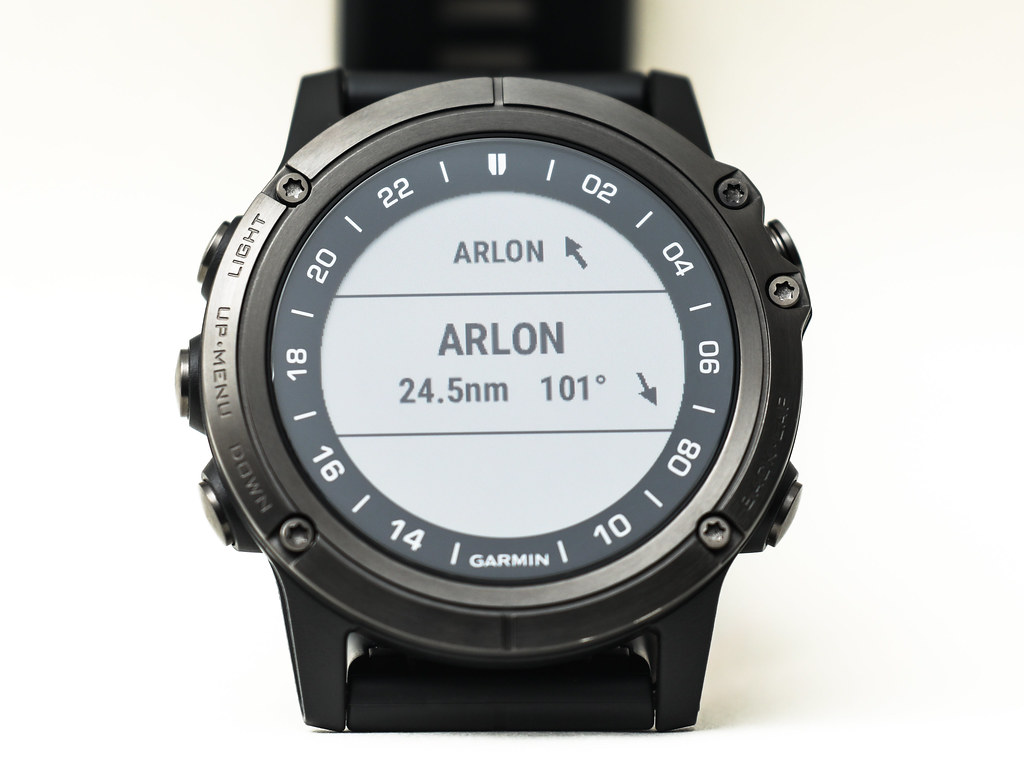
 At the same time, the watch will display “ADDUM”. Once selected, you will see the Waypoint list,
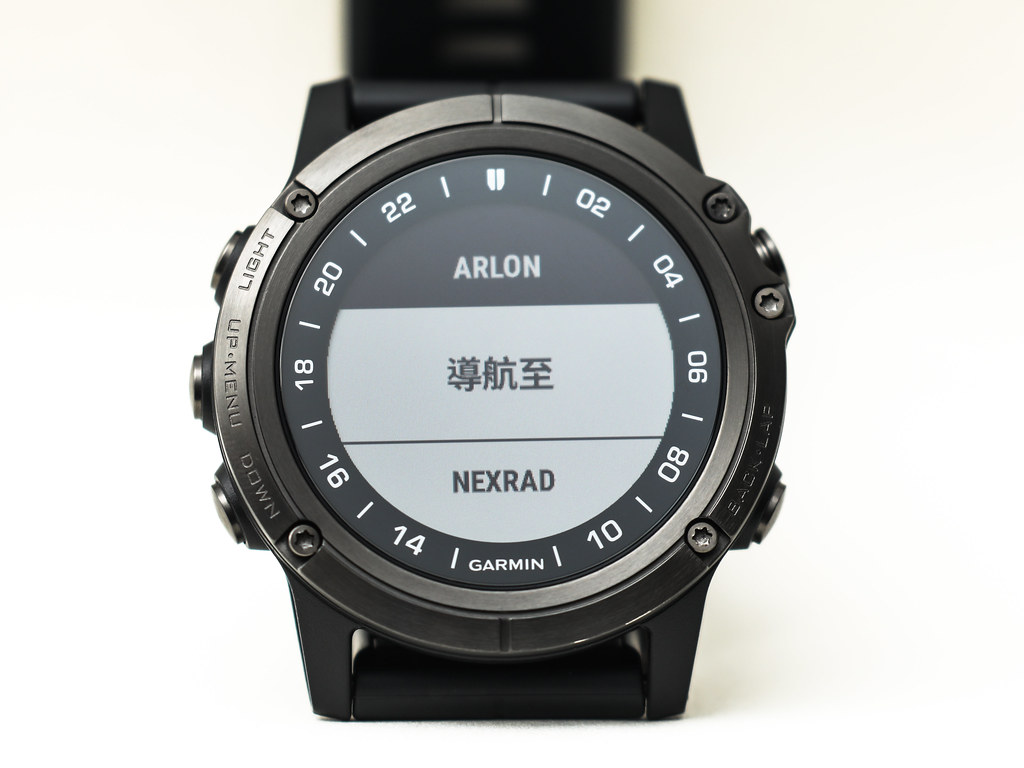
 Then you can choose to navigate directly to ADDUM,
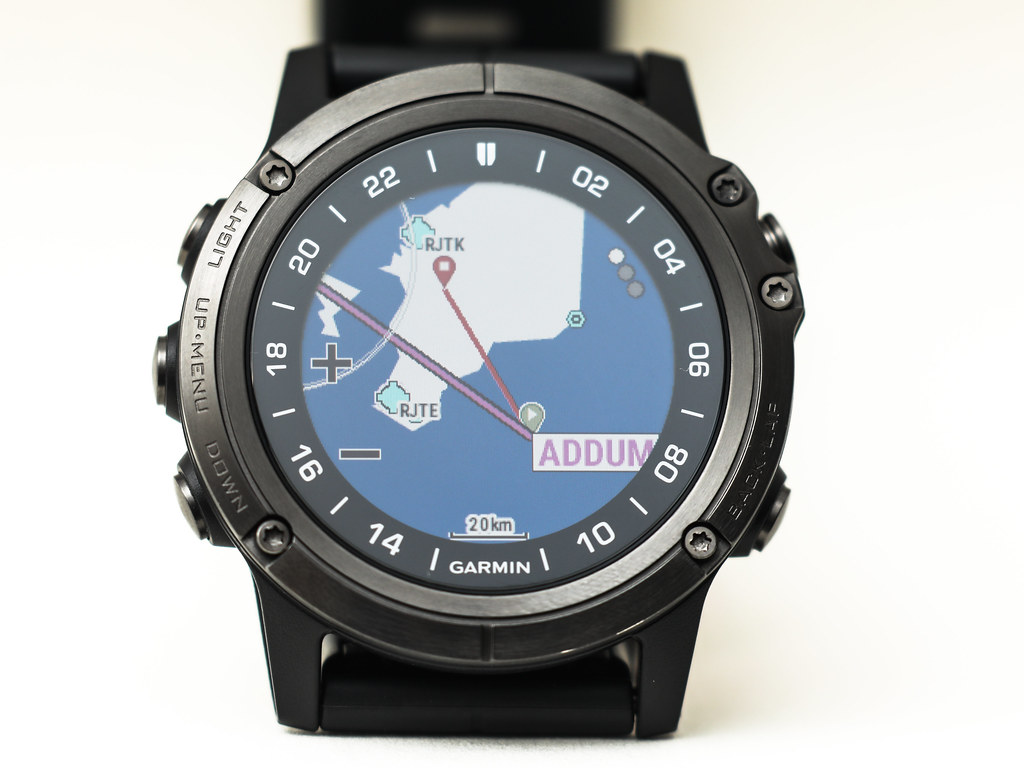
 Or display ADDUM on the map.
Now let’s look at the flight plan input feature.
Press the START button on the top right,
Select “Navigation”,
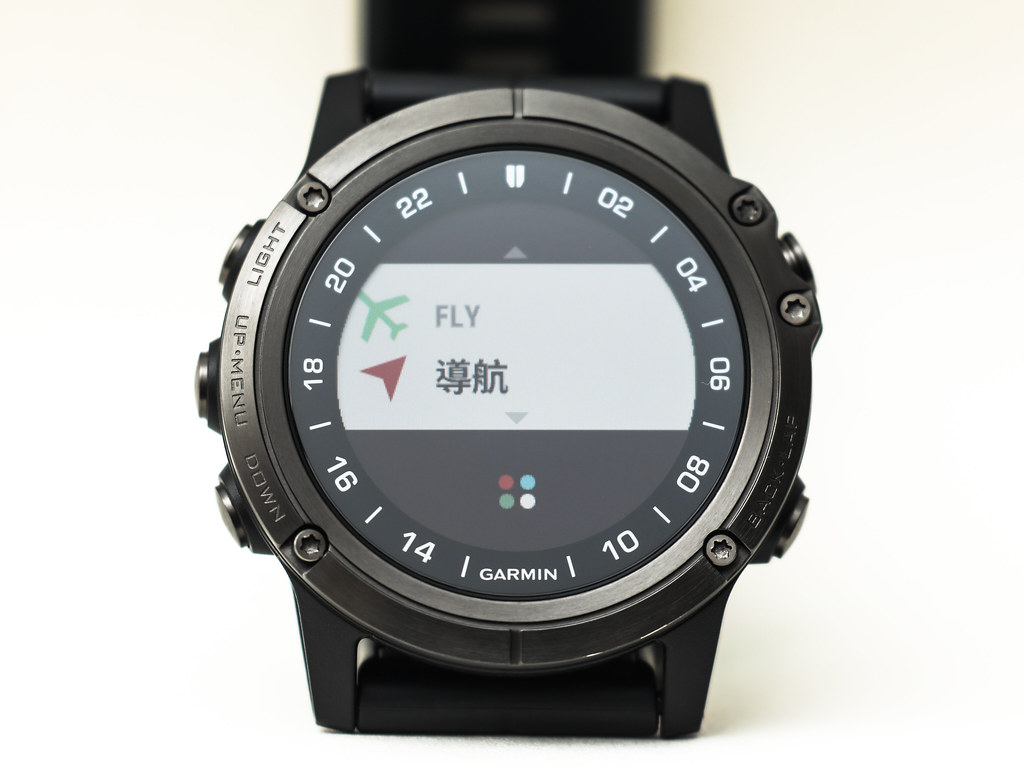 Then select “Stored Plans”,
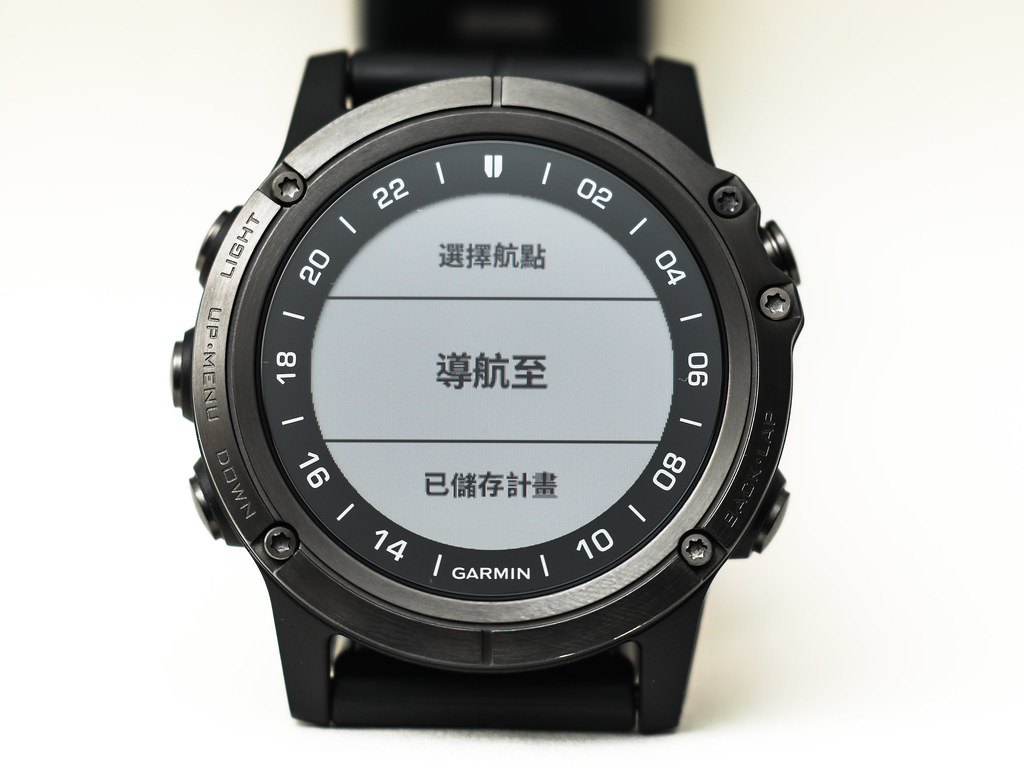 Select “Add New”,
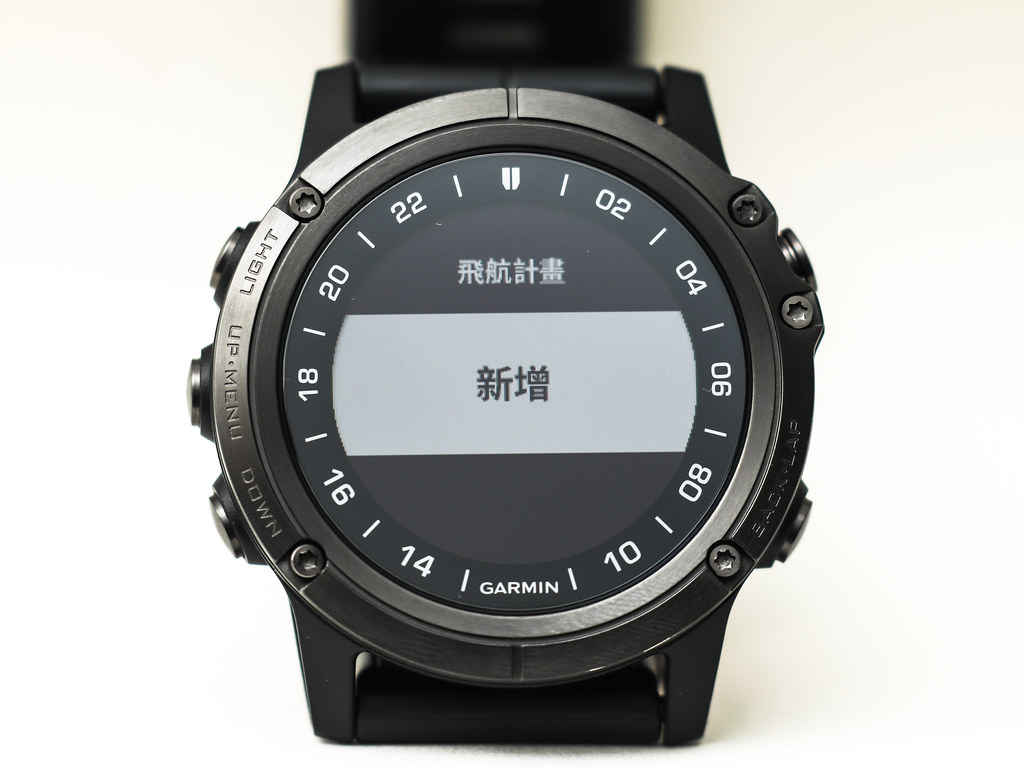 Automatically enter the flight plan name setting screen,
 Here we won’t change the default name, let’s just use FPL1.
The content of FPL1 is decided to test the ARLON Arrival procedure at Haneda Airport.
For simplicity, we plan to use the ADDUM-AWARD-ARLON route segment.
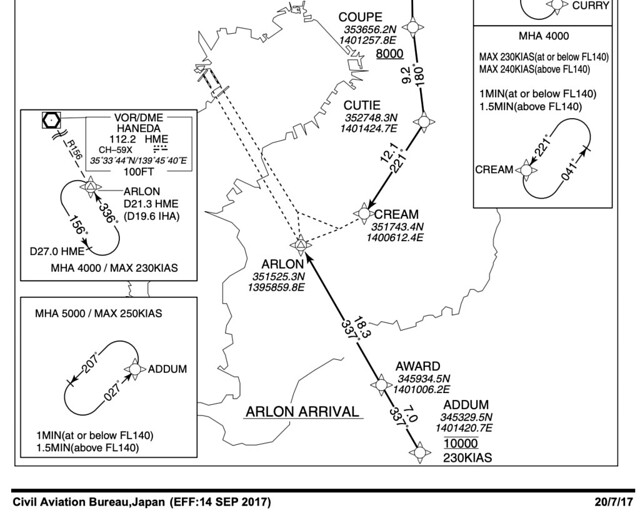
Add Waypoint, select “Add Location”,
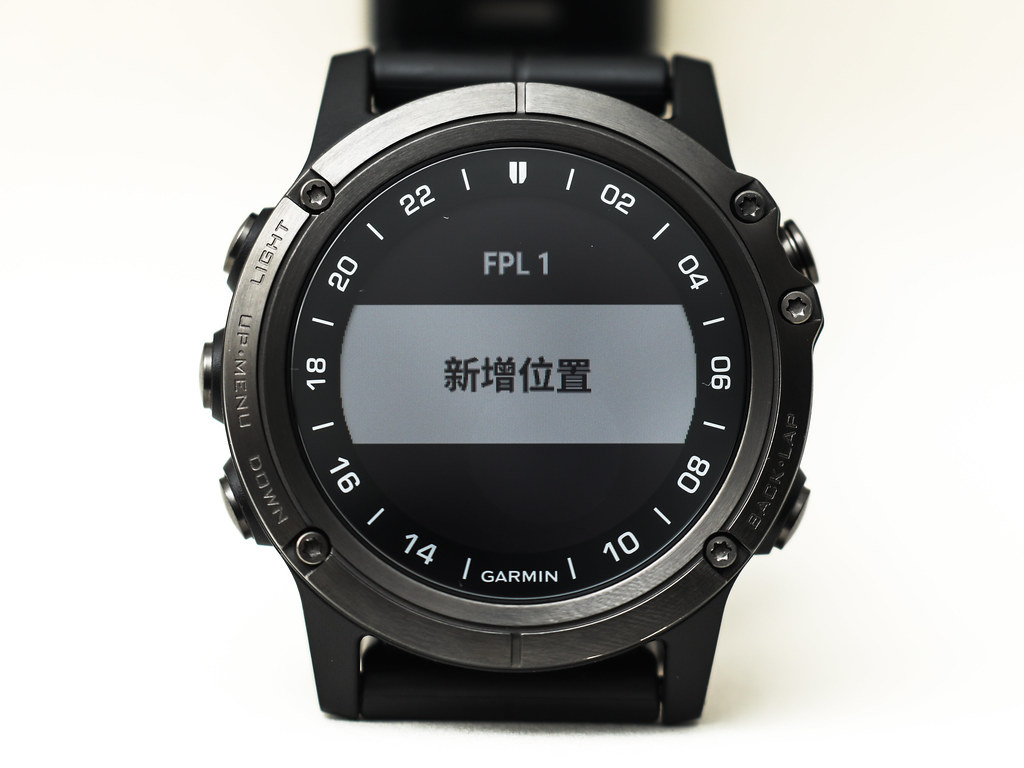 Enter “ADDUM”, select “Add Location” again,
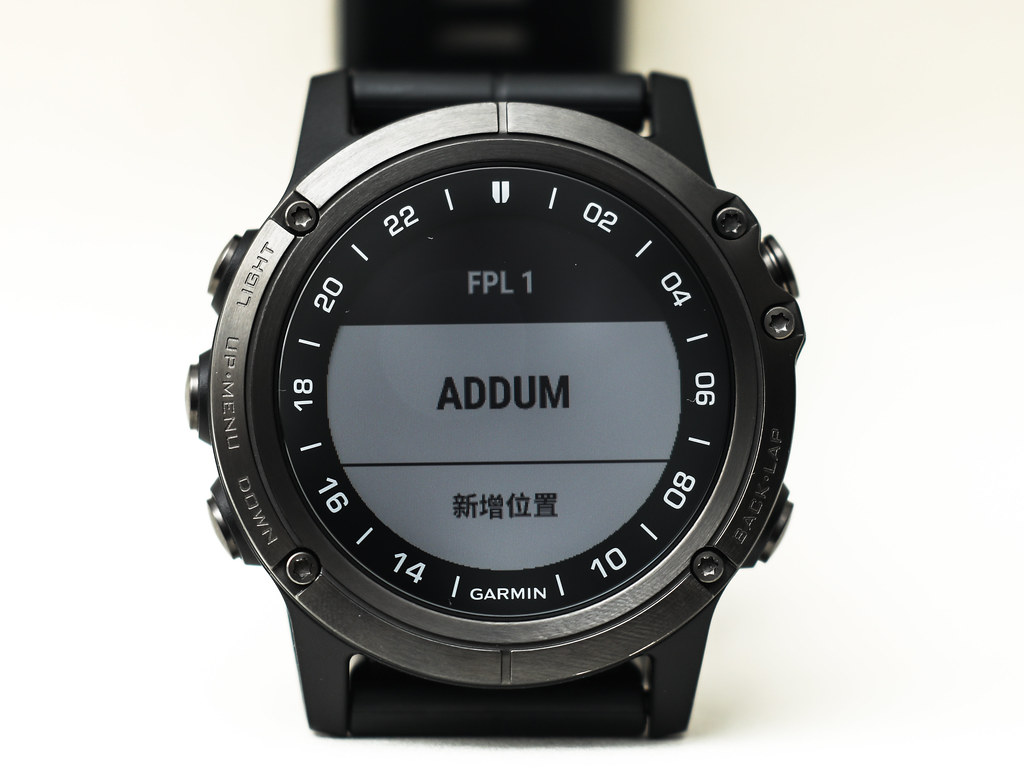 Input the next Waypoint AWARD,
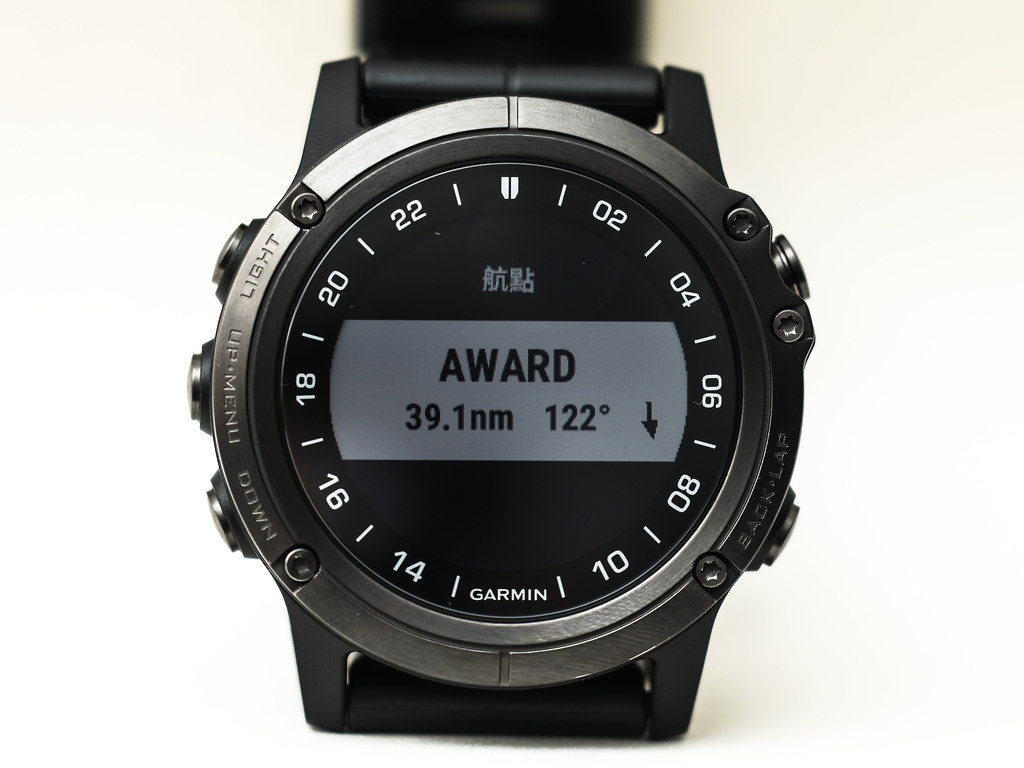 Then continue selecting “Add Location”,
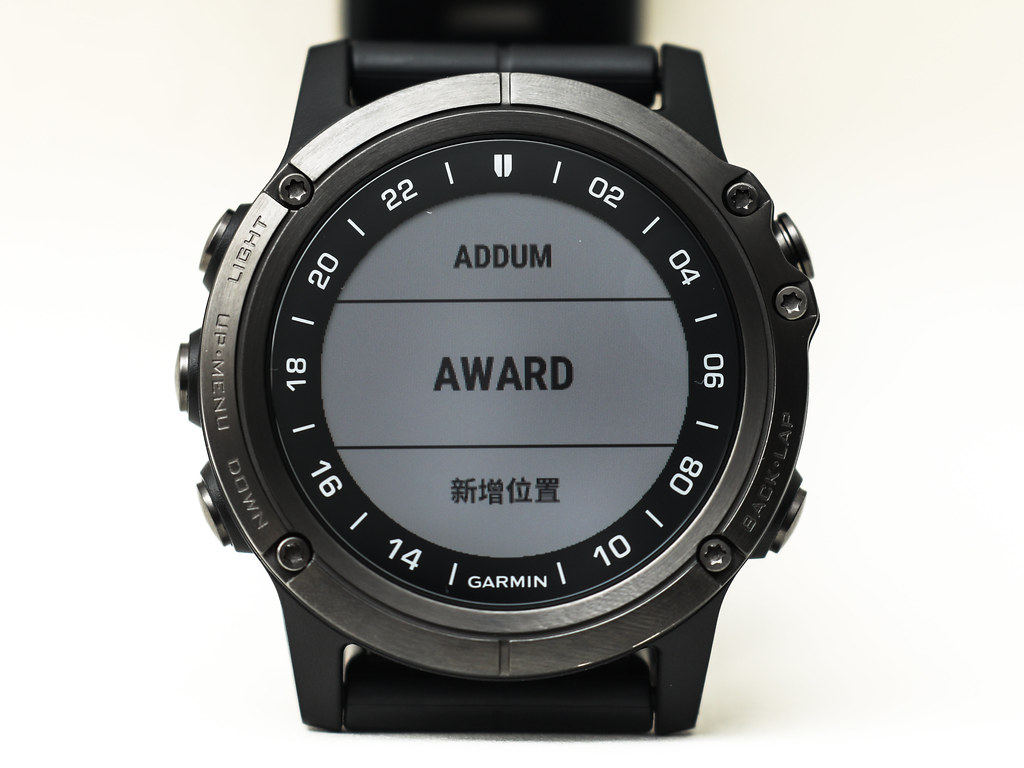 Input ARLON.
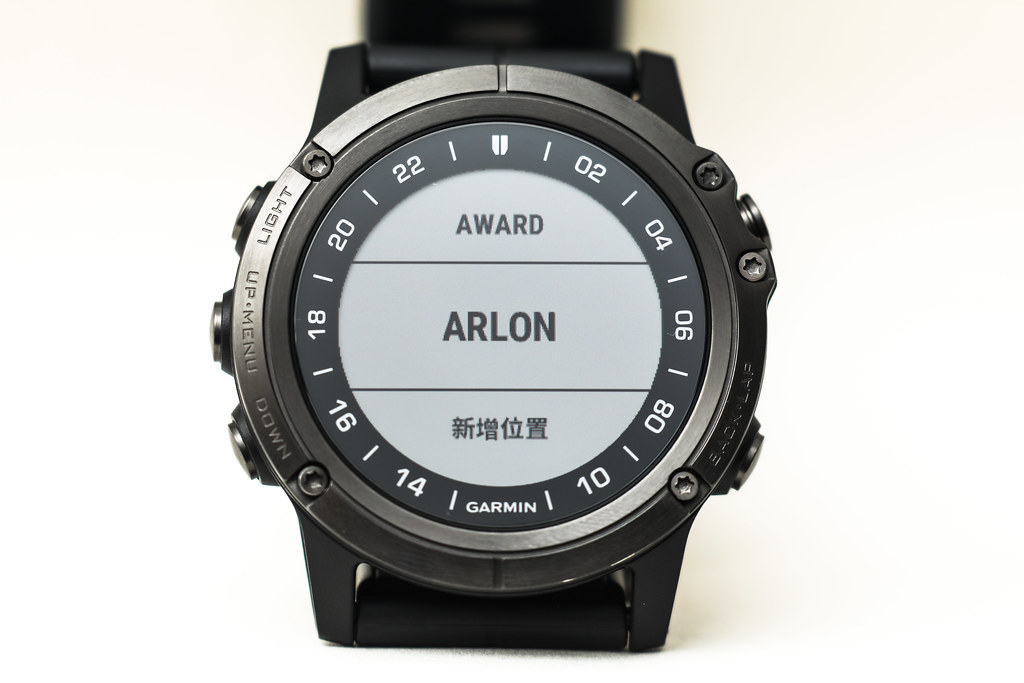 Finally select “Done”.
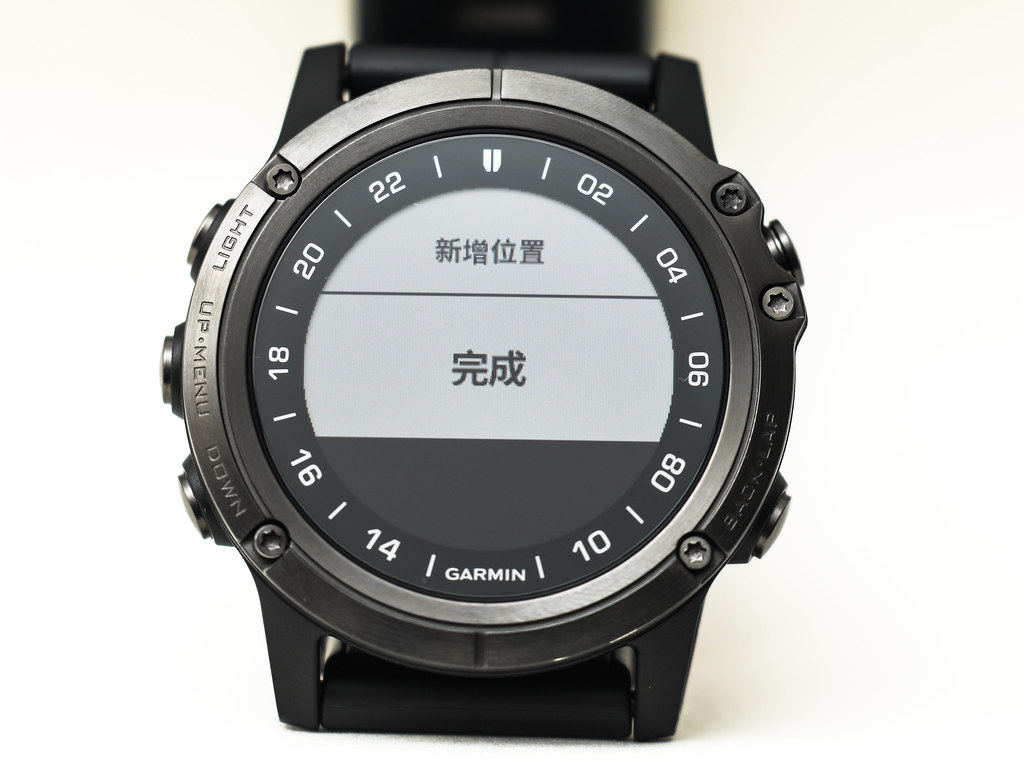
Next, you can immediately activate the “Activate Route” function,
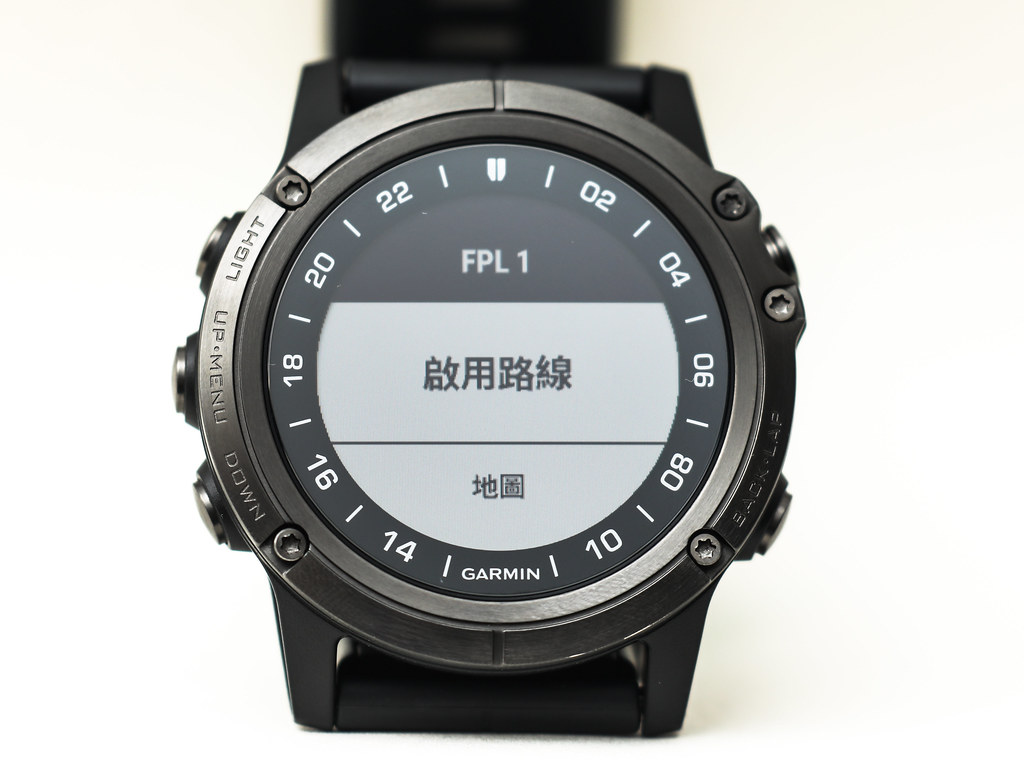 Or check the results on the map,
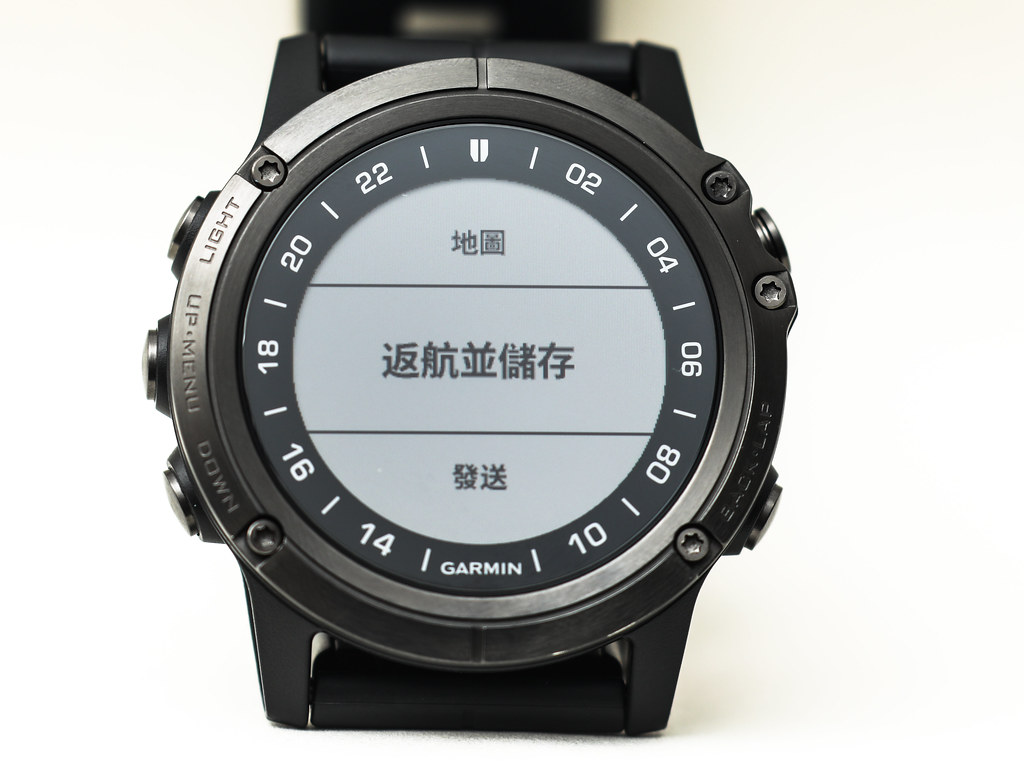
Or select “Save and Return” to save the configured flight plan.
Or check the results on the map,
Or select “Save and Return” to save the configured flight plan.
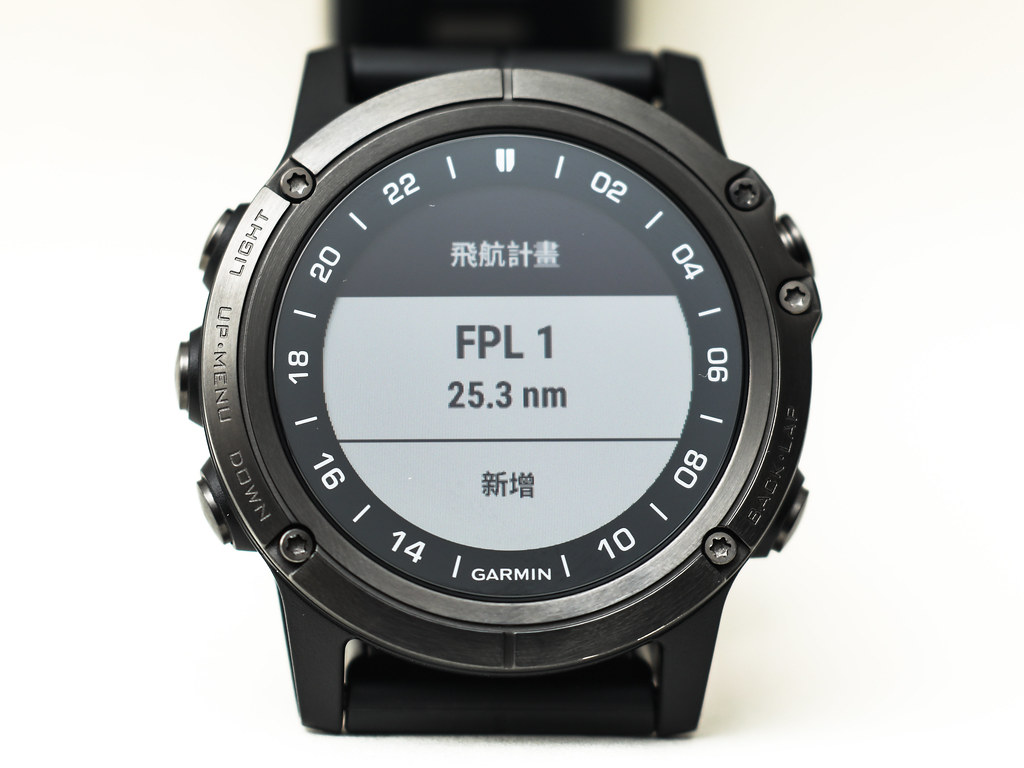
The introduction to the navigation features of the Garmin D2 Delta PX Titanium Aviator Watch ends here. You can see that compared to the cumbersome connection method between the Garmin D2 Charlie Titanium Aviator Watch and Garmin Pilot introduced previously on this site, Being able to directly create flight plans on the D2 Delta PX without using Garmin Pilot is a huge improvement.
#CommentToWin: What is your favorite D2 feature?
#CommentToWin #What is your favorite feature of the D2 Delta Titanium Aviator Watch? Select your favorite feature of the D2 Delta PX from the video below, upload a screenshot of the video to the comments section and tell the editor, and you will have a chance to win <>. ﹍﹍﹍﹍﹍﹍﹍﹍﹍﹍﹍﹍﹍﹍﹍﹍﹍﹍﹍ *How to participate 📣Before 2019/2/15, under the #CommentToWin: What is your favorite feature of the D2 Delta Titanium Aviator Watch post, leave a comment and upload a screenshot of your favorite feature from the video for a chance to win < > **If you purchase a D2 Delta PX during the event period and upload a photo of your D2 Delta PX to the comments section, you can significantly increase your chances of winning (Triple your chances Rrr) *Event Notes | Event Period | 2019/1/15 - 2019/2/15 | Winner Announcement | Announced uniformly on 2019/2/20 at 11:00 AM, and sent to lucky fans before 2019/2/22. Participants please remember to check your FB Facebook messages. If we cannot contact you, we will give the opportunity to the next person. | Event Prizes | Anger Twin Flight Experience for 5 people (Value 19,800 each), Anger Flight Review for 1 person (Value $104,600) **Garmin (TW) Fan Group reserves the right to adjust the event
#MyFavoriteD2 Learn more 👉https://lihi.biz/TmJr5