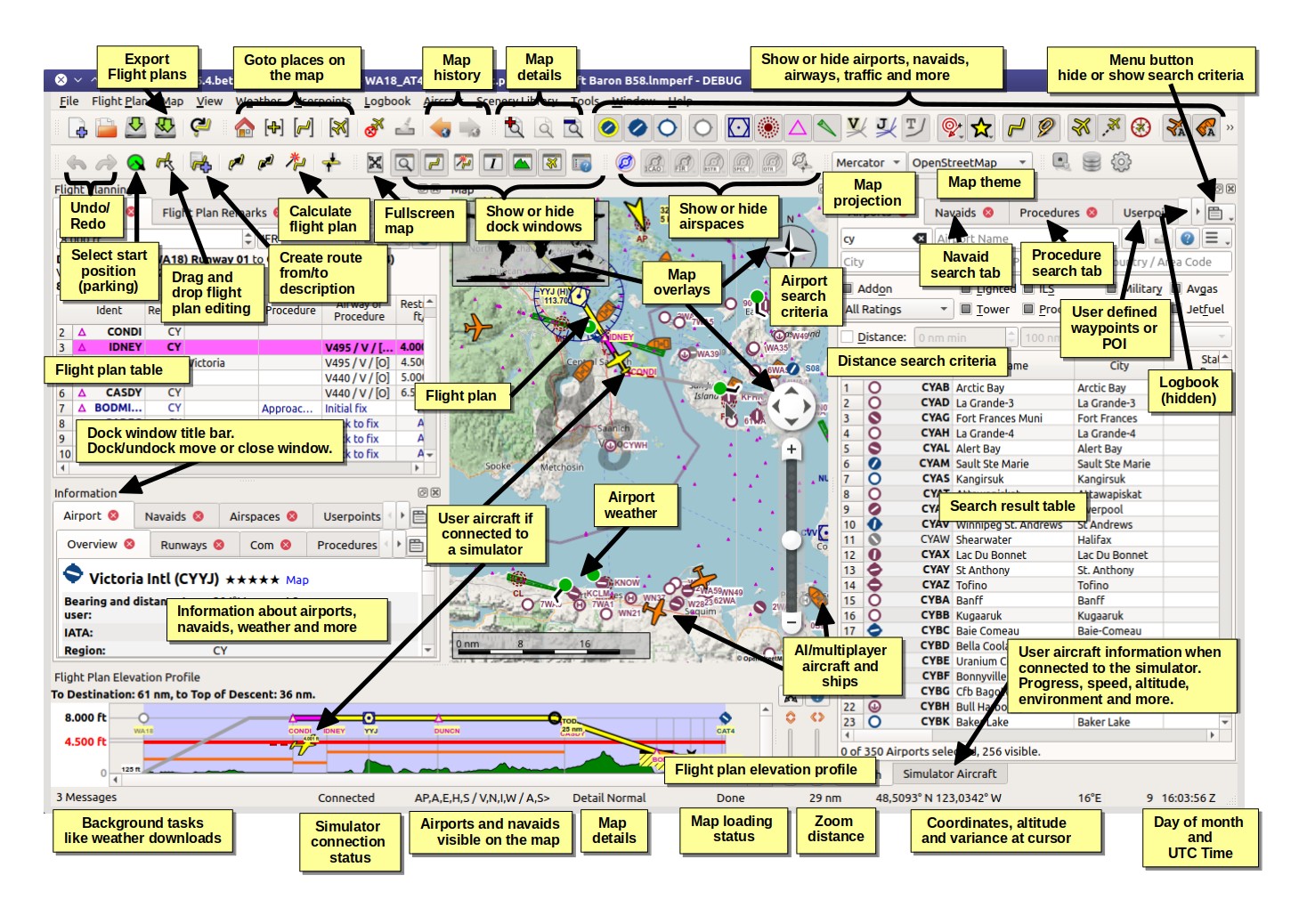
Introduction to Little Navmap, an Excellent Free Flight Planning Tool
I found a very popular free flight planning tool on x-plane.org called Little Navmap. I downloaded it for a trial run and found it to be extremely powerful. I highly recommend it. Here is a brief introduction to how to use Little Navmap.
First, download Little Navmap from the official website,
unzip the LittleNavmap-macOS-1.8.5.zip archive, and it is ready to use.
 Upon the first launch, you need to specify the path to **X-Plane 11**,
the "Flight Simulator Base Path",
and Little Navmap will automatically check the flight database.
Upon the first launch, you need to specify the path to **X-Plane 11**,
the "Flight Simulator Base Path",
and Little Navmap will automatically check the flight database.
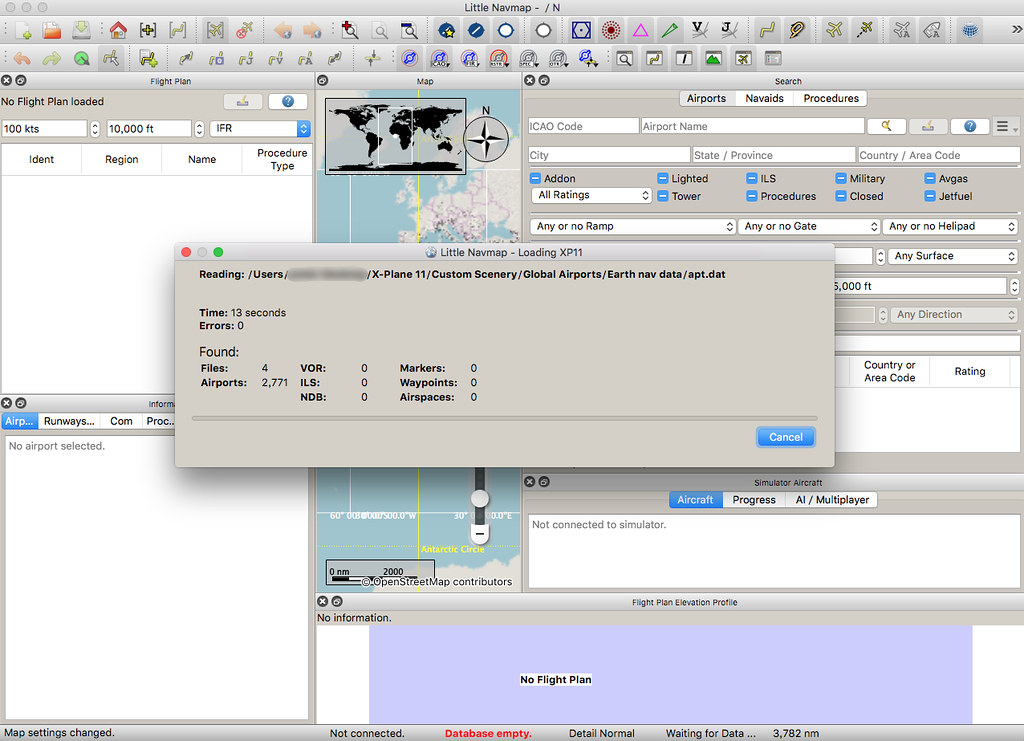
It took nearly 5 minutes to complete the scan.
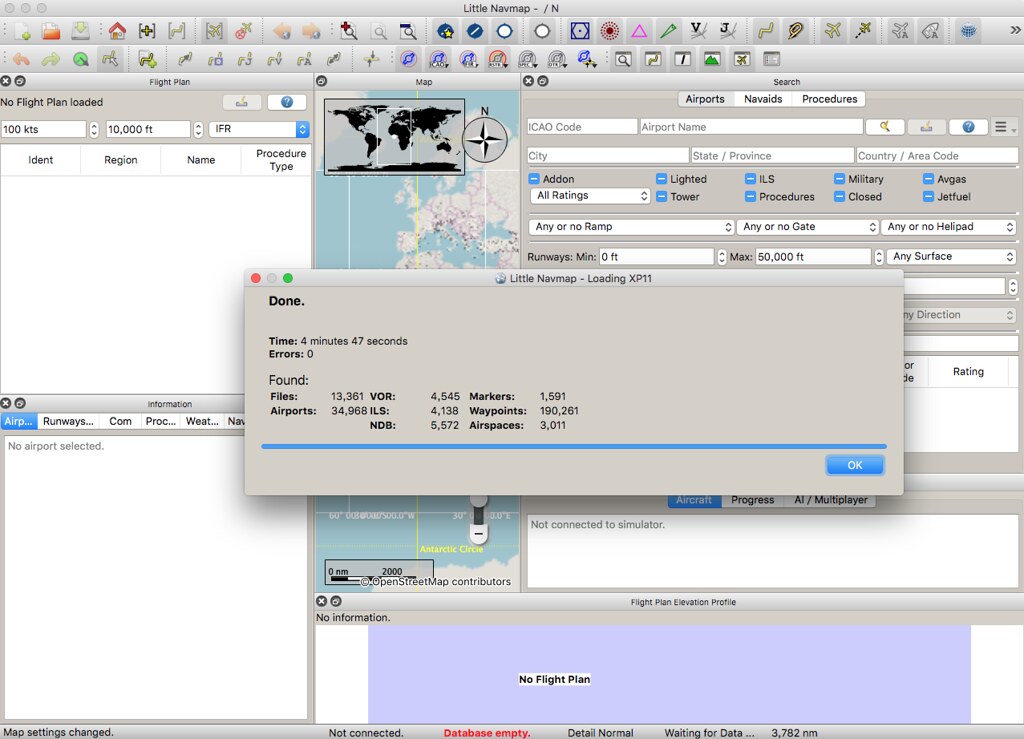 It found 34,968 airports, 4,545 VORs, 5,572 NDBs,
4,138 ILSs, 190,261 waypoints, and 3,011 airspace information entries.
It found 34,968 airports, 4,545 VORs, 5,572 NDBs,
4,138 ILSs, 190,261 waypoints, and 3,011 airspace information entries.
Now let’s start creating a flight plan. Based on the record of this site’s ANA Tokyo Haneda-Beijing NH961 Flight Report (Part 1), the data strictly follows the actual flight route.
First, enter the departure airport RJTT (Haneda Airport) in the Search window.
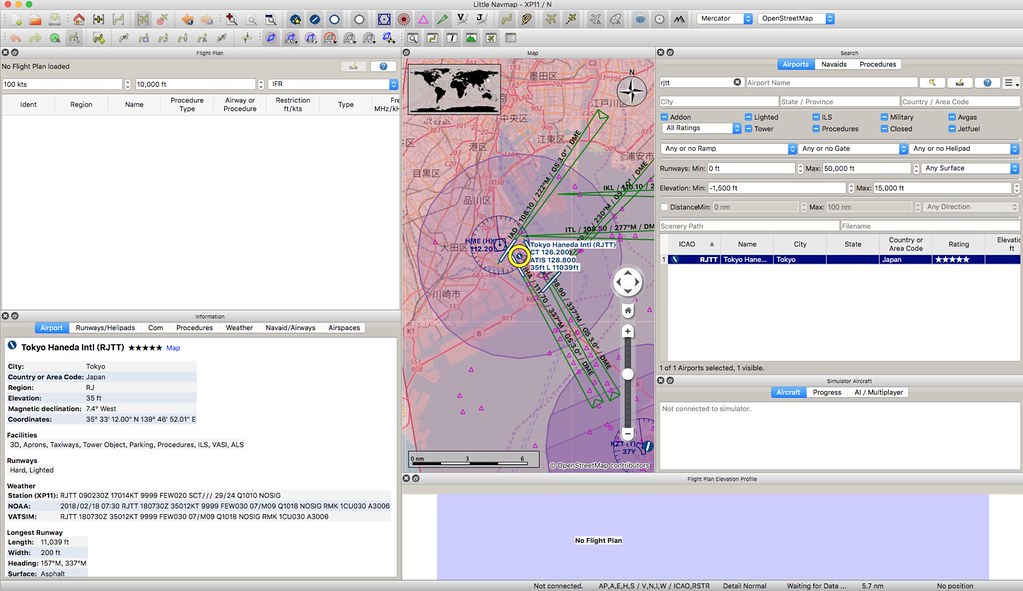 Then right-click to open the menu.
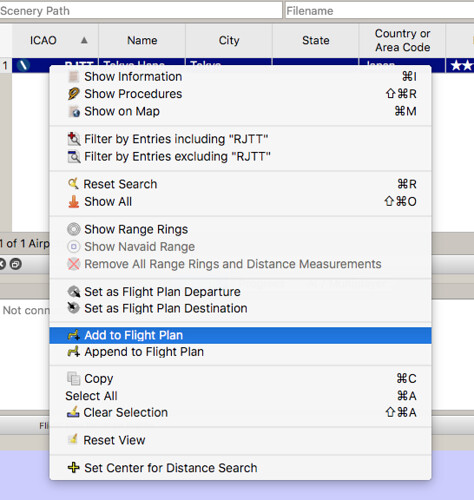 Select “Add to Flight Plan”.
This adds RJTT to the flight plan window.
Select “Add to Flight Plan”.
This adds RJTT to the flight plan window.
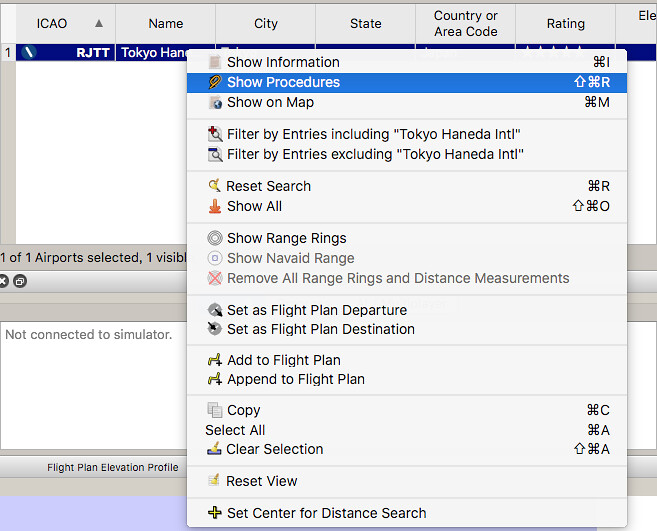
Next, select the Departure procedure.
Right-click to open the menu,
Select “Show Procedures”.
 You can see the various departure and arrival procedures for RJTT displayed in the Search window.
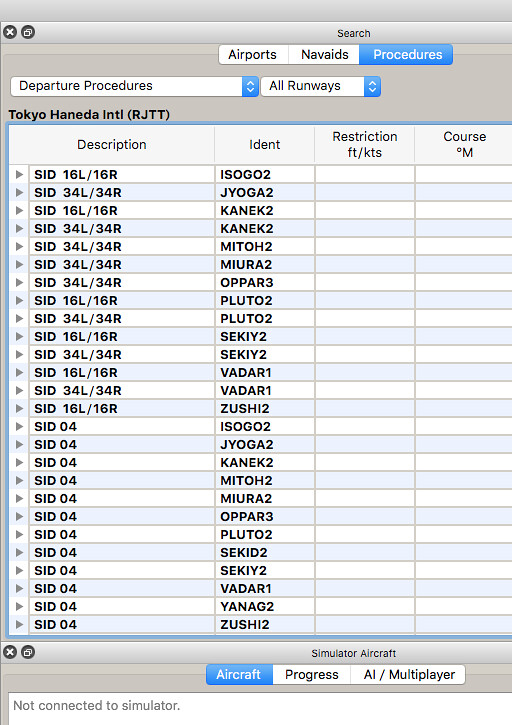
According to the ANA Tokyo Haneda-Beijing NH961 Flight Report (Part 1) mentioned above,
the flight used RWY34R and the MITOH Departure.
So, find this procedure in the Search window.
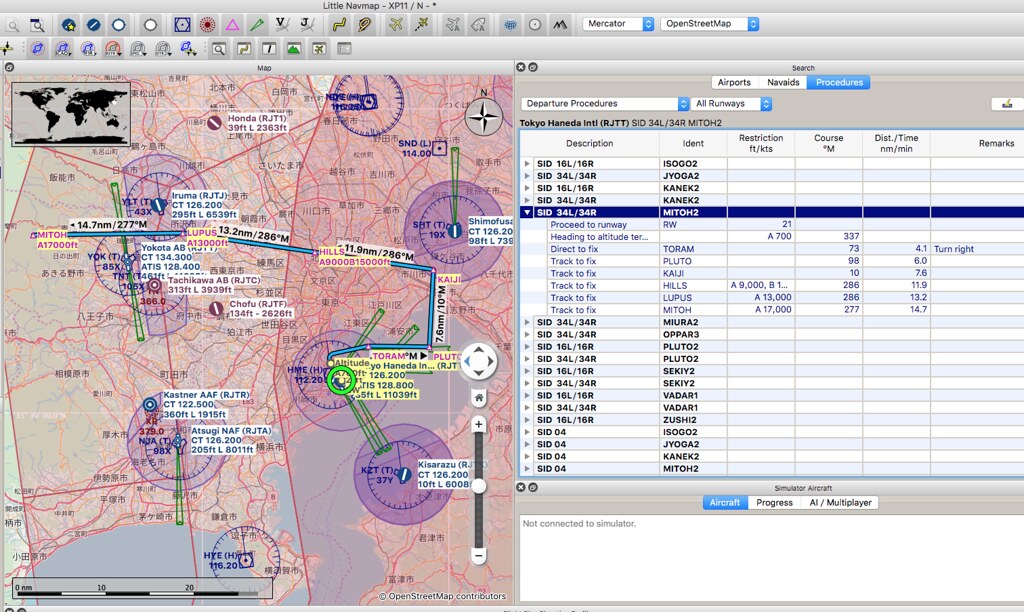 Right-click to open the menu.
 Select this procedure as the departure for this flight plan.
Check the flight plan window.
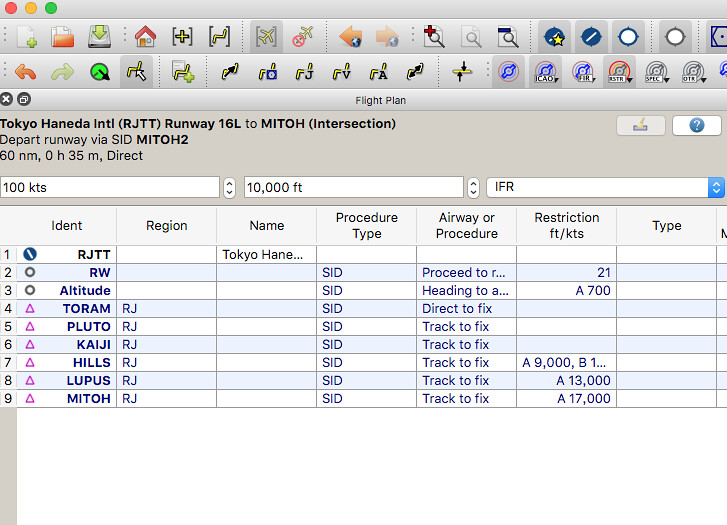 Sure enough, the airport and MITOH2 data have been automatically added to the flight plan.
Next, enter the waypoints one by one.
This process is relatively simple;
find the waypoint in the Search window first.
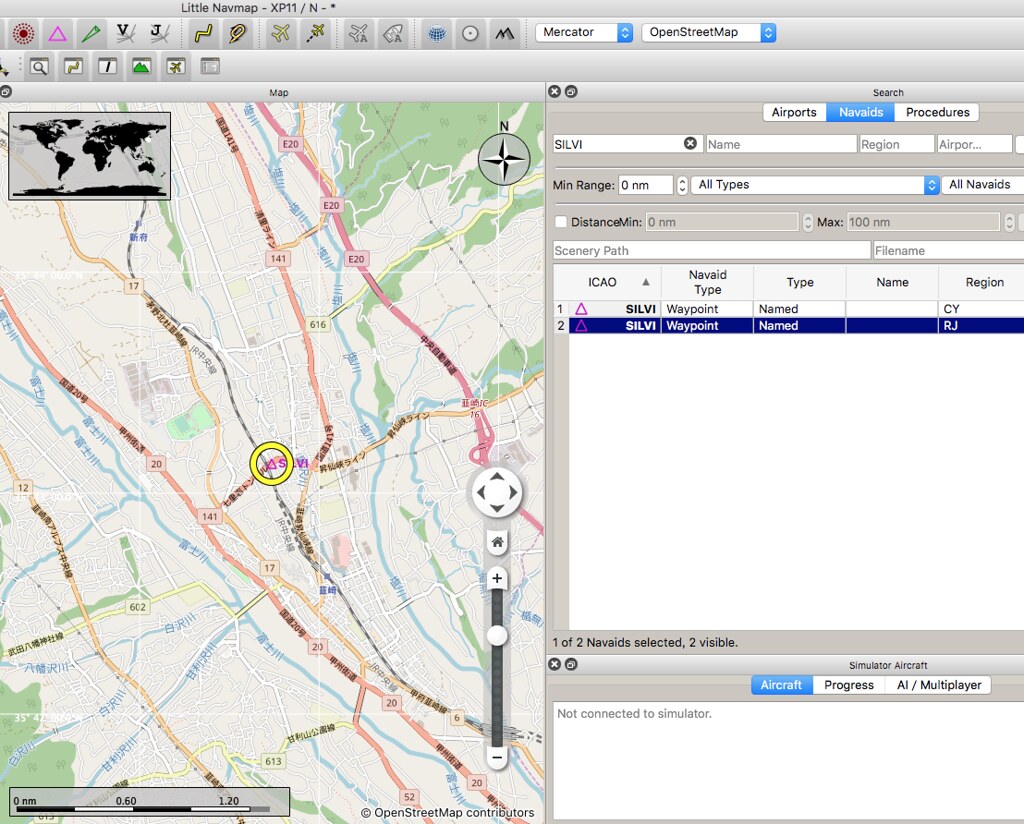 Then confirm the position in the map window.
If there are no issues, right-click to open the menu.
Then confirm the position in the map window.
If there are no issues, right-click to open the menu.
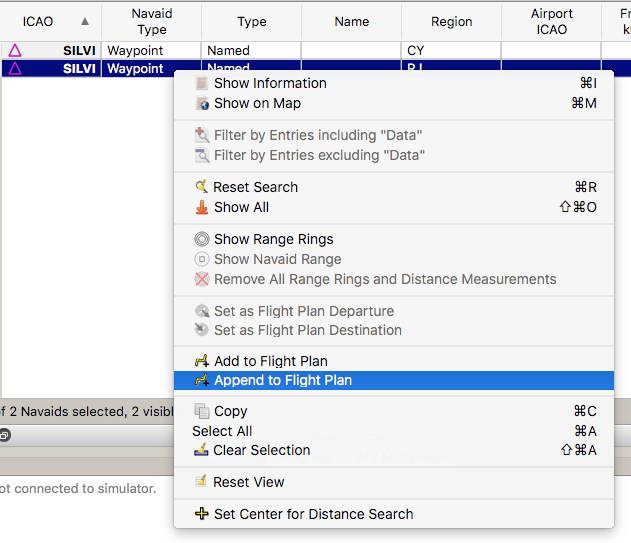 Then select “Append to Flight Plan” to add the waypoint to the flight plan.
For the arrival procedure and approach,
use the Search window again to find the required procedure.
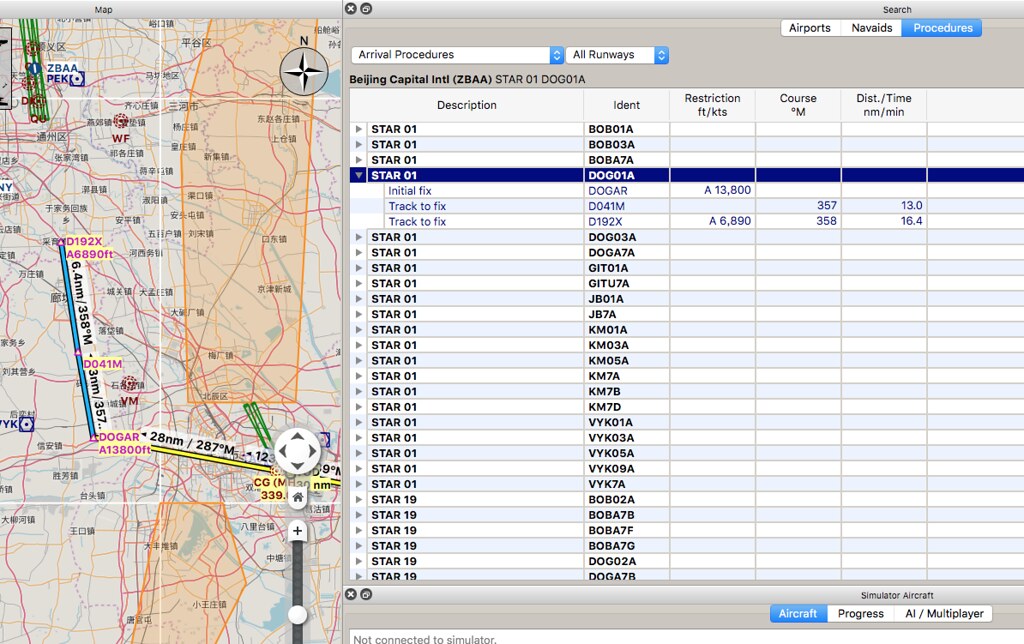
After all data is entered, look at the map.
 There are absolutely no problems.
Now look at the flight plan window.
There are absolutely no problems.
Now look at the flight plan window.
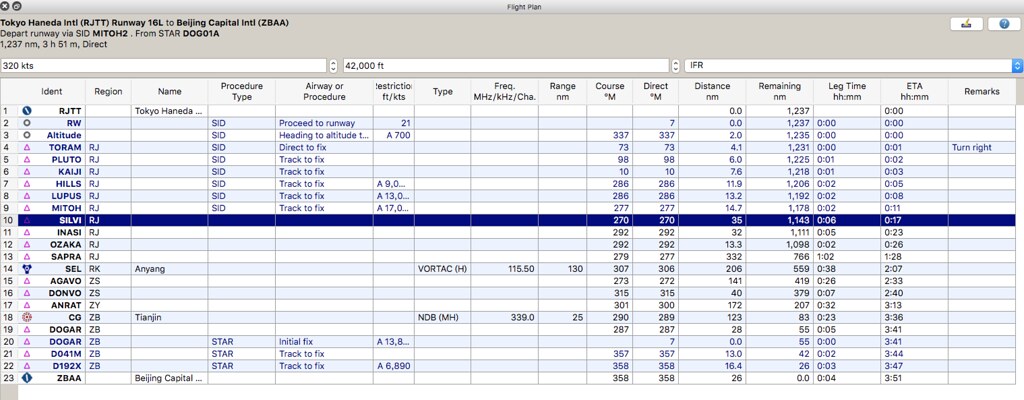 Everything looks perfect.
Finally, save the flight plan.
If you are using the X-Plane fms file format,
you will see this prompt screen.
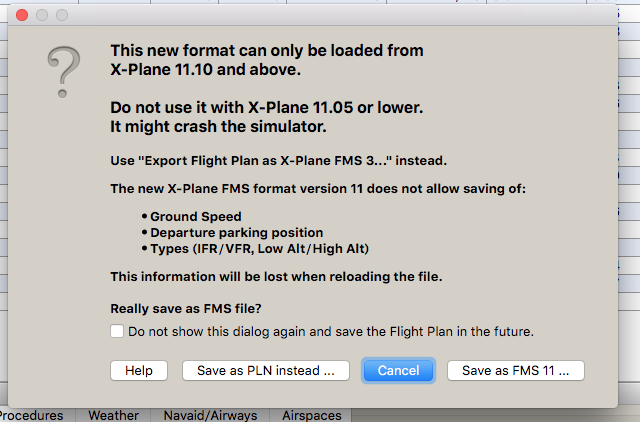 Note that Little Navmap only supports X-Plane versions 11.10 and above.
After saving, you can find the RJTTZBAA.fms file under X-Plane 11/Output/FMS Planes/.
Its content is as follows:
A 1100 Version CYCLE 1707 ADEP RJTT SID MITOH2 ADES ZBAA DESRWY RW01 STAR DOG01A NUMENR 12 1 RJTT ADEP 0.000000 35.553333 139.781113 11 SILVI DRCT 42000.000000 35.718887 138.445557 11 INASI DRCT 42000.000000 35.850796 137.817169 11 OZAKA DRCT 42000.000000 35.905136 137.553116 11 SAPRA DRCT 42000.000000 35.823841 130.723679 3 SEL DRCT 42000.000000 37.413612 126.928360 11 AGAVO DRCT 42000.000000 37.166668 124.000000 11 DONVO DRCT 42000.000000 37.566666 123.333336 11 ANRAT DRCT 42000.000000 38.658333 119.956665 2 CG DRCT 42000.000000 39.080002 117.375000 11 DOGAR DRCT 42000.000000 39.163334 116.785004 1 ZBAA ADES 0.000000 40.073334 116.598335
It is truly delightful that such perfect software is free.
Also, there is a detailed user manual on the creator’s homepage,
you are welcome to visit it.