Garmin D2 Charlie Titanium Aviation Watch Self-Test Mode
One day, I accidentally dropped my D2 on the floor. Upon picking it up and inspecting it, I was relieved to find that the exterior surface was completely undamaged. However, remembering that this watch contains so many sensors, I wondered how I could check for any internal issues? I searched online and found that Garmin watches have a self-test mode, so I decided to try it out on my D2 Charlie.
First, long press the “LIGHT” button (top left) to enter the shortcut menu. Find “Power Off” and press the “Direct-to” button (top right) to shut down. Then press “LIGHT” to start the watch. Immediately after the Garmin logo triangle appears on the watch face, press and hold the “DOWN” button (bottom left). After about 30 seconds, the watch will enter the self-test mode.
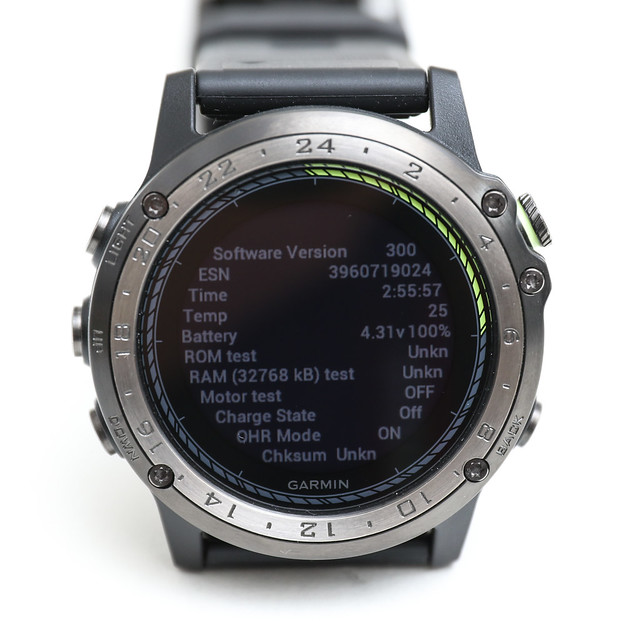 This screen displays values for various sensors.
Pressing the "Direct-to" button (top right) allows you to test the vibration MOTOR.
This screen displays values for various sensors.
Pressing the "Direct-to" button (top right) allows you to test the vibration MOTOR.
Press the “Nearest/Back” button (bottom right) to proceed to the next test item.
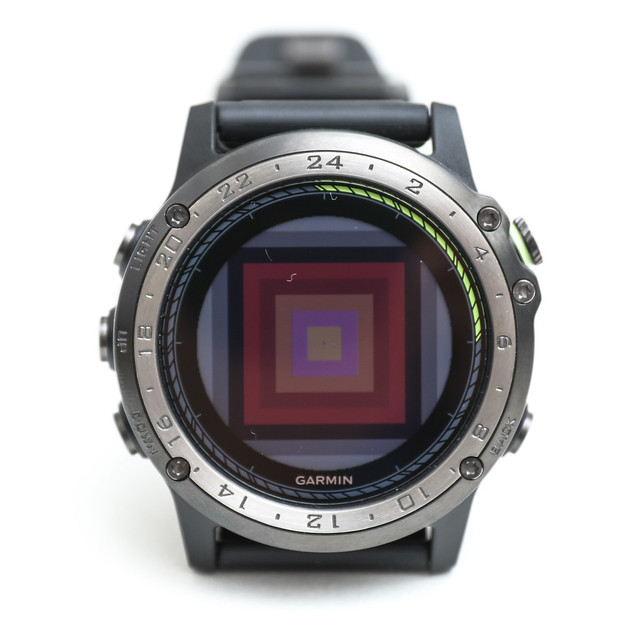 This appears to be a color display test.
Pressing “UP” and “DOWN” changes the size of the central square.
Pressing “Direct-to” (top right) displays various test patterns.
There are many types, so I won’t post photos of them all here.
This appears to be a color display test.
Pressing “UP” and “DOWN” changes the size of the central square.
Pressing “Direct-to” (top right) displays various test patterns.
There are many types, so I won’t post photos of them all here.
Press the “Nearest/Back” button (bottom right) to proceed to the next test item.
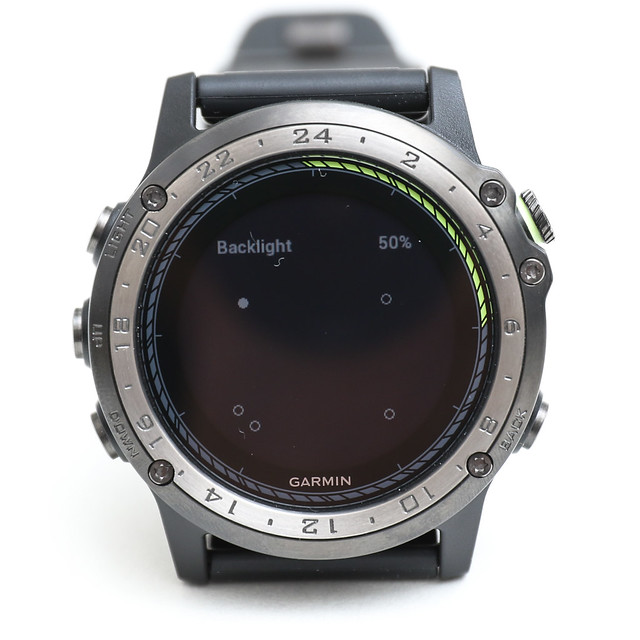 It turns out this is the backlight test. Pressing “UP” and “DOWN” changes the backlight brightness,
and pressing “Direct-to” (top right) changes the highlighted points.
It turns out this is the backlight test. Pressing “UP” and “DOWN” changes the backlight brightness,
and pressing “Direct-to” (top right) changes the highlighted points.
Press “Nearest/Back” (bottom right) again to enter the GPS test.
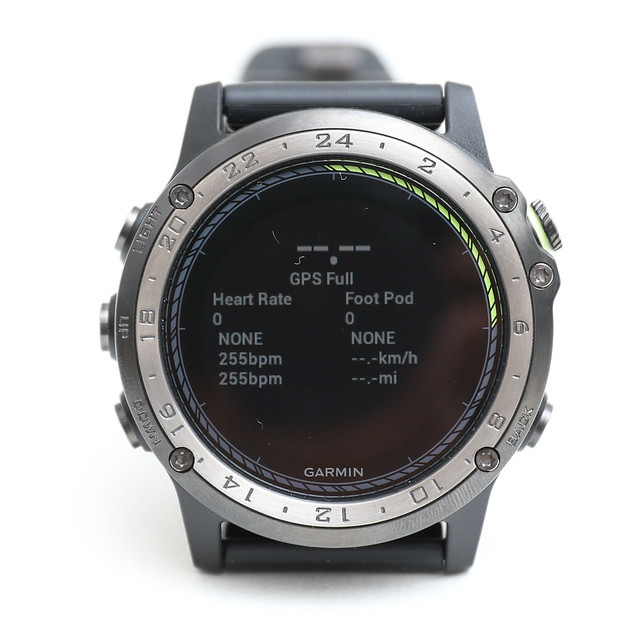 The photo was taken indoors, so the values are still at zero; moving to a window revealed changes.
Press “Nearest/Back” (bottom right) again to enter the SNS accelerometer test. You can see acceleration on the X, Y, and Z axes, magnetic Heading, and compass values, though I forgot to take a photo of this one.
Next is the OHR (optical heart rate) test.
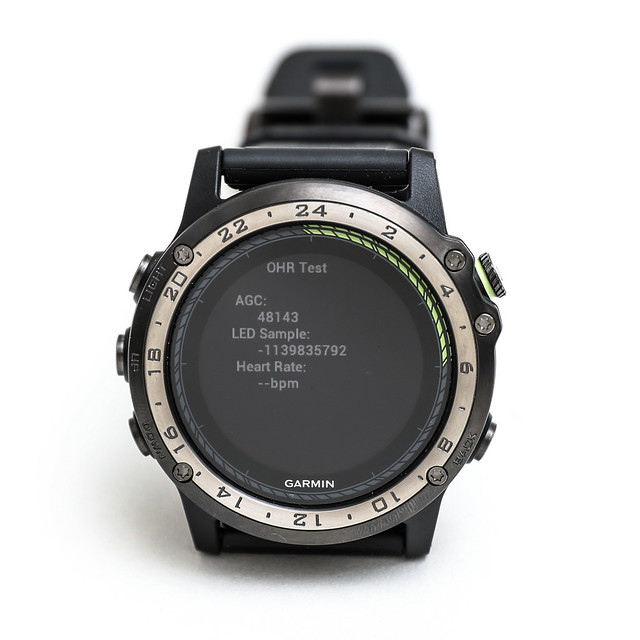 I’m not sure why it didn’t read a heart rate value.
ANT test—is this an antenna test?
 You can use “Nearest/Back” to set test ON,
and use “UP” to set the frequency, but no other display is visible.
You can use “Nearest/Back” to set test ON,
and use “UP” to set the frequency, but no other display is visible.
The next item is the barometer test.
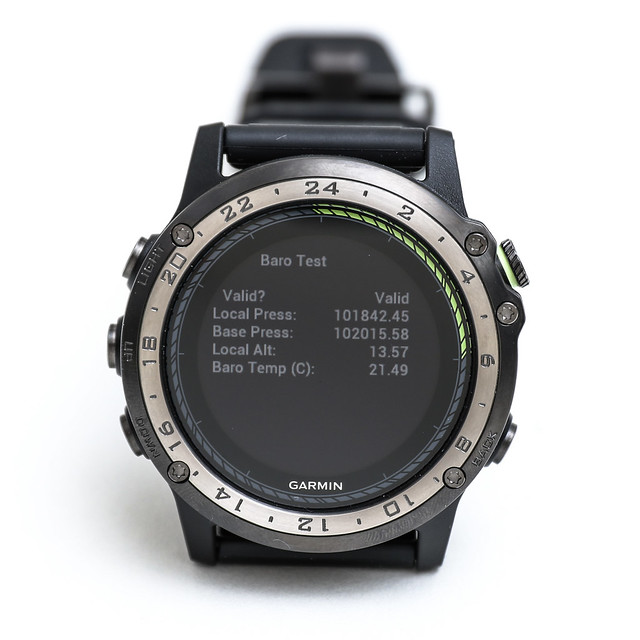 The unit here should be hectopascals; it looks like there are no issues.
This should be the Bluetooth test.
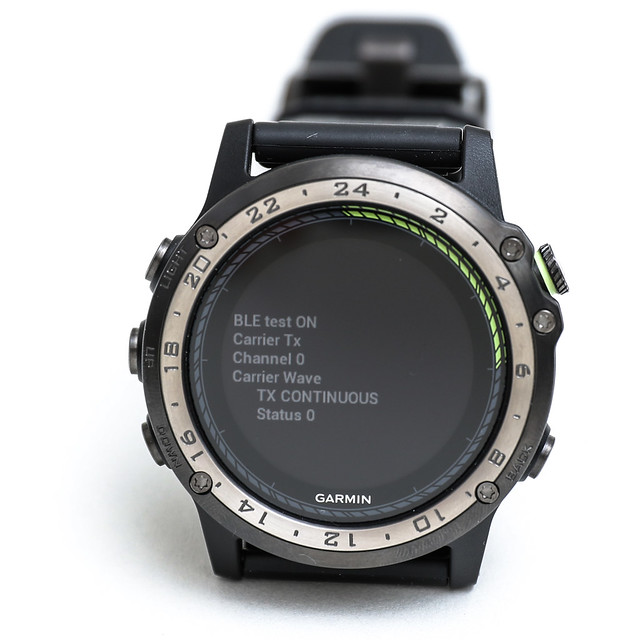 You can use “Nearest/Back” to set test ON,
use “UP” to change the channel, and “DOWN” to change the data length,
but no changes are visible on the watch face.
You can use “Nearest/Back” to set test ON,
use “UP” to change the channel, and “DOWN” to change the data length,
but no changes are visible on the watch face.
Next is the Wi-Fi test.
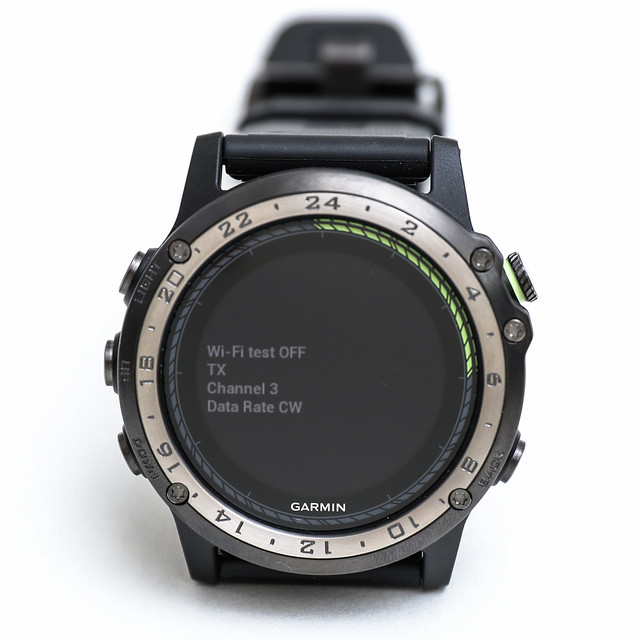 The operation method is the same as above.
After starting the test, you can see the packet error rate numbers changing constantly.
The operation method is the same as above.
After starting the test, you can see the packet error rate numbers changing constantly.
Below is the vibration motor test.
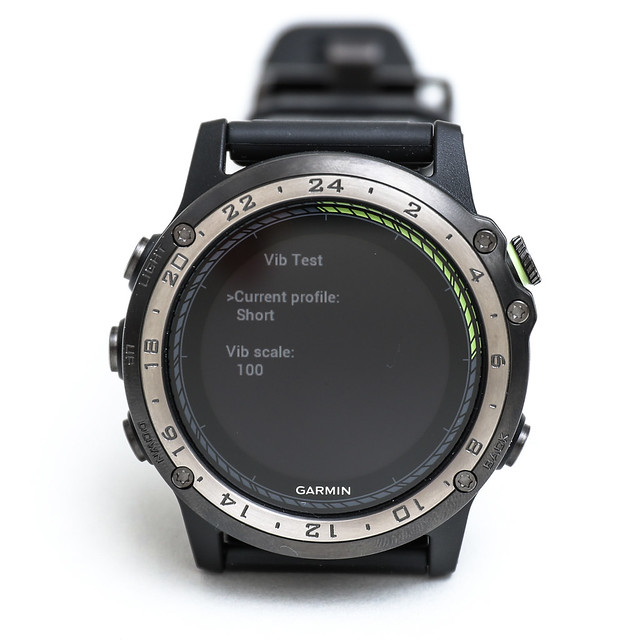 This one is easy to understand: pressing “Nearest/Back” causes it to vibrate.
Pressing “UP” changes the test mode.
Options include Default, Short, Medium, Long, Extra Long, Alarm, Call, Goal, Move, Move Clear, Notification, Sync, Sync Fail, Key Press, Low Threat, High Threat, etc.
This one is easy to understand: pressing “Nearest/Back” causes it to vibrate.
Pressing “UP” changes the test mode.
Options include Default, Short, Medium, Long, Extra Long, Alarm, Call, Goal, Move, Move Clear, Notification, Sync, Sync Fail, Key Press, Low Threat, High Threat, etc.
Finally, here is the end screen.
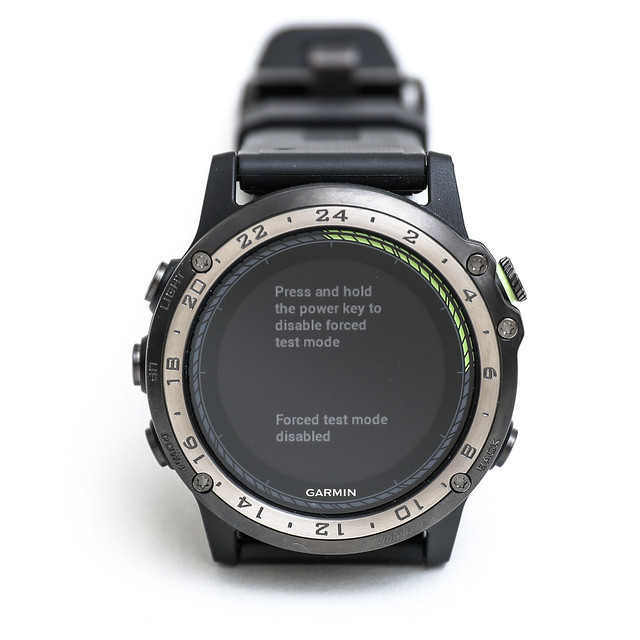 Long press “LIGHT” to restart the watch.
After these tests, I have even more confidence in the D2 Charlie’s reliability. It really is a reassuring product.
To celebrate the launch of Charlie, there is an online launch event from 11/23~12/22.
Buy a D2 Charlie, share online, and you can enter a draw for an in-air flight experience provided by Angjet Flight Training Center.
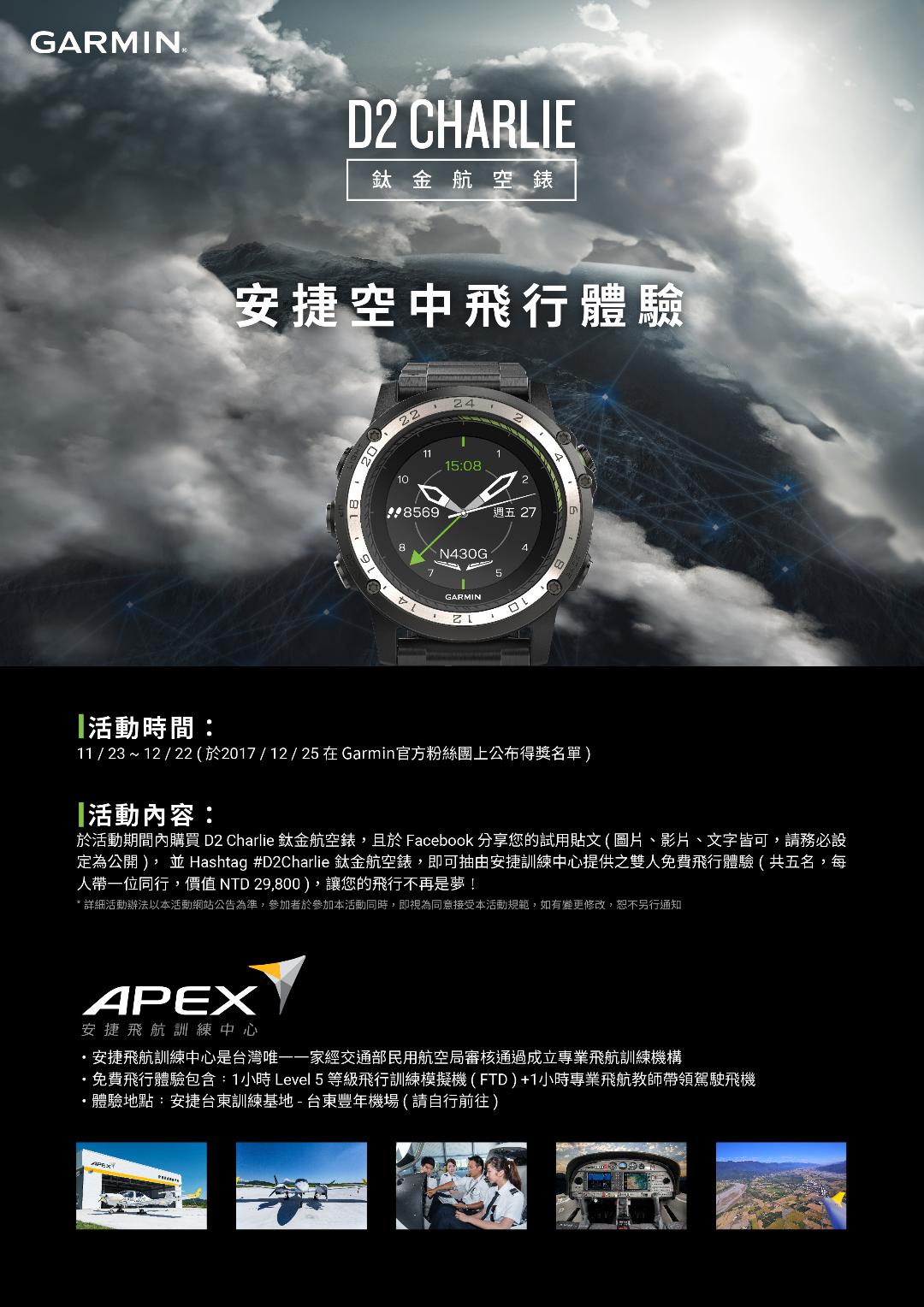 Hope you don’t miss this once-in-a-lifetime opportunity.
Purchase the D2 Charlie Titanium Aviation Watch during the event period and share your trial post on Facebook (images, videos, or text are all fine, please ensure it is set to Public), and add the hashtag #D2Charlie鈦金航空錶 to enter a draw for a free dual flight experience provided by Angjet Training Center (bring a companion, value NTD29,800), making your flight no longer just a dream!Official website info here
End