Garmin D2 Charlie Titanium Aviation Watch Initial Setup
Garmin D2 Delta PX Titanium Aviation Watch Unboxing Garmin D2 Delta PX Titanium Aviation Watch Setup Guide
Following the previous article Garmin D2™ Charlie Titanium Aviation Watch Unboxing, the following is a record of the initial setup process.
First, regarding the operation of the D2™ Charlie smartwatch, since it does not have a touchscreen, all operations rely on the 5 buttons on the watch face, so you must remember the function of each button.
Top-left “LIGHT”: Press to light up the backlight, long press to show Quick Settings Left-middle “UP”: Press to show Widget directory or move up, long press to show Settings Bottom-left “DOWN”: Press to show Widget directory or move down, long press to return to Watch Face Top-right “Direct-to”: Press to show APP Activities directory or confirm, long press for Direct To Destination Bottom-right “Nearest/Back”: Press to return to the previous screen, long press to show Nearest
When the system starts for the first time and enters the language selection screen, you can see an upward arrow displayed at the very top of the screen.
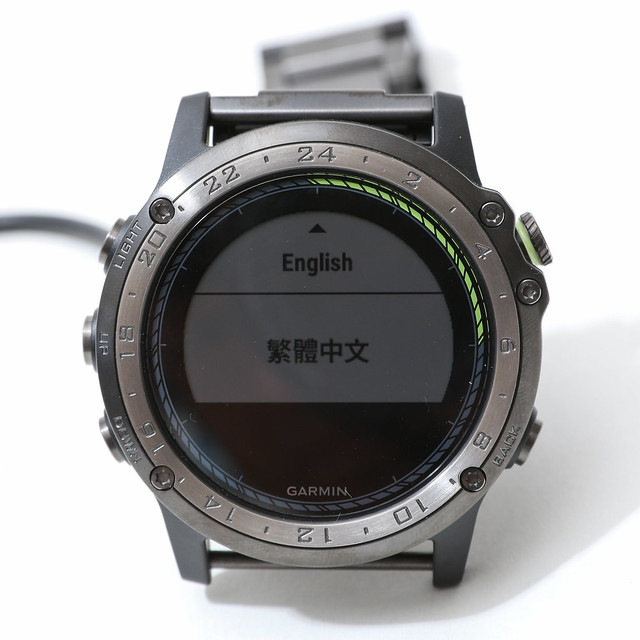 This indicates that the current setting is “Traditional Chinese”, but the user can press the “UP” key to select “English”.
Of course, generally we would choose “Traditional Chinese”,
so press the top-right “Direct-to” button to confirm this option.
This indicates that the current setting is “Traditional Chinese”, but the user can press the “UP” key to select “English”.
Of course, generally we would choose “Traditional Chinese”,
so press the top-right “Direct-to” button to confirm this option.
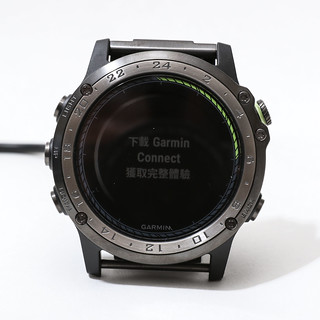
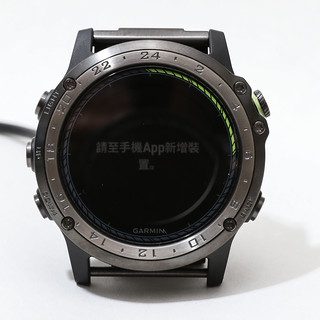
Next, you can see the information on the screen change,
displaying “Download Garmin Connect for the full experience” and “Add device in the App”.
So take out your phone and visit the concect.garmin.com website,

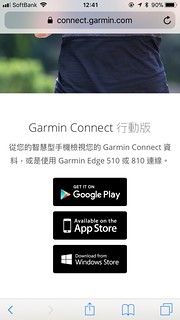 and download the Garmin Connect App.
If you do not have a Garmin Connect account, please register one beforehand.
Registering an ID requires only a small amount of information such as an email address and password, and the process is very simple.
and download the Garmin Connect App.
If you do not have a Garmin Connect account, please register one beforehand.
Registering an ID requires only a small amount of information such as an email address and password, and the process is very simple.
*Note Users who purchased the mainland China version may encounter issues connecting to their phone via Bluetooth indoors; connection is only possible outdoors after receiving a GPS signal. If you need to use Garmin Pilot, please re-register in Garmin Connect with a new email, selecting a non-China region in the Advanced settings.
After installing Garmin Connect on the phone, launch the APP,
and you can proceed to connect with the D2™Charlie.
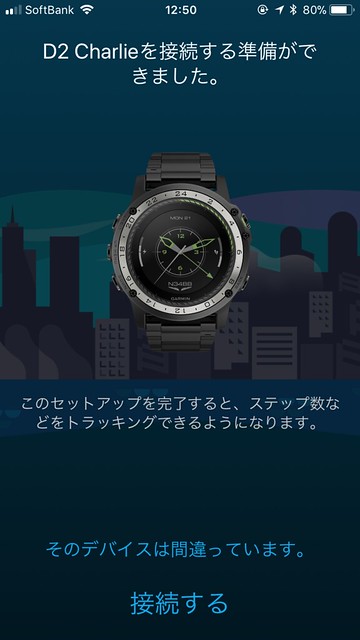 My phone’s default language setting is Japanese, so Garmin Connect also displays in Japanese.
The Garmin Connect on the phone will search for nearby D2™Charlie via Bluetooth communication protocol,
so when the watch receives the APP’s connection request, it will display a one-time pairing code.
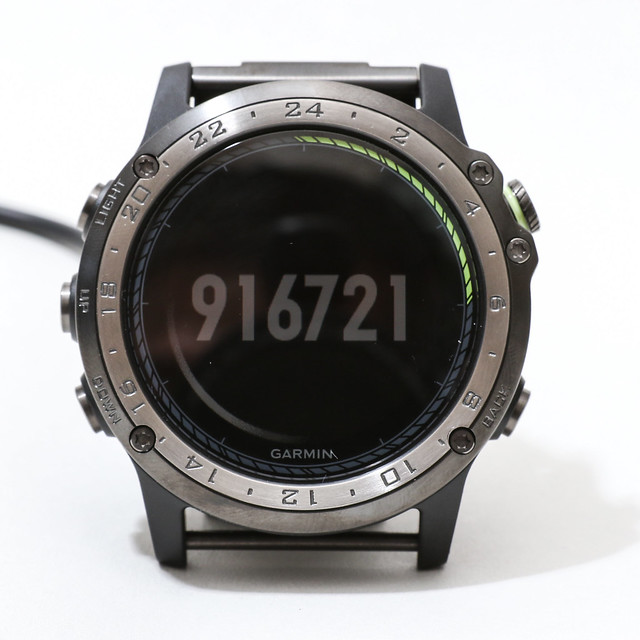
At the same time, a prompt to enter the verification code will also appear on the phone,
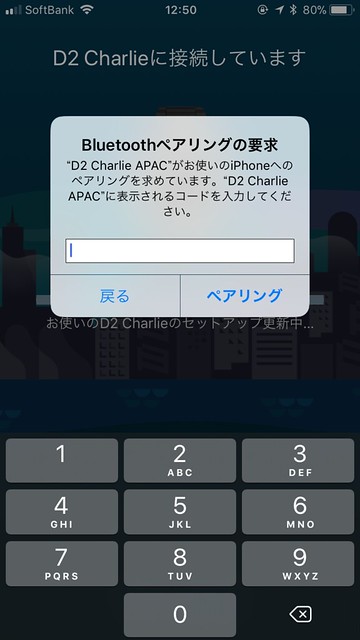 Enter the code “916721” shown above,
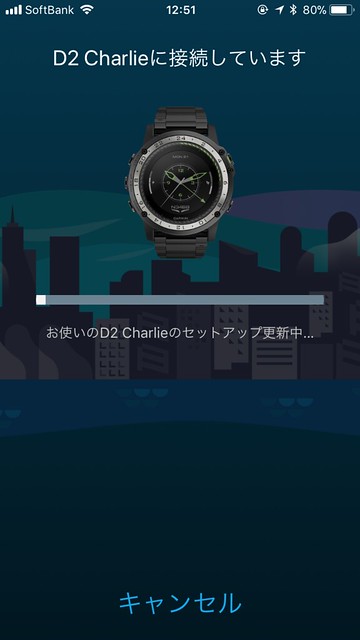
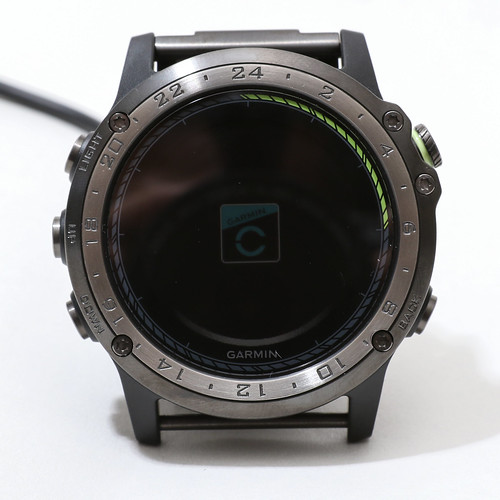 You can see the connection is successful, and data transfer begins between the two devices.
After about a minute or so, the transfer settings are complete, and the connection completion message appears on the mobile APP.
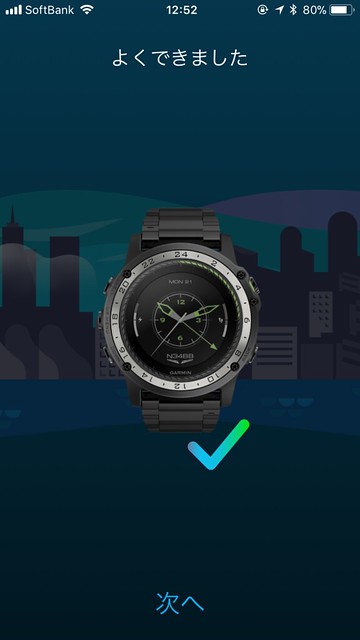 Next, there are some personal settings, such as gender, avatar icon, data access permissions, etc.,
These are unrelated to the D2™Charlie, so I will skip mentioning them.
However, eventually these settings are also transferred to the watch.
Next, there are some personal settings, such as gender, avatar icon, data access permissions, etc.,
These are unrelated to the D2™Charlie, so I will skip mentioning them.
However, eventually these settings are also transferred to the watch.
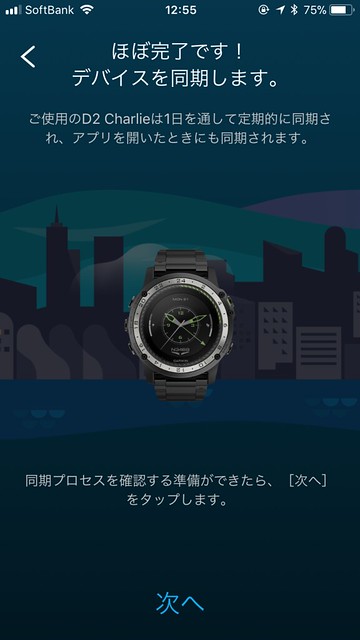
At the same time, the settings on the D2™Charlie side are continuing,
First are the APP activities in the smartwatch,
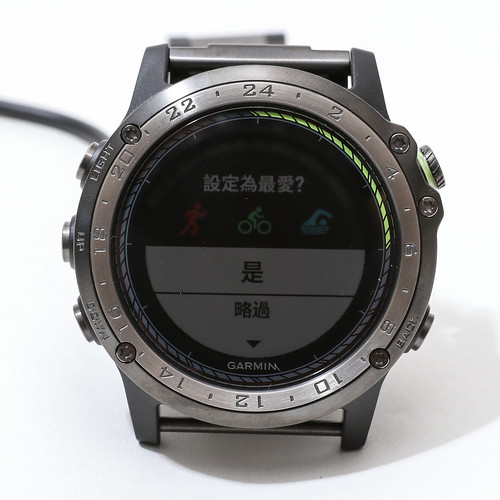 I won’t spend time setting these up in detail now, so press the bottom-left “DOWN” button to select “Skip”.
Next is “Enter Tail Number”,
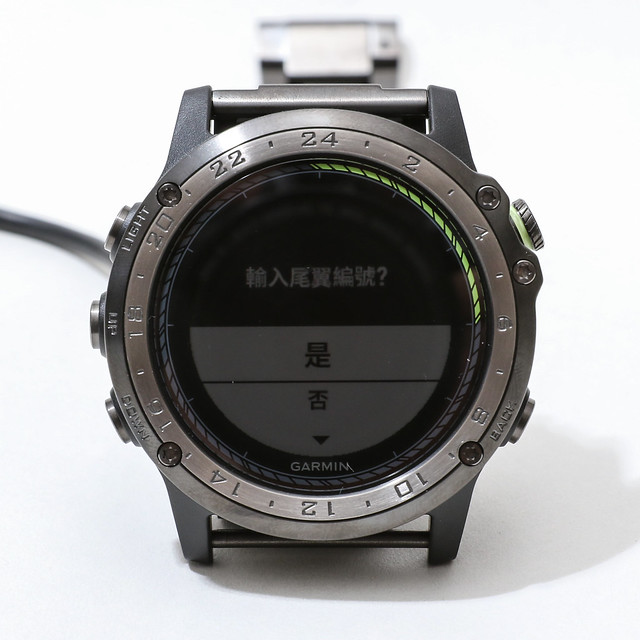 Press the top-right “Direct-to” button to select “Yes” to enter character input mode.
The alphanumeric input method is also quite simple. The input area is shown on the left side of the screen,
The vertical bar on the right contains the enterable characters A-Z, 1-0, etc., with the highlighted cursor in the middle indicating the currently selected character.
Use “UP” and “DOWN” to select the required character,
then press the “Direct-to” button to confirm, and the character will be entered into the input area on the left.
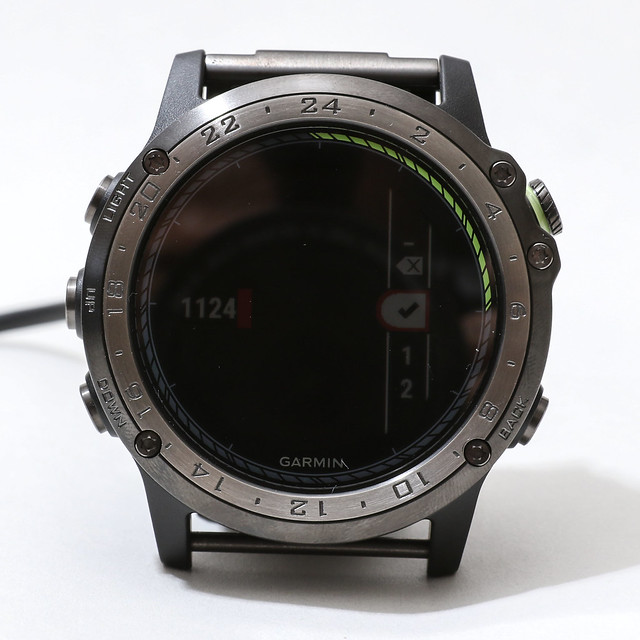 Here I arbitrarily entered “1124”, then placed the cursor on the checkmark,
and pressed the top-right “Direct-to” button to confirm.
Here I arbitrarily entered “1124”, then placed the cursor on the checkmark,
and pressed the top-right “Direct-to” button to confirm.
This completes the initial setup, and the watch officially enters the watch face screen.
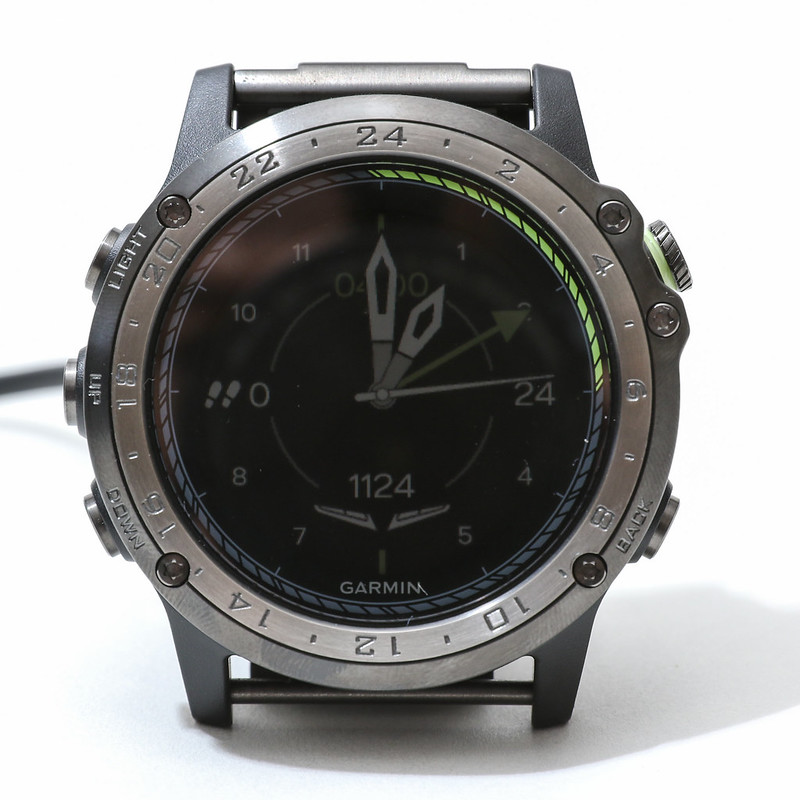 The green hand on the watch face indicates Coordinated Universal Time (UTC),
The scale is the metal outer dial, so the current UTC is 4 o’clock.
We know that UTC time is commonly used in the aviation field,
so this watch face is very convenient for professionals.
The green hand on the watch face indicates Coordinated Universal Time (UTC),
The scale is the metal outer dial, so the current UTC is 4 o’clock.
We know that UTC time is commonly used in the aviation field,
so this watch face is very convenient for professionals.
If you just want to use it as a smartwatch, it is ready to use now, but the D2™Charlie is an aviation watch after all, and it requires navigation data to be installed.
Plug the data cable into the watch and connect the USB port to the computer. Open the browser on your computer, visit fly.garmin.com, and log in with the account you just created. Next, add a device, click the “Portables” tab on the webpage, to enter the Add Portable page.
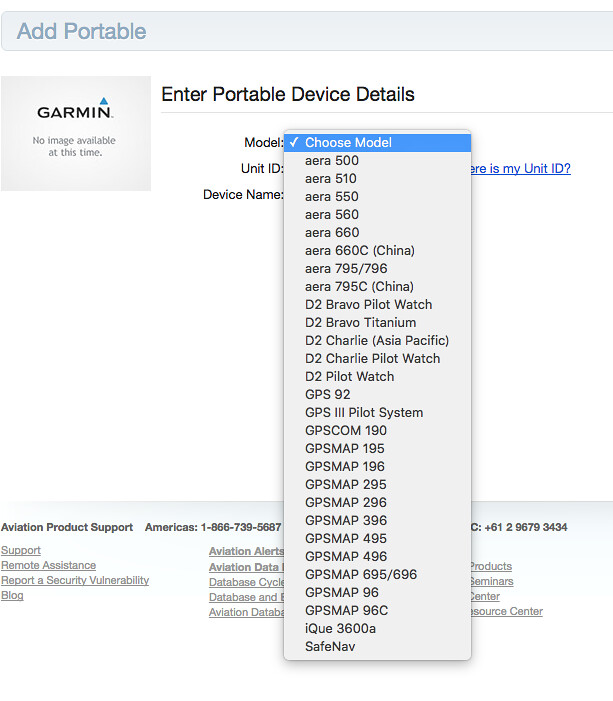
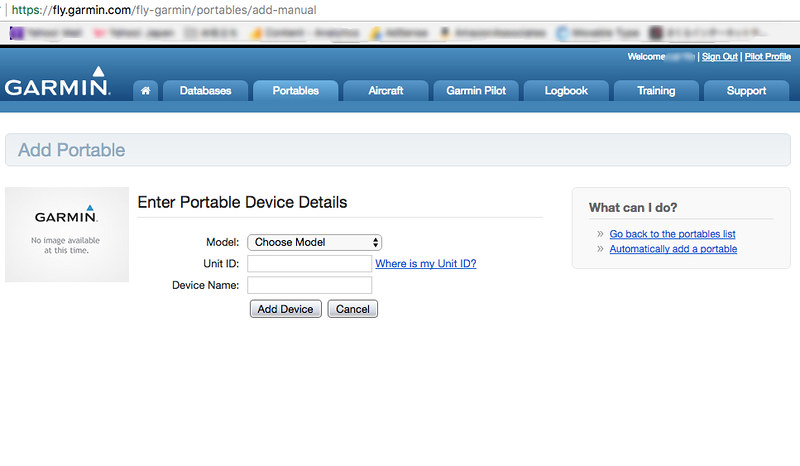 You can see the "Enter Portable Device Details" screen.
First, select “D2 Charlie (Asia Pacific)” in the Model item,
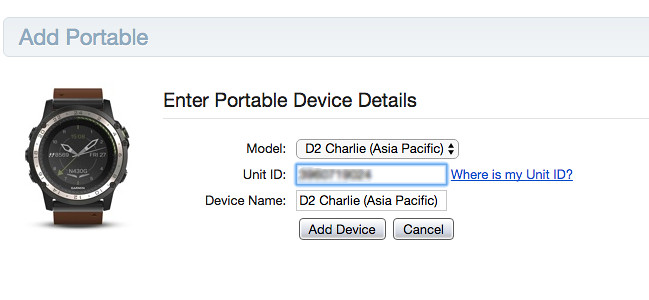 Then an image of the D2™Charlie will appear in the screen.
Next, you need to enter the Unit ID. This product number information needs to be checked on the watch.
The method to obtain the Unit ID is as follows:
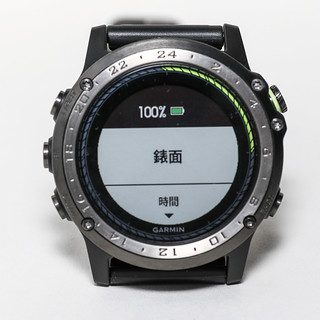
Long press the “UP” button, the watch will enter the Settings screen, you can see the first item is “Watch Face”;
Press “UP” to make the screen jump to the last item of the settings, “Settings”;
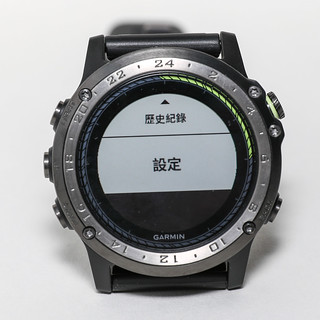 Press “Direct-to” to enter the “Settings” screen, you can see the first item is “Apps”.
Press “UP” again to make the screen jump to the last item of the settings, “About”;
Press “Direct-to” to enter the “Settings” screen, you can see the first item is “Apps”.
Press “UP” again to make the screen jump to the last item of the settings, “About”;
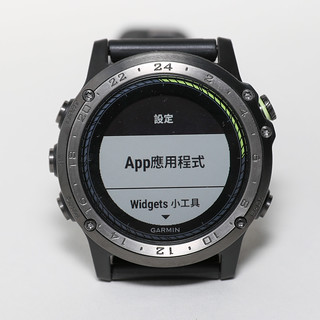
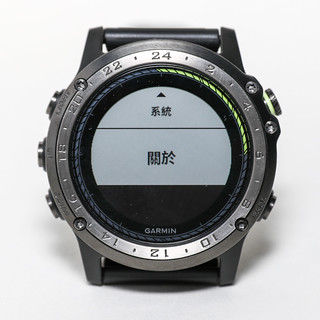 Press “Direct-to” to enter the “About” screen, at this point you can see the Unit ID and software version displayed.
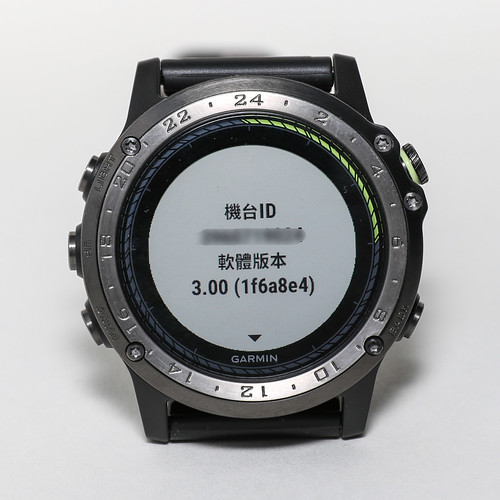
Fill this ID into the Unit ID field in the browser, and arbitrarily give the device a name “D2 Charlie”,
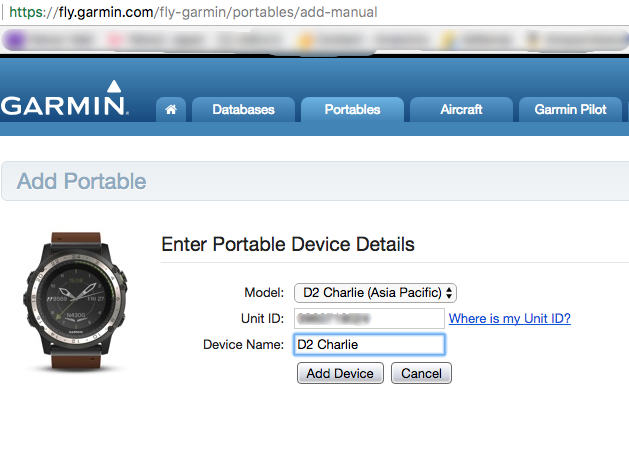 Press Add Device, and “D2 Charlie” will be registered in the fly.garmin service.
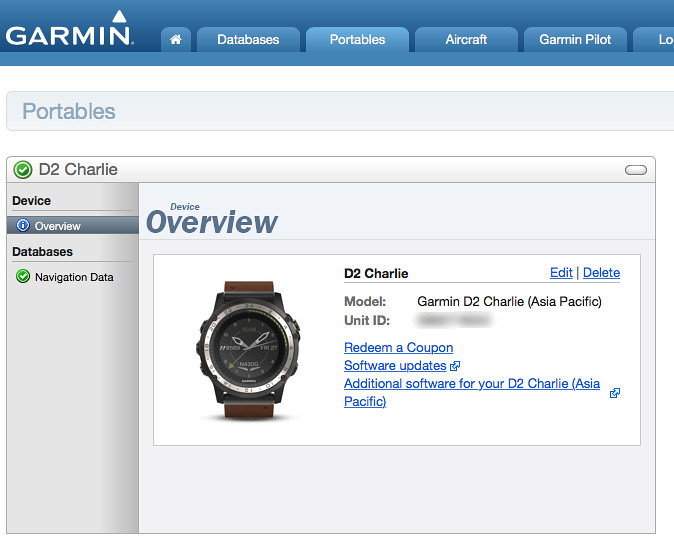
In the browser, you can see the “Databases” content for “D2 Charlie”,
Select “Navigation Data”, and you can see the global navigation data download links provided by Jeppesen.
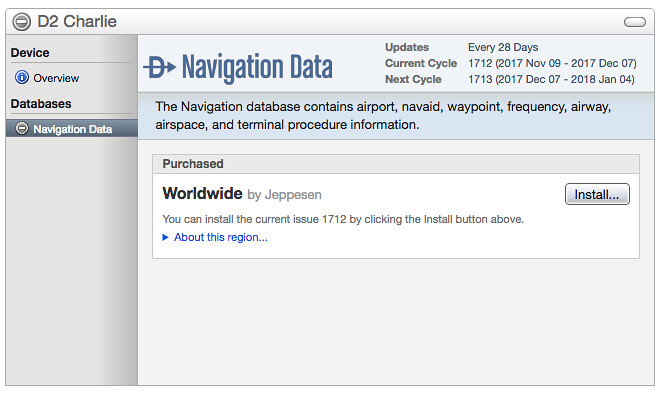 Click Install to enter the download page,
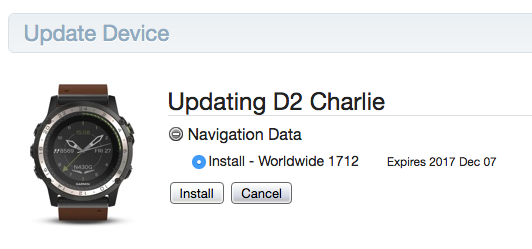 Click again to enter the download page for the navigation database update software,
however, you can see a warning message that Google Chrome does not support the Garmin plugin:
Click again to enter the download page for the navigation database update software,
however, you can see a warning message that Google Chrome does not support the Garmin plugin:
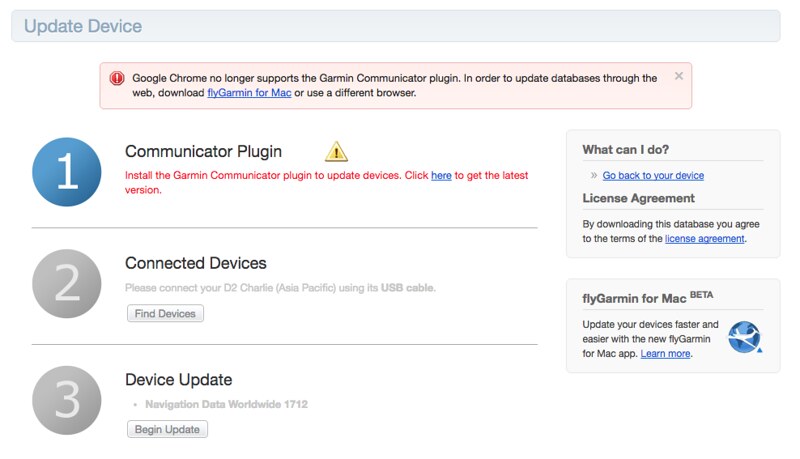
But don’t worry, just click the “here” link to download the dedicated software “flyGarmin”.
Next, you can see the “Download for Mac BETA” button on the right side of the page,
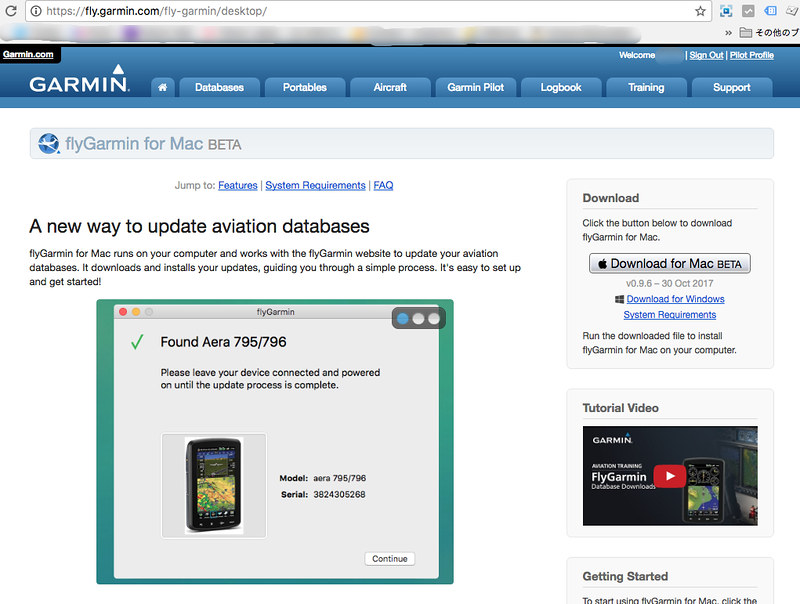 Download and install it.
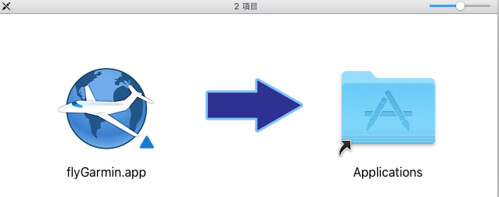 Note that “flyGarmin” cannot be executed alone; it needs to be launched from the browser screen.
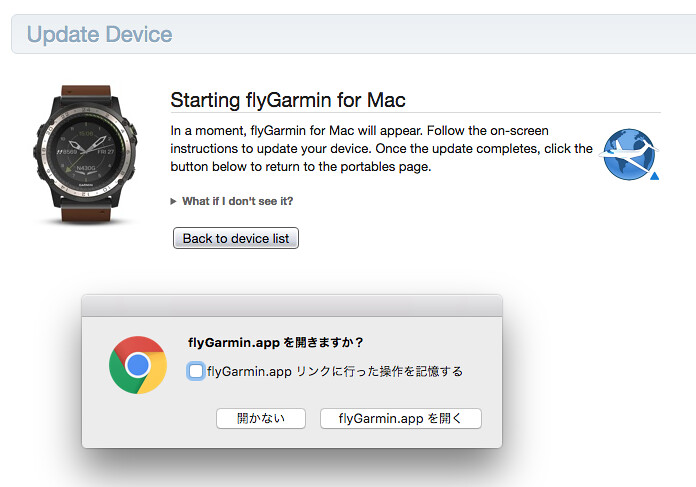
So return to the browser download page and press the Install button again to see the prompt to launch flyGarmin,
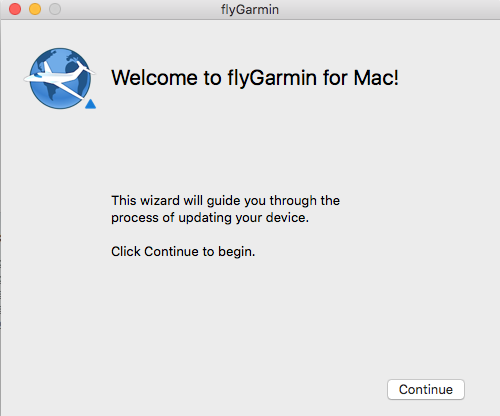
 If flyGarmin is installed successfully, you can see this welcome screen,
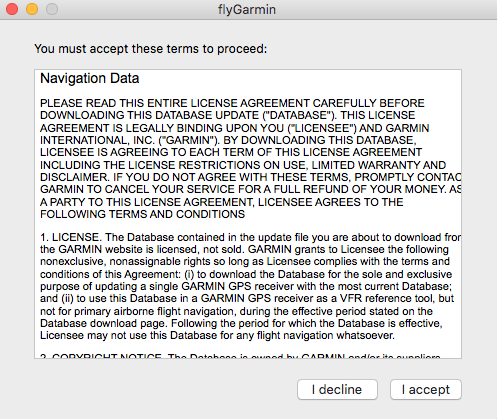
 Then agree to the user agreement, just press “I accept”.
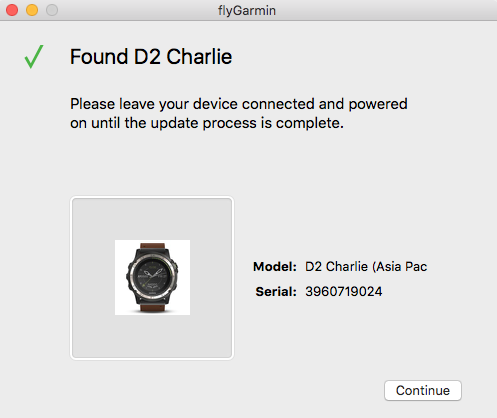
Next, if everything goes smoothly, you can see flyGarmin successfully find “D2 Charlie”.
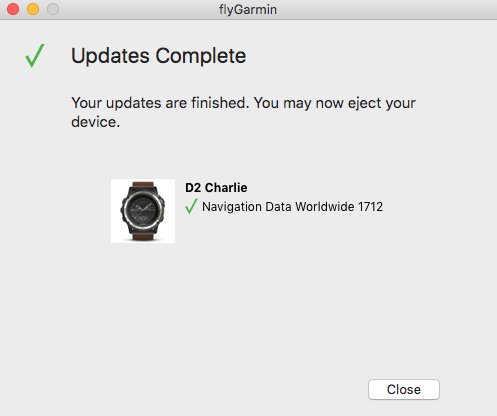
 The screen after the navigation database update is successful is as follows:
I didn’t expect the initial setup to take so long, so I’ll stop here for today, and summarize the initial usage of the D2™Charlie next time.
To commemorate the launch of Charlie, there is a launch online event from 11/23~12/22.
As long as you buy a D2 Charlie and share it online, you can enter a draw for a flight experience provided by Alpha Aviation Flight Training Center.
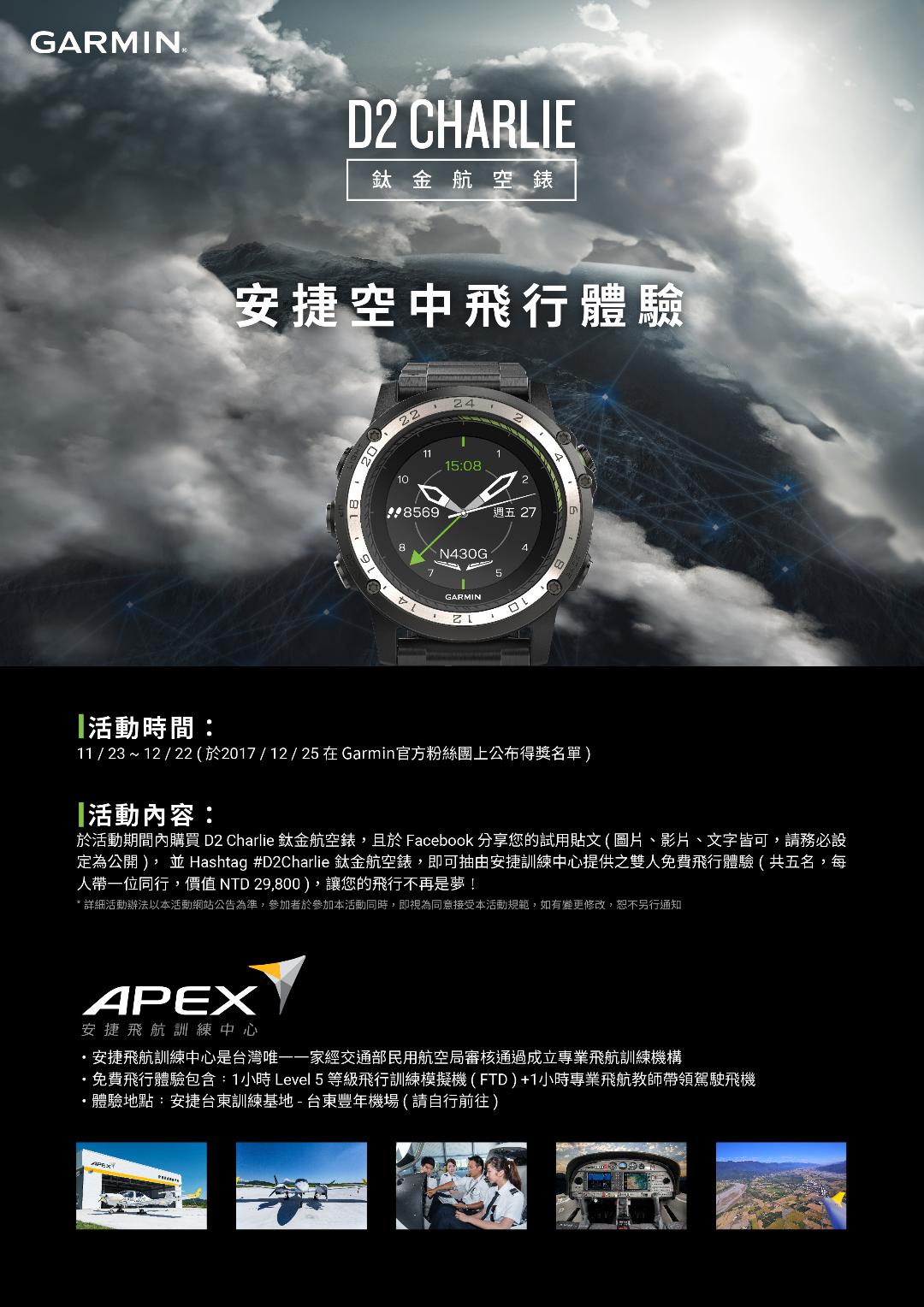 Hope you don’t miss this once-in-a-lifetime opportunity.
During the event period, purchase a D2 Charlie Titanium Aviation Watch, and share your trial post on Facebook (images, videos, or text are all acceptable, please make sure to set it to Public), and Hashtag #D2CharlieTitaniumAviationWatch, to enter a draw for a free dual-flight experience provided by Alpha Training Center (each person brings one companion, value NTD29,800), making your flight no longer a dream!Official website info here
End