X-Plane 11 Keyboard Controls Summary
Let’s reorganize the shortcut keys for X-Plane 11. After all, the default settings have changed quite a bit compared to the initial version of X-Plane 10.
Aircraft Flight Control Key Instructions
] Pitch Trim Up [ Pitch Trim Down 1 Flaps Up 2 Flaps Down 3 Increase Speedbrakes (one step) 4 Decrease Speedbrakes (one step) 5 Rudder Trim Left 6 Rudder Trim Center 7 Rudder Trim Right 8 Aileron Trim Left 9 Aileron Trim Center 0 Aileron Trim Right
CTRL d Landing Gear Down CTRL u Landing Gear Up
g Toggle Landing Gear b Toggle Brakes (Regular) v Toggle Maximum Brakes
ALT q Tail Hook Down ALT w Tail Hook Up ALT r Open Canopy/Door ALT e Close Canopy/Door x Toggle Smoke SHIFT SPACE Jump (Parachute)
System Function Key Instructions
SHIFT SPACE Screenshot CTRL SPACE Toggle Video Recording p Pause CTRL t Change Flight Model Speed ALT t Change Ground Speed k / l Adjust Time ENTER Open ATC Radio Window CTRL f Fail Systems SHIFT m Debug Dump to Cycle Dump.txt SHIFT ALT CTRL SPACE Panel Preview CTRL . Check Reference Data ALT r Toggle Replay CTRL q Quit X-Plane i Toggle Instructor Station m Toggle Map Window ESC Show Menu ` Toggle Settings Window
View Operation Key Instructions
c Free Camera View w Default View
SHIFT w Forward View with HUD CTRL w Forward View without HUD ALT w Forward View (2D Cockpit) SHIFT 1 View Plane from Linear Spot SHIFT 2 View Plane from Fixed Spot SHIFT 3 Runway View SHIFT 4 Circular Flying View SHIFT 5 Tower View SHIFT 6 Chase View SHIFT 7 Weapon Tracking View SHIFT 8 Follow View SHIFT 9 Cockpit Panel View SHIFT c Cinema Mode SHIFT s Sunglasses Mode SHIFT n Night Vision Mode CTRL p Toggle 3D Flight Path SHIFT p Reset 3D Flight Path CTRL m Show Airphysics Model Numpad 0-9 Quick View 0-9 CTRL + Numpad 0-9 Save Quick View 0-9
Arrow Keys Pan View SHIFT + Arrow Keys Fast Pan View CTRL + Arrow Keys Slow Pan View
. Move View Forward , Move View Back and Up = Zoom In
- Zoom Out SHIFT . Fast Move View Forward SHIFT , Fast Move View Back and Up SHIFT = Fast Zoom In SHIFT - Fast Zoom Out CTRL . Slow Move View Forward CTRL , Slow Move View Back and Up CTRL = Slow Zoom In CTRL - Slow Zoom Out
r Move View Straight Up f Move View Straight Down q Move View Left e Move View Right SHIFT r Fast Move View Straight Up SHIFT f Fast Move View Straight Down SHIFT q Fast Move View Left SHIFT e Fast Move View Right CTRL r Slow Move View Straight Up CTRL f Slow Move View Straight Down CTRL q Slow Move View Left CTRL e Slow Move View Right
Engine Start Key Instructions f1 Throttle Up f2 Throttle Down f3 Propeller Pitch Low f4 Propeller Pitch High f5 Mixture Lean f6 Mixture Rich f7 Mixture Cutoff f8 Mixture Full Rich f9 Carburetor Heat Off f10 Carburetor Heat On f11 Toggle Carburetor Heat
CTRL 1 Start Engine 1 CTRL 2 Start Engine 2 CTRL 3 Start Engine 3 CTRL 4 Start Engine 4 CTRL 5 Start Engine 5 CTRL 6 Start Engine 6 CTRL 7 Start Engine 7 CTRL 8 Start Engine 8
SHIFT / Toggle Reverse Thrust / Toggle Beta Pitch
Weapon Control Key Instructions
SHIFT [ Select Next Target SHIFT ] Select Previous Target
Instrument Panel Operation Key Instructions
SHIFT CTRL , Instrument Brightness Up SHIFT CTRL . Instrument Brightness Down ` Toggle Instrument (HUD) Light
Radio Communication Equipment Operation Key Instructions
CTRL 9 Toggle NAV1 Standby Frequency CTRL 0 Toggle NAV2 Standby Frequency CTRL - Toggle COM1 Standby Frequency CTRL = Toggle COM2 Standby Frequency
Actually, all these default settings can be found in “Currently Assigned” on the left side of the Keyboard section in the Settings window.
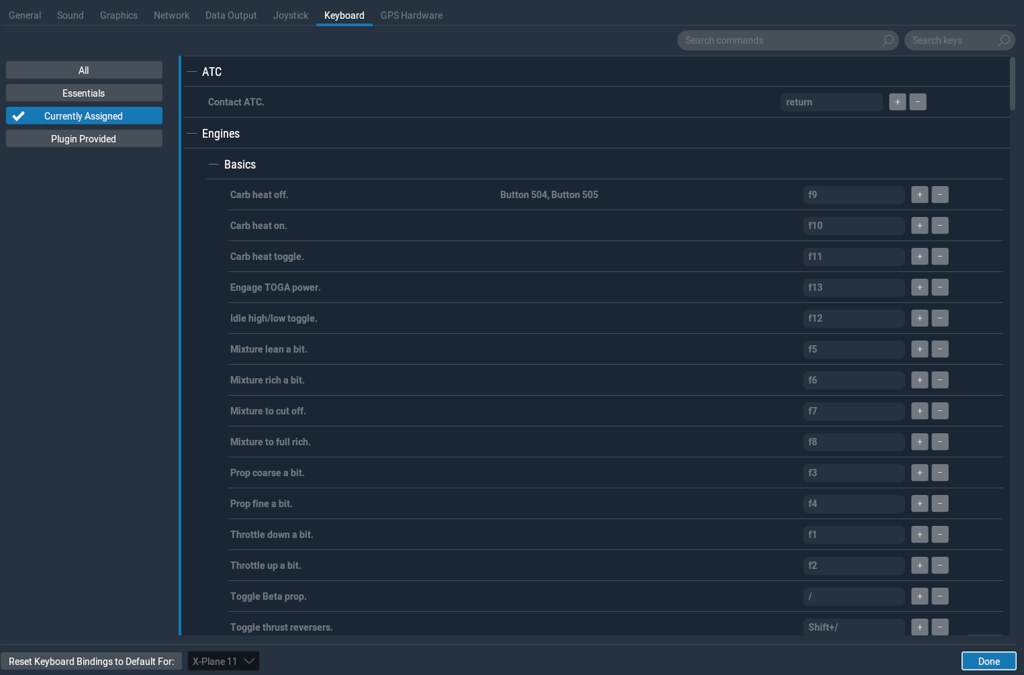 You can also customize shortcuts for various operations yourself under “All”.
2018/12/27
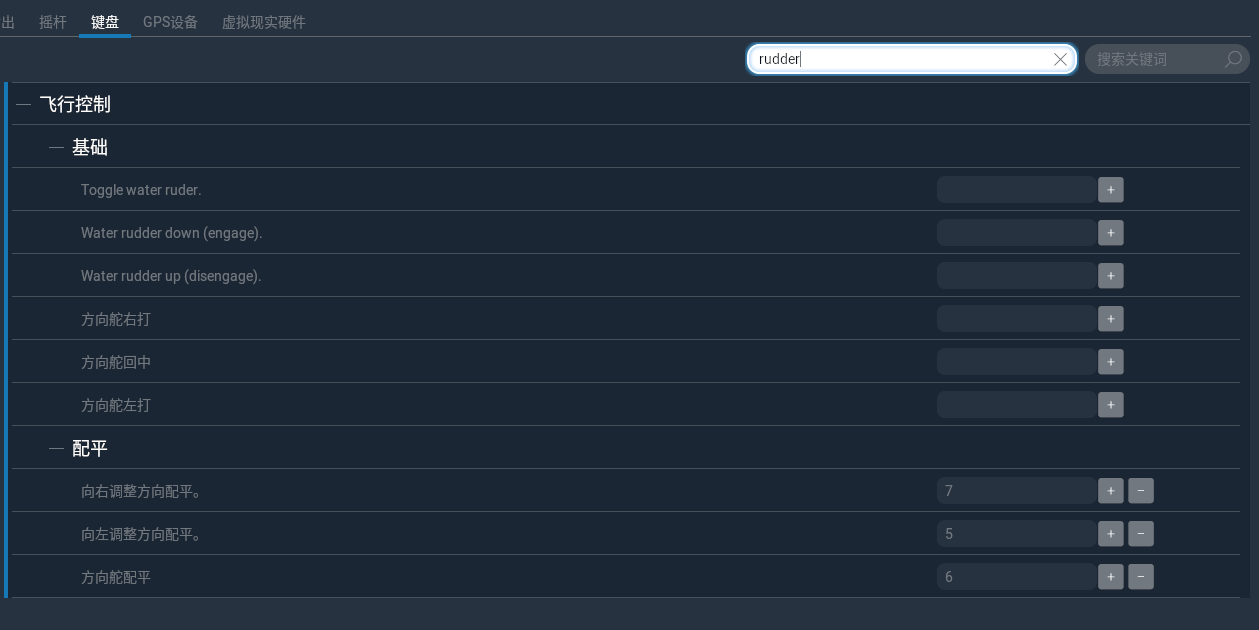
For Rudder settings, you can search for “rudder” within Setup. The default key bindings for Rudder Trim are located under “Flight Controls” -> “Trim”, corresponding to keys 5, 6, and 7.
If the trimming effect is not obvious, you can increase the settings for Rudder Left, Center, and Right under “Flight Controls” -> “Basics”. These three do not have default assignments; you need to select keys for them yourself.