How to Set Up Multi-Monitor Displays in X-Plane 11
I have previously written about the multi-monitor display settings for X-Plane 10 and affordable external monitors for X-Plane. Below is a brief overview of the multi-monitor settings in X-Plane 11. Here, “multi-monitor” refers to settings when two or more monitors are connected to a single computer.
Once two monitors are connected to the OS, open the Graphics settings screen in X-Plane 11.
You will see that there are setting options for both the MAIN MONITOR and MONITOR1.
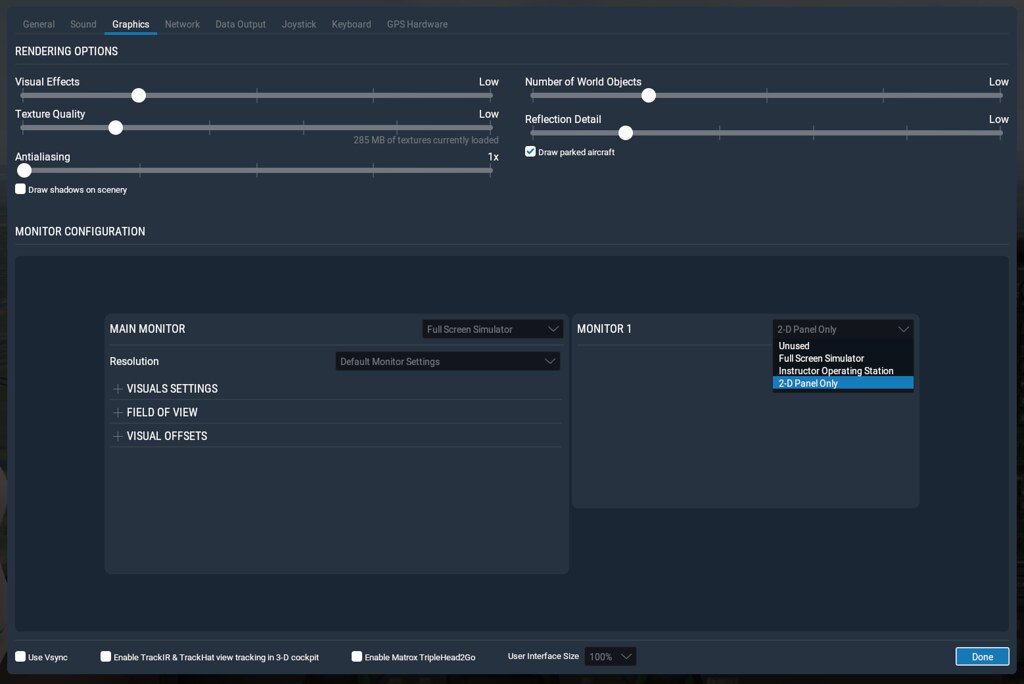 First, let’s try setting the second monitor, MONITOR1, as a “2-D Panel Only” instrument panel.
For the 2D panel, I selected the GPS navigator, map, and the Instructor Operating Station (IOS). The screenshot is shown below:
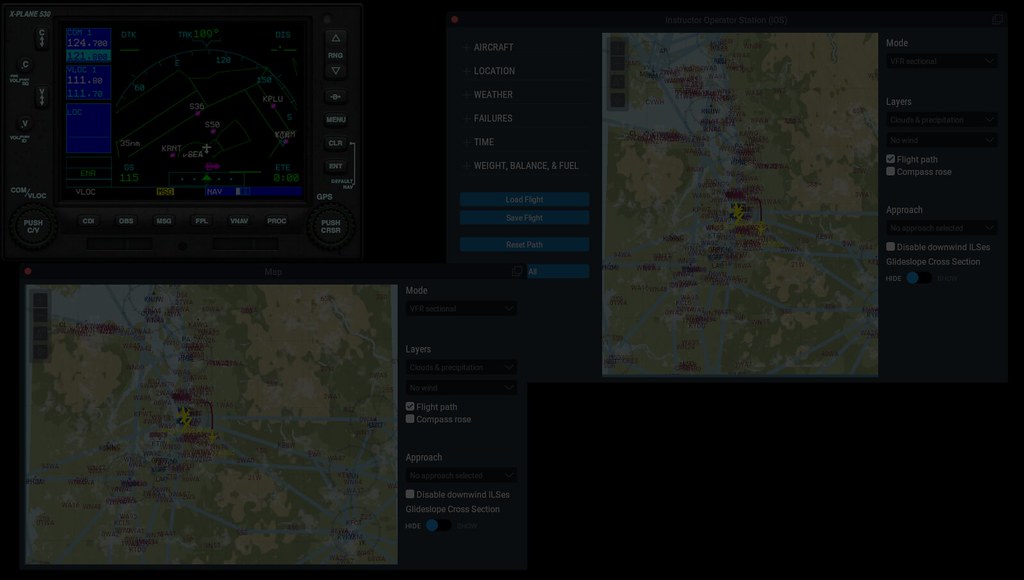 For some reason, the screenshot above is quite dark, so it might be hard to see clearly…
Next, let’s try using both monitors as a single fullscreen display.
 That is, select “Full Screen Simulator” for MONITOR1,
and then try entering 75 degrees in the “Lateral rotation offset” field.
This will make the main screen show the forward view and the secondary screen show the right-side field of view.
The actual screenshots are as follows, main screen:
That is, select “Full Screen Simulator” for MONITOR1,
and then try entering 75 degrees in the “Lateral rotation offset” field.
This will make the main screen show the forward view and the secondary screen show the right-side field of view.
The actual screenshots are as follows, main screen:
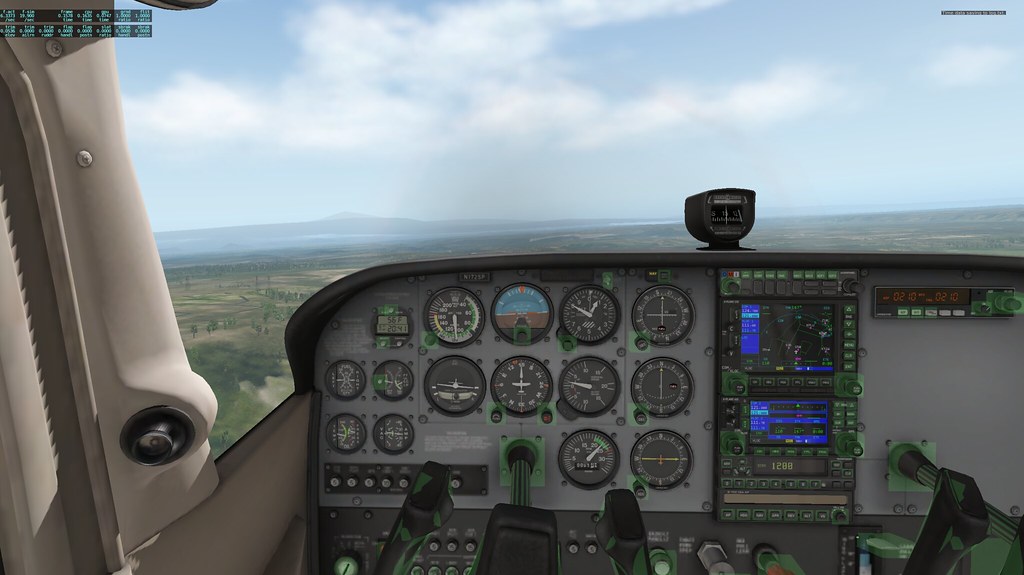 Secondary screen:

You can see that the display on the right still overlaps slightly with the front view. I adjusted the “Lateral rotation offset” to 85 degrees again, and the effect was fine.
Compared to X-Plane 10, the multi-monitor settings in X-Plane 11 are quite easy, and I highly recommend them.