Inexpensive X-Plane External Displays
A few years ago, I introduced a method for X-Plane multi-monitor display settings, which involved connecting multiple computers via a local area network. However, having to boot up two machines every time is quite a hassle, so I generally don’t use this method.
Later, I thought, wouldn’t it be more convenient to connect an iPad to a Mac and use the iPad as an instrument display?
Generally speaking, when using an additional display, the free plugin XHSI is the most common choice; it is very convenient for displaying glass cockpit instruments like the ND. However, since I usually fly small propeller aircraft, I don’t really need such advanced instruments, so there was no need to spend money on a new monitor.
For small aircraft, the FSi Cessna 172 on iPad is actually a very good choice. I used its trial version and was quite satisfied. Because this app supports all the necessary instruments on the C172, and even allows operation of the OBS knobs on NAV1 and NAV2, the quality is excellent. The main reason I didn’t buy the paid version was that the instrument size was too small; it was quite a strain on my eyes, so I decided to save that $15 / 1800 yen.
My final choice was to use the free plugin ExtPlane-Panel. I created a custom virtual display running on the Mac, then used the paid iPad app GoodDual Display to act as an external monitor for the Mac, and simply moved the ExtPlane-Panel window onto the iPad. The investment for this system was only $1, and the instruments can be customized according to my needs. I am basically quite satisfied with it.
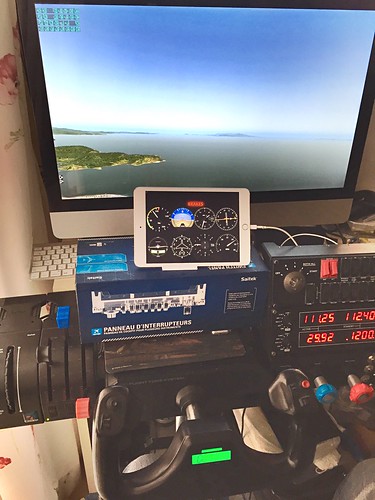 Below is a brief introduction to the installation method.
The download link for the main ExtPlane-Panel program and plugin for Mac is here. After unzipping the file, you get ExtPlane-Panel.app, which is the main virtual screen program. There is also an ExtPlane directory inside, which is the plugin required by X-Plane; just move it to Resources/plugins/.
After launching X-Plane, launch ExtPlane-Panel.app.
You will see a black screen with no instruments installed yet. Click the yellow diagonal section in the top left corner to access the operation Menu.
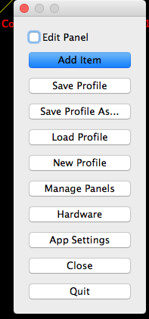 Then, simply add the instruments you need one by one.
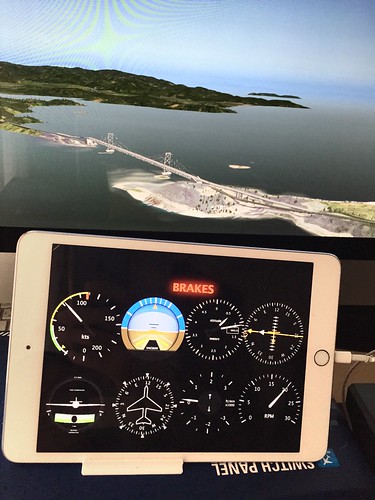 The display I created is shown above. You can see the six basic instruments,
and adding NAV1 and a tachometer is enough to meet my needs.
The display I created is shown above. You can see the six basic instruments,
and adding NAV1 and a tachometer is enough to meet my needs.
As for GoodDual Display, purchase and download it from the App Store,
and install the Server software Desktop Streamer on your Mac.
Then restart the computer, launch Desktop Streamer, and configure the dual-screen mode to “Extended Mode”:
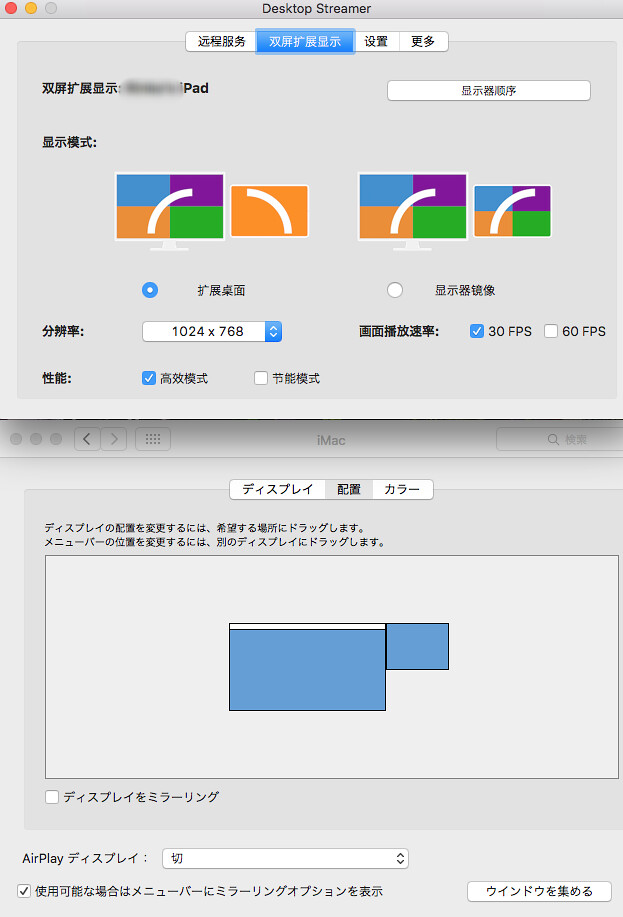
Finally, use the mouse to drag the ExtPlane-Panel.app window onto the iPad and maximize the window. That’s it.