The Powerful Tool X-Plane Control Pad App is Finally Released
Great news!! The long-awaited <a href=https://itunes.apple.com/us/app/x-plane-control-pad/id961801382?mt=8>X-Plane Control Pad is finally released. You can now use an iPhone or iPad to directly control X-Plane, and it is free!
In the past, when visiting pilot simulator training sessions or doing my own simulator practice, I always saw a console like this. The instructor could directly change the flight location, payload and Center of Gravity (CG), weather, system failures, and many other settings on it, used for training pilots under various special conditions.
Now, with X-Plane Control Pad, your home X-Plane setup has an equivalent console. According to the official description, it can simulate up to 554 types of failures for training.
It’s not just for practice; even entertainment-oriented flight simulation becomes more fun: Because this App has map functions, PFD display functions, and vertical descent altitude display. In other words, even if you are flying an old aircraft with only analog instruments, having this App is like owning an advanced glass cockpit with PFD/ND—a huge upgrade. For example, during an ILS approach, whether you accurately captured the Glideslope and Localizer signals, and descended smoothly, can be seen clearly on the App.
Connecting the App to X-Plane is also very easy. As long as the iPhone or iPad and the computer running X-Plane are on the same Local Area Network (LAN) segment, the two software can automatically recognize each other, and no special settings are required to use it.
I actually installed it on an iPad and used it for a while, and found it really easy to use. Changing settings like weather was extremely convenient, and the response was very fast. The PFD display function is also very practical. Highly recommended.
Below are screenshots of each function for your reference.
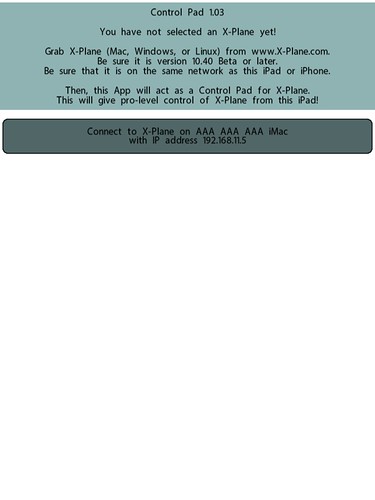
After the App starts, it automatically finds the computer and prompts to connect to the X-Plane on that computer
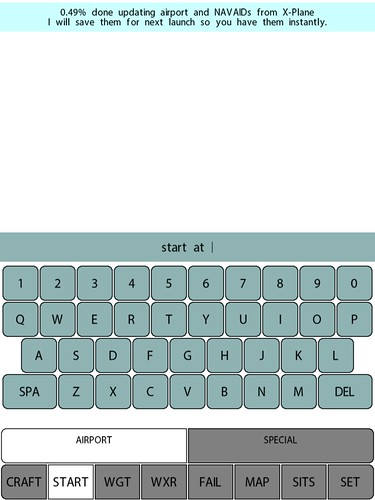
Startup page, Airport selection sub-page
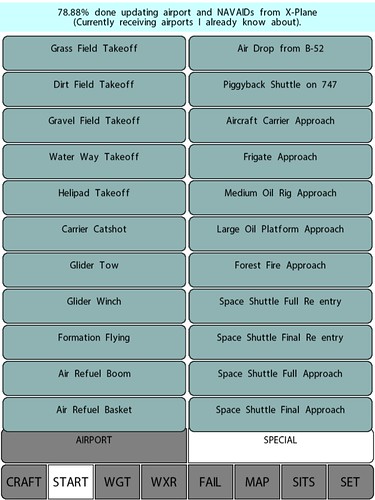
Startup page, selecting Takeoff, Arrival, or Approach type
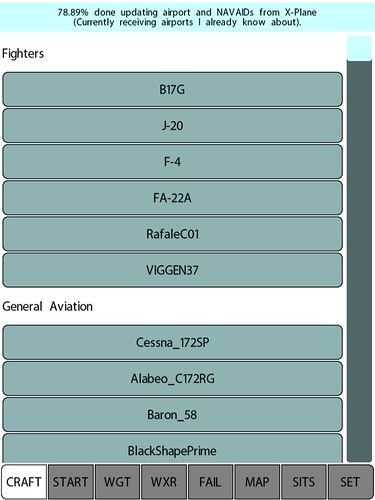
Aircraft selection page
Weight and Balance settings page
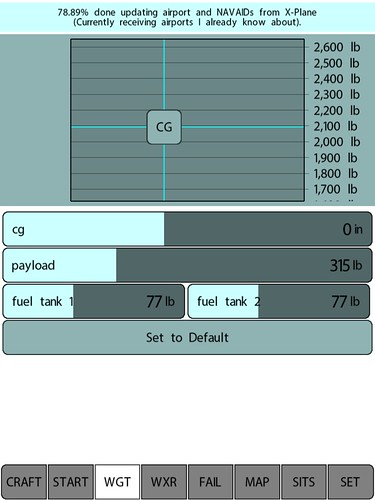
Weather page, Atmosphere settings sub-page
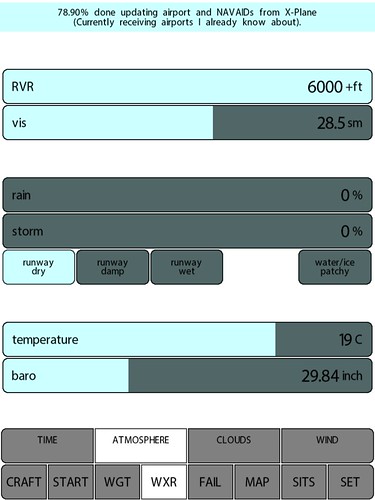
Weather page, High/Medium/Low cloud layer settings sub-page
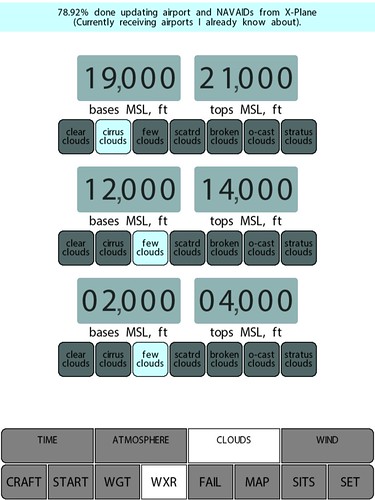
Failures page, Aircraft control surface settings sub-page
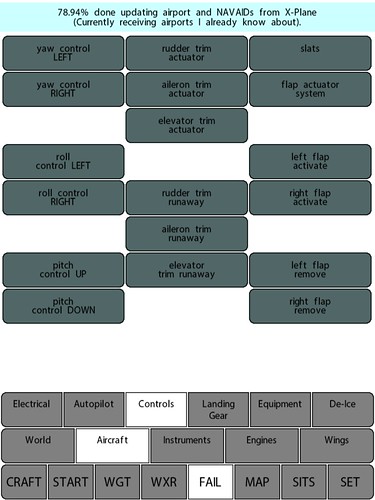
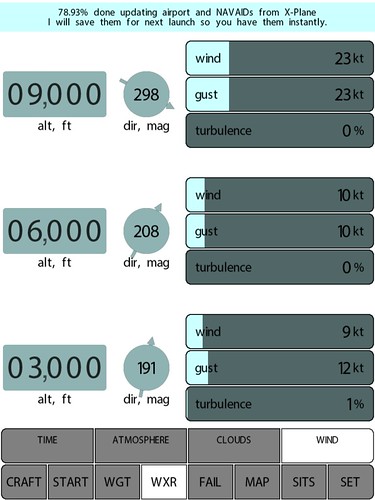
Weather page, High/Medium/Low altitude wind settings sub-page
Map page, PFD, Map, and Descent Slope display turned on.
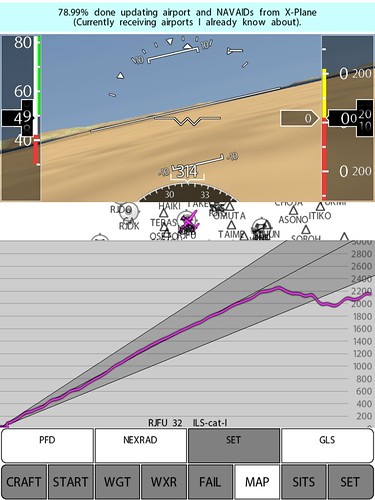 Above is my test data using a C172 for an ILS approach to Runway 32 at Nagasaki Airport.
Based on these results, the flight attitude was relatively stable above 600 feet altitude,
but below 600 feet, the control of the descent slope was not stable enough, drifting up and down, indicating that my technique is still not solid enough.
Above is my test data using a C172 for an ILS approach to Runway 32 at Nagasaki Airport.
Based on these results, the flight attitude was relatively stable above 600 feet altitude,
but below 600 feet, the control of the descent slope was not stable enough, drifting up and down, indicating that my technique is still not solid enough.
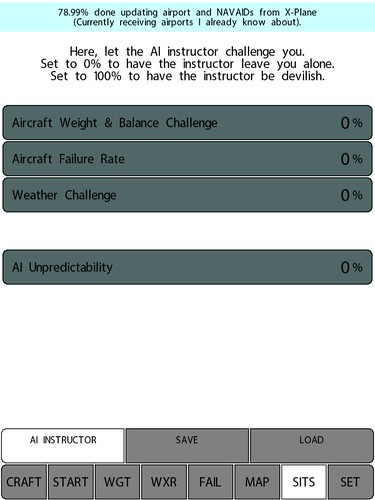
AI Instructor page, I haven’t had time to test this function yet, will research it later
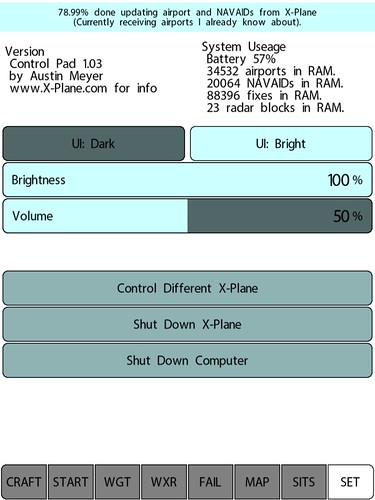
App’s own settings page, such as screen brightness, volume, closing X-Plane and the computer, etc.
After trying it out for an hour or so, I feel the build quality and practicality of this App are very high. Definitely strongly recommended.
End
Past Comments
pitaFly - 10/01/2015 11:36:02 PM
Captain,
Recently found a nice iPad app, FSi C172 Free. It simulates the C172 instrument panel.