VfrFlight: Free Tool for Creating Visual Flight Plans
VfrFlight is a highly recommended tool for creating VFR flight plans. It is not only feature-rich but also free. Because it is written in Java, it works on various computers like Windows/Mac OS/Linux. Other features include: Simple and easy to understand UI, Linked world map, Database of airports / VOR stations / cities, Global Minimum Safe Altitude (MSA) database, Real-time METAR and TAF data, Flight plan output in pdf and html formats (sample) Automatic search and display of nearby VORs, Automatic calculation of Weight and Balance, Automatic calculation of wind correction [NEEDS REVIEW], Automatic calculation of distance, speed, altitude, and flight time and more.
Here is a brief installation guide, using Mac as an example. Download from here the 21MB compressed file. After decompressing, click vfr-flight.jar inside the VfrFlight directory to run. If it is a Windows machine, using VfrFlight.exe should work.
On the first run, it will take about 2-3 minutes to initialize, then display the world map and a sample flight plan window above it.
To create a new plan, click New in the File menu.

To create a new flight plan, first enter the name and brief description in the Main Tab, then select the aircraft’s technical data, including cruise speed, altitude, magnetic variation, fuel consumption, fuel tank capacity, etc. The system provides three samples: Cessna 150/172 and Cherokee 180. You can also click the plus sign to generate the required aircraft data.
Next, enter the flight route in the Route Plan Tab. For instance, this time I plan to fly from Chino airport in California to Big Bear Lake airport.
So first, click New from DB to search for Chino airport,
 then press the Add button, and the first Waypoint appears in the Route Plan,
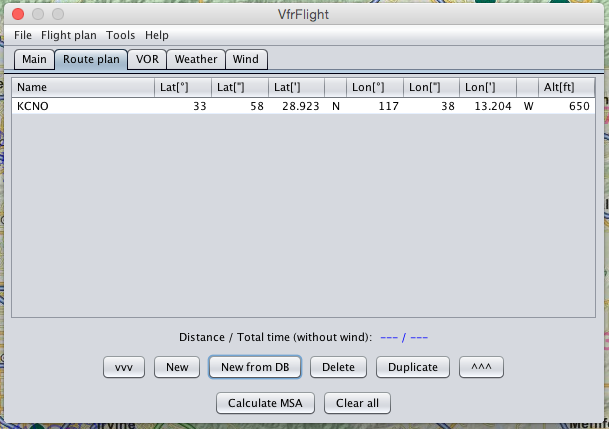 and the map on the side simultaneously switches to display the vicinity of that airport.
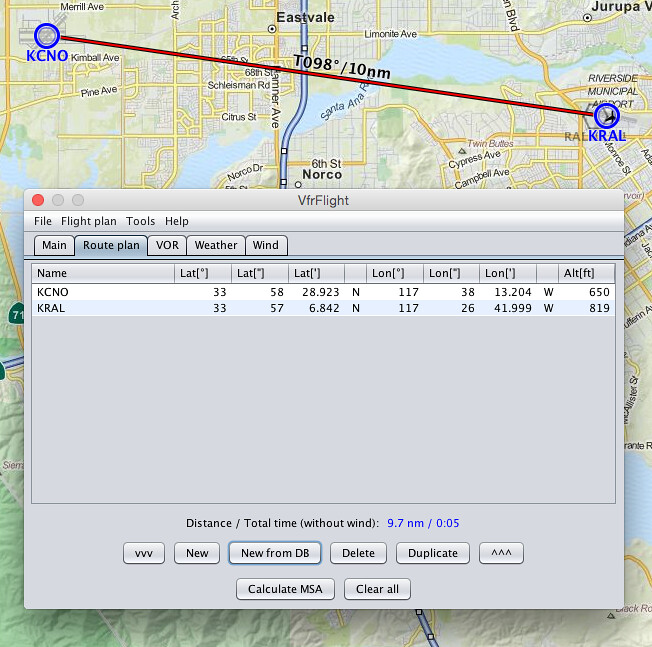
If I choose the second Waypoint as Riverside Municipal airport, continue with New from DB and search,
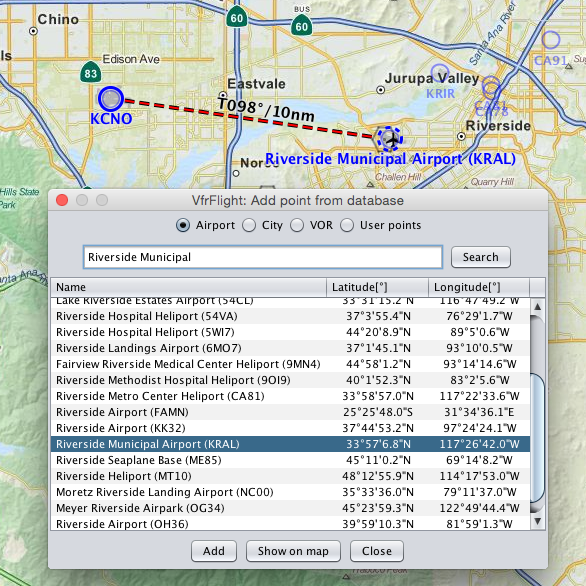 after adding it to the flight plan, it looks like this.
By the way, let’s check the weather. Click the Weather tab,
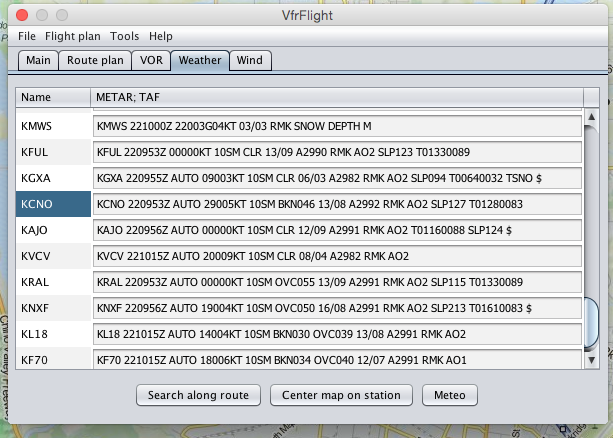 METARs for nearby airports are clear at a glance.
Based on KCNO’s wind speed and direction, set the Wind,
METARs for nearby airports are clear at a glance.
Based on KCNO’s wind speed and direction, set the Wind,
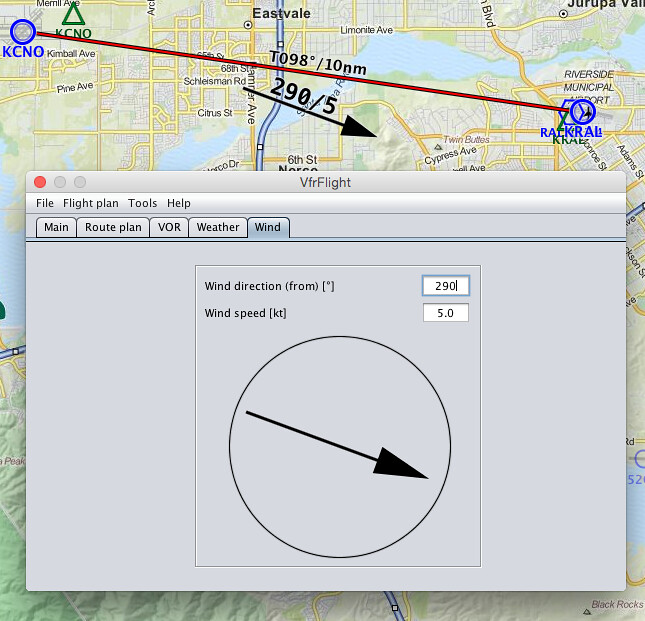 you can see this wind information displayed near the route on the map, very convenient, right?
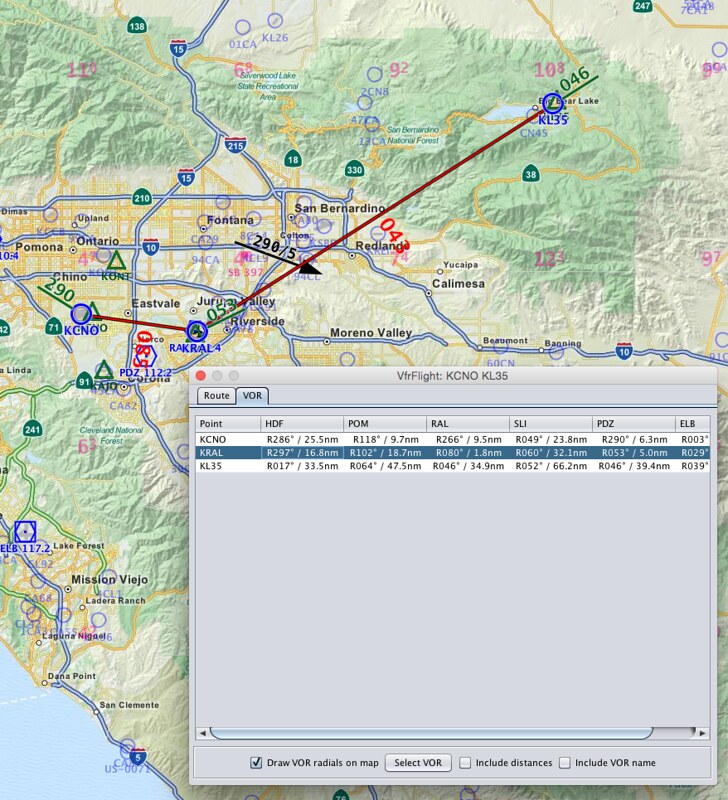
Let’s look at the nearby OVR navigation station. Click the VOR tab, and the system automatically found 6 VOR stations,
 For this trip to the Destination, I plan to use PDZ Paradise VOR (112.2MHz). As long as I follow the 43-degree radial, I can go all the way to the Destination, Big Bear airport.
Enter the destination airport into the plan as well, and you can see the display as below, with the distance and Heading marked for each leg.
 Press Calculate MSA here, and get a result of 10800 feet.
Return to the Main Tab and press the AUTO-SET button to the right of the Route name; you will see the name and summary information are automatically generated.
Then press the magnetic variation calculation button to get 12 degrees.
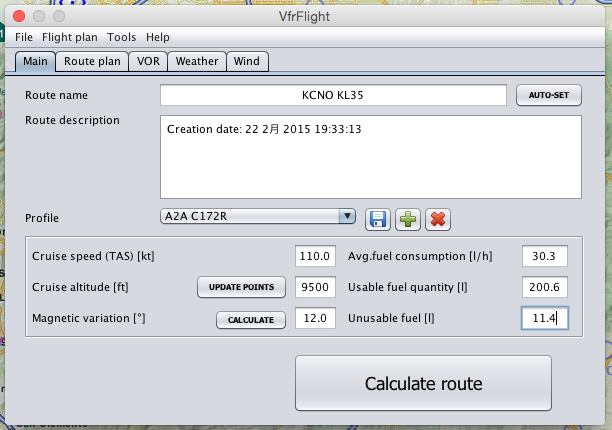 Change the cruise altitude to 11500, then press the big Calculate route button below, and the flight plan is automatically created.
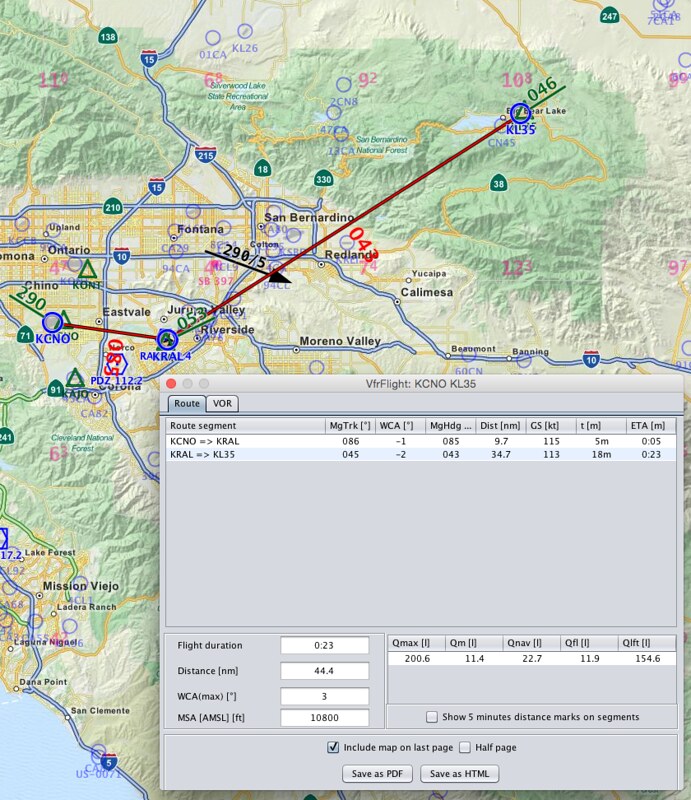
Alright, finally output the flight plan in pdf format, and we can fly in X-Plane 10!