X-Plane 10 Mobile Flight Simulator Released
X-Plane 10 is finally available on iOS! You can download it from the App Store via the link here.
I will post a few screenshots here and write a simple tutorial. I will provide a detailed introduction later when I have time.
This is the aircraft selection screen.
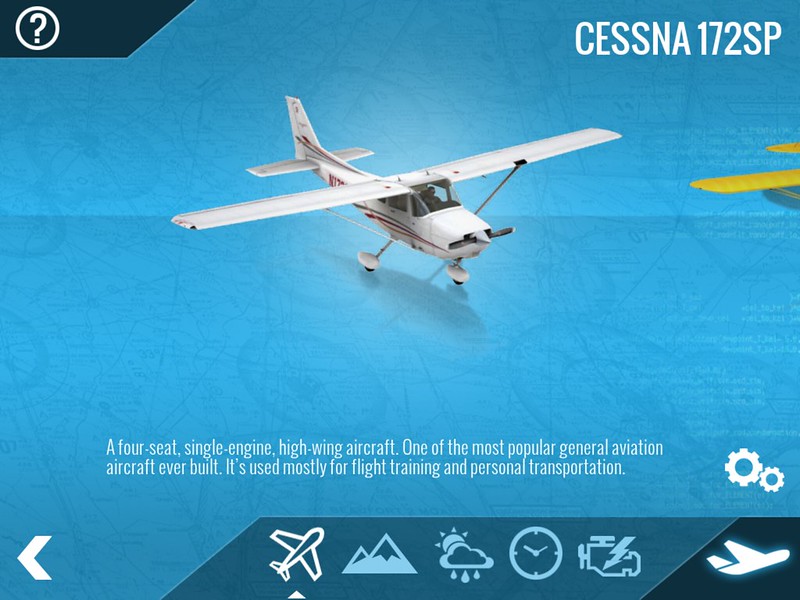 As we know, besides this free Cessna 172, you can now purchase and use the following aircraft, ranging from $2 to $5:
• F-22 Raptor
• Airbus A320 airliner
• A-10 Thunderbolt II (“Warthog”)
• F-4 Phantom II
• Beechcraft Baron B58
• Beechcraft King Air C90B
• Piper PA-18 Super Cub
• Piaggio P.180 Avanti
• Sikorsky S76 helicopter
As we know, besides this free Cessna 172, you can now purchase and use the following aircraft, ranging from $2 to $5:
• F-22 Raptor
• Airbus A320 airliner
• A-10 Thunderbolt II (“Warthog”)
• F-4 Phantom II
• Beechcraft Baron B58
• Beechcraft King Air C90B
• Piper PA-18 Super Cub
• Piaggio P.180 Avanti
• Sikorsky S76 helicopter
This is the weather settings screen. You can see that various meteorological conditions can be set in great detail here, such as wind speed and direction, surface wind, upper-level wind, cloud type and coverage, Ceiling, rain and snow, wind shear, Visibility, temperature, humidity, etc.:

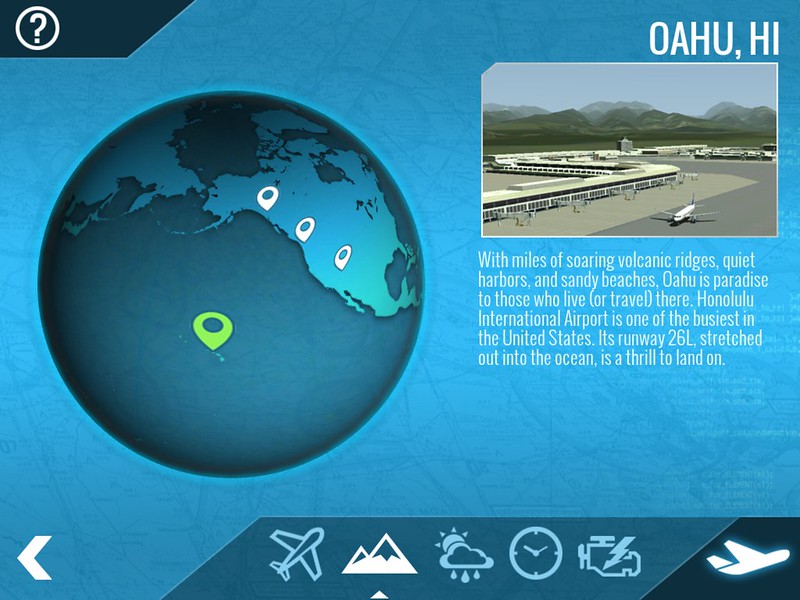
This is the flight location selection screen. I have selected Honolulu International Airport in Hawaii here:
A320 cockpit display mode:

F-4 Phantom II external view display mode:
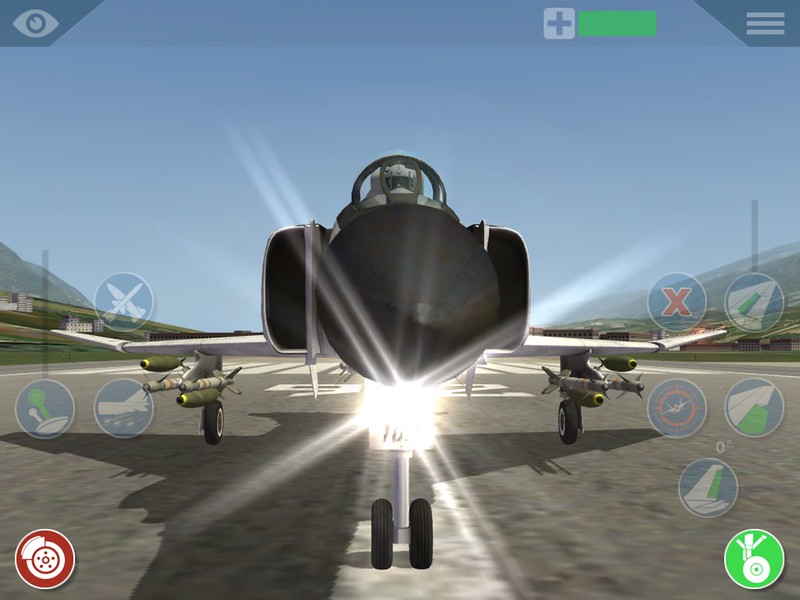
You can see many small circles in this picture; these are the aircraft’s control units. For example, the one in the bottom left corner is the brake. Click once to slow the plane down, and click again to release the brake. Above the brake is the Throttle. Sliding up increases Throttle, and sliding down decreases Throttle. The button to the right of the Throttle is to launch flares/chaff.
Looking at the right side, the bottom right corner is the landing gear retract lever. It is currently in the down position. Above the landing gear lever is the rudder, which controls the rudder operation. This is not a click control but is controlled by sliding left and right, equivalent to the left and right rudder pedal operations. To the right of the rudder are the Flaps, which are also operated by sliding. Sliding up retracts the Flaps by one stage, and sliding down extends the Flaps by one stage. Above the Flaps are the speed brakes. To the left is the missile lock, and the button above the lock is to launch missiles.
Of course, the roll and pitch operations of the aircraft do not require these special buttons. Simply tilting the iPhone or iPad allows you to control the X and Y axes of the aircraft.
The autopilot is also very simple.
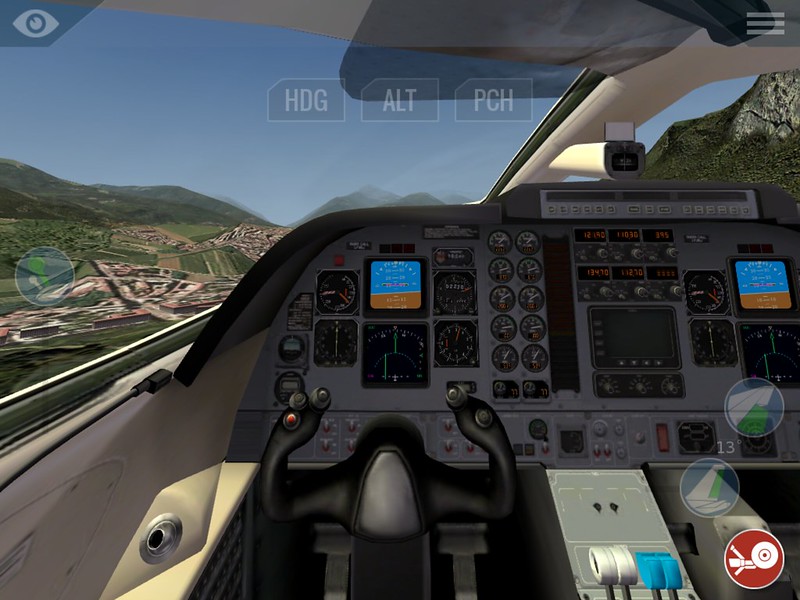 Looking at the HDG, ALT, and PCH buttons in the image above, they represent Heading, Altitude, and Pitch angle settings respectively. During flight, simply press the button, and the aircraft will automatically maintain the current Heading, Altitude, and attitude, allowing you to enjoy the scenery with peace of mind.
I think the quality of the X-Plane mobile application is quite high. It runs smoothly, the controls are simple, and it serves as a good supplement to the PC version. It is very suitable for killing time during your commute on the subway.
End