Manually Add Navigation Information
I see many friends online struggling to find the latest navigation database, because the data included with X-Plane 10 itself is quite limited. Often, much of the route information found online cannot be entered into the FMC, so everyone feels the need to constantly update this data.
Actually, X-Plane 10 itself allows for very simple manual addition of navigation information. As long as you find Waypoint or navigation station information from an Aeronautical Information Publication (AIP) or websites like OpenNav, you can input it into the system in just a few seconds, so generally, there is no need to go through the trouble of regularly searching for and downloading the latest navigation data.
Below is a simple introduction to the method of manually adding navigation information.
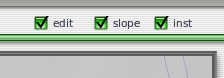
First, open the map and select the “edit” edit mode in the top right corner.
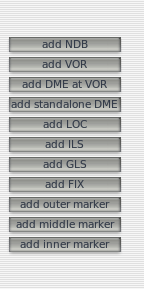
 A set of buttons for adding navigation information will appear on the left side of the screen.
Taking Beijing Capital International Airport as an example, the ILS navigation information for Runway 01 does not exist in XP by default.
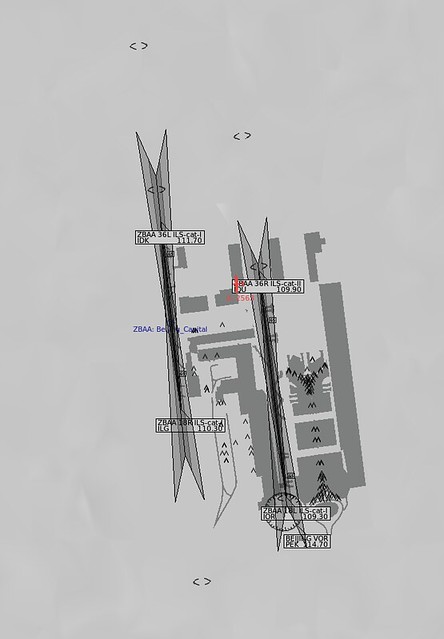
How do you add it?
Looking at the Aeronautical Information Publication provided by this site, there is detailed information,
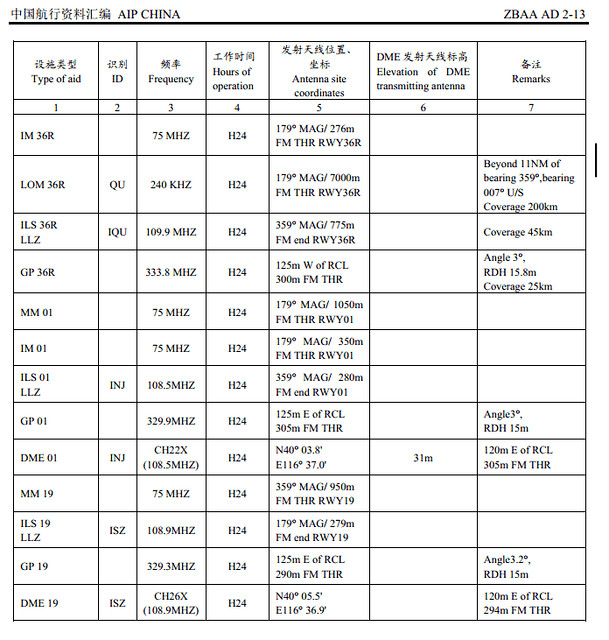 specifically the data with the ID “INJ”.
So, press the “add ILS” button,
and fill in the data items one by one.
specifically the data with the ID “INJ”.
So, press the “add ILS” button,
and fill in the data items one by one.
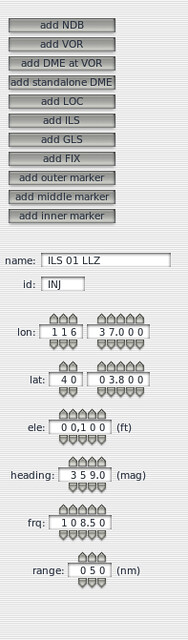 For example, the display name is ILS01 LLZ, ID is INJ, latitude and longitude are 116°37’, 40°3.8’,
altitude is approximately 100 feet, Heading is 359°, frequency is 108.5MHz.
At this point, the ILS 01 information will appear on the map, as shown below,
For example, the display name is ILS01 LLZ, ID is INJ, latitude and longitude are 116°37’, 40°3.8’,
altitude is approximately 100 feet, Heading is 359°, frequency is 108.5MHz.
At this point, the ILS 01 information will appear on the map, as shown below,
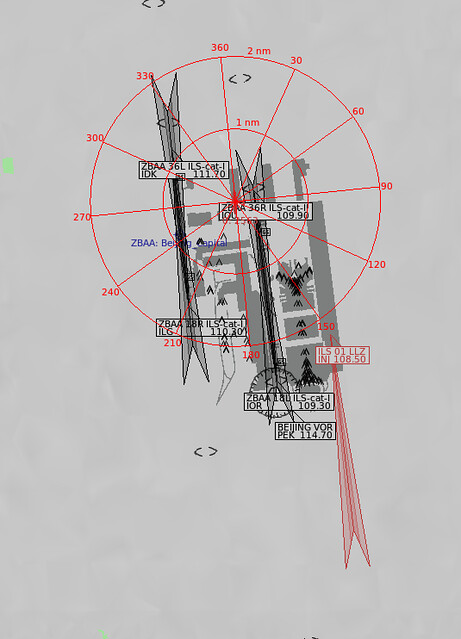
#Note# Latitude and longitude data must use the “degrees, minutes, seconds” format. The coordinates obtained from Google Map are in decimal format and need to be converted before use.
Very simple, right?
Add the navigation aid and test fly it,
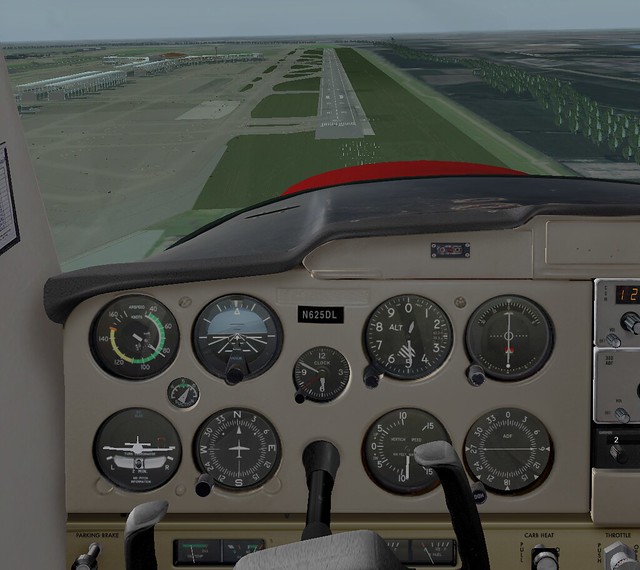 No problems at all. The Instrument Landing System for Runway 01 was effortless.
Below is another example of adding a VOR. The navigation station “PEK” near Capital Airport is also not in XP.
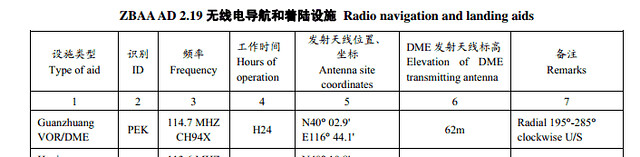 Very simple, just add it.
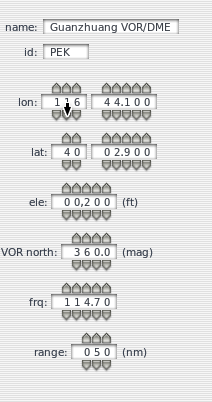 And there it is on the map.
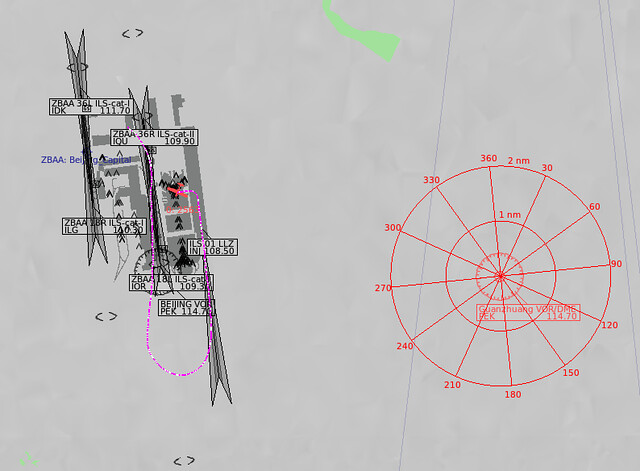 Really convenient.
Using this method, you can build your own navigation database.
Finally, don’t forget one thing: when exiting the system, it will prompt you to save your inputs.
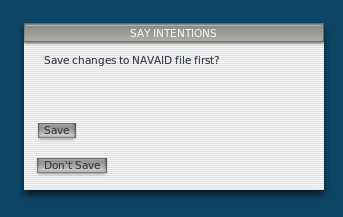 Make sure to Save.
End