How to Make the Sky Bluer in X-Plane 10? Sky Color Settings
Recently, when running X-Plane 10, I felt the sky color was always gloomy and gray, which was quite uncomfortable. After all, soaring through the air feels best amidst blue skies and white clouds, right? So, I checked the settings and found it’s actually quite simple to modify it back to a blue sky. Below, I will introduce the method.
First, open the Special menu and select the Show Sky Colors option.
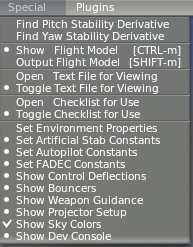
This selection dialog will appear on the screen.

The selection bar on the far left has several weather presets, such as foggy, clear, views from high mountains or Earth orbit, etc. Here, I chose “hialt” (high altitude view). Although this option makes the sky a bit too blue and somewhat unrealistic, for someone seeking blue skies and white clouds like myself, this setting is quite satisfying.
Here is the actual screenshot. Doesn’t it look much better?

By the way, since I just came back from Yao Airport, I went there to practice.
I took a screenshot to commemorate the visit.
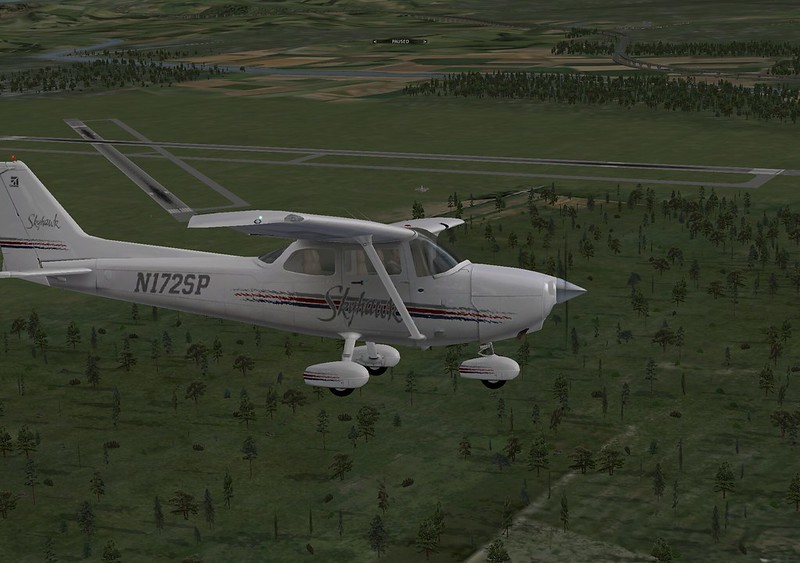
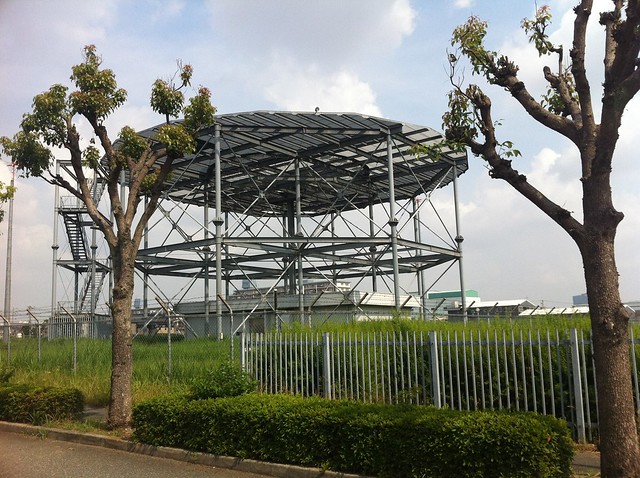
In the image, you can clearly see the two intersecting Runways at Yao Airport: Runway A 9/27 and Runway B 13/31. Additionally, the VOR navigation station directly above the wing is clearly visible, and its position matches the real world exactly.
The End