Title: New Features and Controls in X-Plane 10
X-Plane 11 is already out, please check the X-Plane 11 Chinese Tutorial summarized on this site! X-Plane 11 Keyboard Instructions
New Default Keyboard Shortcuts
W: Forward view with instrument panel SHIFT W: Forward view with HUD CONTROL W: Forward view without instruments
SHIFT 1: View from moving point, same as ! key SHIFT 2: View from set position, same as @ key SHIFT 3: View from Runway, same as # key SHIFT 4: Circular view around aircraft, same as $ key SHIFT 5: View from Tower, same as % key SHIFT 6: Look inside aircraft, like a camera mounted anywhere on the aircraft, use ^ key to aim camera direction, can rotate up, down, left, right to look around SHIFT 7: Track weapon view, can use &, <, > keys to switch between aircraft and various weapons SHIFT 8: Tracking view, same as * key SHIFT 9: 3D Cockpit view, can move and rotate SHIFT 0: 3D Cockpit view, can operate instruments with mouse
Arrow keys: Move view up, down, left, right < and >: Move view forward and backward
- and -: Zoom view in and out Q, E, R, F: Toggle fixed views forward, backward, left, and right Page Up/Down: Move view forward and backward
/: Toggle propeller test mode SHIFT /: Toggle propeller or jet engine thrust reverser mode 1, 2, G, B: Flaps up and down, Landing Gear up and down toggle, Brake toggle
CONTROL R: Toggle Replay mode CONTROL P: Toggle flight path SHIFT P: Reset flight path
CONTROL M: Toggle flight model physics display SHIFT M : Save flight model physics
CONTROL SPACE: Toggle movie recording SHIFT SPACE: Screenshot
New View Controls
Added joystick axis control for panning, tilting, and zooming of any axis, allowing for instant control of pan, tilt, and zoom via joystick axes. Using a joystick to directly control zoom and the rate of zoom change, you can slowly or rapidly zoom in on your favorite view, just like having a professional-grade variable zoom lens. This system is very powerful and easy to use.
Additionally, 10 provides more joystick and axis space to set up, so if you wish, you can buy an additional controller or joystick specifically for view control! (Actually, this is exactly what I did)
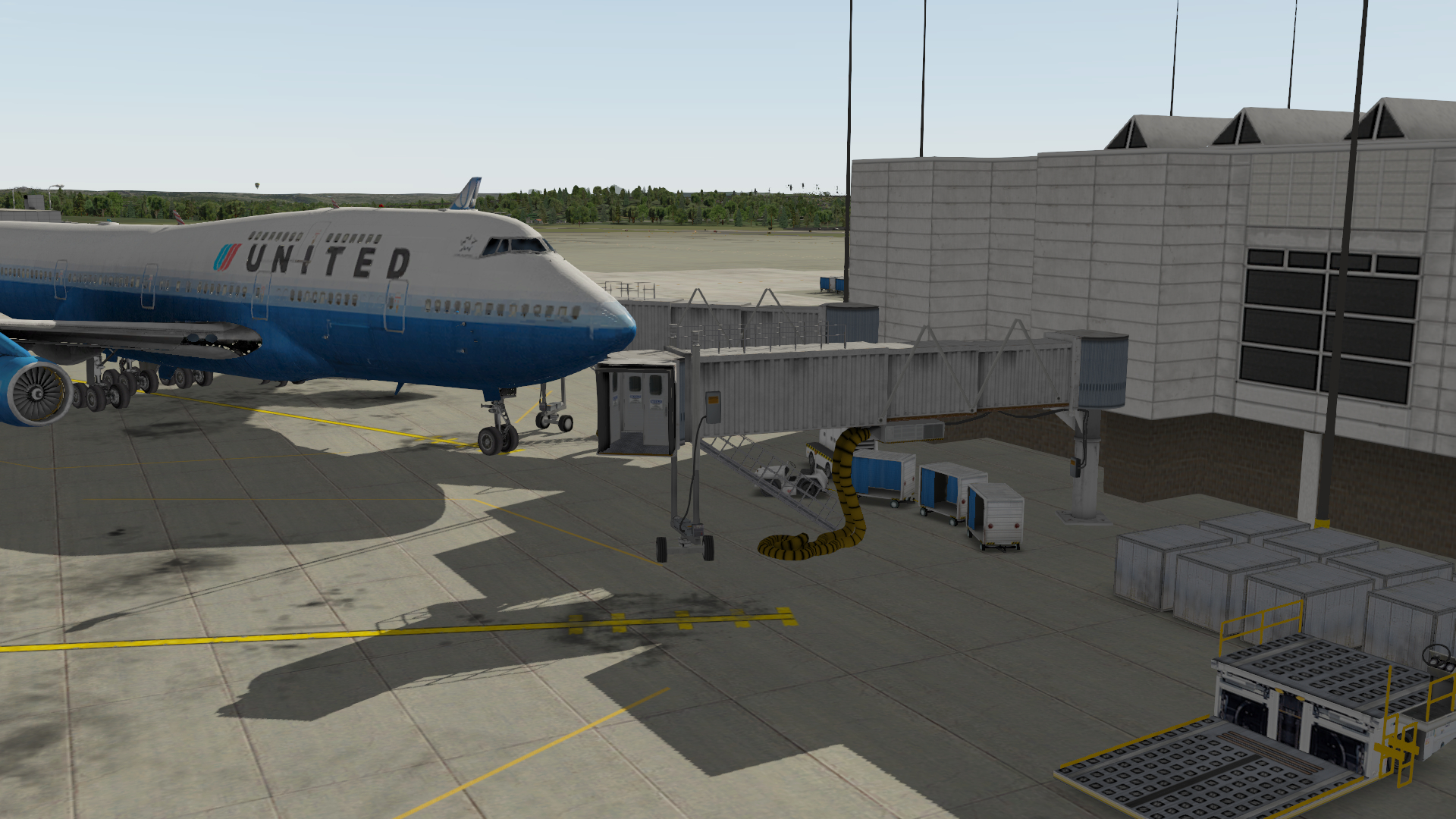
Once you master the transition toggles, you can even create amazing movies. The method is as follows: First, perform the flight you want to record, then enter Replay mode, and change the rendering options to a higher setting. Finally, press the Movie Replay Save button. (Open the File menu and press the Save Replay command). In 10, replaying video allows you to fast forward and slow down playback, and you can change resolution and frame rate. Regardless of how high the rendering options are, no matter how high your resolution, or the resolution and frame rate of the QuickTime movie, X-Plane can capture every single frame. This has a benefit: if your hardware configuration is relatively low, you can use some low settings during the flight, then change the rendering options during replay, set any level of detail, and slowly watch your high-definition flight movie.
X-Plane 10’s New Rendering Engine
X-Plane 10’s new system has rebuilt the entire world, including every city, starting from every blade of grass to every individual parking lot, with 3D base layers and detailed textures for every detail. Every building will be a real-time, true 3-D rendering algorithm. Does X-Plane know every building on Earth? Obviously not. But it has an incredibly detailed road database, and the new algorithm places parking lots, sidewalks, buildings, and all of these alongside the roads. This artificial intelligence urban planning algorithm can create plausible cities.
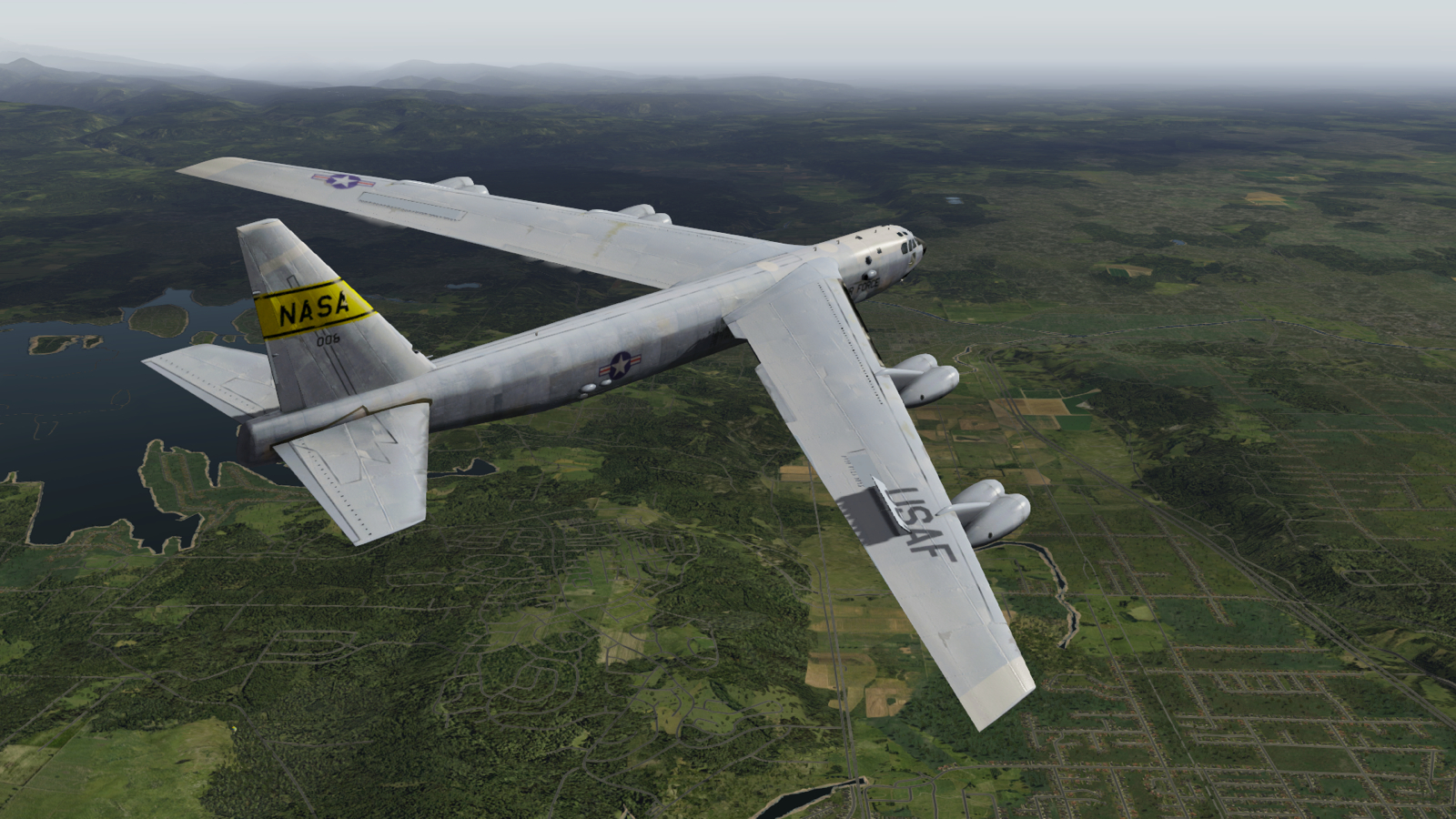
You can try flying a helicopter at 5 miles per hour, at an altitude of 10 feet off the ground. X-Plane performs like a 3D racing game, a complete 3D game, absolutely not like those satellite-photo-like color-shifting fuzzy terrain maps. If you set rendering options to zero, New York will be empty green fields. If you turn it to maximum, turning on 3D roads and buildings at the highest detail level, you can move through Central Park like a 3D driving game; it is a convincing virtual reality software.
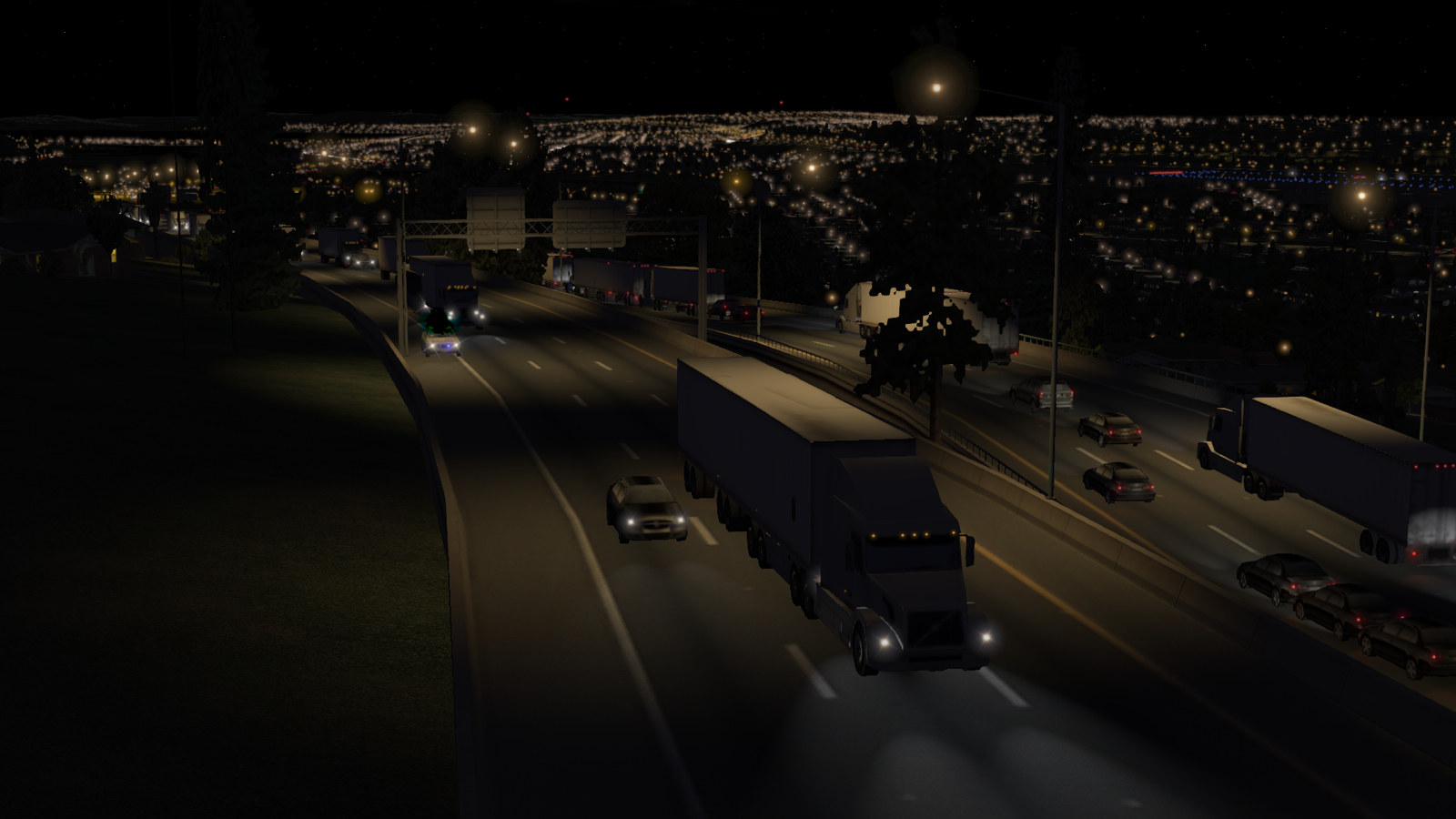
At the same time, you will be able to see taxis driving on the right side of the road at every real intersection, any corner of the 3D buildings by the roadside, and you will be able to zoom in on all spaces. You can see the light reflections of the land and sea, everything is at the same level of detail, providing a smooth transition street view. Detailed weather system, you will see clouds around your aircraft, in any direction even flying hundreds of miles every single cloud has no repetition. You can also set thunderstorms, sunny days, and cloudy days, or download the latest global weather information from the internet, displaying in real-time based on the aircraft’s location.
New ATC and AI Aircraft
New ATC will control all aircraft in the sky, including yours, providing incredibly realistic air traffic control. It uses pre-recorded audio files, you will hear ATC issuing instructions to other aircraft, and see them follow these instructions to take off, land, taxi, wait on the Runway, approach and go-around; all of this you can hear. Other AI aircraft will use flight models with the same precision, so you will see them move perfectly and realistically through all phases of flight, from Descent to taxiing. You can set up strong winds to see how they handle the shaking. It might not be pretty, but it’s very close to reality. You can set enough wind and icy Runways to watch them taxi across the Apron into the wind.
Other There are many internal massive improvements, for details please see the official documentation below. http://wiki.x-plane.com/What's_New_in_X-Plane_10
Also please refer to this site’s category information on x-plane 10.
2017/05/10 X-Plane 11 is already out, please check the X-Plane 11 Chinese Tutorial summarized on this site! X-Plane 11 Keyboard Instructions