Plugin Introduction: Google Maps Display GMAP FOR X-PLANE (FREE MOVING MAP)
While X-Plane allows you to switch to map mode at any time, it interrupts the flight every time, which isn’t very convenient. Is there a Plugin/Addon that allows you to view the map while flying? It would be even better if it could display Google Maps. I recently found a nice Plugin/Addon online—let me introduce it—GMAP FOR X-PLANE.
This Plugin/Addon can display Google Maps based on the aircraft’s current position. You can choose between satellite imagery or standard administrative maps, making it quite similar to a GPS navigation unit. It can also download airport, navigation station, and weather data from the internet. Most importantly, this is free software.
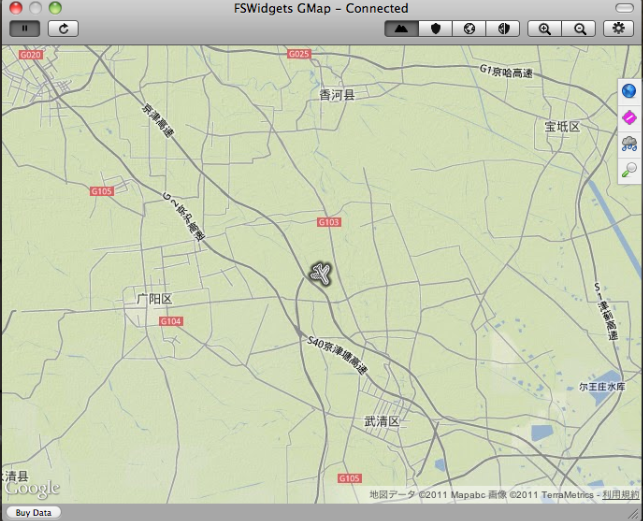
The specific installation method is as follows:
-
First, download the software archive from the URL below: http://fswidgets.com/shop/download_files.php I chose GMap for X-Plane (Mac Version) 2.0 (Windowed Edition - 1.4 MB).
-
After decompressing, there is a FSWidgets GMap for X-Plane (Mac Version).pdf instruction file and the following two directories: FSWidgetsGMap and PythonScripts.
-
Copy the above two directories to X-Plane’s main directory under Resources/plugins, as shown below: X-Plane 9/Resources/plugins/PythonScripts/PI_FSWidgetsGMap.py X-Plane 9/Resources/plugins/FSWidgetsGMap/FSWidgets GMap.app
-
Download PythonInterface26.zip from http://www.xpluginsdk.org/python_interface_older_downloads.htm and install it to X-Plane’s main directory under Resources/plugins after decompression, as shown below: X-Plane 9/Resources/plugins/PythonInterface26/mac.xpl X-Plane 9/Resources/plugins/PythonInterface26/lin.xpl X-Plane 9/Resources/plugins/PythonInterface26/win.xpl (Note: My Mac’s Python version is 2.6, so I downloaded PythonInterface26.zip. If your machine has a different version, you will need to download the corresponding file.)
-
Start X-Plane.
-
Go back to Finder and launch FSWidgets GMap.app.
-
Click the Play button on FSWidgets GMap.
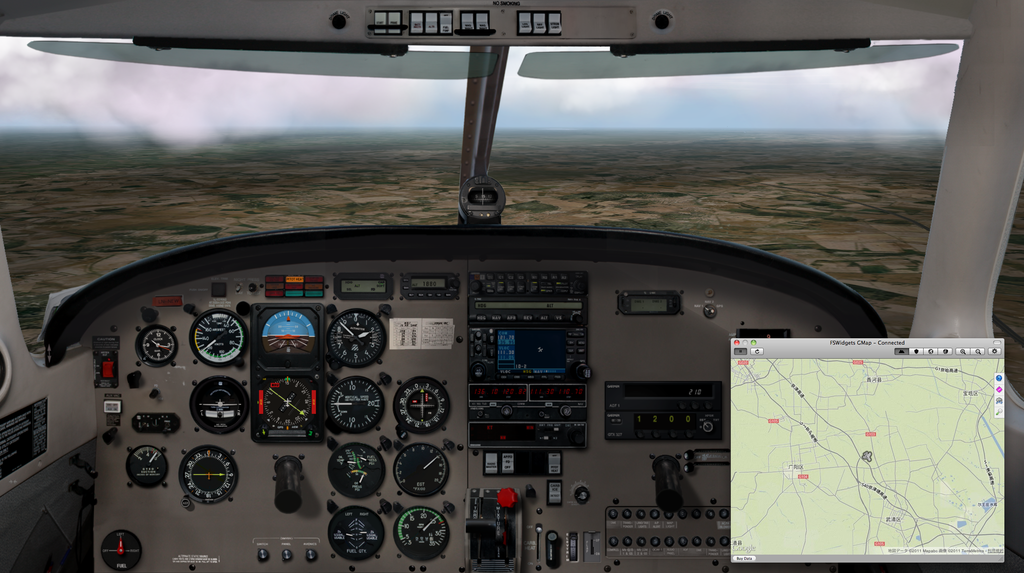
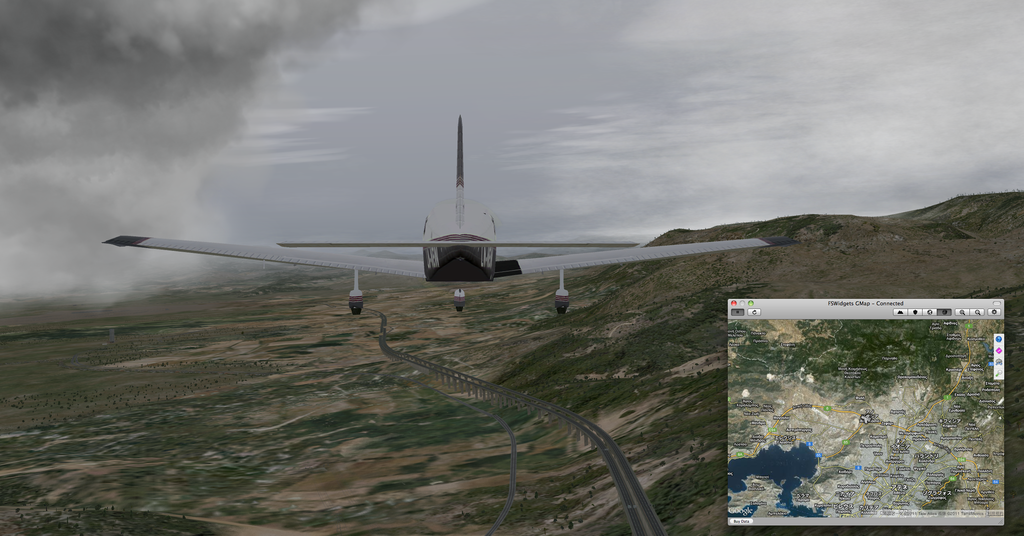
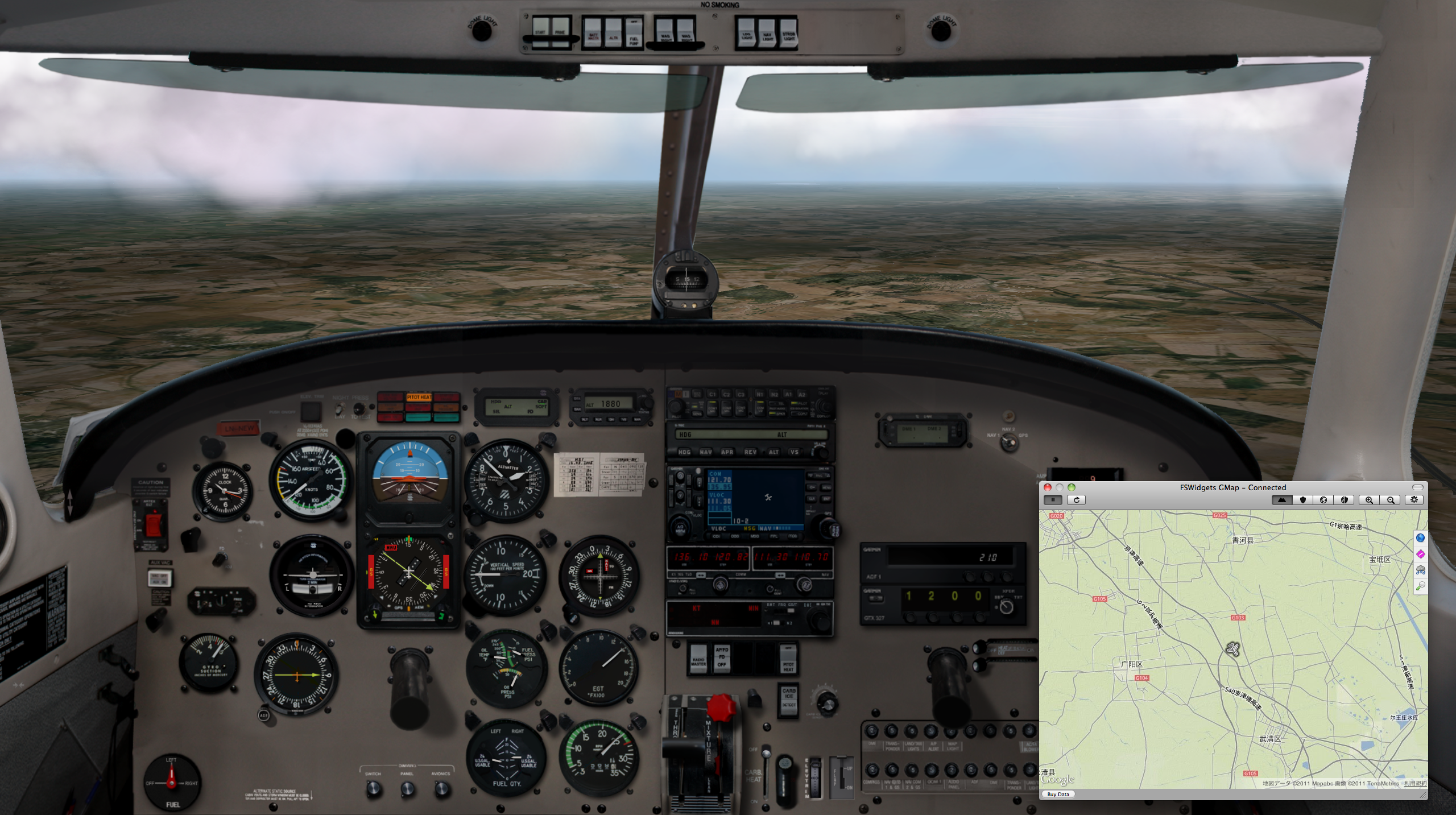
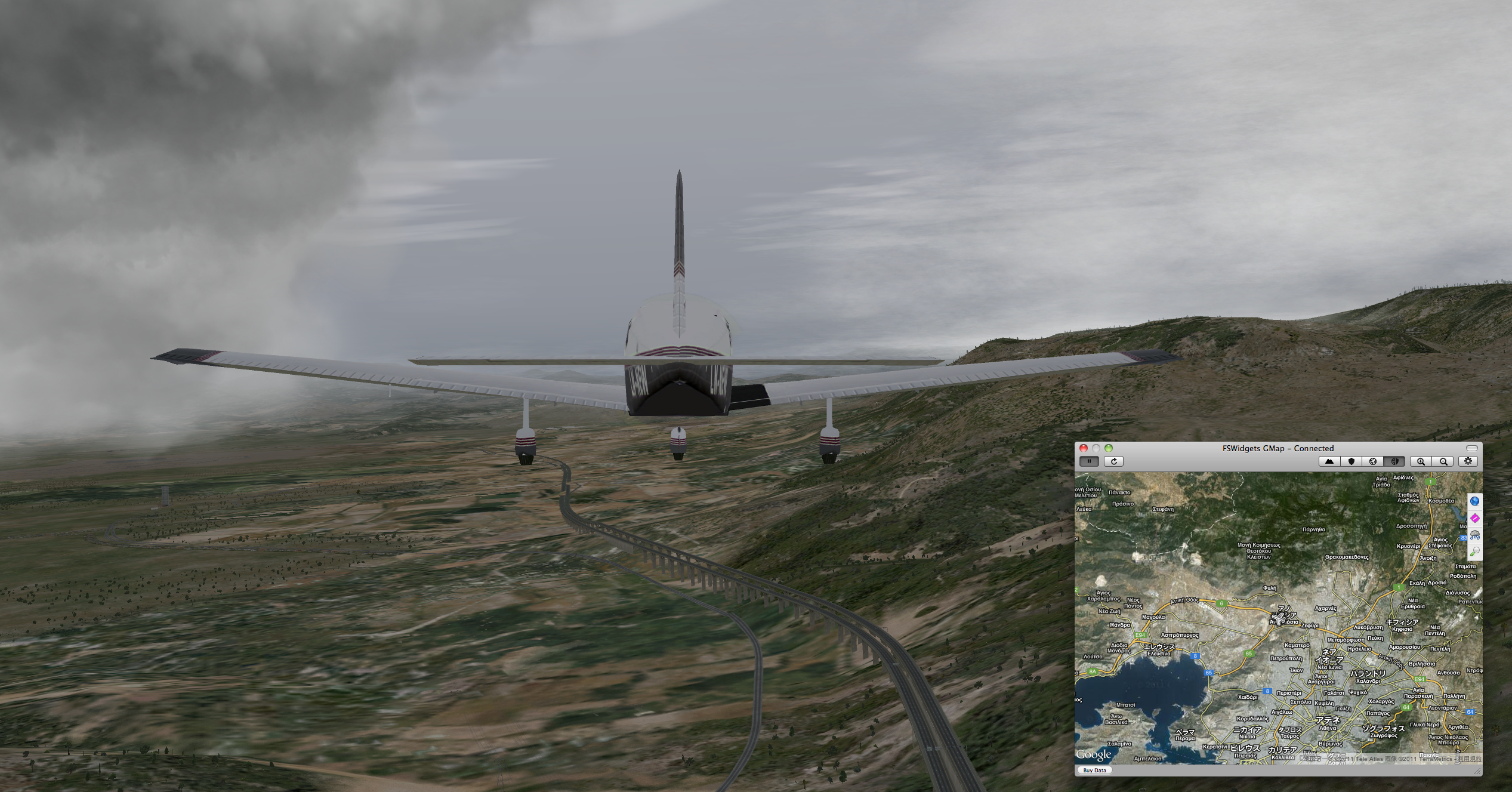
Please click on the enlarged images below to see the actual results.
-
A screenshot taken while flying from Beijing Capital International Airport to Tianjin.
-
A screenshot taken shortly after Departure from Athens airport, flying south.
Updated on August 25, 2015
I checked the latest PythonInterface instructions, and the URL for the latest version is here. Please download from the links below.
Python 2.6 (Plugin Version 2.67.07) PythonInterface.zip
Python 2.7 (Plugin Version 2.73.06) PythonInterface.zip